How to Convert Gmail to PDF & Save Emails? Top 6 Methods
Fact-checked and reviewed in accordance with our Editorial Policy
Now, before continuing to the step-by-step guide, first let’s have a short discussion about the reasons why users need to convert Gmail to PDF format and common prerequisites.
Why Users Save Gmail Emails as PDF? (Top Reasons)
There are several needs to export Gmail to PDF depending on different users’ needs and professions. Some of the common goals behind keeping Gmail emails as a local PDF copy include.
- For Legal Documentation: Criminal defence attorneys and legal professionals often need to convert Gmail to PDF to make the evidence in a court-presentable format.
- To Backup Gmail Emails to Hard Drive: PDF is the most stable, highly used and globally acceptable format. By keeping Gmail emails as PDF, we can make sure to keep our Gmail data secure and accessible over time.
- Easy Shareability Nature of PDF Format: PDF are globally used file format for sharing sensitive information. Therefore, many users need to save Gmail emails as PDF to share sensitive email information across different platforms.
- Save Gmail Emails Offline for Local Access: PDF format records are easily accessible even without an internet connection. Therefore, this is also one of the major reasons for exporting Gmail emails to PDF format.
Prerequisites Before Converting Gmail to PDF
- Make sure you have the correct credentials for the Gmail account to convert emails to PDF. If not, forget the password and create a new one.
- A stable internet connection is a must. It is recommended to bulk export Gmail emails to PDF at night since the internet stays stable at that time.
- Cross-check that all those email files and folders are present in Gmail, which you want to further convert to PDF.
- Another very important prerequisite is enough storage space on your device to store the output files.
- For a hassle-free export experience, keep the browser and Gmail application up to date.
How to Convert Gmail Email to PDF? Free & DIY 5 Methods
You can save Gmail email as PDF using the built-in print option. In the following, we have step-by-step discussed how to change a single or multiple Gmail emails to PDF on Desktop, iPhone/ iPad, Android, using the built-in feature and print all option, Chrome extension, and more.
1 Method: How to Export Gmail Emails to PDF using the Built-in Print Option?
Follow these steps to convert Gmail email to PDF Adobe using the print feature on your Desktop:
- Fiestly, go to your Gmail account and open the email you wish to convert to a PDF.

- Now, click the three dots in the top right corner and click Print (press Ctrl+P on PCs, Cmd+P on Mac).

- Next, choose the Print option from the dropdown list.

- Select the “Save as PDF” option from the Destination.

- Click on the Save button to save Gmail to PDF file.

- Browse a desired location to store your resultant PDF and click Save.

- Now, you can access your PDF files exported from Gmail emails at the selected location.
 .
.


 .
.2 Method: Convert Gmail Message to PDF via Print All Option
Gmail understands the need for users to save a Gmail email as a PDF; thus, it has directly given a Print All option on the top right corner of Gmail. This method is most helpful when you need to save Gmail thread as PDF, including all replies, instead of saving one Gmail at a time. If you are wondering how to download email thread from Gmail as PDF, simply follow the steps below:
- First, login to your Gmail account and choose an email you want to export as PDF.

- Once email is opened, click on the given Print All option.

- After this, click on the destination option and choose Save as PDF option.

- Now, click on Save option to export your Gmail email into PDF format.

- Now, select a destination path and tap on Save option.

- You can now open the destination location to get your exported data.


3 Method: Convert Gmail Emails to PDF Using Extension
This method can be highly useful for you if you want to convert data quickly.
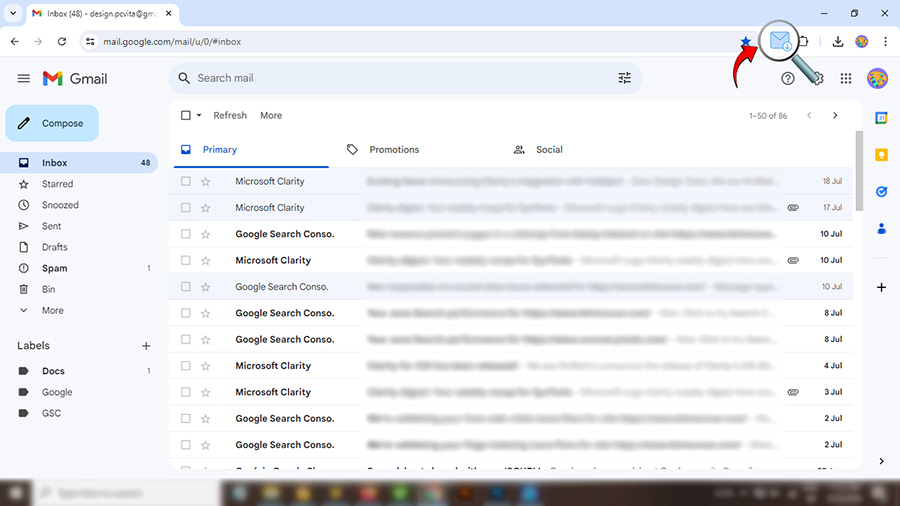
- First of all, open Chrome Web Store on your system and search for Gmail Message Backup Extension.
- Now, add the extension plugin to your Chrome browser to convert Gmail to PDF.

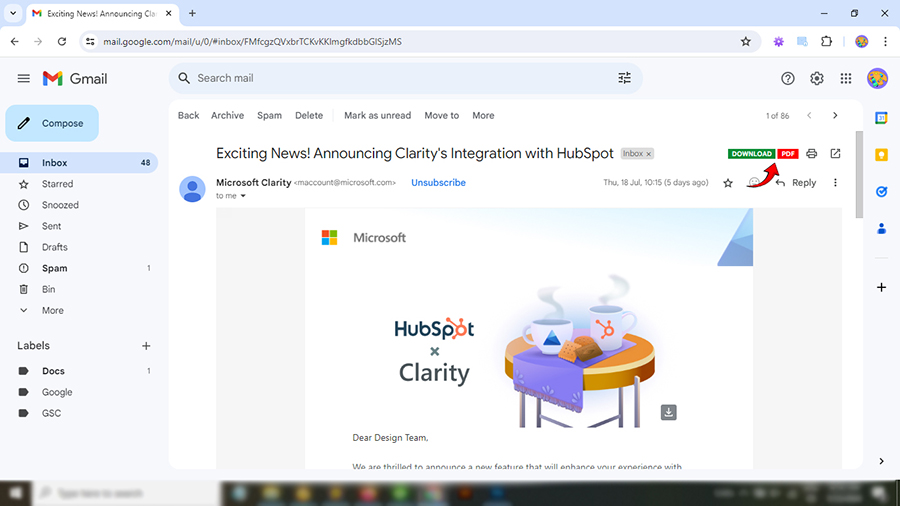
- After this, open any desired email in Gmail and choose the PDF icon.
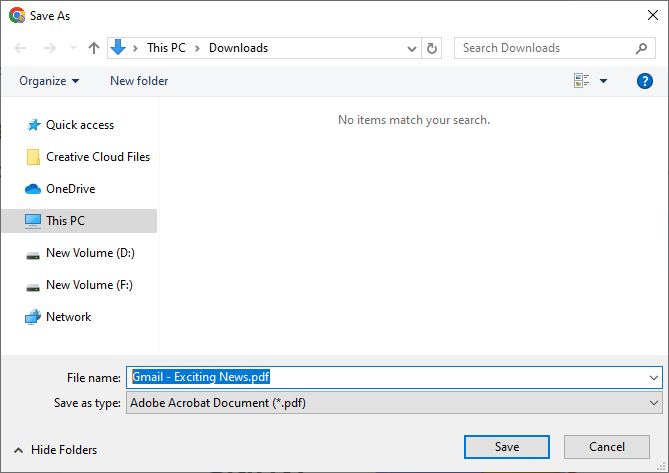
- At last, see the Gmail exported PDF file document in your Downloads folder.

4 Method: Convert Gmail Emails to PDF on iPhone & iPad
This process will help you to download your Gmail emails into PDF format on iPhones and iPads. Also, Apple has a hidden shortcut built right into iOS.
- Open your Gmail email on your iPhone or iPad.
- Now, use the three-dots menu to access the AirPrint.
- Now, zoom in to open the PDF on the preview image.
- Click on Share icon at the right of the page.
- Lastly, click on Save to Files and select a location to store PDF files.
5 Method: How to Convert Gmail to PDF on Android?
Follow these steps to convert Gmail messages to PDF on Android if you want to download Gmail emails to PDF directly to your mobile device:
- First of all, open the Gmail app and tap the Three Dots in the top-right corner of the message.
Select Print. - Now, tap the drop-down menu at the very top of your screen and select Save as PDF.
- After that, tap the circular PDF download icon to save it to your phone’s local storage.
The Hidden Cost and the Major Challenges of Free Methods
The above steps are generally fine for a quick export of your receipts, but when it comes time to change Gmail to PDF for legal, client handoff, or tax purposes, there are some significant issues with Gmail’s built-in PDF attachment printing process.
The three largest issues with Gmail’s built-in PDF printing process are:
- The Attachment Trap: Nevertheless, you are likely to create a static image rather than an actual PDF of your email. Therefore, when you create an attachment to your email, such as a contract, business proposal, or invoice, you will lose the actual attachments. This attachment mishandling limit of the free ways is not suitable for legal professionals, record keeping, data integrity, etc.
- Messy Formatting: When you convert Gmail email to PDF Adobe, it also treats any of the images in your email as if they were standard web pages. Therefore, you will likely have odd page breaks and large blank areas between text and non-functional HTML email signatures when you open your new PDF.
- Bulk Conversion: If a project is completed and you need to save all the Gmail emails to PDF for one client in a specific client folder, you cannot change them all using Gmail’s native service. You will need to open and print each email to create your client folder.
Method 6: The Professional Tool to Convert Gmail Email to PDF in Bulk with Attachments
For a safe, fast, and advanced drill to convert Gmail messages to PDF, the ultimate solution is the BitRecover Gmail Backup Software, which is the obvious choice for serious individuals. It is certified for its data safety and accuracy throughout the process. Plus, it has a range of saving options, which makes it a one-stop solution to deal with Gmail emails efficiently.
The tool is designed specifically to safely convert multiple Gmail emails to PDF format (or just a single email, which can be very complex) while ensuring that your data stays on your local computer. It is certified as virus-free and thoroughly tested. It is a scalable application that any non-technical expert, individual, lawyer, or project manager can use for the Gmail to PDF export process.
You can also download its free demo version to test its efficiency without paying a single penny in advance.
How to Batch Convert Gmail Email to PDF Automatically?
- Download and start the Gmail to PDF converter software on your Mac or Windows computer.

- Log in to your Gmail account safely with the software and preview all your folders.
- Choose PDF as your saving option and directly export all Gmail emails to PDF.
- Select the desired destination path and hit the Backup button to initiate the process.
- Here is your converted data in Adobe PDF document format.


Features of the Best & Reliable Solution
|
📄
Export PDF Directly
Instantly converts all Gmail emails to PDF format that can be opened on any platform.
|
⚡
Batch Conversions
Export from multiple Gmail accounts at the same time.
|
📎
Attachment Preservation
Save attachments inside the PDF or extract them to another folder.
|
📂
Maintain Hierarchy
Maintain the same look and formatting, metadata, and folder structure as the email.
|
|
🔍
Advanced Filtering
Filter on Date, Sender, and Subject to create custom exports.
|
🔒
100% Secure & Local
Process your data completely offline to ensure your total privacy.
|
💬
24/7 Support
Have access to chat, email, and telephone support 24/7.
|
⚙️
Feature Customization
In case you want to add any new feature as per your work requirements, then connect with the support team and discuss the same.
|
FAQs: Convert Gmail to PDF
Q1: What are the best tools to convert Gmail emails to PDF?
BitRecover Gmail to PDF converter is the best tool to convert Gmail messages to PDF with attachments and in bulk. The software is secure with advanced and powerful features.
Q2: How can I save a Gmail email as a PDF file?
To save Gmail emails as PDF file, you can use the built-in Print option or use dedicated software like BitRecover Gmail to PDF converter.
Q3: Why is my Gmail not saving as a PDF?
Gmail might not be saving your emails as PDF due to a browser glitch, an excessive attachment size, the HTML being corrupt, or Ad blockers that conflict with each other.
Q4: Why is BitRecover Gmail to PDF Exporter globally recommended?
It saves users’ hours of manual work, prevents data loss, maintains metadata accuracy, and supports bulk Gmail account migration. It also maintains folder hierarchy, provides around-the-clock support, and ensures user satisfaction.
Q5: How is the process to export Gmail emails to PDF beneficial in other aspects?
Doing this export helps in drills such as compilation, managing business records, and taking backup in a readable format.
Q6: How to convert Gmail to PDF on Android?
Open Gmail on your Android mobile and click on the email that you want to save as a PDF. Now, click on the three dots icon and select the print option. After this, again click on the three-dot icon and choose Save as PDF. After this, give it a saving name and click on Save to convert Gmail email to PDF on Android phone.
Q7: How to convert Gmail to PDF on iPhone?
To save Gmail email as PDF on iPhone, first click on the email that you want to convert to PDF. Once done, click on the three dots icon and select the Print All option. After this, click on the share icon mentioned above and select Save to Files option. Finally, choose the saving folder and click on the Save button to convert Gmail email to PDF on iPhone models.
The Bottom Line
If you just need to know how to convert Gmail email to PDF to save a receipt, use the ctrl+p shortcut. It is fast, free, and gets the job done.
As a professional who cannot risk losing essential files when trying to export Gmail email to PDF, most people prefer using a specialized tool like BitRecover Gmail email to PDF converter. This desktop Gmail to PDF tool was created for you to not only convert Gmail message to PDF but also safeguard your attachments, give you peace of mind regarding your privacy, and allow you to get back countless hours from your workday.
About the Author

