How to Download & Save Gmail Emails Offline? 5 Ways

User Concern: What is the best way to save Gmail emails offline? Gmail now allows you to work in offline mode. However, after choosing the offline mail option, all of my Gmail IDs are no longer visible in my Gmail account. So I need a better way to download Gmail emails offline.
As we all know, Gmail is a free service provided by Google. Gmail gives more facilities to work smoothly. They have also launched an offline mode option to save Gmail emails offline.
However, I have noticed that many users face many problems while using this feature. So, before using this feature, one needs to understand what kind of preparation is required to work on it.
Here, we will show you multiple methods to download Gmail emails offline using built-in tools, desktop clients, and professional tools. Let’s start the discussion about the above query.
Requirements to Store Gmail Emails Offline
Let’s quickly go through the reasons why this procedure is necessary for users. This can help users understand the severity of the operation.
- Internet Free Access: There is no need for the Internet if users have their database files stored on their local devices. Users can utilize their data without any internet connection.
- Ease of Data Restoration: Data recovery becomes easy if users have a copy of the data in their local system rather than the Cloud. It makes the entire task much easier.
- Free from Network Errors: If there are any network errors & glitches, users can avoid them with offline files. It also acts as a backup for emergency uses as well.
- Restricted Access from Google Cloud: If users are restricted from the cloud, they can still access Gmail offline if saved in their system.
How to Store Gmail Emails Offline? Manual Solutions
You can download Gmail emails for offline view using Gmail’s built-in “Enable Offline Mode” feature, Gmail Message Backup Chrome Extension, Google Takeout, or a desktop client like Thunderbird. Therefore, to securely offline store Gmail emails that you can easily open on any device, use a specialized tool like BitRecover.
Method 1: Enable Built-in Offline Mail Option in Gmail
Gmail recently added a feature that lets you enable offline mode and save Gmail emails offline that you can access without an internet connection. To enable this option, follow these steps:
- Open Gmail in a browser and login to your account.
- Click on the gear icon and select “See all settings” to open the Settings interface.
- Open the “Offline” tab and check the “Enable Offline Mode” box.
- Select storage, sync settings and security.
- Finally, Save the Changes.


Limitations:
- To access this data on a different device, you will need to log in to your account first, which requires an internet connection.
- Your data will not be permanently stored on a hard drive; instead, they will be stored on a browser cache. Hence, if you clear the browser cache, the offline data will be immediately gone.
- If you have multiple Gmail accounts, you need to apply these settings to each account.
Method 2: Save Emails from Gmail Offline for Free using an Extension
- First, add the free Chrome extension to your browser for Gmail Message Backup.

- Now, see the Gmail Message Backup plugin on your Chrome browser.
- After that, log in to your Gmail account to see the download button.
- Lastly, click on the download button to take Gmail message backup.

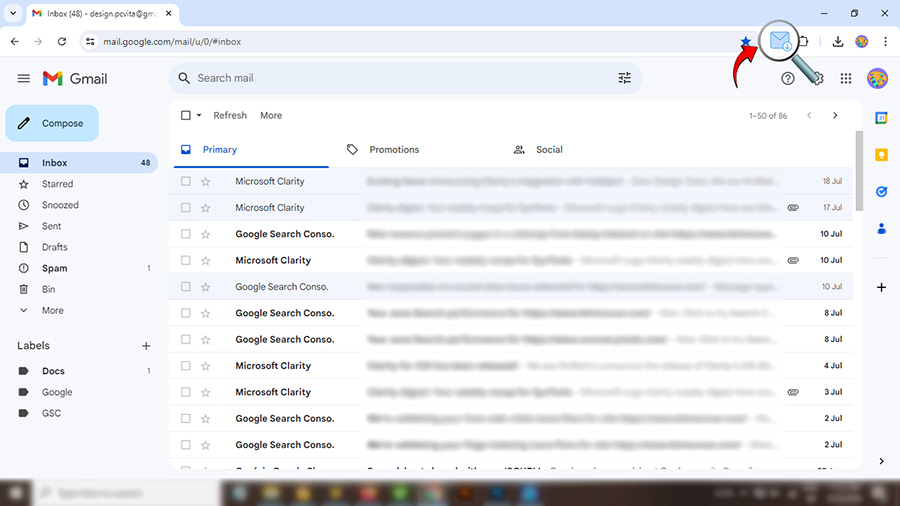
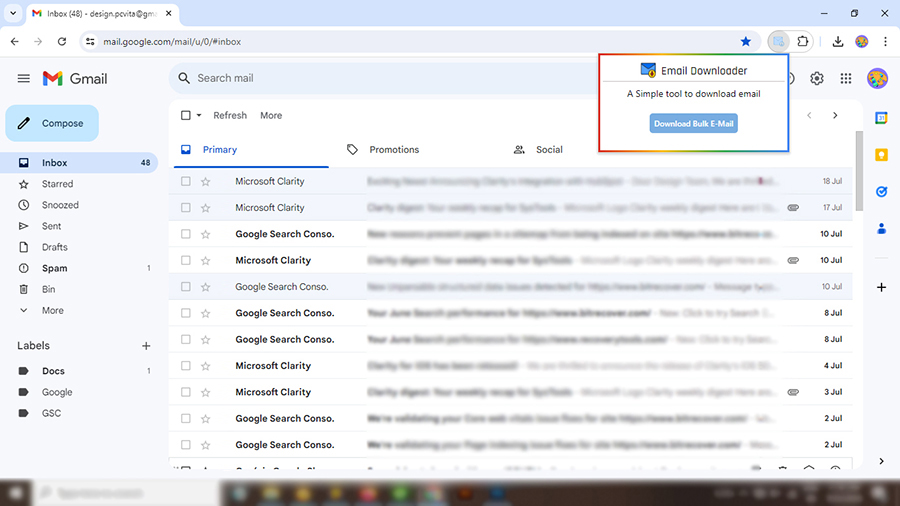
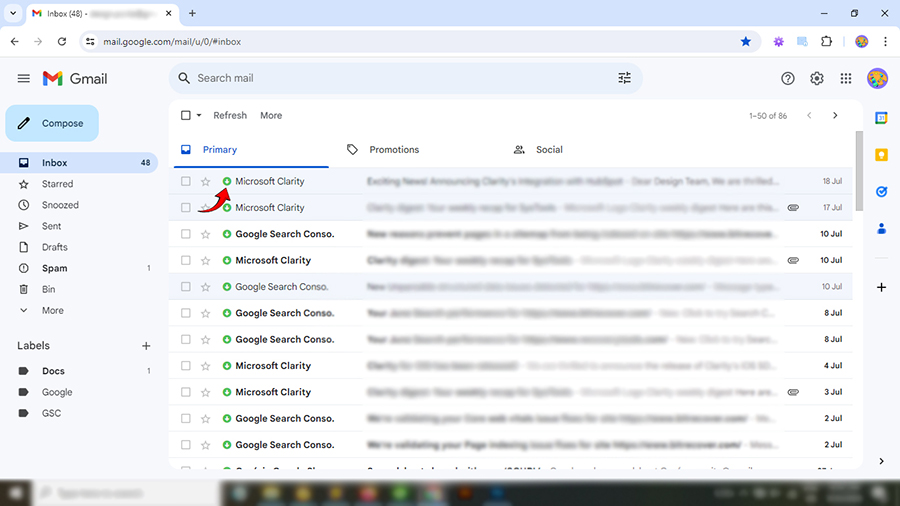
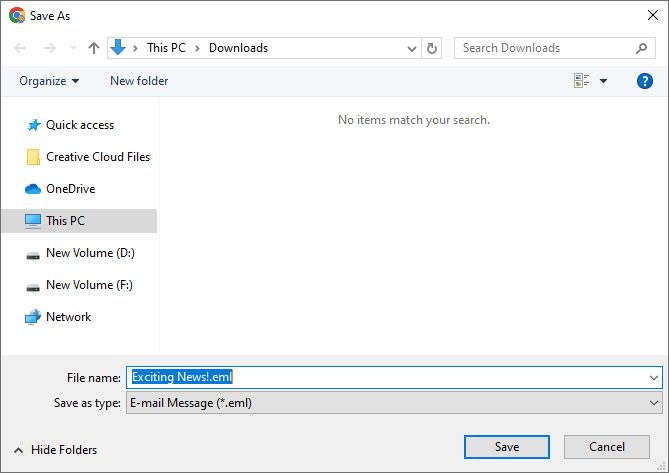
Note: This Chrome Plugin for Gmail message backup starts to download Google email account data to your computer and archive Gmail emails into the downloaded folder on your PC.
Limitations:
- Not a professional or advanced way to download Gmail emails offline.
- Had very limited features.
- Save Gmail emails offline only in the formats provided by Gmail.
- Download each Gmail email offline one-by-one.
- Not reliable for users having multiple Gmail accounts.
Method 3: Export using Google Takeout (Official Free Backup)
- Open Google Takeout and login to your Gmail account.
- Click on “Deselect all” option and select the “Mail” option.
- Now hit the “Next Step” button.
- Select file type, frequency and size limit.
- Hit the “Create Export” button to store Gmail emails offline.
- After this, you will receive a download link in your Gmail. Click on the link and it will help you to download Gmail emails in MBOX format.
Limitations:
- It can take hours or days to save Gmail emails offline.
- You cannot filter specific emails by date or subject. You will have to download entire Gmail mailbox for offline viewing.
Method 4: Using Desktop Clients (Thunderbird/Outlook)
- Download and install a free email client like Mozilla Thunderbird.
- Configure your Gmail account using your login credentials via IMAP.
- Wait for the client to sync your Gmail folders.
- Once synced, you can store your Gmail emails offline.
Limitations:
- This method will create an MBOX file of all your data that you cannot open without a supported email client or third-party tool.
- To use this method, you need to manually configure the account using IMAP server settings that require expert technical knowledge.
- It takes a lot of time to configure accounts and sync data.
- You cannot save Gmail emails offline in the desired formats.
Method 5: Advanced Approach to Save Gmail Emails Offline
BitRecover Gmail Backup Software offers the most advanced way to easily and quickly download Gmail emails for offline view without data loss or technical knowledge. It lets you save Gmail emails offline in more than 35 popular file formats, permanently on the hard drive of a specific device. This tool provides a “Batch Mode” feature to save emails from multiple Gmail accounts offline at once just by using a CSV file containing account credentials. It supports several useful features and allows to download Gmail emails offline in bulk in one go.
Versions of Software
Demo version – It is free of cost and you can run it by snapping on this green button provided below. It will help you to save top 25 data items from your Google Gmail account.
Pro version – You can upgrade the license keys and buy this product for an unlimited saving of Gmail emails.
Now, follow these guidelines to save Gmail emails offline.
- Download the software on your Windows machine.
- After downloading and launching the software, the starting screen will be as shown in the screenshot.

- Now, enter your Gmail login details such as Email Address and Password in the specified fields. Tap on the login button.
- The software will load data from your Google account into the software panel. Enable the required emails folders which you want to save.
- Now, choose PDF as saving option from the tool.
- Pick a desired file naming option from the tool. It will enable you to achieve better email management.
- If you want to sort some specific emails by date range, subject then this option “Use Advance settings for selective saving” option is very useful.
- Pick a saving location for storing the downloaded Google account data.
- The process to bulk save Gmail emails offline is running successfully.
- Open the resultant location where your Gmail email is saved locally (offline) in PDF format.


Advantages of an Automated Solution
- You can save Gmail emails offline without worrying about the file limitations.
- It permits you to bulk store Gmail emails offline.
- It’s completely up to you to store the Gmail emails on your storage device. The tool gives freedom to choose the destination location.
- Supports incremental backup feature to avoid duplicacy.
- Even if you are struggling to manage multiple Gmail accounts and want to save all Gmail email accounts offline together. Then, use the “Batch mode feature” of this application.
- It’s a smart utility as it never saves the credentials of your Gmail account.
- It offers you the option to selectively choose Google data to save Gmail emails to flash drive.
Conclusion
We hope that you are satisfied with the solutions explained above.
However, we strongly recommend the automated approach as it will give you a hassle-free conversion. Moreover, you can save multiple Gmail email account emails simultaneously. That’s a bonus too!
So, now launch this software and save Gmail emails offline without any hurdles.
FAQs: Save Gmail Emails Offline
Q-1. What’s the first preference of users?
Ans: Experienced users always go with the automated solution to save Gmail emails offline.
Q-2. How do I back up all my emails in Gmail? Manually or Automatically?
Ans: Based on the above data & user experiences, the manual solution is not an ideal match. Instead, an automated solution is what users need.
Q-3. How do I permanently save emails in Gmail?
Ans: Users can’t do this in bulk without Google Takeout or the above-mentioned tool. The software can help users save emails permanently from their Gmail account to the system.
Q-4. How do I save Gmail emails offline with labels and tags intact?
Ans: While manual methods like Google Takeout can disrupt your folder hierarchy, using an advanced automated tool ensures that all your Gmail labels, stars, and folder structures remain completely intact when saved locally.
