ImportExportTools NG Not Working? Causes, Fixes & Alternatives
Fact-checked and reviewed in accordance with our Editorial Policy
Summary: If your ImportExportTools NG is not working or is incompatible after reinstalling. You can either use the built-in Import, Export, and Backup option under the Tools tab or the generic “Save As” option. You can also use BitRecover’s specialized software solution as a more versatile and easy-to-use alternative.
In case you are accustomed to ImportExportTools NG or prefer it as a free alternative for small-scale data handling. Here we have also listed multiple causes and verified fixes to resolve ImportExportTools NG not responding issues.
Best Alternate Solution if ImportExportTools NG Stopped Working
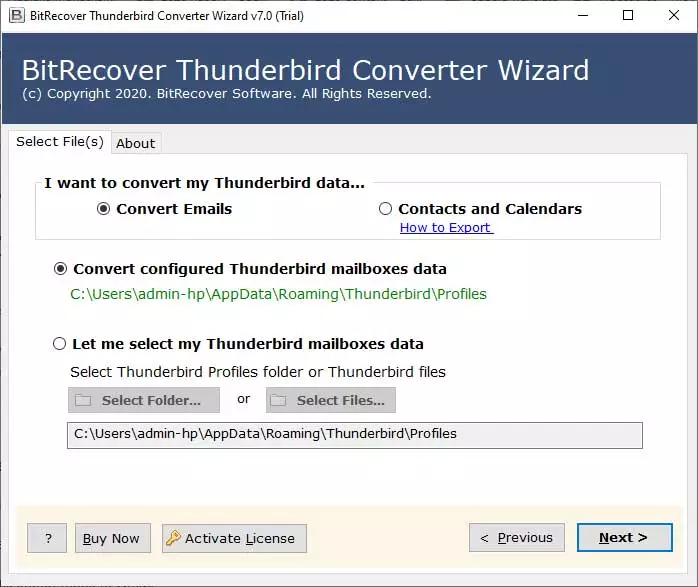
BitRecover Thunderbird Converter is automated on-premises software for Mac & Windows devices that lets you bulk import MBOX files into the Thunderbird Local Folder or export Thunderbird email to PST, EML, and 30+ other formats from multiple accounts in one go, with all email attributes and folder hierarchy preserved. The tool is highly secure and works fully offline. Try out the free version of the tool today.
Quick Steps to Use the Tool:
- Download & the tool on your Mac or Windows.
- Choose “Convert Configured Account Mailbox Data.”

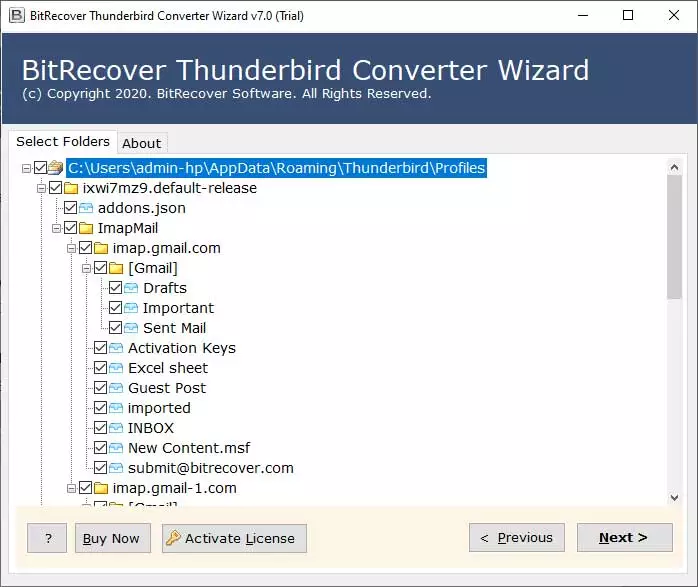
- Select the Thunderbird folders you want to export.
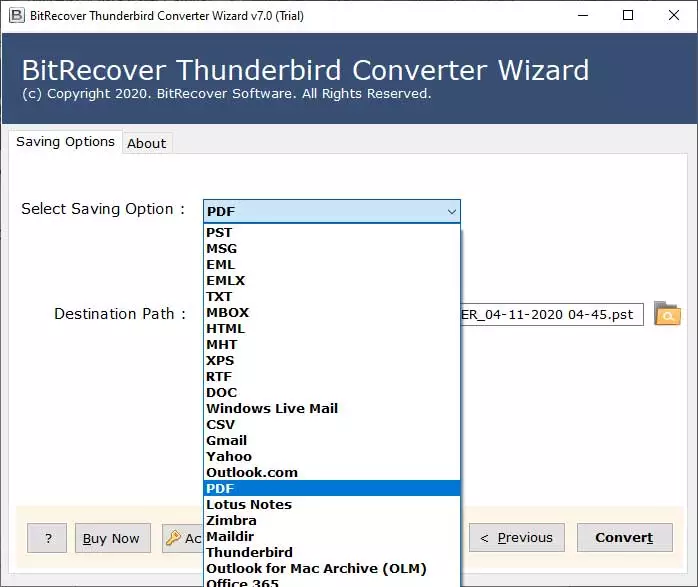
- Select one of the 30+ saving options and press “Next” to convert.
Why Switch to Automated Software if ImportExportTools NG Not Working?
Using the tool offers multiple advantages of ImportExportTools NG and is a complete, foolproof solution. This is because it fetches data directly from the Thunderbird profile folder. So the tool works even if Thunderbird crashes. Here are the key advantages of the tool.
- Limitless data-handling capability, unlike the 1-4GB restriction after which ImportExportTools NG stops responding.
- Both for import & export, the tool preserves attachments, folder structure, HTML formatting, metadata, and email header.
- Complete handling of emails, contacts, and calendar data.
It offers multiple other important features like error & log report generation for tracking, filter option, and auto-profile detection like features.
Possible Causes of ImportExportTools NG Grayed Out
Many users face issues often finding the ImportExportTools NG option missing, incompatible or simply not performing the designated action. Here is why it may happen:
- Due to incompatibility with the latest or legacy version. The
- Mozilla Thunderbird profile or required file/folder must not be in use with some other application.
- Add-on file corruption due to interference with other Add-ons or due force shut-down.
Pre-Checks Before Fixing ImportExportTools NG Not Working
- ImportExportTools NG is enabled. (check under Themes & Add-Ons)
- You have an email account already configured in Thunderbird.
- Although you can export any folder, the import feature of ImportExportTools NG does not work everywhere; it is limited to the Local folder.
- If you Thunderbird Import Failed Unexpectedly – verify if you have enough space to install, or check if the source is not corrupted.
TroubleShoot ImportExportTools NG Not Working Manual Steps
Here are a few tested things we can help with to get you back to using ImportExportTools NG.
Note: Troubleshooting steps remain for all versions and are similar for all Mac & Windows versions.
Fix 1: Remove and Re-Install ImportExportTools NG
Here are detailed steps to remove and re-add the ImportExportTools NG add-on in Mozilla Thunderbird.
- Open Mozilla Thunderbird on your computer.
- Click on Menu >> Add-Ons & Themes.
- Click on the three dots on the right of ImportExportTools NG.
- Click Remove and then Confirm.
- Search for ImportExportTools NG in “Find more add-ons.”
- Click on the green Add button and confirm Add.
Fix 2: Disable Safe Mode in Thunderbird
Safe Mode in Thunderbird disables all add-ons, making the ImportExportTools NG Grayed Out or even missing.
- In Thunderbird, click Menu >>Help.
- Click on Turn Off Troubleshoot Mode.
Note: The steps can only be followed if you are using Safe Mode in Thunderbird.
Fix 3: Ensure MBOX Compatibility With Thunderbird
Although most users save Thunderbird emails in MBOX format. In some scenarios, users switch Local Saving from MBOX to Maildir. In such cases, ImportExportTools NG is incompatible or stops working.
Note: You can only switch the saving option by creating a new profile in Thunderbird.
You can check the saving type under: Account Setting >> Server Settings and then Message Store Type.
Thus, in order to view MBOX files in Thunderbird with ImportExportTools NG, you need to create and set up a new profile via Thunderbird Profile Manager.
- Open Run on the computer
- Search for thunderbird.exe -P.
- Click Create Profile >> Next.
- Name the new profile and Strat Thunderbird. (By default, the saving type is MBOX)
- Set up ImportExportTools NG and setup add-on.
Read More: How to Merge Two Thunderbird Profiles?
Disclaimer: In some cases, when you have upgraded to the latest version, like Mozilla Thunderbird Desktop is 150.0.2. And find ImportExportTools NG Not Working is due to program file incompatibility. Downgrade to an older version of Thunderbird to resolve the issue.
Free-Manual Alternative if ImportExportTools NG Not Working
Although ImportExportTools NG Not Working is quite a famous add-on due to its folder-level export, it also has some additional saving and import options. Yet it has a lot of issues like compatibility, greyed-out options, and often stops working in the middle of the process.
- Tools Option: Click on Menu >> Tools. You will have an Import & Export option that lets you handle complete profile data at once.
- Adding MBOX in Profile Folder: You can directly copy-paste MBOX under the “Mail” >> “Local Folders”. (Ensure that Thunderbird is closed during the process. Where is Thunderbird Profile?
- Save As Option: Lets you save Thunderbird email in EML, HTML, and TXT.
- You also have the right-click “Print” option to save Thunderbird emails as a PDF.
These methods have limitations, which is why the BitRecover professional tool is the way to replace the ImportExportTools NG export option, missing or stop responding in Thunderbird.
FAQs: ImportExportTools NG Not Responding
Q1: What to do if ImportExportTools NG failed to install?
Can be due to incompatibility with older versions. Try upgrading to the latest version or clearing up space in the drive with the Thunderbird profile folder.
Q2: Why is my ImportExportTools NG not visible in the Toolbar?
Here are the steps to fix:
- Go to the View tab >> Select Toolbar.
- Choose the Customize option.
- Drag & drop ImportExportTools NG to the toolbar.
- Press “Save”.
Q3: Which Thunderbird versions are ImportExportTools NG incompatible with?
ImportExportTools NG addon does not work with older legacy releases, such as Thunderbird 60 and earlier.
About the Author

