Ultimate Guide to Backup Roundcube Emails on Windows/macOS
Fact-checked and reviewed in accordance with our Editorial Policy
Roundcube is webmail that provides easy interface to access & read emails anytime, anywhere. However, server failures, accidental deletion, hosting changes, & account suspension can lead to unexpected data loss. If your Roundcube mailbox is also filled with important business conversations, invoices, client emails, & countless personal records, then this blog is for you! In this updated guide, users get to know “How to Take Backup Roundcube Emails?” on any operating system. Roundcube doesn’t provide built-in feature to backup all emails in single time.
In this blog, users get to know easy techniques to download Roundcube backup on Windows & Mac systems. Let’s continue with use to backup Roundcube emails.
Why Is Roundcube Email Backup Must?
As we know, Roundcube is open-source webmail service that helps users to access email accounts in web browser. It works with IMAP servers that store all emails on mail server. Roundcube acts as interface that helps users read, send, organize & manage multiple accounts messages. Roundcube Webmail doesn’t permanently save emails on computer. Many users want to access their emails in long-term that could be main reason to backup Roundcube emails.
- Most of the online email servers experience hardware failures, software issues, & accidental deletion. If users create backup copy, they can easily access important emails.
- Save emails from accidental data loss or access emails when Roundcube Mail is not working.
- Roundcube email backup copies help in email communications comply with audit, tax, & legal needs.
- Users can access Roundcube emails without internet connection.
- Many users want to save crucial conversations, receipts, contracts, or project-related emails for long-term access.
Prerequisites Before Backing Up Roundcube Webmail
- Verify IMAP server setting details.
- Ensure you have sufficient storage space on local drive.
- Good internet connection
- Always keep login credentials ready.
- Store backup data in secure location.
- Create regular backups instead of relying on single copy.
- Choose right backup method as per your needs.
Top 3 Free Ways: Backup Roundcube Emails on Windows | Mac
Now, users get to know easiest way to backup Roundcube emails on any operating system. But before we begin, let us tell you that there are various methods available for backing up emails from Roundcube that you can use.
Method 1: Backup Individual & Bulk Emails from Roundcube
Backup emails directly from Roundcube using this method, that give you backup in 2 type of file formats. Users get their Roundcube emails in MBOX & EML format. So, let’s follow steps to backup Roundcube mailboxes—
- In first step, login Roundcube webmail account.
- Now choose mailbox you want to backup.
- Depending on your backup need-
- Choose entire mailbox, if you backup whole mailbox >> click gear icon >> folder option menu.
- After that, select export to download mailbox as .zip or .mbox format.
- To backup single emails click email >> tap more option >> select download (.eml).
- Select location to save downloaded email file.
Method 2: Backup Roundcube Emails via Email Clients
Users can use this method on all types of OS. In this method, users need to install or use Mozilla Thunderbird & Apple Mail. This technique also requires IMAP configuration to backup Roundcube webmail mailboxes.
- Install & Setup Thunderbird on Windows or Apple Mail on macOS.
- Add you Roundcube email account by using IMAP settings.
- Wait for email client to synchronize all mailbox folders.
- In Thunderbird: Create a local folder >> copy mail folder in new folder. After that, export entire mailbox as MBOX format by using ImportExportTools NG extension.
- In Apple Mail: Choose mailbox >> click “Export Mailbox” & “save entire file in MBOX format“.
- Users can store files or local mailbox in any secure location.
Method 3: Download Roundcube Emails in PDF/Web HTML Document
Users can save emails as PDF or HTML format to access any time without internet connection. Follow these next steps to backup Roundcube emails in HTML or PDF document to easily share & access.
- Open your Roundcube Webmail account.
- Select email you want to backup as PDF or HTML.
- Save as PDF: Click Print>> select save as PDF option. After that, a windows open & rename file. Choose any location to save PDF.
- Save as HTML: Select File>> click “Save Page as” to choose web page HTML. In next step, enter file name & choose location to save file on your PC.
What Are Limitations with Free Method?
- Users cannot export entire mailbox at one time.
- It requires each mail to be opened & downloaded individually.
- Time-consuming process, if you have multiple accounts with dozens of folders.
- Mailbox Folder hierarchy isn’t preserved in free techniques.
- Very difficult to manage large mailboxes.
- This method is not ideal for business & administrators.
- Required multiple email client installations & setup.
- IMAP configuration required to download Roundcube emails.
Best | Export Method: Backup Roundcube Emails on Windows/macOS
Install BitRecover Webmail Backup Wizard that effortlessly download or backup Roundcube emails on Windows/macOS. This software is dedicated solution to automatically retrieve all mailbox folders & save them locally as per your chosen location. No folder structure will be altered during & after backup process. Users get same folder structure as they saved in Roundcube webmail.
Users can directly backup complete Roundcube mailbox data without any data size limitations. It provides multiple file saving options such as PST, MBOX, EML, HTML, PDF, TXT & MSG. It also gives you opportunity to migrate Roundcube emails to Office 365, Gmail, and other IMAP-supported email clients. Users don’t need any email client installation to complete Roundcube email backup process. Download free version today!
How to Automatically Backup Roundcube Emails?
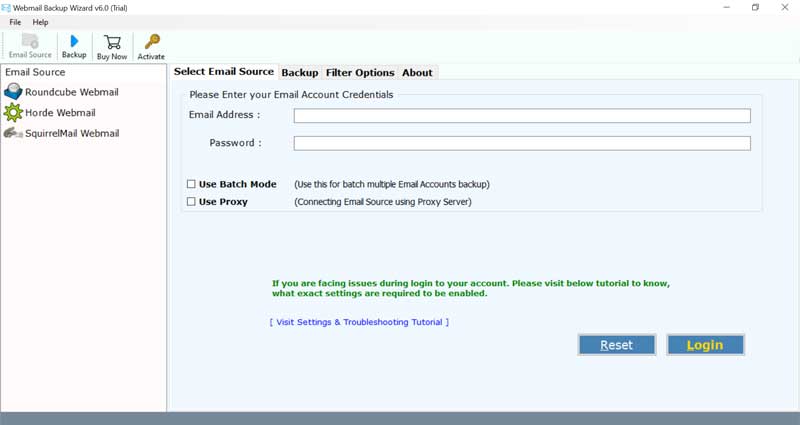
- Download BitRecover Roundcube Backup Tool.

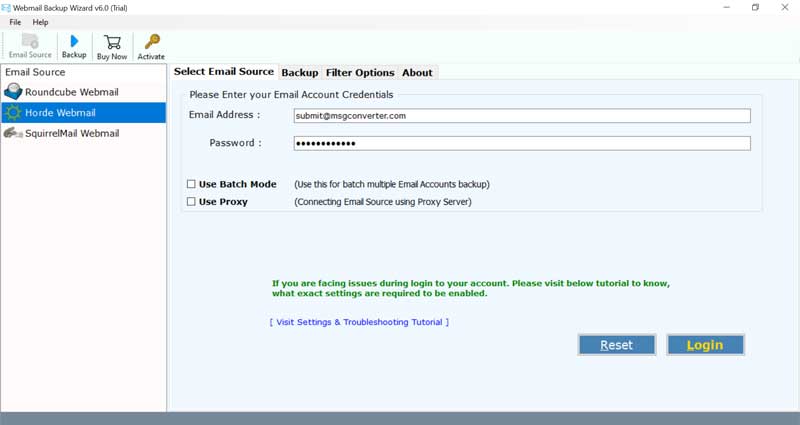
- Once downloaded, choose Roundcube & login with credentials.
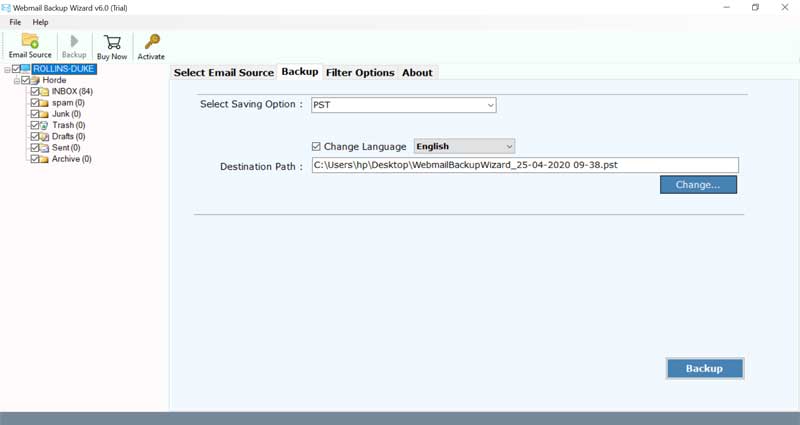
- Preview folder & choose saving format as per your need.
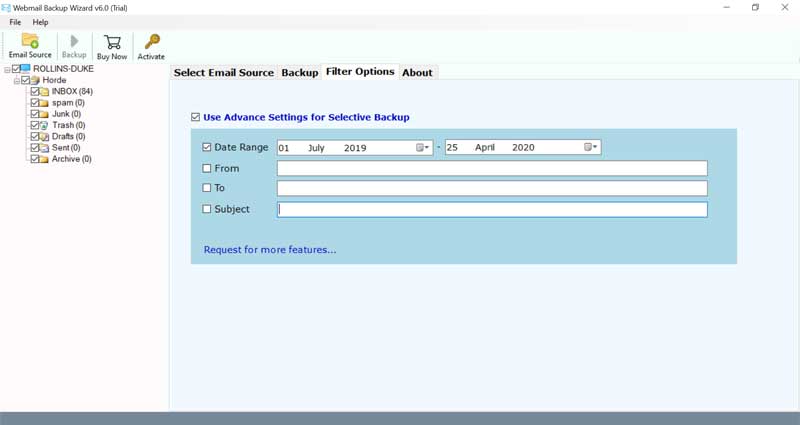
- Use file naming option & filter to backup dedicated Roundcube emails.
- Start backup Roundcube emails on your local system.
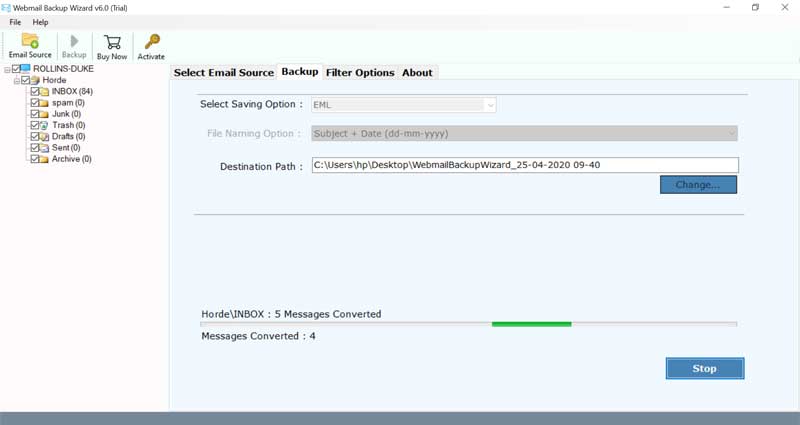
Know Smart Features to Get Better Experience
- Easily backup batches of Roundcube emails at one time without any data size limitations.
- Incremental backup feature helps users backup only new incoming emails to their local system without having to backup old emails again.
- This tool offers various filters that help users remove duplicate emails & backup only important ones. Users also get file name & date filtering options features too.
- It downloads Roundcube emails to local computer in just few minutes. This application features secure authentication that guarantees user’s login remains secure.
- No technical expertise is required to backup Roundcube emails. Get simple & easy interface that doesn’t require technical knowledge to operate.
- Download this software in any version of Windows & Mac without worrying about compatibility.
Concluding Thoughts
In this guide, users will learn every method that helps to backup Roundcube emails on local system & cloud storage. Saving Roundcube emails as backups helps users access, migrate, & read their emails whenever they need. This blog explains four methods that help to backup emails from Roundcube without any data loss. Choose any method that fits your needs, whenever you are taking backups of emails from Roundcube.
About the Author

