How to Import OLM File to Apple Mail with Complete Data?
Fact-checked and reviewed in accordance with our Editorial Policy
Some normal and professional users are upset with the subscription model of Microsoft Outlook, and they are finding a reliable solution to import OLM file to Apple Mail without losing email data. Additionally, users also have limited compatibility on Mac, and they face frequent crashes, which impact users’ workflow.
The Apple Mac Mail naturally syncs with iCloud, Contacts, Calendar, and Siri; its simple user interface makes it easy to use for both normal and professional users. Additionally, Mac Mail is also lightweight and uses less memory, which allows users to perform multiple tasks easily.
Keeping these advantages in mind, users are looking for ways to move to Apple Mail. This article will guide you on how to import OLM file to Mac Mail using both manual and professional methods.
Here, the question arises: Which method is more secure, a manual or a software?
Importing an OLM file using the manual method is possible, but it’s risky and time-consuming, as even a small mistake can lead to data corruption. The professional method, on the other hand, is secure and error-free, making it especially useful for batch conversions.
Now, let’s understand in depth why users are shifting to Apple Mail
Why do People Import OLM File to Apple Mail?
- Users who are planning to switch from Outlook to Apple’s default mail application, often look to convert OLM to Apple Mail for safe backup of their email data.
- Apple Mail offers a smooth integration with the entire Apple ecosystem including apps like Calendar, Contacts, Notes, etc.
- Apple Mail provides enhanced data protection and security to its users as compared to Outlook.
- Often, users have old emails saved in OLM files, which they need to access in their present Apple mail setup. Hence they import OLM file to Mac Mail.
- People do not always prefer to have multiple email platforms, instead have a centralized email app. Therefore, they backup OLM to Apple Mail for simplified management.
- Mac Mail integrates better across all Apple devices like iPhone, iPad, and Mac. Once the OLM files are imported to Mac Mail, people can access them from any device.
Manual Method to Convert Old OLM File to Apple Mail
If you want to manually import OLM to Mac Mail, follow the step-by-step instructions below.
Step 1. Installation and Configuration
- Install Thunderbird for Mac on your Mac device.
- Configure your Outlook Account with Thunderbird.
- Install the add-on “ImportExport Tool NG.”
- Now, right-click individually on the mailbox folders.
- And, click on “Import/Export Tool NG” option, select “Export” option.
- Your MBOX files are ready to use.
Now, move towards step 2.
Step 2. Import MBOX in Apple Mail
- Open the Apple Mail application on your PC.
- Go to the File option and click on Import Mailboxes.
- Now, select files in MBOX format, and click Continue.
- Then, go to the “converted MBOX file” and select it.
- Apple Mail will import the emails into a new mailbox named “Import”.
Done! Your all MBOX file is successfully imported into Apple Mail.
However, the manual method has some limitations that you should also be aware of before using it.
Drawbacks of Manual Method
- This method is time-consuming, and it has multiple steps.
- Not easy for non-tech users, the steps can confuse users.
- Need to install a different email client to create an MBOX file.
- Any single mistake in the whole process leads to permanent data loss.
- Useful for a single folder only, batch import is not easy.
- OLM files can be corrupted during the import process.
- No official support from either the Apple Mail and thunderbird side.
- Data integrity will not be maintained, high chance of file structure damage.
- The manual method does not guarantee a complete import with attachments.
These were the limitations of the manual solution for import OLM file to Apple Mail.
To overcome these issues, you can try the method suggested by experts below.
Professional Solution to Import OLM File to Mac Mail (Apple Mail)
If you are looking for a reliable solution to import Outlook for Mac OLM Files into Apple Email, then we recommend you to utilize BitRecover OLM Converter. It’s an instant solution that gives the facility to batch import multiple OLM files to Apple Mac Mail.
After converting OLM to MBOX files you can import the resultant MBOX file to Apple Email. This recommended software is known as a professional method to convert OLM data to Apple Mailbox including import OLM file to Apple contacts and import OLM mailbox to Apple calendar.
Download the setup of the software from this link given below:
Step-by-Step Method to Batch Convert OLM Files into Mac Mail
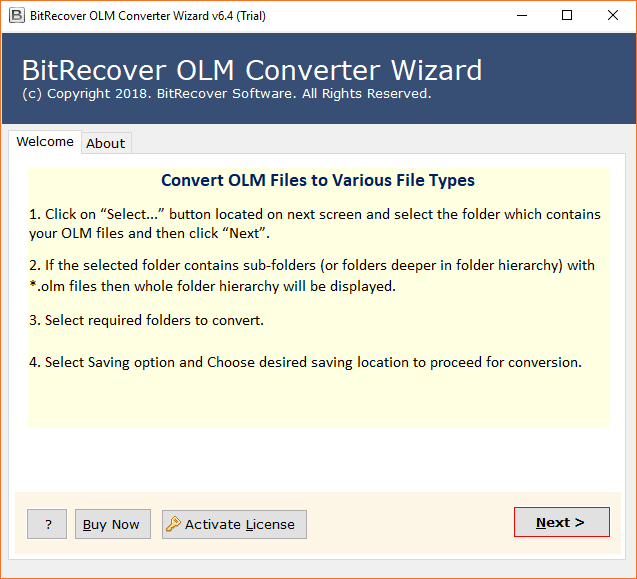
- First of all, download and launch the OLM to Apple Mail Conversion tool on your Windows machine. Read all the guidelines in the software panel.

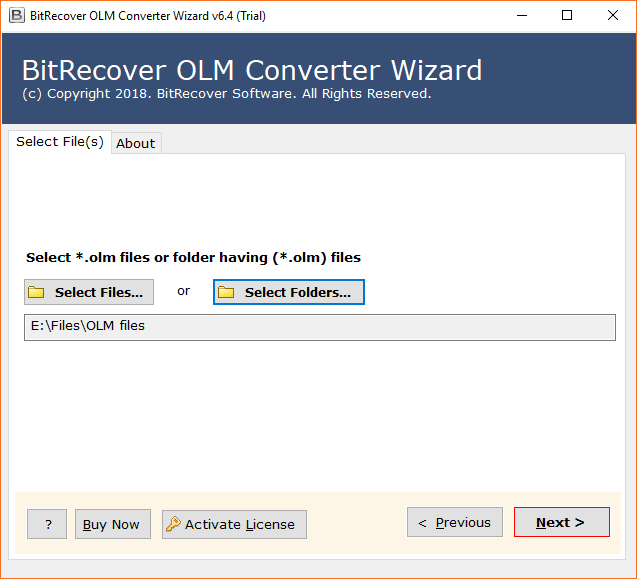
- Now, choose desired OLM email items that you wish to import into Apple Mac Mail.
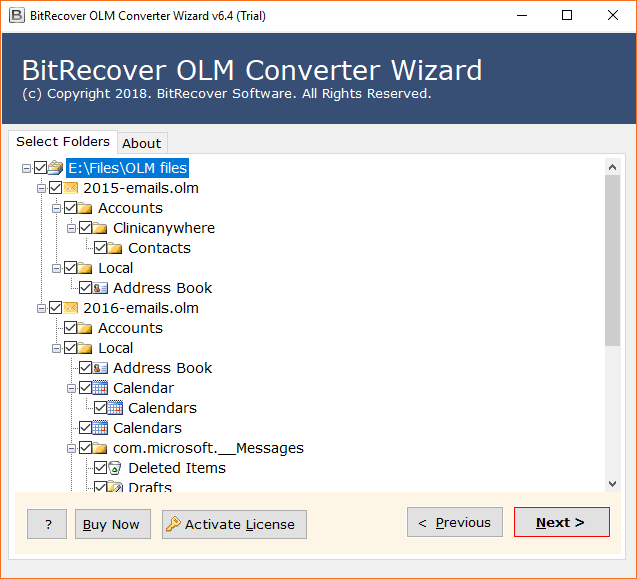
- Then, select the specific email folders that you intend to import Outlook OLM mail to Mac Mail.
- Thereafter, select the saving option as MBOX format which is compatible with Apple Mail.

- After this, set up a destination path for saving the resultant files on the desired location.
- Now, hit on the convert button to start to import OLM files to Apple Mail.
- Finally, once the process is completed, the tool gives a successful conversion message report. Now, you can open resultant files at the chosen location.



How to Import OLM to Apple Contacts ?
Recommended OLM file to Apple Mail converter also gives the facility to convert OLM to vCard contacts which can be easily imported to Apple Email via following these two methods.
- Drag and drop vCard (.vcf) file to the list of Apple Mail contacts in contacts Windows.
- In Apple Mail contacts, select File >> Import option and choose the .vcf file from your Mac computer.
How to Import OLM to Mac Calendar ?
Recommended OLM to Apple Email converter also permits to convert OLM to ICS format which is the only standard format for storing the calendar details. ICS format can be easily imported to Apple Email without facing any difficulties by following these simple steps.
- Open Apple Calendar and choose the File >> Import option from the menu.
- Select the ICS file from your Mac computer and import it as a new calendar.
- After finishing the process, choose the Ok button to confirm the importation.
Frequently Asked Questions
Que 1 – Does this software transfer .olm to Mac Mail in bulk?
Ans – Yes, the tool is well suitable to transfer .olm to Mac Mail in bulk with the fastest speed.
Que 2 – Can I import OLM data file to Apple contacts using this OLM to Mac Mail converter?
Ans – Yes, the tool is known as the precious solution to import OLM mailbox to Apple contacts.
Que 3 – Does the tool import OLM to Mac calendar?
Ans – Yes, the tool has separate option to import OLM to Mac calendar or import OLM to Apple calendar successfully.
Before starting the procedure to convert OLM mail to Apple Mail first get the basic information related to the procedure which will be the most helpful for our valuable clients.
OLM vs Apple Mail
OLM file is known as Mac Outlook 2024, 2021, 2019 exported database file which allows storing email messages, contacts, journals, calendar, etc. Actually, Mac Outlook 2024, 2021, 2019 editions give the facility to backup emails in Mac Outlook archived OLM format for future use. An OLM file can be easily imported or export to Outlook for Mac.
Apple Mail is a desktop-based email client which comes with various Mac based Operating System i.e. macOS, iOS, watchOS, etc. as a default email client. Apple Mail client supports various types of protocols for sending and receiving email messages like SMTP, POP3, Exchange, IMAP, etc. Users can easily configure their current email id with Apple Mail which is also known as Mac Mail.
The Verdict
Apple Mail provides free services like sync with iCloud, Contacts, and Calendar, which help users to manage their work easily. In this blog post, we used two ways to import OLM file to Apple Mail and explained the manual method step-by-step. We found using the manual solution to import OLM file to Mac Mail is useful, but it’s time-consuming, involves multiple steps, and also carries a risk of data corruption and loss. However, using an expert-suggested tool is the right option to save time and import OLM file directly.
You can try the trial version of the above-mentioned tool to import OLM files. If you are satisfied with the results, then you can go with the licensed version.
About the Author

