How to Import Gmail to Thunderbird? Step-by-Step Guide
Fact-checked and reviewed in accordance with our Editorial Policy
This article offers a clear, helpful tutorial to import Gmail to Thunderbird and doing it securely. Many Gmail users eventually face the problem of wanting or needing to move their Gmail to a desktop client (like Thunderbird). This could be for a number of reasons: personal preference to keep data locally; preference to keep multiple email accounts in a single application, or concerns about email account inactivity resulting in the loss of their old emails. Beyond emails, this dedicated guide also covers the steps to import Gmail contacts to Thunderbird. The methods described in this structured guide include:
- Gmail to Thunderbird Sync Approach
- Google Takeout + Thunderbird Bridge Method
- Automated Gmail to Thunderbird Migration Tool
Why do Users Export Gmail to Thunderbird?
- To save Gmail emails for offline use: Thunderbird keeps a local copy of your Gmail emails. So, you can read Gmail emails from your PC even without internet connectivity.
- To backup Gmail emails to hard drive: As a precautionary measure, users keep a local copy. It helps to keep Gmail email data accessible in case of accidental deletion, account lockout, or losing access to Gmail entirely.
- For managing multiple email accounts in one place: Switching over the tabs to access different mailboxes is a nightmare. Therefore, users often export Gmail to Thunderbird to manage multiple mailboxes under a single interface.
- When migrating away from Gmail platform: When a user closes their Gmail account entirely due to scenarios like switching jobs, moving to a different email provider, closing the account, etc., they need to keep a record of their historical Gmail emails.
How to Import Gmail to Thunderbird?
You can access your Gmail emails in Thunderbird by either linking your account with IMAP, or you can simply import an offline backup file containing your emails. You will choose between those two options depending on if you would like to have an active connection to your emails, comparing to just wanting a static local copy of your data.
Method 1: Sync Gmail Emails to Thunderbird Using IMAP
This is the most common and easiest method to import Gmail to Thunderbird since you can read and manage your Gmail emails right in Thunderbird.
Enable IMAP in Gmail:
- Go to your Gmail settings.
- Click on the “Forwarding and POP/IMAP” tab.
- Find “IMAP access” and click on “Enable IMAP”.
- Click on “Save changes.”
Add Your Gmail Account to Thunderbird:
- Go to Thunderbird and click on File > New > Existing Mail Account.
- Fill in your name, Gmail address, and password.
- Thunderbird will discover the IMAP settings for Gmail automatically.
- Click Done and follow the Google login steps if prompted.
It will sync automatically:
- All your existing emails and folders will begin syncing from your Gmail account and downloading into Thunderbird.
Method 2: Import Gmail Emails to Thunderbird
This is an excellent method to create a permanent offline backup to import Gmail MBOX to Thunderbird. This way you can import Gmail to Thunderbird.
Backup Your Gmail Data:
- Visit Google Takeout.
- Deselect all products except Mail.
- Select your desired archive format and select Create export.
- once done, download the MBOX file to your computer.
- Import Gmail backup to Thunderbird.
Install ImportExportTools NG Add-on:
- In Thunderbird, click the menu icon and select Add-ons and Themes.
- Search for ImportExportTools NG and install the add-on.
- Restart Thunderbird to Finish the installation to import Gmail to Thunderbird.
Import MBOX File:
- In the Thunderbird sidebar, right-click on Local Folders.
- Select ImportExportTools NG > Import mbox file > Import directly one or more mbox files.
- Select the MBOX file and select Open.
Your Gmail emails will now be available under a new folder under Local Folders in Thunderbird.
Google Takeout + Thunderbird Method Common Challenges & Ways to Troubleshoot
- Google Takeout Stuck or Taking Too Long: This is a common challenge faced by users when importing a large Gmail mailbox to Thunderbird. For large Gmail mailboxes, the takeout method can take hours to days to complete the export process.
- ImportExportTools NG Not Showing Up in Thunderbird: If you can’t see this add-on in your Thunderbird environment, ensure that the add-on is installed correctly and you have restarted Thunderbird after installing the add-on. Secondly, the ImportExportTools NG is only visible when right-clicked from the left-side folder menu.
Automated Method to Import Gmail Emails to Thunderbird
The BitRecover Gmail Backup Tool is the most reliable and straightforward solution to import Gmail to Thunderbird with all emails and attachments. You won’t have to do this manually because this tool automatically connects to your Gmail account and imports all emails into Thunderbird while keeping all folder structures and attachments in place. This is extremely helpful and saves hours of work and potential errors for all users.
How to Export Emails from Gmail to Thunderbird with Tool?
Firstly, download the software and install it on your Windows & Mac computers. The tool has a separate option to know how to import Gmail emails to Thunderbird directly. It is a fully automatic method that consumes less time and effort for the completion of the task.
- Launch the above-mentioned software, enter Google account credentials, and click on the Login button to import Gmail to Thunderbird.
Note- Users can also check the Use Batch Mode option if they want to export emails from multiple Gmail account to Thunderbird at once. After that, it will ask for uploading a CSV file having the credentials of multiple Gmail accounts.

- Now users can check all or specific Gmail folders from the software window. After that, choose Thunderbird from the list of saving options.
- After that, it will automatically choose the default storage location and hit on the Backup button to import Gmail to Thunderbird.

- The process to export Gmail to Thunderbird is running, please wait for completion.
- Thereafter, run the Mozilla Thunderbird email client and view imported emails in the original folder structure.


What are the Benefits of Software?
- Users can easily solve all queries i.e. how to import Gmail to Thunderbird. It is fully automatic software that asks only for Gmail account credentials for exporting emails.
- The tool is designed to export Gmail to Thunderbird with all emails in bulk at once. Therefore, users can save valuable time and effort. After selecting the Use Batch Mode option, users can upload a CSV file.
- It preserves all email items and components during the Gmail to Thunderbird migration process i.e. To, Cc, Bcc, From, Subject, Signature, Headings, Text Formatting, Attachments, Inline Images, Date, Time, Year, HTML Links, etc.
- This application provides multiple email filter options for selective export. Users can import Gmail to Thunderbird by Date Range, From, To, Subject, etc.
- After finishing the task, it automatically creates a SavingLog.txt file that is also known as a log report file. This simple text file has complete information about imported data, like Saving Type, Selected Source, Folder Path, Items Converted, etc.
How to Import Gmail Contacts to Thunderbird?
Here, we are sharing the step-by-step process to transfer the address book from Gmail to Thunderbird. You can follow these simple steps as given below-
Export vCard from Gmail Account
- Login to your Google Gmail account and click on Google Apps (three-dot icon). After that, choose contacts.

- Thereafter, press the Export button as shown in the screenshot

- Select vCard and hit on the Export button to continue to export Gmail contacts to Thunderbird.

- Lastly, exported contacts in vCard (VCF) format from the download folder.


- Firstly, launch the Thunderbird email client and choose the Address Book option.

- After that, choose the Tools >> Import option from the drop-down menu.
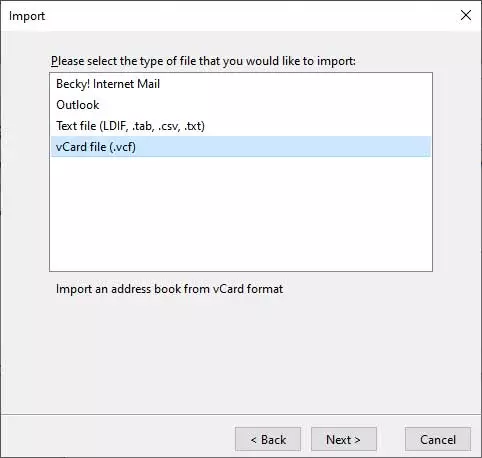
- Select the Address Books option and press the Next button.

- Please select the type of file that you would like to import, choose vCard file (.vcf) and click on the Next button.
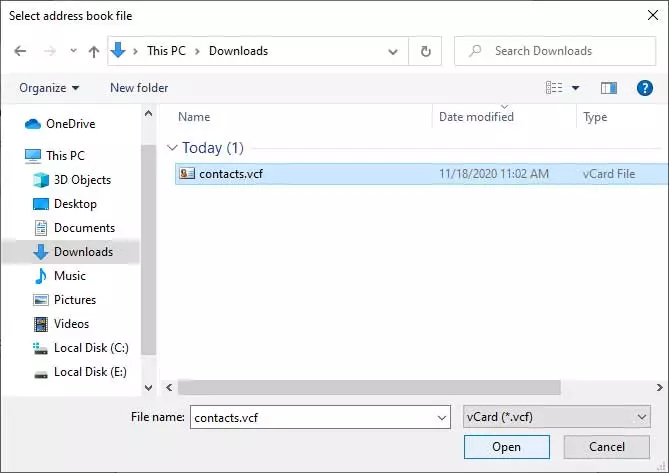
- Now choose the exported vCard file and press the Open button to continue.

- See the message like Addresses successfully imported from vCard file (.vcf). Click on the Finish button.


FAQs: Gmail to Thunderbird Migration
Q1: Is it mandatory to have an active internet connection while doing this exporting process?
Ans – Yes, internet connectivity is compulsory to import Gmail to Thunderbird profile.
Q2: What will happen if the internet connection is lost during Gmail to Thunderbird process?
Ans – The tool successfully deals if it lost internet connectivity, as it asks to resume the process. You can see the pop-up message.

Q3: How to export Gmail emails to Thunderbird securely?
Ans – You can follow the above-mentioned steps to export bulk emails from Gmail account to Thunderbird. However, you can also process it manually but that task is bit tricky and time taking process.
Q4: Which method should I use to import Gmail to Thunderbird?
Ans – The best methods depend on your end goal. If you are planning to fully migrate Gmail to Thunderbird, then the automated Gmail to Thunderbird Wizard is the most perfect choice for complete metadata integrity. If you just want to access Gmail account data within Thunderbird environment, then the free sync method is highly suggested.
Conclusion
In this blog post, we have discussed the professional method to import Gmail to Thunderbird. We have also explained the manual technique to export contacts from Gmail to Thunderbird. Now, all professional and home-based users can import Gmail account to Thunderbird. It is a time-saving technique for the completion of a task that consumes less time and effort.
About the Author

