Resolve Apple Mail Account Already Exist Error with Safety

Published: March 17th, 2026 • 6 Min Read
You open your Apple Mail, put in the credentials and expect to access all your data once it is synced. But, “Apple Mail Account Already Exists” notification pops-up. It can be confusing at first and then you realise that it’s just an another error you just encountered.
While working with Apple Mail, you may face this issue while reconfiguring accounts, restoring Apple Mail backup, or switching devices. Sometimes the system detects duplicate account data and blocks the login attempt even though everything with the application and device seems to be fine.
What Does Apple Mail Account Already Exists Mean?
This error occurs when Mac Mail detects that the same email account has already been configured on your device or the data files are partially stored in the system. Instead of allowing users to set up a duplicate account, it prevents you from logging into the application. Let us know why users face Apple Mail identical account already exists issue
Common Reasons Behind Mac Mail Account Already Exists Error
- Users may have already added the same account earlier and it still exists in the Mail settings.
- Even after deleting the account, the configured settings may remain cached in the system.
- Sometimes if you login with an account that is already configured with iCloud, it may already be linked in your Apple ID.
- Corrupted and damaged preference files can cause the Mail application to misread the account data.
- Saved account credentials in Keychain may create a conflict with login attempts.
- After updating macOS or iOS, users may face temporary bugs that lead to account duplicate errors.
Manual Way to Get Rid of Apple Mail Account Already Exists
As we discussed multiple reasons why users may encounter the Mac Mail account already exists notification in the Apple Mail app, now let us see how to overcome them to log in and access your Apple Mail data smoothly.
#1. Check Existing Accounts in Settings
- Start by opening Apple Mail.
- Open Mail Preferences.
- Go to Accounts.
- Look for the email account you are trying to log in with.
- If found, remove it from the settings and try to configure it again.
#2. Remove and Re-add the Account
- Go to System Settings >> Internet Accounts.
- Select the problematic account.
- Click on Remove (“-” icon).
- Restart your device.
- Try adding your Mail account again.
#3. Disable and Re-enable Mail Sync
- Open iCloud Settings.
- Turn off Mail Synchronization.
- Wait for a few seconds.
- Turn it back on.
#4. Delete Mail Cache Files (Mac Only)
- Open Finder.
- Navigate to:
~/Library/Mail/ - Locate and delete cache files.
- Restart the Apple Mail application.
Attention: You need to be careful while deleting the files. Remove only cache-related data.
#5. Fix Keychain Access Conflicts
- Open Keychain Access.
- Search for your email account.
- Delete any saved account credentials.
- Restart your Mac machine.
- Try logging into your account again.
#6. Add Account Manually
Instead of setting up your Mail account automatically, choose the “Add Other Mail Account” option to log in with your account. Enter server details manually (IMAP/SMTP). This process bypasses the Apple Mail Account Already Exists error that one can face during setup.
#7. Update your macOS/iOS
- Go to System Settings >> Software Update.
- Install all pending updates.
Updating the system sometimes fixes hidden bugs that cause these issues.
What If These Manual Methods Fail?
Sometimes the Apple Mail account already exists error appears due to severe corruption and syncing issues, and users often face multiple errors and issue accessing their data. These manual techniques may fail in such cases, and it is recommended to use a professional solution that can help users securely manage their Apple Mail data even if they are unable to sync their account in the Mail app.
Let’s Get Rid of Apple Mail Account Already Exists Error with Safety
Still stuck with the Mac Mail account already exists error? If you are facing this error repeatedly, it may be time to switch your email client. BitRecover Apple Mail Converter will help you export all your data from your Apple Mail account, transform it, and make it accessible to a wide range of email clients and platforms. It offers multiple features that help users access their data smoothly even after export and get rid of Apple Mail identical account already exists error. Download the trial version to explore its advanced features.
Quick Steps to Use this Solution on Mac Machine
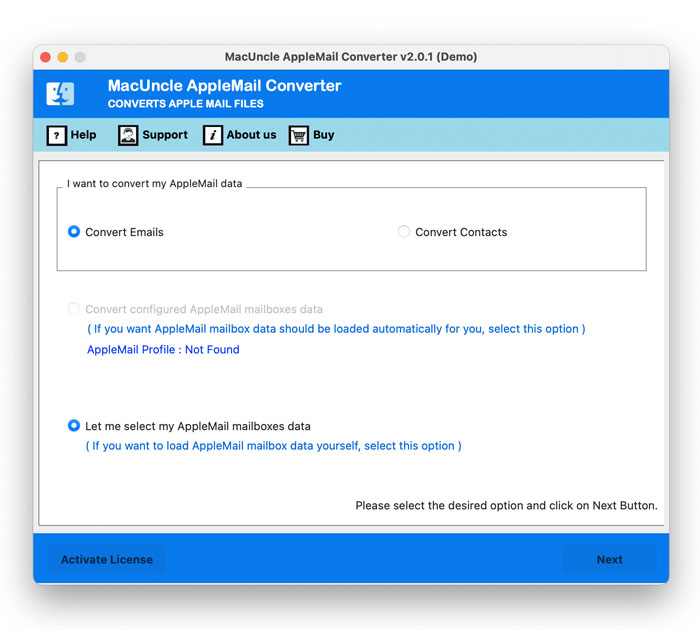
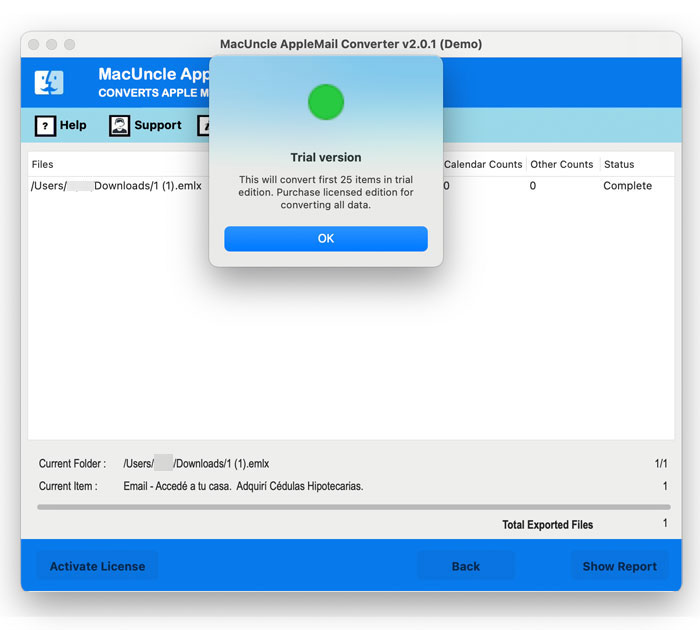
- Start with Downloading and installing the solution on your Mac Machine.

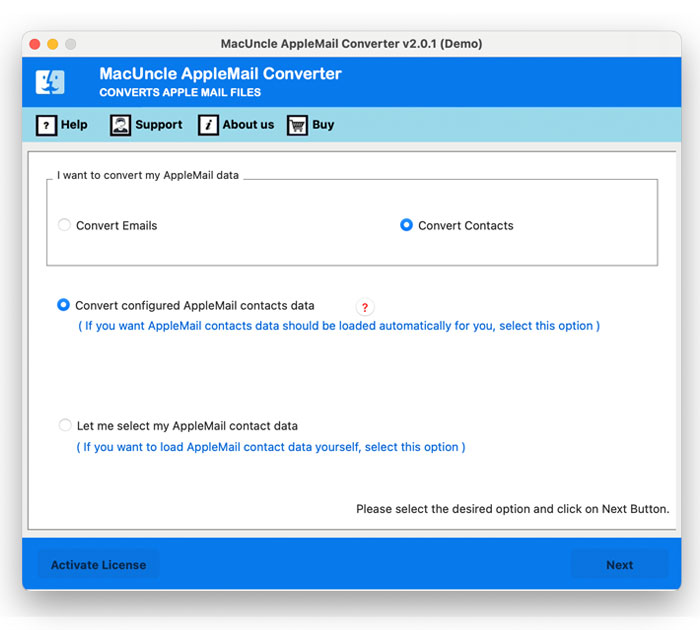
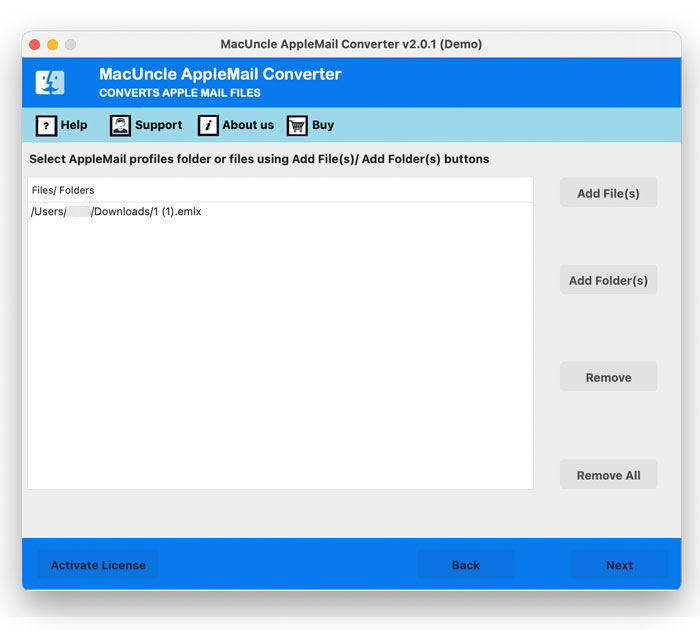
- Now, load your Apple Mail data into the panel through the given options.
- After that, check and preview all the uploaded mailbox data into the panel.
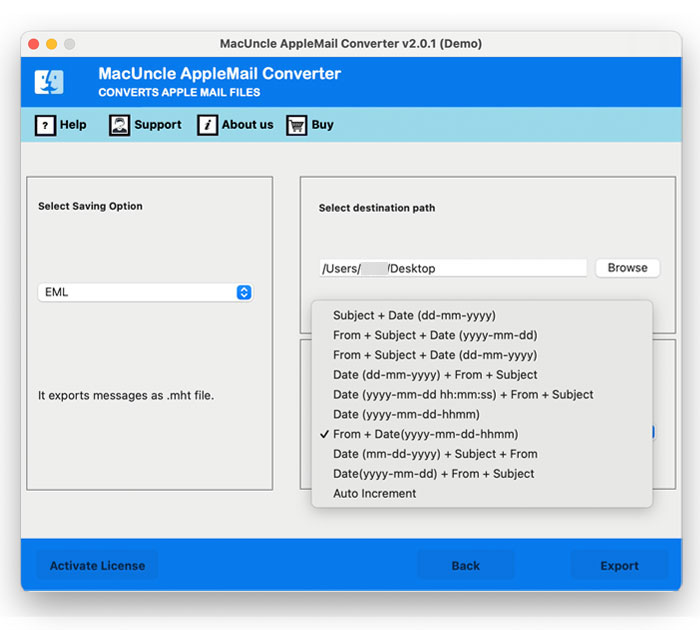
- Choose an option from Select Saving Option, a desired Destination Location, and a Name from the list to save your output files.
- Click on the Export button to get rid of Apple Mail account already exists error and access your data smoothly.
How to Use this Solution on Windows?
- First of all, Download and install the solution on your Windows system and click on Next to proceed.

- After that, choose from Select Files and Select Folder to load your data into the software panel.
- Preview and check all the uploaded data and check it carefully backup Apple Mail data.
- Choose a format or email platform from the Select Saving Options list.
- Browse a Destination Path to save the final data to the desired location.
- Choose a new name from File Naming option list to rename the final data.
- Click on Filter Options to apply Advanced Filter Option list as per your requirements to access your Mac Mail data selectively.
- Lastly, click on the Convert button to complete the process while maintaining the originality.


Why Use This Professional Solution?
- Recommended by industry professionals to back up Apple Mail data.
- Maintains original data integrity throughout the process.
- Standalone solution to convert Apple Mail to PST, EML, HTML, and more.
- Makes data compatible to import Apple Mail into Office 365, Outlook, Gmail, etc.
- Allows bulk loading of Mac Mail data files and folders without errors.
- Provides advanced filter options for selective data access.
Some Notable Prevention Tips That You Should Remember
- Always remove your accounts properly before re-adding them.
- Avoid re-adding your same account multiple times.
- Make sure to keep your system always updated.
- Clear cache and temporary files regularly from your account.
- Make sure to have a good internet connection while configuring accounts.
- Always remember to make a backup before making change to your data.
Need More Help?
Solved the Apple Mail account already exists issue but need more help? Connect with us if you need assistance with any related query. Our Technical Support Team is available 24/7 to help resolve Apple Mail and other email-related issues.