How to Bulk Reduce MSG File Size Without Any Data Loss?
Fact-checked and reviewed in accordance with our Editorial Policy
Direct Answer: The best way to reduce MSG file size is to compress it, remove attachments and other heavy elements from it, or change the email format. However, doing this manually imposes some limitations, and that is why using a dedicated tool to remove duplicate data, eliminate the attachments, and change the file format with ease, efficiency, and safety is recommended.
No doubt that large MSG files come with various limitations and restrict users’ productivity just because of their size. The main contributors to this issue are heavy attachments, embedded multimedia, too much text, metadata, and so on. Not only that, but over time, such MSG files become prone to corruption or become inaccessible as well. Therefore, to help you with this issue, we prepared this complete guide. It covers everything from the reasons and causes of this issue to manual and professional approaches. So, by the end of this blog, you will surely learn the best way to reduce MSG file size without any data loss.
Why Do Outlook MSG Files Become Large In Size?
Outlook MSG files are not just regular plain text files, but they actually contain a lot of elements in a single file. They usually include message text, metadata, attachments, embedded media, email formatting, and hidden Outlook-specific properties so that data can be easily tracked and organized the way the user wants.
Therefore, due to these multiple attributes, the size of an MSG file increases. Not only that, but small elements like signatures, logos, attached images, hyperlinks, etc. also lead to increased MSG file size.
Common Reasons to Compress MSG Files
- Large MSG files due to heavy attachments fill up local storage, leading to issues with system functioning and space for other important data. This helps users decrease Outlook MSG file size.
- Various platforms such as cloud servers, email providers, CRMs, and so on have file-size limitations for uploading data, and thus users have to reduce the MSG file size before uploading.
- Small-sized files are easy and fast to share and download by the receiver. Whether one shares the MSG to cloud drives, social media applications, and more, having a compact-sized file benefits a lot.
- Also, if someone compresses an Outlook MSG file, they can efficiently back up and download data in no time.
- With large files, Outlook starts malfunctioning and thus, by reducing the file size, it becomes easier to operate all the data without any hitch or glitch.
- Doing this also assists a lot in the migration process since compact files move seamlessly from one platform to another.
Manual Methods to Reduce MSG File Size
Below are various indirect ways to do this process. Make sure you read all of them and pay attention to their limitations as well.
1. Use Outlook Classic to Edit MSG File
In this method, you just need to delete the unnecessary elements using the steps mentioned below:
- Firstly, log in to an active Outlook Classic account on your device.
- Now, double-click on MSG file to open it in Outlook Classic.
- Click on three-dot menu icon and select Actions.
- From menu, click on the Edit Message option.
- Next, make the changes, such as removing the unnecessary data.
- When completed, click on the File option and select Save As.
- Finally, select the save path, save name, and saving option to compress Outlook MSG file size.
Note: Removing the unrequired elements makes the file lighter and therefore smaller in size. However, to follow this method, the user must have Outlook Classic and know its working. Also, this process is very time-consuming, requires user attention, and is extremely prone to error, which can cause permanent data loss.
2. Remove the Attachment Using Outlook Classic
In most of the cases, large attachments are the main cause of oversized MSG files. Therefore, removing them can itself compress MSG file size. The step-by-step process to do this is as follows:
- First of all, locate the MSG file saved locally and double-click to open it in Outlook Classic.
- Once done, right-click the attachment file and select the Save As option (keep a copy of the important attachment just in case).
- After this, click on the attachment in MSG and this time select the Remove Attachment option.
- Now, an action confirmation notification will pop up. So, simply confirm it.
- Further, click on File, select the Save As option, and choose Outlook Message Format as the save type.
- Finally, select the save destination and name, and click Save to reduce MSG file size by removing attachments.
Alert: The user has to perform the same steps again and again for each large MSG file. This eventually makes the process very long and hectic. Also, taking a backup of attachments before deleting them ultimately hampers local storage and can make the system malfunction.
3. Change the MSG File Extension
The internal structure of an MSG file is very complicated and therefore, changing its extension to lightweight formats such as TXT and HTML might work. To do this conversion for free, using Outlook Classic is the ideal way. The detailed steps for the same are mentioned below.
- Open the MSG file in Outlook Classic.
- Now, click on the File option and choose Save As.
- Once done, select Plain Text (.txt) or HTML (.html) as the Save As Type.
- Further, select a file saving destination and give the output a save name.
- Finally, click the Save button to reduce MSG file size by changing the extension.
Note: Using this method, you can bulk convert MSG to TXT, but it saves all the emails in one file only, which makes finding and organizing the data very problematic. Also, it does not support all the attributes of the MSG file, making it unreliable for data accuracy.
4. ZIP the Files
This is the simplest way to reduce MSG file size, as it does not require any deletion of elements. The brief steps for this method are as follows:
- First of all, go to the path where your MSG files are saved.
- After this, select those files and right-click.
- From the pop-up menu, select Compress to option, and then choose ZIP.
- Wait a second, name the folder, and your MSG file will be reduced in size.
For WinRAR: Select the MSG files, right-click, and choose Send To option. Then click on Add to archive. Once done, set the compression level settings and click on Ok to start the process.
Note: Every time, the user has to extract the file before accessing it in Outlook and then zip it again once accessed. This is a very tedious process and not a permanent solution, as ZIP files easily get corrupted.
Why Manual Methods Fail to Decrease MSG File Size?
- These are very time-consuming processes, as the user has to repeat each step one by one.
- There is a risk of permanent data loss, as not every non-tech user can perform these methods.
- They offer no chance for complete process automation.
- The user has to take a backup every time before following any conventional solution.
Professional Solutions to Reduce MSG File Size in Bulk
Now, it’s very obvious that manual ways have various limitations and therefore, switching to a dedicated solution is the best alternative. In this section, we are going to share 3 different professional tools developed for different purposes so that you get enterprise-grade output as per the resultant file you require.
1st: Using a Converter Tool
One of the best solutions to reduce MSG file size is to change the file format to a lighter one. For example, you can convert MSG to EML file format using a professional tool such as BitRecover MSG Converter. This is a smart solution that supports bulk MSG data and allows the user to convert it to various file formats. It keeps the data safe and maintains complete data accuracy without any hassle. You can download its free demo version and test its efficiency.

Working Steps:
- Install and run the tool on your system.
- Then, using either selection mode, choose MSG files and folders.
- Further, from the saving options list, select EML as the export type.
- Once done, browse to the saving destination path.
- Finally, click the Convert button to start the process in no time.
2nd: Use a Duplicate Data Remover
Having copied data in your MSG file not only makes it look messy but also increases its size. Thus, getting the BitRecover MSG Duplicate Remover can easily resolve this issue. It has two options to scan and delete the duplicate data, which ensure complete data safety and accuracy. The best thing is that it does not change the original file and instead creates a fresh copy with duplicate deleted items so that you always stay on the safe side (applicable if the same source folder is not chosen as the destination path). It also has a free demo version to test its efficiency before getting the licensed version.

Working Steps:
- Download and run the software on your device.
- Now, using the dual selection modes, choose the MSG files.
- Then, select one duplication removal option of your choice.
- Once done, select the save destination option.
- Finally, click on the Extract button to start the process.
3rd: Remove Attachments from File
As already shared that one of the major reasons behind an MSG file’s large size is the attachments. The problem can be solved instantly if one removes such files using a professional tool like the BitRecover MSG Attachment Remover. It is developed in such a way that it can remove attachments in bulk while preserving the original content of MSG emails. This tool is perfect if you want to compress .msg email files without deleting the messages themselves.
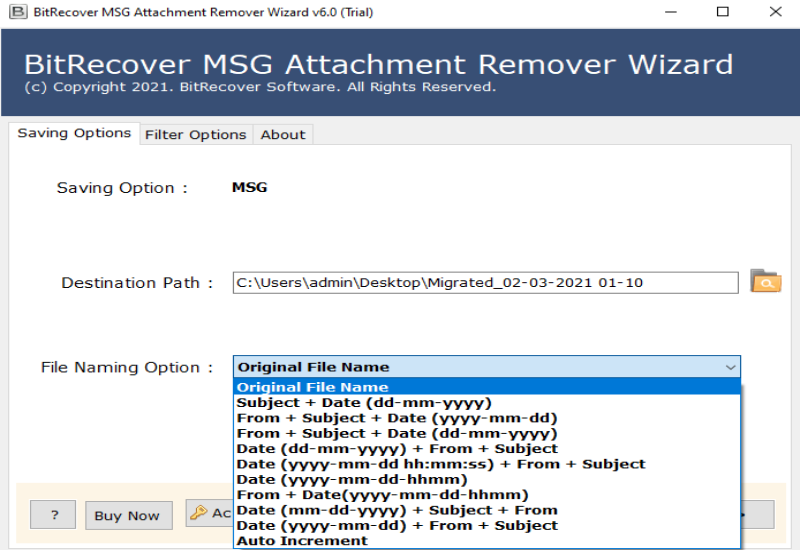
Working Steps:
- Run the tool on your Windows machine.
- Then, click on selection modes to choose the MSG files or folders.
- After this, apply the filters of your choice.
- Then, select one saving destination option.
- Finally, click on the Next button to start the process immediately.
Manual vs Professional Method
| Factors | Manual Methods | Pro Tools |
|---|---|---|
| Speed and Bulk Processing | Repetitive process and very time-consuming. | Developed for bulk conversion and fast processing. |
| Technical Skills Requirements | User must know Outlook working and other basic things. | Self-explanatory interface. No technical knowledge required. |
| Long-term Reliability | Cannot be trusted for data health over a period of time. Re-processing is required. |
Gives a healthy output file that does not require any sort of re-processing. |
| Price | Free of cost but puts the data at risk. | Free demo version and paid licenses available for trustworthy output. |
| Support Available | No such dedicated support. | Around-the-clock trained support available. |
FAQs
1. How to compress MSG file size using New Outlook?
To do this, a user has to first open that file in New Outlook, but as of now, New Outlook does not support this feature. Therefore, the user has to switch to Classic Outlook and then use the Save As option to change the MSG file format to lighter format.
2. Which free method works best to reduce MSG file size without losing data?
One of the best and free solutions to compress Outlook MSG files is by using the ZIP, WinRAR, or 7-ZIP option. For this, select the MSG files, right-click on them, and choose the Send to option. From the pop-up menu, select Compressed folder, 7-ZIP, or WinRAR, accordingly. And with this, it’s done.
3. What is an average MSG file size?
An MSG file with only text data mainly ranges from 20-50 KB. Whereas, if it has signatures, images, links, basic formatting, and so on, then it can be around 200-500 KB. Also, if the attachment is intact, such as PDFs, documents, images, etc., then it can be more than 20MB per MSG file.
Conclusion
No doubt that large MSG files slow down MS Outlook and take up storage. In this guide, we shared simple manual and professional ways to reduce MSG file size. Thus, by using the right method, you can easily shrink MSG files, which leads to saving space and keeping your email system running smoothly.
About the Author

