Fix Outlook Couldn’t Import Calendar Try Again Later Safely
Fact-checked and reviewed in accordance with our Editorial Policy
You are facing “Outlook couldn’t import calendar try again later” issue, and you have no idea how to get rid of it. Then don’t worry! In this guide, we share the common reasons why you see couldn’t import calendar try again later message on your computer screen when you are using Outlook on your Windows machines.
We provide an automatic solution to fix this issue directly & securely. You can also use manual methods to solve “couldn’t import calendar try again later Outlook” issue for free. The manual workaround requires basic knowledge of Classic & Legacy Outlook. Lastly, the free manual methods to resolve “Outlook couldn’t import calendar” issue are time-consuming & prone to human errors.
Professional users often prefer a risk-free and secure offline solution to solve this issue easily on Windows. Whether you are facing this issue for first time, or this occurs multiple times. An automated offline solution always becomes a reliable option for this issue.
Use of free methods might fail sometimes to solve the issue deeply, do not guarantee complete data integrity, and are not suitable for non-technical users & newbies. However, if you still want to use so be ready to face the challenges that will occur while using manual workarounds for free fixes.
Reasons Outlook Couldn’t Import Calendar Try Again Later Issue
So, here are listed major causes that inform you why users will see Outlook couldn’t import calendar try again later message. Read all causes carefully to find suitable solution –
- Software Defects: The “Shared calendar improvement” feature of Outlook, also known as “calendar sharing updates.” If this feature is enabled in your Outlook application. Then you will see this issue.
- Error in New Outlook: Documentation from a third-party service like Group Wise easily identifies this as a defect in the New Outlook, due to which you will see this message.
- Unreliable Subscription link: Sometimes, error is not in Outlook application, but it is present in subscription link itself, due to which Outlook gets a “Bad request” error, especially when users are accessing account directly through a web browser.
- Internet Issues: Sometimes the slow internet connection fails to import & sync calendar, due to which users will face this issue.
- Calendar File Error: When users save their calendar files into wrong saving format, and try to import then they will face this issue.
- Down Servers: Importing will also fail when the server is down, and user is unable to import calendar into Outlook.
- Import & Export Grayed Out: Sometimes, users Outlook import export grayed out, due to which, they face this issue.
These were the primary causes of this issue, due to which users can’t import calendar into Outlook. Now moving on to the next section to find a solution to fix this issue without hassle.
Automatic Solution to Fix Couldn’t Import Calendar Try Again Later Issue
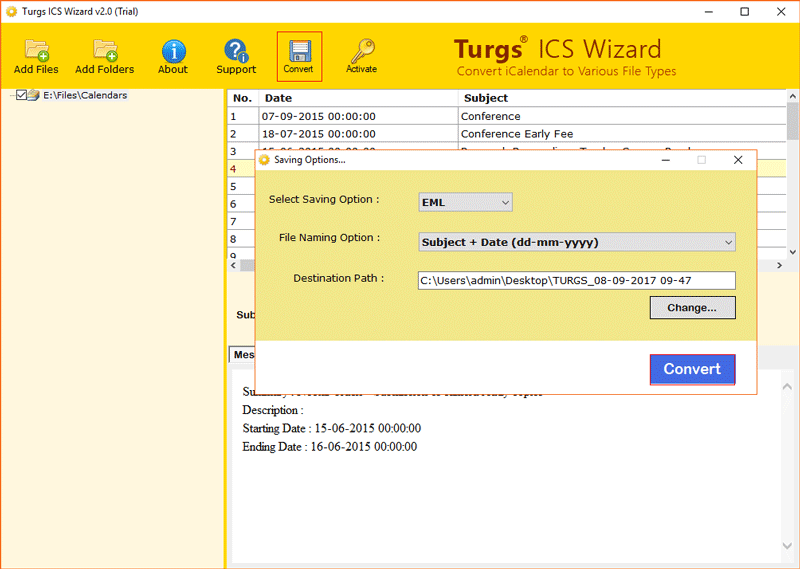
Use of an automatic solution will help you to solve Outlook couldn’t import calendar try again later error efficiently. To fix this quickly, you can try a desktop-based offline solution, i.e., ICS to PST Converter by BitRecover, which securely & accurately converts ICS file to PST while preserving all calendar events, meetings, & appointment data in their original format. This ICS to PST converter will safely change bulk ICS files into PST format at once, & keep every small detail of Outlook calendar in its original format.
Steps of Automatic Solution
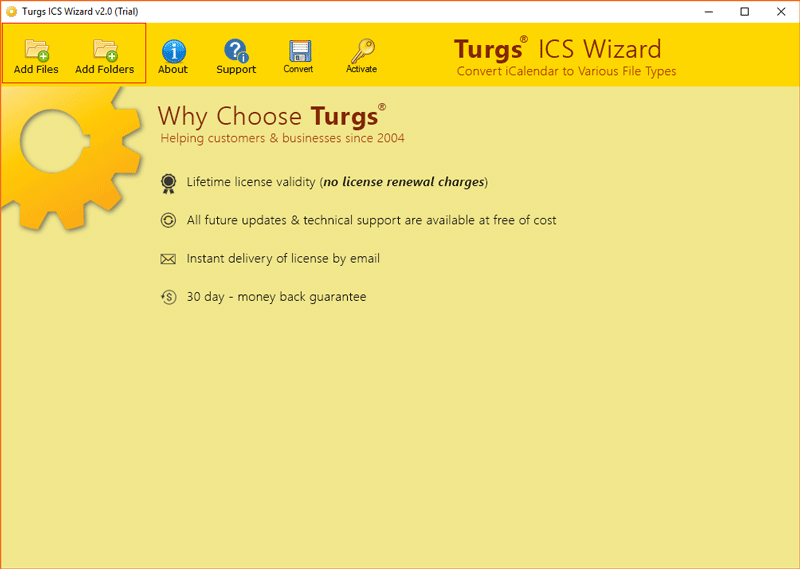
- Open tool on your Window OS.
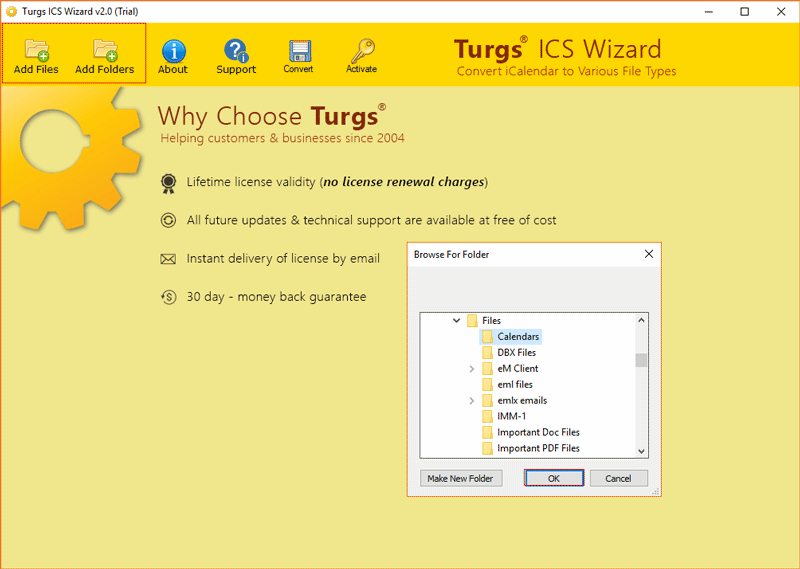
- Then, click on the “Add Files” or “Add Folders” button to add ICS file to it.

- After that, select “Folders” that have ICS files and click “OK”.
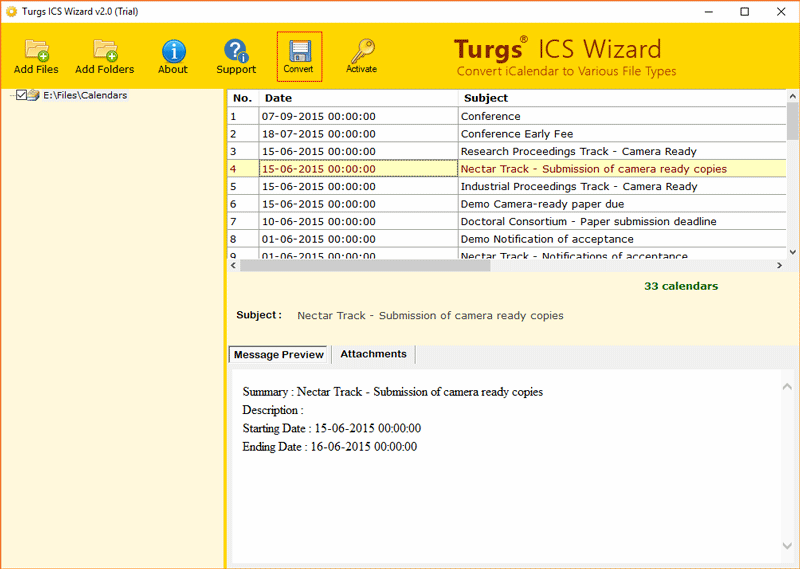
- Here, you get a preview of feed information of ICS file in the preview panel.
- Now, hit the “Convert” button at the top to reach “Next Interface.”
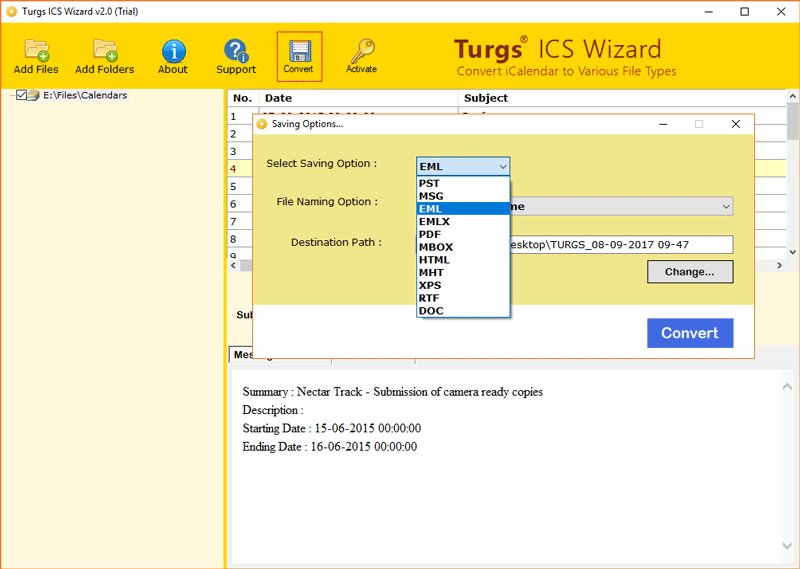
- Choose saving option as “PST” and set the “Destination Path” on it.
- Finally, again click on “Convert” button to convert ICS to PST.
- After that, open your Outlook Application on your computer.
- Go to “File” option and choose “Open & Import” from side menu.
- Then, choose “Import & Export” option, pick “Import from another program or file” and click “Next.”
- Select “Outlook Data File (.pst)” option and hit “Next.”
- Lastly, browse and open converter PST file & click on finish to complete import.
- Using this automatic solution, you can directly fix Outlook couldn’t import calendar issue easily.
Benefits of Using Automatic Solution
- Using this tool, users can easily convert ICS file to PST without requiring any technical knowledge.
- This tool will convert multiple or bulk ICS files at once, which saves users time and effort.
- Software creates compatible PST files, which support all versions of Outlook on Windows.
- The data integrity is maintained, and ICS file data is safe during the entire conversion process of ICS files
- Its user experience and interface make this tool handy to use for every user, including technical, non-technical, and newbie users.
These were the benefits you will get while using this automatic solution to fix couldn’t import calendar try again later issue.
Manual Methods to Solve Unable to Import Calendar into Outlook
In this guide below, we are going to test five manual methods to fix Outlook couldn’t import calendar try again later error. Follow the steps described below in the method to solve can’t import calendar into Outlook.
1st Method: Account Reconfiguration
- Open Outlook on your desktop and go to “File” option.
- Click on “Account Settings” and choose “Account Settings.”
- After that, select the “Problematic Account,” click on “Remove” button and select “Yes.”
- Now, again click on “File” and choose “Add Account.”
- Then, enter your login ID along with “Password” in the blank fields and hit “Connect” button to reconfigure account.
- Done, wait to complete the sync properly.
- After completion of sync attempt import again your calendar will be imported.
2nd Method: Internet Connectivity Checking
- Open “Chrome” or “Safari” browser and search for “Google.com.”
- Wait to load, if opening of “Google.com” takes time.
- Then, contact to Internet Service Provider to fix your internet issue.
- After fixing your internet connection, retry the import process to get calendar on your Outlook
- Done! Your Outlook couldn’t import calendar issue has been solved.
3rd Method: Microsoft Outlook Update to Solve Unable to Import Calendar into Outlook
- Go to “File,” choose “Office Account” and click on “Update Option.”
- Finally, click on “Update Now” button to update your Outlook.
- Sometimes, an outdated Outlook will also create this issue.
- After the update, your Outlook bugs will be removed, and Outlook will start working normally.
4th Method: Close and Restart Outlook
- Close the running Outlook application by clicking on “Cross” button.
- Then, open “Task Manager” and check “Outlook.”
- If Outlook is running then select Outlook and click “End Task” button.
- After that, re-start Outlook again and wait to sync your Outlook completely with its server.
- Done, your issue Outlook couldn’t import calendar try again is solved.
5th Method: Check Calendar File Name
- Go to the “Folder” where your Calendar is stored on your computer.
- Now, select that calendar file and right-click on it.
- After that, choose option “Properties,” to check its saved name.
- If you found a long name or special characters, then simply rename your .ics file. to a simple name using no spaces & special characters.
- Finally, try to import the ICS file again.
Limitations of Manual Methods
- Removing and re-adding account might delete locally stored un-synced emails, drafts, or calendar data.
- Outlook update relies on an internet connection. If your internet connection is slow, then it will take time, due to which you will not import calendar into Outlook.
- These manual methods are not useful in case of a corrupted calendar (ICS) file, due to which you can’t import calendar into it.
- Updating Outlook only fixes bugs in the software if the issue is unrelated to Outlook version, then updating doesn’t work.
- Manual checking from Task Manager, which might be confusing for some users.
- Renaming may not work if the file contains unsupported calendar data.
- All the listed manual methods to solve Outlook couldn’t import calendar try again later is might not be easy for non-technical users.
These were the limitations of using manual methods to fix unable to import calendar into Outlook.
Final Words
At the end of this blog on topic “How to fix Outlook couldn’t import calendar try again later issue.” We had shared the major reasons behind the occurrence of couldn’t import calendar try again later issue. Secondly, we shared an automatic solution for quick results and five manual methods to solve can’t import calendar into Outlook. The use of an automatic solution is to solve this issue directly with complete data integrity in bulk.
Apart from this, we also tested manual methods to resolve Outlook couldn’t import calendar issue. We found using free manual workarounds only reliable when issue is less and can be attempted by technical users.
Now, it’s up to you which methods you are going to choose to fix Outlook couldn’t import calendar try again” error.
About the Author

