How to Migrate Emails to Google Workspace? Complete User’s Guide

This user-centric guide outlines how to migrate emails to Google Workspace, an important step for every business and professional who wishes to consolidate communications, improve collaboration, and ensure data security.
However, transferring emails to Google Workspace may seem complicated since if you don’t do it properly, it could result in an incomplete email data transfer, data loss, or downtime.
Below you’ll find a step by step guide detailing the manual methods we have tested with our data specialist at BitRecover to migrate emails to Google Workspace. We’ll also address common issues like “not receiving emails to Google Workspace” and will recommend another solution that circumvents all of the limitations of these manual methods.
Understanding Google Workspace
Google Workspace provides a solid platform with productivity tools: Gmail, Drive, Calendar, Docs, Sheets, and others. Migrating or transferring old emails to Google Workspace keeps your business communications secure, centralized, and accessible on any device. However, many users struggle with the process to import emails to Google Workspace efficiently to avoid downtime or data loss.
Why Transfer Emails to Google Workspace?
Here’s what professionals and organizations like about Google Workspace and why they choose to migrate emails to Google Workspace:
- Security: It provides end-to-end encryption and advanced spam protection.
- Simplicity: Everything you need is all together in one place. Gmail, Calendar, Drive, Docs, etc.
- Data Backup & Recovery: Automatic syncing means you won’t lose anything accidentally.
- Collaboration: Sharing files with and communicating with your team is a seamless whole.
So if you’re just looking to move email to Google Workspace or simply go into Workspace and add accounts for another email in one place, there are multiple options but not all are equal in efficiency.
How to Migrate Emails to Google Workspace? Tested Methods
To transfer emails to Google Workspace, use the Data Migration Service in the Google Admin console for most providers (like IMAP or Microsoft Exchange Online). You can also manually connect email to Google Workspace by setting up both your old and new email accounts in a mail client, like Thunderbird, and copying emails between them. However, manual methods are time-consuming and error-prone, so a professional tool is recommended for a fast and reliable migration.
Method 1: Google Data Migration Service (DMS)
You can migrate emails to Google Workspace using built-in Data Migration Service (DMS) by Google, which is meant for migrating email from any IMAP-enabled account to Google Workspace. Administrators can set up the email and then quickly transfer Gmail to Google Workspace.
- Log in to Google Admin Console.
- Go to Menu >> Data >> Data import & export >> Data Migration.
- Then, click Set up Data Migration, and select the source of your email (IMAP, Exchange, or another supported source).
- Provide the administrator username and password for your source account.
- Choose the source user emails and map them to the destination Google Workspace users.
- Click Start, and begin migrating your email from your source to Google Workspace.
Limitations of Manual Migration:
While DMS is useful for small accounts, there are several drawbacks:
- It only works on IMAP or when migrating Office 365 to Google Workspace.
- There is no way to control the migration by date range or selective folder.
- Slow for larger mailboxes.
- Admins must use their credentials.
- You may have challenges and errors to migrating large-scale emails to Google Workspace.
Users who try to transfer emails to Google Workspace manually often run into these issues often that can create missed messages or incomplete transfers.
Method 2: Using an Email Client to Migrate Emails to Google Workspace
Another method involves forwarding emails into Google Workspace accounts via desktop email clients like Outlook and Thunderbird.
- You will want to set up both your old email account and your Google Workspace account through IMAP.
- Then, you will copy or drag all old emails from the old email account into your Google Workspace mailbox.
Drawbacks:
- Time-consuming with multiple accounts.
- Duplicated emails or attachments missing.
- You don’t get an exact folder.
- Not a good fit to migrate emails to Google Workspace in bulk.
Although manual methods like this will work for your personal email accounts, they are very inefficient for businesses needing to move old emails from their old email account to Google Workspace, or to connect multiple email accounts to Google Workspace at once.
Professional’s Recommendation: Automated Tool to Import Emails to Google Workspace
To migrate emails to Google Workspace, use the BitRecover Email Migration Tool in your Google Admin console to connect to your old email service (like Exchange Online or an IMAP server), select the users and settings, and then start the migration. It is an effective professional solution for users needing a direct solution to migrate emails to Google Workspace in bulk that is efficient, less likely to fail, and saves time. This tool does what manual methods never could and was developed by certified email migration professionals.
Trial: Try the free version of the software for a smooth, secure, quick and reliable email to Google Workspace migration.
Key Benefits:
- Direct Import to Google Workspace: transfer emails to Google Workspace directly without manually accessing email applications.
- Bulk Processing: Add multiple emails to Google Workspace at once.
- Advanced Settings: Transfer emails to Google Workspace via folder, date, or email.
- Data integrity: Preserve the original folder structure, attachments, and metadata.
- No interruption:Transfer emails to Google Workspace without an error.
- Cross-Platform Support: Supports all versions of Microsoft Windows and Mac.
How to Migrate Emails to Google Workspace with Advanced Tool?
Just follow the mentioned steps to migrate email to Google Workspace with attachments.
- To begin, download and run the Email to Google Workspace Migrator software on Mac or Win.

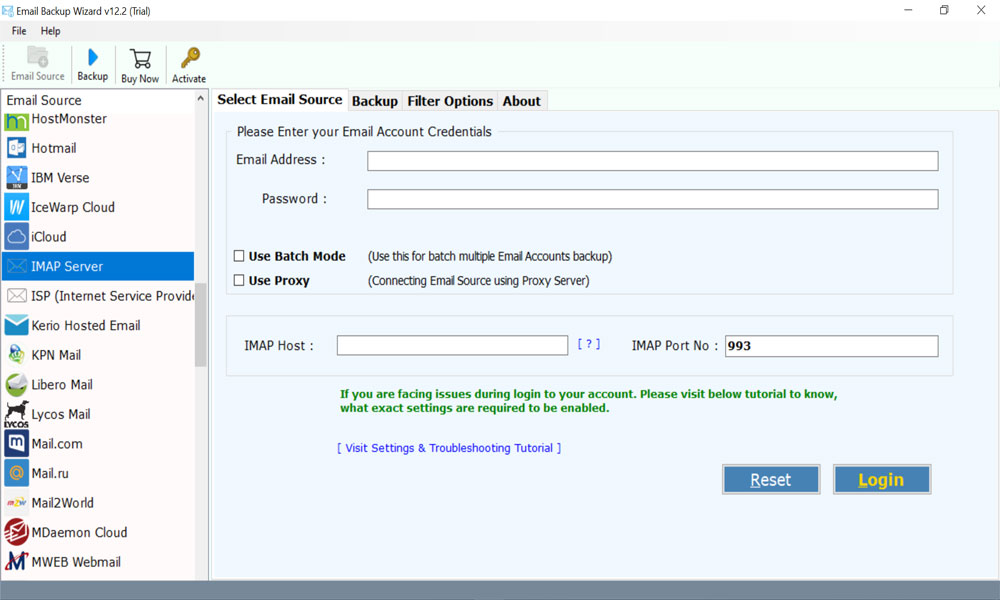
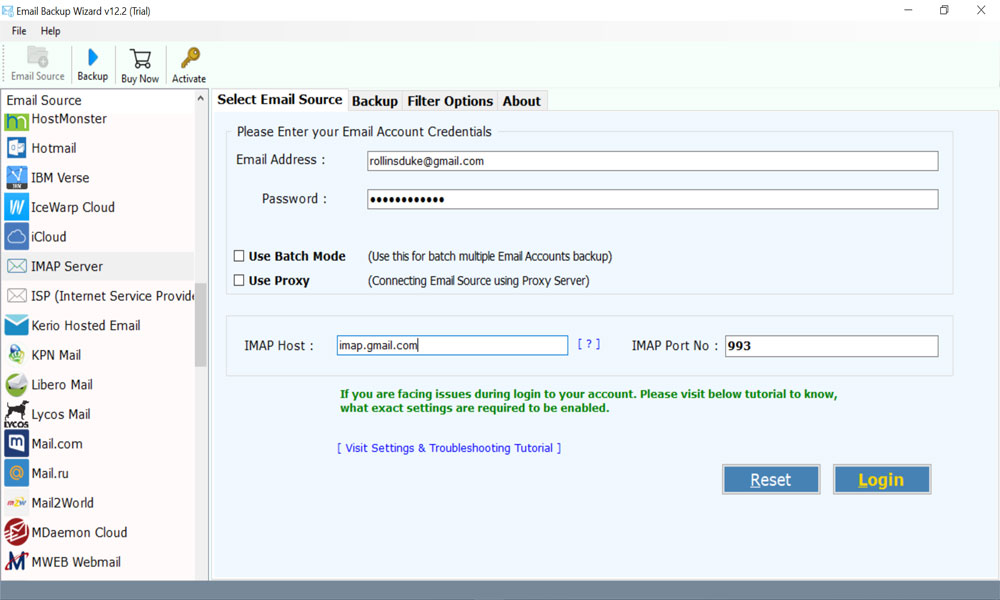
- To continue, select the Email Service from where you want to migrate emails to Google Workspace, or if your specific email service is not in the list, then select IMAP Server.
- After that, enter your account login details. If you have chosen IMAP settings, then enter the Server details too.
- Then, Pick the required Email Folders.

- Apply filters as needed (such as folder, date range, etc.).

- Connect to the target Google Workspace account using your account login credentials.

- Then, to begin the process of migrating emails to Google Workspace, select the Backup option.
- Following the completion of the task, a pop–up box will appear. To depart, click the OK button.



Software Handles All Issues: Not Receiving Emails to Google Workspace?
After migrating, users might encounter Google Workspace not receiving emails. Common reasons are:
- Incorrectly configured DMS or MX(s) records.
- Manual migrations caused IMAP sync errors.
- Filters or rules are not implemented.
The Email to Google Workspace Migration tool can avoid the challenges to migrate emails to Google Workspace users by ensuring complete and error-free migrations.
Advantages of Using a Professional Tool
A professional solution has advantages that a manual method doesn’t:
- Time: Move the bulk of data quickly.
- Accuracy: Complete migration of all emails, attachments, and folders.
- Control: Choose the right items, migrating data selectively.
- Security: Certification ensures the safety of your data.
- Scalability: A good fit for a single user or large businesses with mailboxes.
Disclaimer:
BitRecover adheres to evidence-based research, practical technical experience, and real-world migration experience. Each solution we provide is tested by data specialists who verify its performance, quality, and security.
Our experts have migrated thousands of users’ old emails to Google Workspace with no issues. The email to Google Workspace migration tool shows our dedication to trust, process accuracy, and user safety.
Conclusion
This informative piece shared how to migrate emails to Google Workspace. Email migration to Google Workspace is an essential part of business continuity, collaboration, and productivity. Sure, there are manual methods, such as DMS or using the mail client, but all of these methods could take forever for a large-scale email migration.
Email to Google Workspace solution accepts all of the shortcomings of a manual migration. With this email Google Workspace migration tool, users will transfer emails to Google Workspace, import old emails, move multiple emails at once, and add new or additional emails to Google Workspace using advanced filters while maintaining the integrity of their data.
We also have a workaround for professionals, businesses, or anyone who has multiple accounts to move to Google workspace with a reliable, fast, secure seamless migration solution
FAQs: Email to Google Workspace Migration
Q 1: How can I add more emails to Google Workspace?
Admins can use the Google Admin Console to add new users or accounts, or use the professional email to Google Workspace migration tool to add multiple email accounts to Google Workspace in batches in a simple and efficient manner.
Q 2: Can I migrate old emails to Google Workspace safely?
Professional tools like BitRecover email to Google Workspace migration tool will not only move old email to Google Workspace but will also keep your folder hierarchy, attachments, and metadata.
Q 3: Is it possible to forward emails to Google Workspace automatically?
You can use the manual ways to forward email to Google Workspace automatically using built-in Data Migration Service (DMS) or using an email client. However, manual methods can result in errors. Professional tool like BitRecover email to Google Workspace migration tool will automate the process and eliminate the possible errors in forwarding, etc.
