How to Export Data From Zoho Books? Easy Archival Guide
Fact-checked and reviewed in accordance with our Editorial Policy
Summary: The procedure associated with the dealing of financial transactions can often be complicated. The divergent business needs and platform architectures can create many challenges to the retention of ledger history in different cloud applications. Therefore, it is vital to properly collect and keep all necessary financial data on a continuous basis. Manual retention of records can leave entries exposed to mistakes caused by human factors such as formatting blunders, etc. The use of Zoho Books allows an easier transfer of necessary information by saving financial reports in a structured way. This blog presents an automated method on how to export data from Zoho books for a safe archival of the financial details.
Why Care About – How to Export Data From Zoho Books?
- Keeps your financial operations free from any disruptions such as problems created due to software freezes or sudden updates imposed by third parties.
- Ensures efficient record-keeping so that all information contained in old documents, bank accounts, and inventories is readily available regardless of whether there is an internet connection or not.
- Protect your accounting database from unforeseen system hiccups or upgrades.
- Avoid vendor lock-in by being prepared for transitions to new platforms with safe backups.
- Ensure effortless tax compliance and audit readiness of your archives irrespective of the cloud vendors.
How to Export Data From Zoho Books Manually?
- First, log into your Zoho Books account.
- Go to the left sidebar, find the module in question (Sales, Invoices, Items, etc.), and open the list page from which you will export information.
- Click on the More icon in the right corner of your screen and choose Export from the drop-down menu.
- Make your selections when prompted in the new window (for example, select the status, time limit, and file you want to obtain either as CSV or XLSX).
- Finally, check any customized fields or password options, if necessary, and click on Export to save the file in PC.
- In case you wish to export data in PDF format, you may open the particular file or report, click on Print, and Save it as PDF file.
Convert Data From Zoho Books to PDF in Bulk: Step-by-Step
BitRecover Excel to PDF Converter offers great utility to users who wish to transform their financial reports, invoices, and ledgers from Zoho Books in the Excel format to PDF. The solution implements high-quality technology. It ensures that the transactional data like payment maturities, line items, and updates of the financial processes are retained and kept in the right order. As a standalone application, it allows seamless operations with the specific data without the need for a live Internet connection. It is the perfect tool for those who need nothing else to complete their tasks using the necessary information without going online. The software has many great advantages which allow it to perform complicated conversions easily.
Quick Steps to Convert:
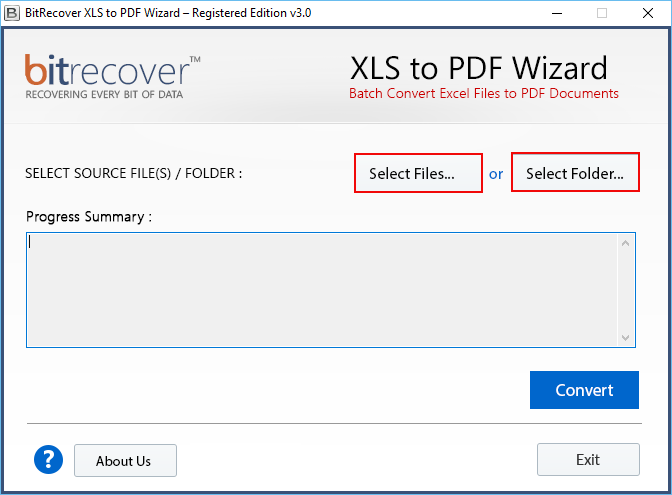
- Download, install and launch the utility on your PC.
- Add Excel files that are required to be converted into PDF format.

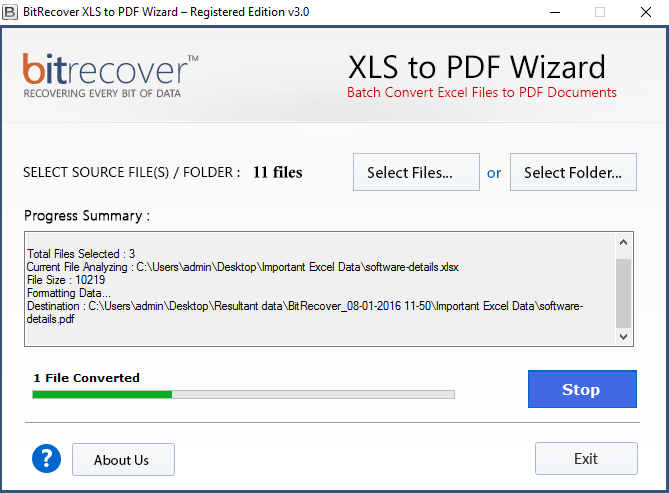
- Click Convert and you will see the completion progress bar.

- The converted PDF files will be saved on PC at the destination location.
Phenomenal Features of the Tool
- Functions without requiring any connection to Zoho Books.
- Allows to export numerous projects’ files or folders simultaneously in the Batch Mode.
- Holds the arrangement of task lists, project boards, schedules, and similar elements intact.
- The processing is efficient, solving issues associated with conversion and compatibility.
- Guarantees the compatibility of information due to the preservation of layout.
- Is compatible with all the versions of Windows OS.
Final Takeaway
Data accuracy and privacy must be properly maintained in order to successfully accomplish all the accounting jobs and processes. For this reason, use only those methods that enable a proper export of financial records and timely preparation of required reports. Many organizations continue to use manual methods to gather or copy their Zoho Books information. These methods are seldom used because Zoho Books may turn out to be fairly tricky because of numerous ledgers and transactions. Under such circumstances, it would be better to use effective software like BitRecover so as to not compromise the records and financial data and create backup copies of the records efficiently.
Common Queries
Q: What are the benefits of using automation when exporting Zoho Books data rather than doing it manually?
One of the biggest benefits of using automated methods is the advantage of saving time while preventing file corruption and disorganization. Furthermore, you don’t have to worry about making mistakes in your data export due to human errors caused by incorrect copy-pasting and missed lines.
Q: Will I be able to maintain my financial profile and rows unchanged when exporting my Zoho Books data?
Yes, experts suggest that reliable software such as BitRecover provides the possibility of perfect conversion. It guarantees that your financial profile stays unaltered along with all the formatting.
Q: Can I use the exported files and reports on any gadget and system?
Yes you can easily open the report on any device and system regardless of whether you are logged in to Zoho Books or not. This is because of the fact that the usage of standard formats such as PDF, Excel, and CSV is widespread.
See Also: How to Export Data from FreshBooks?
About the Author

