How to Export Data From FreshBooks Seamlessly? Quick Guide
Fact-checked and reviewed in accordance with our Editorial Policy
Summary: Dealing with financial transaction data can be an important procedure. Different businesses have different requirements making it hard to keep ledger data securely on different cloud solutions. Therefore, having proper mechanisms of collecting and retaining financial data is necessary for every business. If doing record keeping manually, there is a great probability of making human mistakes like incorrect formatting. FreshBooks allows the export of data in an easy way because it organizes the reports for better accessibility. In this blog, we shall also introduce and discuss a professional tool, BitRecover to know how to export data from FreshBooks automatically in other format.
Main Reasons to Export Data From FreshBooks
- Ensure effortless tax compliance and audit readiness of your archives irrespective of the cloud vendors.
- Protect your accounting database from unforeseen system hiccups or upgrades.
- Keeps your financial operations free from any disruptions such as problems created due to software freezes or sudden updates imposed by third parties.
- Avoid vendor lock-in by being prepared for transitions to new platforms with safe backups.
- Ensures efficient record-keeping so that all information contained in old documents, bank accounts, and inventories is readily available regardless of whether there is an internet connection or not.
How to Export Data From FreshBooks Manually?
- In the beginning, continue by logging into your FreshBooks account.
- Now proceed to the left sidebar and locate the required module (Invoices, Items, Clients, and others) and then access the page with the information you want to export.
- Hit on “More actions” on the upper right side of the page and select “Export” from the drop down menu.
- Make your selection in the opened form (like status, time, and type of information you need, for example, CSV).
- Finally, check for any custom fields in case you desire and select the button to save the file on your PC.
- In case you wish to export data in PDF format, you may open the particular file or report, click on Print, and Save it as PDF file.
Convert Data From FreshBooks to PDF in Batch: Step-by-Step
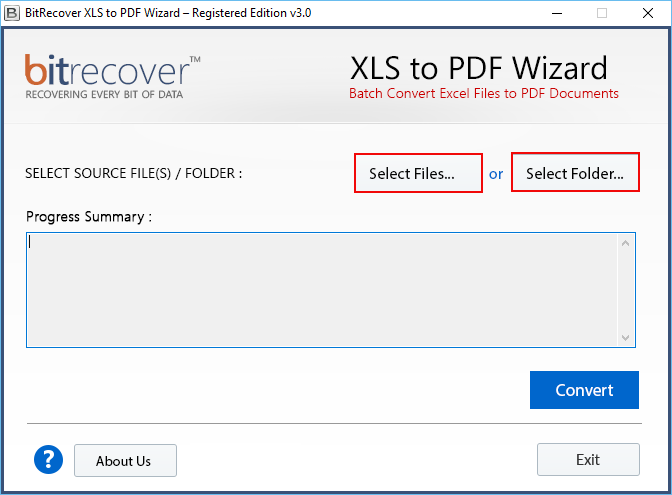
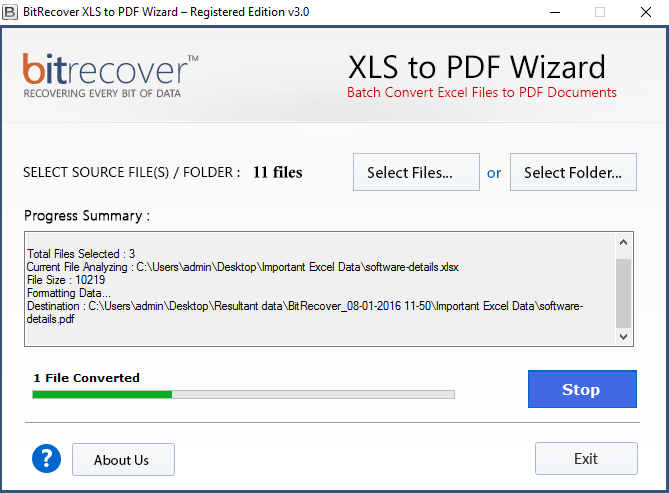
BitRecover Excel to PDF Converter offers great features to users who wish to transform their financial reports exported from FreshBooks PDF format. The solution implements top-notch technology. It ensures that the transactional data are retained and kept in the right order. As a standalone application, it allows seamless operations with the specific data without the need for a live Internet connection. It is the perfect tool for those who need nothing else to complete their tasks using the necessary information without going online. The software has many great advantages which allow it to perform complicated conversions easily.
Quick Steps to Convert:
- Download, install and launch the utility on your PC.
- Add Excel files that are required to be converted into PDF format.

- Click Convert and you will see the completion progress bar.

- The converted PDF files will be saved on PC at the destination location.
Best Features of the Tool
- The processing is efficient, solving issues associated with conversion and compatibility.
- Allows to export numerous files or folders containing financial data simultaneously in the Batch Mode.
- Holds the arrangement of financial reports and related elements intact.
- Compatible with all the versions of Windows OS.
- Guarantees the compatibility of financial information due to the preservation of layout.
- Functions without requiring any connection to FreshBooks.
Final Takeaway
It is essential to manage the information properly to succeed in various accounting tasks and processes. Thus, it is crucial to utilize the methods allowing for effective extraction of the financial records and timely creating of the necessary reports. Numerous companies still use manual methods of collecting or copying the information from FreshBooks. These mean of gathering the data are very difficult to employ as there can be many ledgers and transactions in FreshBooks. Thus, in this situation, the best option would be to turn to specialized software such as BitRecover for the archival of your critical data.
Common Queries
Q: What are the advantages of automating the export process of FreshBooks data as opposed to doing it manually?
A: Automation allows for more time efficiency, less confusion with file organization, and no errors as a person can sometimes skip some pieces of information or miscopy the data.
Q: Will my financial settings and rows remain untouched while exporting data from FreshBooks?
A: Yes, the tool that come with BitRecover ensure that your financial settings remain as they were before the export.
Q: Can I work with the exported reports on any device and operating system?
A: Yes, thanks to the common formats like PDF, Excel, and CSV, you can easily access any reports without logging into your FreshBooks account.
Also Read: How to Export Data from Zoho Books?
About the Author

