Direct Technique to Convert Pegasus Mail to Outlook PST

Published: February 10th, 2026 • 6 Min Read
Difference Between Pegasus Mail & MS Outlook
Pegasus Mail:– Pegasus Mail is a free email client developed to let users send and receive emails safely. This email client primary focus is email handling, filtering & anti-spam tools. Pegasus Mail lacks advanced features like calendars, task management, or integration with other applications. This client interface is classic and easy-to-use. Pegasus Mail save emails messages locally in PMM format.
Microsoft Outlook:– Basically, Outlook is a part of Microsoft that helps users to manage emails, contacts, tasks, attachments, and calendars. MS Outlook is also integrated with Microsoft Exchange, Office 365, and other Microsoft apps. Outlook also offers advanced email rules, collaboration features, and enterprise-level security. It only supports OST/PST format.
Top Reasons to Convert Pegasus Mail to Outlook
- Outlook offer advance features like folders, categories, flags, and rules that help to organize large mailboxes, which Pegasus Mail lacks.
- Unlike Pegasus Mail, Outlook also offer built-in calendar, task manager, and reminders to manage emails, appointments, and deadlines.
- Microsoft Outlook also integrates with multiple Office apps such as Excel, Word, Teams, and more. Improve business productivity of users and collaboration.
- Pegasus Mail PMM, CNM, and PMI files are less compatible. Users need a technical understanding to transfer Pegasus Mail files to another computer.
- MS Outlook also works with all types of device Windows, Mac, Android, iOS, and web. Pegasus Mail is Windows focused email client that provides limited cross-platform support.
- Many organizations trust Outlook because of encryption, multi-factor authentication, and advanced spam filtering. Outlook comes with advanced security features that Pegasus Mail doesn’t have.
2 Methods to Convert Pegasus Mail to Outlook
There is no direct option to migrate Pegasus emails to Microsoft Outlook. However, users can use the IMAP protocol that help to move Pegasus Mail data into Outlook. If they don’t know about the IMAP settings then they can use import EML to Outlook method to convert Pegasus emails into Outlook. Nevertheless, free methods have lot of limitations and need technical knowledge.
Method 1: Import Pegasus Mails into Outlook by IMAP
- Configure an IMAP account in Pegasus Mail.
- Wait and sync all Pegasus Mail folders with IMAP server.
- Open Outlook and login with same IMAP account.
- Outlook start syncing emails wait to download emails into MS Outlook.
- Once the syncing is done, open Outlook and check Pegasus emails.
Method 2: Import Pegasus Mail to Outlook as EML
In this method, users will have to change Pegasus emails as EML format and then import it into Outlook. Users need to follow each step, if they miss any single steps they will lost important Pegasus files:-
- Open Pegasus Mail.
- Select required emails and export emails as .EML format in local folder.
- Once EML is saved, go to location where Pegasus emails are saved as EML.
- Now, Open Microsoft Outlook.
- Choose any folder where you want to save Pegasus files.
- Drag and drop EML files in Outlook folder.
- Once the process is complete, check all EML files.
Import PST from Outlook
- Go to “File Menu” in Outlook.
- Determine to “Open & Export” & tap on “Import/Export” option.
- Now pick “Export to a file” and click next.
- Pick “Outlook Data File (.pst)” and continue by click on Next.
- Choose Outlook folder that storing EML files.
- After that, click next to finish process.
Limitations in Manual Method
- Time-consuming process.
- Need technical knowledge about Pegasus and Outlook.
- IMAP Configuration in both email clients.
- Installation of email clients.
- Chances of lost data, if users miss a single step.
Pro Solution to Convert Pegasus Mail to Microsoft Outlook
Exporting Pegasus Mail mailboxes into Outlook by free method can be costly. If users don’t have technical knowledge they can use BitRecover Pegasus Mail Converter. This tool helps users to export Pegasus to PST format. There is no need to install multiple email clients or IMAP configuration. Users can install this tool in any type of Windows operating system.
Steps to Import Pegasus Mail Mailbox into Outlook
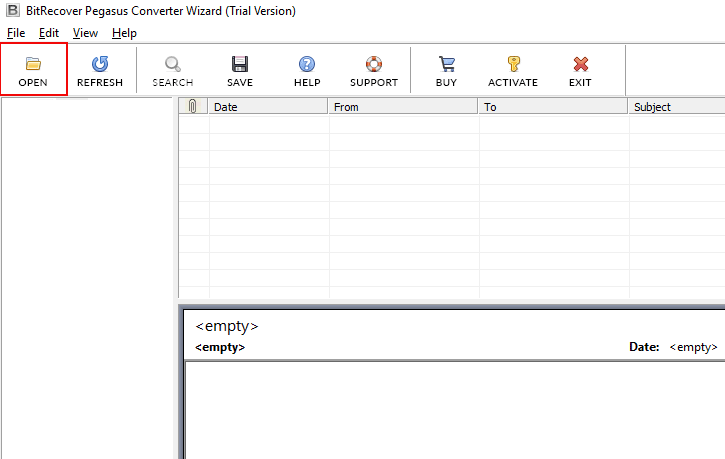
- Download and Start Pegasus Converter.
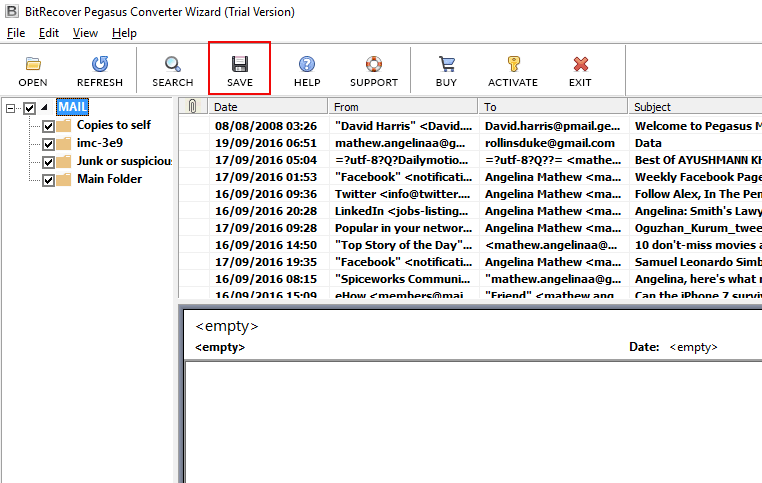
- Manually select or auto-load Pegasus files.

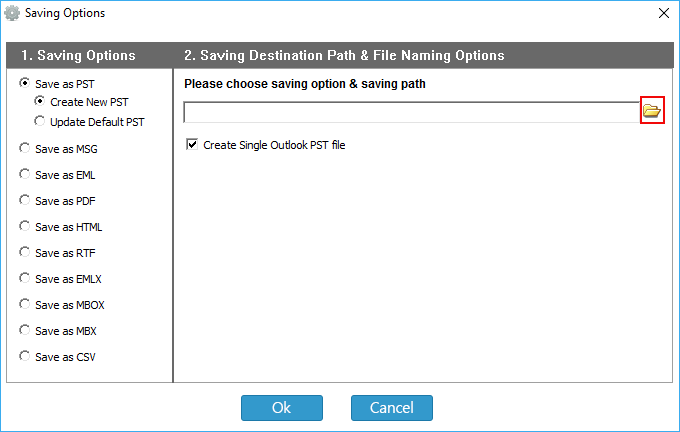
- Preview & Choose PST as saving option.

- Select destination path & use filter option

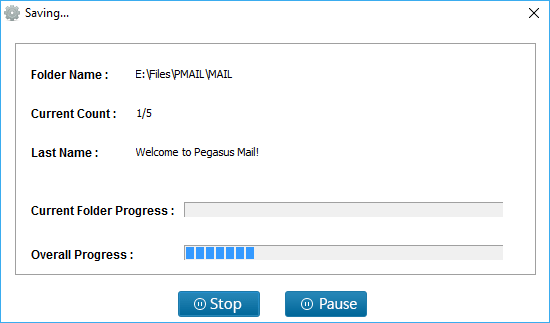
- Once all step done, click “Convert” icon to begin conversion.

Primary Features in Pegasus to Outlook PST Converter
- No data size limitations.
- Direct Pegasus Mail to Outlook conversion.
- Support .PMM, .CNM, & .PMI formats.
- Export Pegasus Mail with attachments into PST format.
- Option to name files by date, time, year, subject, and so on.
- Maintain formatting of Pegasus data before & after conversion.
- Selective destination path option to store converted Pegasus file.
In Essence,
Users get top three explanations that help to convert Pegasus Mail to Outlook PST format. The first 2 method is free and just take users time and effort. In free method, users also need to install and configure Pegasus Mail & MS Outlook.
The professional solution directly convert Pegasus Mail mailboxes into Outlook PST format without needing extra efforts. Within five mouse clicks, users export any size of Pegasus Mailboxes into PST format. Choose best option that fulfills your needs.
Frequently Asked Question
Q1: How to freely convert Pegasus Mail to PST format?
To convert pegasus Mail to PST format, users need to configure Outlook and Pegasus Mail. After that, create EML and drag and drop EML files in Outlook. However this process can take time and not understandable by non-techie users.
Q2: Can I Convert 5 GB Pegasus Mailboxes to PST?
Yes, users can easily convert 5 GB or more size of Pegasus Mail data into Outlook PST format. With this advanced utility, users can export any size of PMM files into PST.
Q3: Does the Pegasus email structure remain same in Outlook?
Yes, this tool does not interfere with email and folder structures. Users receive the same Pegasus email folders as they were saved in the Pegasus email client.