Why Apple Mail App Not Showing Number of Emails? Fix It

Published: March 16th, 2026 • 7 Min Read
Users sometimes notice that their Apple Mail app is not showing the number of emails, even when new messages have arrived. Instead of displaying the unread count, the Mail app may show no number at all, display an incorrect number, or even stop updating the badge count. This can be very frustrating for the users, as they may miss important emails or constantly need to open the Mail app to check for the new messages.
This Mail app not showing number of emails issue can occur due to multiple reasons, such as incorrect notification settings, synchronization problems, software glitches, or account configuration issues. Users can solve this issue easily with patience and the right solution.
As emails have become an essential part of daily communication and many users rely on Apple Mail for it, in this blog we will learn step-by-step the process to solve the Apple Mail app not showing number of emails error and tips to prevent it in the future. So, let us start.
Why does the Apple Mail App not Showing Number of Emails?
Understanding the root cause of every error helps to fix it more efficiently and accurately:
- If the users have turned off the badge notification, the Apple Mail app may not show the actual count of your total emails in the mailbox.
- Sometimes, due to failed synchronization, the Mail App cannot update the unread email count and which leads to the badge number not appearing.
- If the fetch settings are configured incorrectly in the application, the unread email count may not update properly.
- Temporary bugs in the operating system can also affect the Apple Mail settings of showing the total number of emails.
- If the user’s account is not configured properly, or authentication token has expired, the Mail app may stop updating the total email count.
- If the background refresh is disabled for the Mail app, it may not update until and unless you open the application to check it.
- Apple Mail app stores temporary cache data, if that cache data becomes corrupted it may cause this issue and you won’t be able to see the email count.
Method to Solve Apple Mail App Not Showing Number of Emails Error
Below are some manual methods that may help you to solve this issue while using the Apple Mail app itself. All you need to do is go through these methods carefully to get accurate results.
#1. Enable Badge App Icon for Mail
If the badge notifications are disabled in your app settings, the Mail app won’t display the number of emails. Below are the steps to enable it.
- Start with opening Settings on your device.
- Scroll down and tap on Notifications .
- Now, select Mail from the list of applications.
- After that, enable the Badge App icon.
- Once done, restart the application.
#2. Restart the Mail App
Sometimes, the Mail app may stop updating the Email count of the account due to a temporary glitch, restarting the app may refresh its functionalities.
- First, close the Mail app completely.
- Now, swipe it away from the recent application list.
- Now, reopen the Mail app.
- Wait for a few seconds for it to refresh all emails and see the count.
#3. Check Mail Fetch Settings
Sometimes, incorrect fetch settings can prevent the Mail app from updating email counts properly. After adjusting these settings the Mail app should update the unread emails correctly.
- First go to Settings.
- Then tap on Mail.
- Select Accounts option.
- Click on Fetch New Data.
- Lastly, enable Push or set fetch to Automatically.
#4. Refresh Mail Accounts
Refreshing the account connection can also fix the Apple Mail app not showing number of emails issued.
- First of all, open Settings.
- Now, click on the Mail option.
- Go to Accounts.
- Select your email account.
- Flip Mail OFF button and then ON again.
#5. Restart Your Device
Restarting the device can fix all the temporary system bugs that are affecting the functioning of the applications.
- Turn off your iPhone, iPad, or Mac Machine.
- Now, wait about 30 seconds.
- Now, turn the device back on.
- Now, open the Mail app again and see if this issue is resolved.
#6. Remove or Re-add Your Email Account
If the account configuration is corrupted, removing and re-adding it can help see the accurate number of emails in the mailbox.
- Start with going to the Settings.
- Tap on Mail >> Accounts.
- Now, select the email account.
- Click on the Delete Account option.
- Restart your device.
- Now, add your account again.
Are These Manual Methods Really Useful?
These above-mentioned methods are definitely useful but also comes with some drawbacks:
- These methods may not work if the problem is related to server-side issues.
- Removing and re-adding your accounts frequently can sometimes cause temporary syncing delays.
- Some steps require multiple troubleshooting attempts before the issue is fixed.
- These methods can sound very technical for users who do not have technical knowledge.
If the Apple Mail app continues to show errors or does not function properly, it is always recommended to create a backup of your entire Apple Mail data and choose another email client as the best option to migrate with safety along with all your data.
Reliable Alternative When Manual Fixes Does not Work
If the manual method does not work, and you are facing the Apple Mail app not showing number of emails repeatedly, using BitRecover Apple Mail Converter can help you manage the Apple Mail data efficiently. It is one of the most reliable solutions that allows users to convert and export all the Apple Mail data in bulk and make them accessible into several email platforms.
Below are the links to download the trial version of the solution directly on Windows and Mac machines:
Quick Steps to Use this Solution on Mac Machine
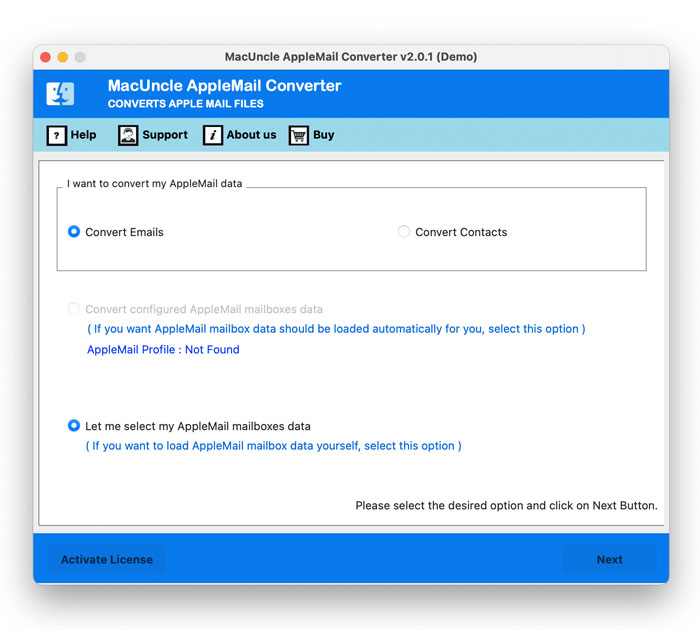
- First, download and install the solution on your Mac Machine.

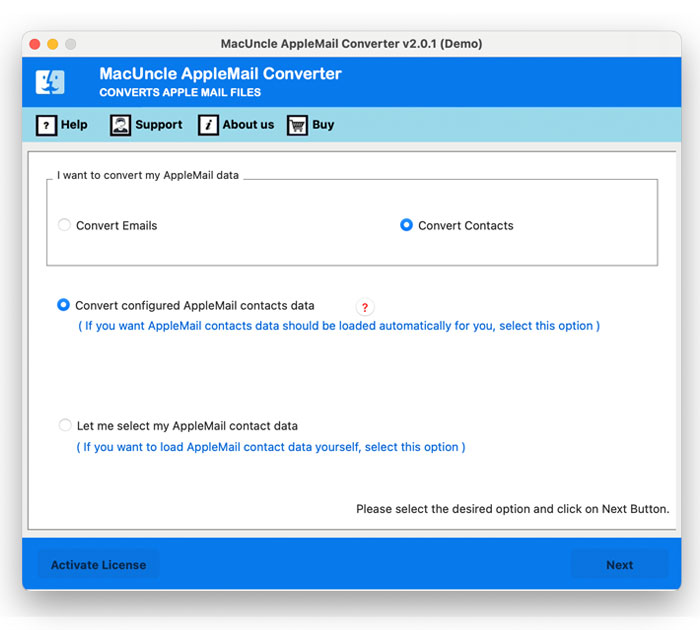
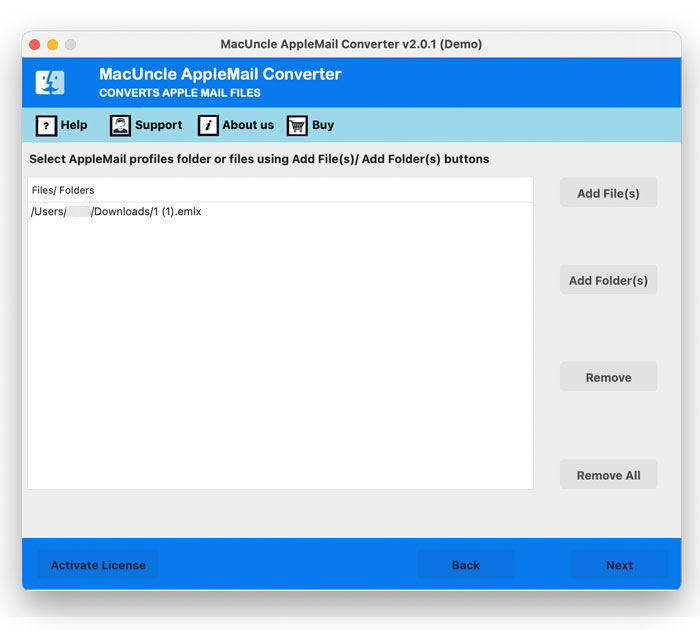
- After that, choose the option to upload the Apple Mail data into the software.
- Check and preview all the uploaded mailbox data into the panel.
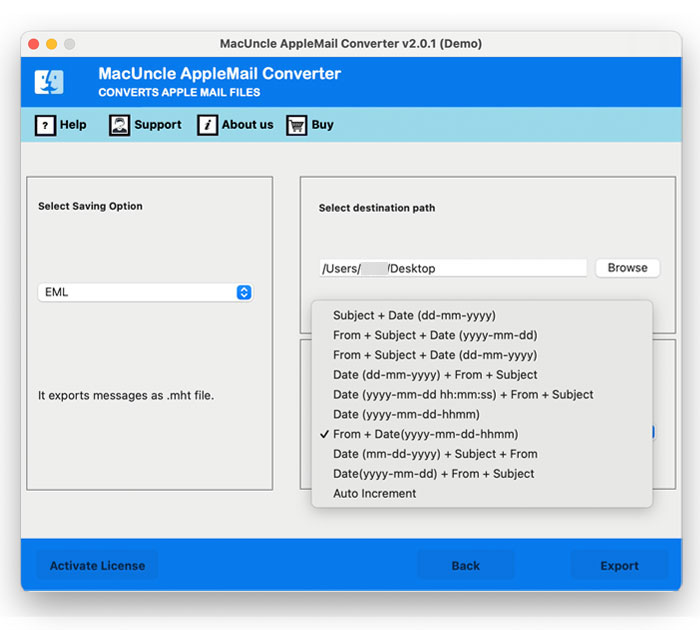
- Choose a Saving Option, Destination Location, and a Name from the list.
- Once the process is completed click on the Export button to get rid of Apple Mail app not showing number of emails error.
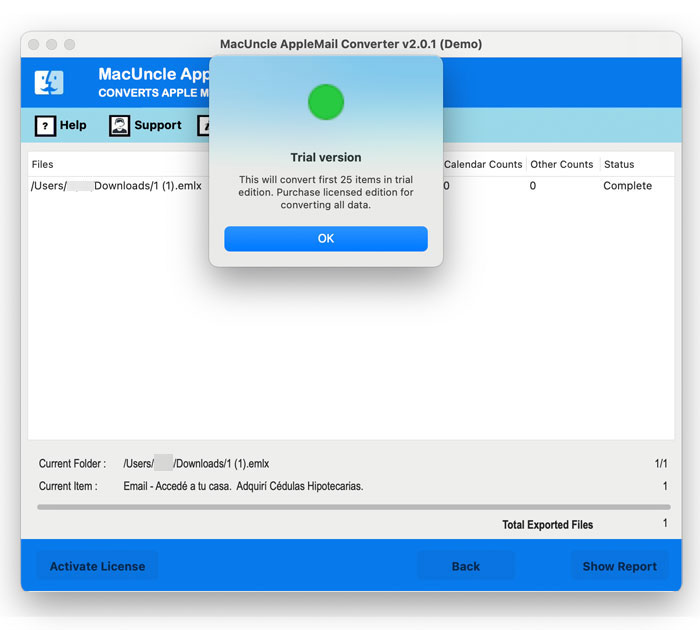
Download the Solution on Windows and Follow These Steps
- Download and install the solution on your Windows system and click on Next to proceed.

- Choose the option from Select Files and Select Folder to load the data into the software panel.
- Preview all the uploaded data and check it carefully before proceeding to create a backup.
- Choose a format or email platform from the Select Saving Options list.
- Choose a Destination Path to save the final data to the desired location.
- Select a new name from File Naming option list.
- Apply filters from Advanced Filter Option list to export data selectively as per your requirements.
- Lastly, click on the Convert button to complete the process with safety.


Why Do Professionals Consider This Solution Best & Safe?
- It allows you to export Apple Mail data in bulk while maintaining the integrity.
- Offers you to convert Apple Mail data into EML, PST, DOC, TXT, MSG, HTML etc.
- Helps you to migrate your Apple Mail data into Gmail, Outlook and several more email clients and platforms.
- Standalone solution to help to prevent multiple Apple Mail errors while prioritizing data safety.
- Technical Support Team is available at all even and odd times to guide and assist with all your technical needs.
Need More Help?
In this blog we have discussed how we can manually solve the Apple Mail app not showing number of emails error and even we have talked about a professional solution to prevent this error in future with ease. If you have any doubt or want to discuss this issue and solution further you can reach out to our Technical Support Team 24/7.