How to Import MBOX to Office 365 Account? Complete Guide
Fact-checked and reviewed in accordance with our Editorial Policy
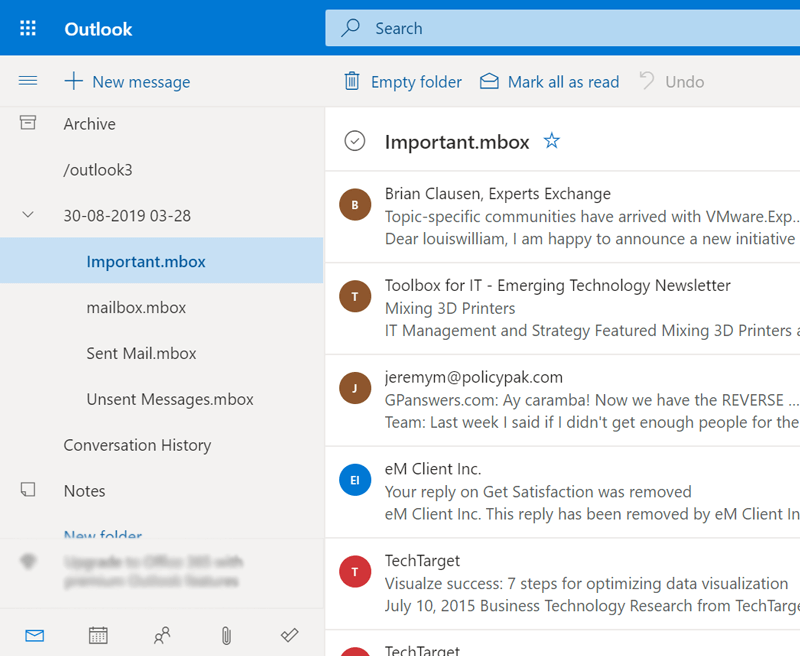
Want to import MBOX to Office 365 account? This page is the best guide to discuss about a good MBOX to Office 365 migrator. There could be multiple reasons to choose this task but sometimes the question arises, can Outlook 365 open MBOX files directly? The answer is No. Microsoft Outlook 365 does not support opening or importing MBOX files natively.
As Outlook uses OST and PST formats, whereas, MBOX is primarily used by Thunderbird, Apple Mail, Google Takeout, Postbox and many more email clients. To access your MBOX emails in Outlook, you must either synchronize them through an IMAP-supported client or convert your files into Outlook-compatible PST file format.
Note: Office 365 is a cloud-powered productivity platform. If you are using a desktop edition of Outlook client that is a part of MS Office Suite, then refer to this article to import MBOX files to Outlook to avoid confusion.
Why Users Need to Import MBOX to Office 365 Migration?
Before choosing an MBOX to Office 365 migrator, you must know the reasons first. Below are some of them:
- Growing Phase: When an individual working professional or business is in the growing phase then they wish to upgrade to Microsoft 365 trending productivity suite.
- Access Anywhere: Microsoft 365 can be easily accessed from anywhere, anytime using any device; however, internet connectivity is mandatory.
- Security: Office 365 offers best-in-class security features, which are enough compared to any MBOX-supported desktop clients.
- Email Management: Users import MBOX to Office 365 to access all the current and old mailboxes under one specific account.
- Use Across Devices: You can access your Office 365 account using any web browser, or you can download the Microsoft 365 App on Windows, Mac OS, Android, and iOS devices.
- Efficient Workflow: Microsoft 365 is a productivity suite application which not only used for emails but also offers bundle of online applications.
- Scalability: It is the most important feature of the Microsoft 365 platform, so you can quickly upgrade and downgrade its subscription plan.
How to Migrate MBOX Files to Office 365 Manually?
Being a technical expert, I would like to suggest you use any MBOX-supported freeware email clients i.e. Thunderbird and Apple Mail. After that, you can configure your Office 365 account with mentioned email clients using IMAP email settings. Then, import MBOX file into supported email clients and then sync the MBOX file to get emails in the Office 365 account.
Let’s read the upcoming sections to import MBOX to Office 365 account on Windows and Mac. We are using Thunderbird and Apple Mail clients to do this task because these email clients are available free of cost.
Additional Tips Before Starting the Process:
- Don’t forget to enable IMAP while configuring the Office 365 account in Thunderbird.
- Also, add the ImportExportTools NG plugin in your Thunderbird to make the import option visible.
#1: Using Thunderbird to Import MBOX to Office 365
As we discussed earlier, we will configure the accounts by providing the account details, and then move or import MBOX files. Make sure to follow all the steps carefully of the process to accurate results.
Step 1:
- First of all, download and install Thunderbird on your system.
- Now, start Thunderbird and choose the Account Settings button.

- After that, click on Account Actions >> Add Mail Account option

- Provide your Office 365 credentials and click on the continue button.

- Enable IMAP from the available configuration and click on Done.


Step 2: Open MBOX File In Thunderbird
- First, click on Local Folders from Thunderbird and right-click on it.
- Now, select ImportExportTools NG >> Import MBOX Files option.
- Click on the Individual MBOX Files option and browse the MBOX file.

- After that, select the MBOX file and click on the Open button.

- MBOX file imported under Thunderbird local folders.

- Now, right click on Imported MBOX and choose the Move To option.

- Select the configured office 365 account then click on the Specific folder.
- Wait for the process to complete.


#2: Using Apple Mail to Import MBOX to Office 365
Step 1:
- First, open Apple Mail on your Mac.
- After that, click on Mail >> Add Account option.

- Select a Mail account provider and click on the Continue button.

- Type your Office 365 credentials and click on the Sign In button.

- Now, type your Office 365 IMAP Server details and click on the Sign In option.

- Now, enable Mail app and click on Done button to finish the setup


Step 2: Import MBOX to Apple Mail and Sync
- In the Apple Mail email client click on File >> Import Mailboxes option.

- Enable the Files in MBOX Format option and click on Continue.
- Now, select MBOX files from your MacBook and click on Continue.
- Now, see imported MBOX under the On My Mac import folder.
- After that, right-click on the imported MBOX and click on “Move To” to import MBOX to Office 365.
- Select the recently configured Office 365 account folder and move.
- Wait for the synchronization and log into Office 365 to see the imported data.


Why Experts Don’t Go for the Manual Methods?
- Requires installing additional add-ons and MBOX-supported email clients.
- Manual mistakes coming with this solution can lead to data loss issues.
- Permits to migrate MBOX files in Office 365 one by one, so not fit for business use.
- Technical knowledge is mandatory to perform the MBOX to Office 365 migration process.
Which Method is Best to Import MBOX to Office 365 Account?
The BitRecover MBOX Converter is the best method for MBOX to Office 365 migration without losing any data and information. It can directly migrate MBOX to Office 365 account along with attachments.
The tool has Select Files & Select Folders options to add single as well as multiple MBOX files. With this tool, users can migrate MBOX to Office 365 web-based account in batch without size limitations. Now, let’s discuss the working process of the software.
You can use this tool to upload your MBOX data files into all types of Outlooks, like online, desktop, and Mac. Check out the working steps of this best MBOX to Office 365 migrator:
How Does the MBOX to Office 365 Migration Tool Work?
- Launch the MBOX to Office 365 migrator on your computer and add the MBOX files.

- After that, mark the check option on the required checkbox to select the required folders, then click on Next.
- Thereafter, select the Office 365 saving option from the given drop-down list to import MBOX to Office 365.
- Now, enter the Office 365 account login credentials – login ID & Password.

- Click on the Convert button to start importing MBOX files to Microsoft 365.
- Now, users can view the resultant data in their Office 365 accounts.


Features & Capabilities of this Powerful Solution
- This tool has the ability to upload all MBOX data files generated by any compatible applications like Thunderbird, Apple Mail, Google Takeout, Entourage etc.
- No need to perform any additional import or export process, the MBOX to Office 365 migration tool can directly upload data.
- The software is capable to maintaining the original emails elements including header and body details and folder structure during the live process.
- It provides multiple options to move MBOX file data to archive or in-place folders according to your choice.
- MBOX to Office 365 migration tool gives advanced settings to import MBOX to Office 365 selectively by Date Range, To, From, Subject etc.
- Convert MBOX files to Lotus Notes NSF, Outlook PST, HTML, PDF, and 10+ file formats without requiring technical knowledge.
Comparison Table of Manual Methods and Professional Solution
| Feature | Thunderbird | Apple Mail | Professional Solution |
|---|---|---|---|
| Supported OS | Windows, macOS, Linux | macOS | Windows & Mac |
| Ease of Use | Moderate | Easy | Very Easy |
| Bulk MBOX Import | No | No | Yes |
| Preserves Folder Structure | Partial | Partial | Yes |
| Maintains Email Properties | Partial | Partial | Fully |
| Time Required | High | Moderate | Less time |
| Best For | Individual Users | Mac Users | Personal & Business users |
Ending Lines
Here, we have discussed how to import MBOX to Office 365 account. We have explained in detail both professional and manual methods. You can choose any of these MBOX to Office 365 migrator as per your requirements. But as mentioned above, the manual method is time-consuming and there is a fear of data loss in this method. So, it’s better to use automated software.
Top Asked Questions and Answers
Ques: How to import MBOX to Office 365 Mac?
- Set up an Office 365 account in Apple Mail using IMAP.
- Then, import MBOX mailboxes into the Apple Mail client.
- Right-click on the imported MBOX and choose the “Move To” option.
- Select the “Office 365” account folder to open MBOX file.
Ques: Does the MBOX to Office 365 migration tool support Mac OS?
Ans: Yes, the MBOX to Office 365 migrator supports all Mac as well as Windows OS versions.
Ques: Can I use manual ways to open an MBOX file in Office 365?
Ans: Yes, above we have discussed two manual methods to import MBOX to Office 365 for Windows and Mac OS users, choose accordingly.
About the Author

