How to Transfer Emails from Embarqmail to Gmail Account ?
Fact-checked and reviewed in accordance with our Editorial Policy
Summary: Transfer emails from Embarqmail to Gmail with easy step-by-step guide. Here you’ll discover how to migrate your mailbox manually, understand the challenges of each method & discover best reliable solution for transferring all your emails securely.
Read about Embarqmail:- Embarq Corporation (adapted as EMBARQ) was the biggest free local exchange carrier in the United States serving clients in 18 states and giving local, significant distance, fast information, and remote services to private and business clients. In the year 2009, it was bought by CenturyTel (or CenturyLink) which is now called Lumen Technologies.
This email conversion can be accomplished with the help of BitRecover Solutions. We understand your requirements that’s why we have come with the most proficient solution to forward Embarqmail emails to Gmail account.
Why Should You Transfer Emails from Embarqmail to Gmail?
Transferring your Embarqmail emails to Gmail is a smart choice because Gmail offers more storage, better security & useful features. It also help keep your emails safe if you stop using your CenturyLink internet service.
Here are some common reasons to transfer Embarqmail to Gmail:
- Avoid Losing Emails: If you cancel CenturyLink internet service, you may lose access to your Embarqmail account & your old emails could be deleted after some time.
- Free Storage: Gmail gives you 15 GB of free storage so, you can store more emails, photos & files in one place.
- Better Security: Gmail protects your account with strong security features like two-step verification & blocks most spam emails automatically.
- Easy to Find: Gmail lets you quickly search for emails, add labels & create filters to store inbox neat & organized.
Method 1: Transfer Embarqmail to Gmail Using an Email Client (IMAP).
You can use an email such as Outlook or Thunderbird to transfer Embarqmail to Gmail:
- First, add your Embarqmail account using IMAP.
- Secondly, add your Gmail account using IMAP.
- Now, wait for accounts to synchronize.
- Then, choose needed emails or folders from Embarqmail.
- Afterwards, drag & drop or copy them into Gmail mailbox.
- At the end, allow the email client to upload the copied messages to Gmail.
Limitations of Using an Email Client
Here are the main reasons behind not using Email Client to Transfer emails from Embarqmail to Gmail:
- It is time-consuming for large mailboxes. If you have thousands of emails to transfer, then it will be time taking process for hours or even days to finish.
- This tool requires a good internet connection throughout the process of forwarding Embarqmail to Gmail. If by any reasons connection is interrupted then process may pause or fail.
- Some emails folders may not appear properly same in Gmail so, you may need to reorganize or rename them after the transfer.
- If synchronization is interrupted due to network issues or the email client is closed some emails may not be transferred successfully. Then you need to restart.
Method 2: Trustworthy Technique to Transfer Embarqmail to Gmail
All-in-One BitRecover Email Backup Wizard That helps users to Migrate Embarqmail to Gmail. This is a technology-driven software that is built by a team of professionals. It provides a direct method to forward all emails from Embarqmail to Gmail account along with attachment files. There are no data loss issues with this product. You can even try the free demo version before buying the licensed edition.
Step-by-Step Method to Add Embarqmail to Gmail Account
This section explains a detailed method to transfer Embarqmail emails to Google mail. So, let’s start!
- First of all, download and install the setup of software on your Windows machine.
- Now, in the left panel of the software screen, you will see a list of email sources. Scroll down and choose Centurylink (which was earlier Embarqmail).
- Now, enter the login account details of your Embarqmail service such as email address and password.
 Enable the ‘Use Batch mode’ option if you wish to migrate multiple Embarqmail email accounts to Gmail at once. Also, enable the ‘Use Proxy’ option if needed. Then, click on the Login button at the bottom of the screen to proceed to the next step.
- After this, you will see that the software starts fetching all emails from your Embarqmail email account. Now, you may enable those email folders whose data you wish to transfer from Embarqmail. Either you can select one specific folder or all folders as needed.
 Then, in the saving options list, choose ‘Gmail’. Along with this, you need to enter the Gmail email ID and password.
- You can also enable the checkbox of ‘Use Advance Settings for Selective Backup’ if you wish to move some distinctive emails from Embarqmail to Gmail account.
 Finally, click on the backup button at the bottom of the screen. This begins the process to transfer emails from Embarqmail to Gmail account.
 Enable the ‘Use Batch mode’ option if you wish to migrate multiple Embarqmail email accounts to Gmail at once. Also, enable the ‘Use Proxy’ option if needed. Then, click on the Login button at the bottom of the screen to proceed to the next step.
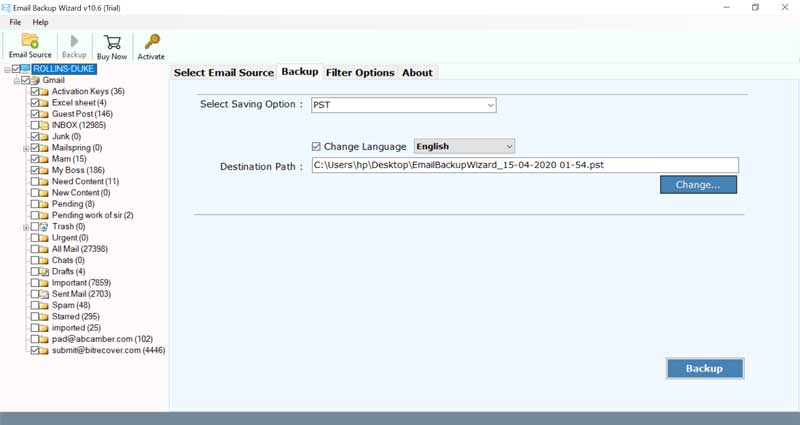 Then, in the saving options list, choose ‘Gmail’. Along with this, you need to enter the Gmail email ID and password.
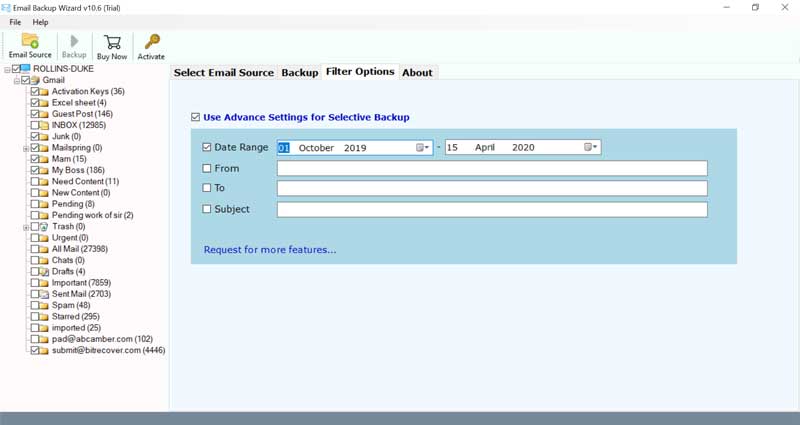 Finally, click on the backup button at the bottom of the screen. This begins the process to transfer emails from Embarqmail to Gmail account.
Important Features of Embarqmail to Gmail Migration Tool
Here are some best features of Advanced Migration Tool:
- Use Batch Mode to Migrate Multiple Accounts Emails: With this feature, it is feasible to forward emails from numerous Embarqmail accounts to Gmail without a moment’s delay. This facility is useful to save time and endeavors.
- Move Emails with Attachments: The software can move total information from Embarqmail to Gmail account. Utilizing this application, you can undoubtedly move Embarqmail emails to Gmail alongside attachments.
- Straightforward Graphical User Interface: This product has an extremely basic and natural graphical UI. Specialized and Non-specialized clients can without much of a stretch utilize this application to transfer emails from Embarqmail to Gmail straightforwardly.
- Maintains Email Properties of Embarqmail: We know the significance of your information. While moving CenturyLink data to Gmail account, the software keeps up all the email properties such as header information, attachments, inline images, hyperlinks, etc.
- Change Default Language of Tool: If you need to change the default language, it is conceivable with this utility. One can without much of a stretch set the necessary language.
- Strong and Error-free Application: It is the quickest tool to migrate CenturyLink email to Gmail straightforwardly in certain minutes. Likewise, the software is liberated from risks. One can undoubtedly get a specific and precise outcome with no information loss.
FAQs
Can I transfer selective emails from Embarqmail to Gmail with this tool?
Yes, with this software, you can transfer emails from Embarqmail to Gmail account in a selective manner. The data filter options help to sort our emails as per date range, subject, email address, etc so you can opt for any of these as per your need.
Does the software support Windows 10 OS?
Yes, it is compatible with all versions of MS Windows Operating Systems.
Will the tool help me to forward multiple Embarqmail email accounts to Gmail?
Yes, the batch mode option enables you to move multiple Embarqmail email accounts to Gmail.
Are there any file limitations to connect Embarqmail to Gmail?
No, with the licensed version of this product, there are no file restrictions.
Conclusion
Forwarding or transferring emails from one webmail to another such as Embarqmail to Gmail is a tough thing. One can’t rely on manual methods because it can prove disastrous for your data security. Hence, it’s highly advisable to transfer emails from Embarqmail to Gmail account with the help of a professional solution such as the one mentioned above. This software is 100% accurate and provides the fastest results. Contact our technical support team if you have queries regarding the product.
About the Author

