Why Thunderbird Cannot Delete Emails and How to Fix it?

Published: January 28th, 2026 • 6 Min Read
Summary: Fed up with the Thunderbird cannot delete emails issue? This blog got you covered. We will discuss some best methods to fix this issue and along with this we will also discuss some causes that will help you to avoid this error in future.
Thunderbird offers several good features and makes the email management easy and efficient. But sometimes, users face multiple errors due to some reasons. To have a smooth access to the conversation users need to find and tackle those causes carefully so that in future your emails and other data is safe and secure.
If you are still confused about how to fix Thunderbird cannot delete emails error and know why this happens, this blog will walk you through the entire process from explaining the error to their causes and a refined solution to get rid of this issue. And you can delete any unnecessary emails or messages you want.
Let us get started.
Why are Users Unable to Delete Messages in Thunderbird?
There are multiple reasons that a user may encounter Thunderbird cannot delete messages error while deleting unwanted and unnecessary emails or messages. Below are some common causes:
- Deleting a large size MBOX file.
- Synchronization with IMAP accounts.
- Corrupted MBOX files.
- System with aggressive antivirus scanning.
- The trash folder is likely to be corrupted.
- An outdated Thunderbird is installed on the system.
It’s high time to get rid of the error Thunderbird cannot delete messages. Now that we know some reasons behind it, let us move toward the fixes that will help you to delete emails from Thunderbird as per the requirements.
Fix 1: Compact Thunderbird Folders
Compacting folders in Thunderbird permanently removes emails marked for the deletion process.
- First of all, right-click on the affected folder.
- Now, select Compact.
- After this, restart Thunderbird.
Fix 2: Repair the problematic Folder
Sometimes, when the index folder is corrupted, users can repair it to restore the deleted functionalities.
- First, right-click on the folder.
- Now, click on the properties.
- Now, select Repair Folder.
- Once done, restart the Thunderbird and try again deleting messages.
Fix 3: Check IMAP Delete Settings
Incorrect delete actions can sometimes prevent emails from moving into the Trash folder.
- Go to the Account Settings then click on Server Settings.
- Now, click on “When I delete a message“
- Click on Move it to this folder and select Trash.
- Lastly, confirm the correct Trash folder is selected.
Fix 4: Empty Trash Folder
Sometimes the reason is the files that a trash folder contains.
- First of all, right-click on the Trash.
- Click on the Empty Trash option.
- Now, close the Thunderbird completely.
- After this, reopen and try to delete messages again.
Fix 5: Disable Antivirus Email Scanning
Sometimes antivirus tools may lock the mailbox files and users are unable to delete the messages. You can temporarily disable email scanning and add the Thunderbird profile folder to antivirus exclusion. This method works well on a Windows system.
Fix 6: Start Thunderbird in Troubleshoot Mode
This way, users can identify add-on conflicts.
- Firstly, go to Help and click on Troubleshoot Mode.
- Now, click on Continue in Troubleshoot Mode.
- Now, try deleting the emails that you want.
- If deletion works, remove all the recently installed add-ons.
Fix 7: Reduce Inbox Size
Deleting a large mailbox can be very problematic. You can move all your old emails to subfolders. Keeping all the emails in inbox may cause Thunderbird cannot delete emails and to avoid this you can compact the folders regularly.
Still Unable to Delete Emails?
If you are still stuck with your unnecessary emails, making changes manually in the Thunderbird won’t always resolve the issue. Especially when your mailbox files are corrupted or folders are severely overloaded. At this time, repeated errors, emails reappearing even after deletion, or unresponsive folders indicates a deep problem. You need to use an effective solution that will help you to manage and clean up your mailbox smoothly.
Best Tool to Fix Thunderbird Cannot Delete Emails
Sometimes, one single way is enough to resolve multiple errors. Thunderbird Converter tool offered by BitRecover does the same. This is one of the best solutions that offers you to convert entire data in one go. Also, when it comes to delete a large size or volume of emails and messages, it allows you to selectively convert your emails and other folders as per your preferences.
You can choose what emails you do not want to access and once the process is over, your folder won’t carry those unnecessary emails. No matter what size and volume your mailbox is, this solution works very smoothly.
Quick Procedure to Implement this Solution
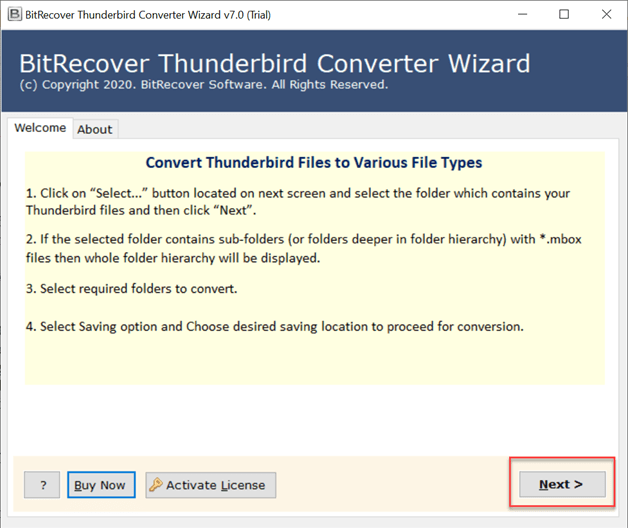
- First, download this solution and open it on your system.

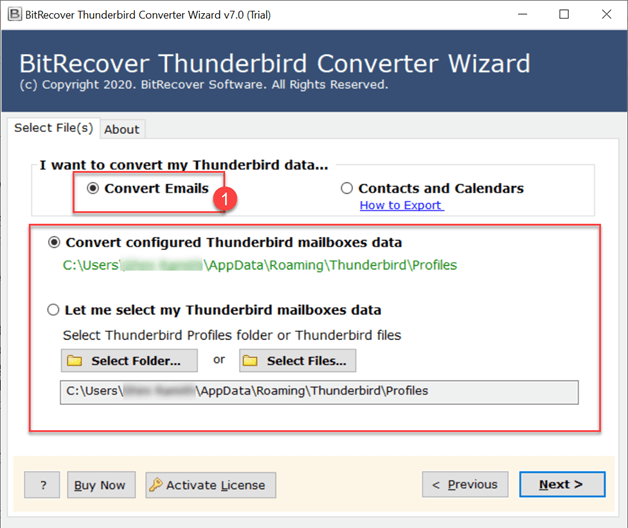
- Choose the option to load your Thunderbird data into the panel.
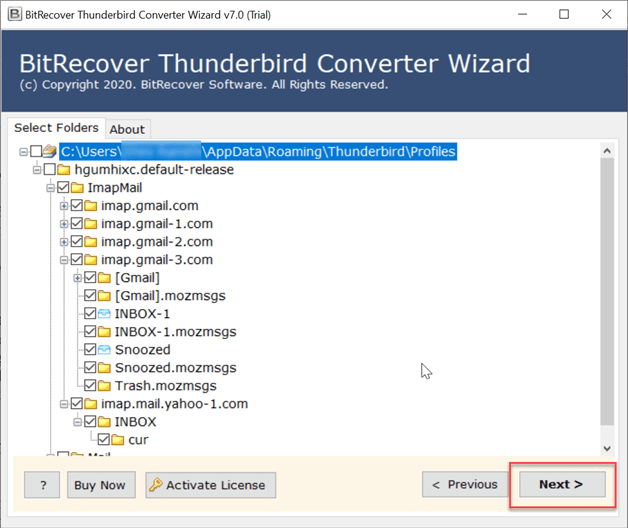
- Once the data is loaded, Preview it and select only those files and folders that you want to keep from your mailbox. Do not tick any of the emails that are unnecessary and you want them to be deleted. Once done click on Next button.
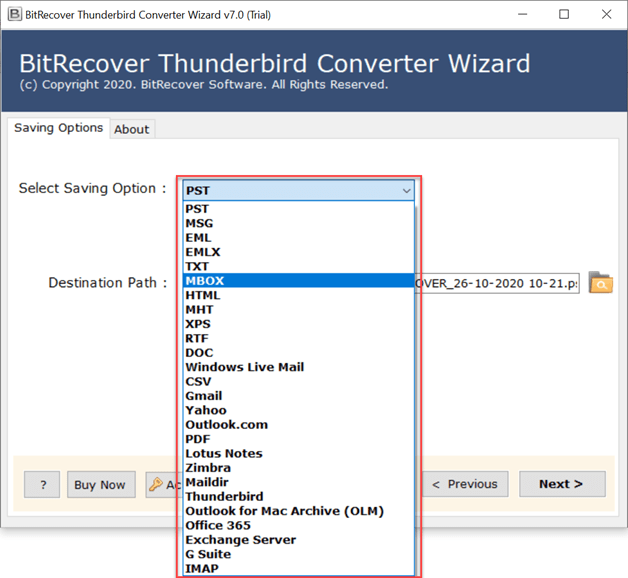
- Now, from a wide range of Select Saving Option lists, choose any of the preferred ones.

- Lastly, choose the Destination Path to save the output and click on Next to proceed.
Once this process is over, you will have all your important emails in your storage. Now you can access all your crucial data easily without any fear of deleting and compacting any email or messages from the mailbox. You can now also migrate Thunderbird data into Gmail, Yahoo, G Suite, IMAP, Exchange Server or can save Thunderbird data as PDF, HTML, EML, EMLX, MSG etc.
Why Choose this Professional Solution Over Manual Ones?
- Offers quick results without consuming much time and effort.
- Keep entire data 100% safe and intact throughout the process.
- Offers you to convert Thunderbird emails to MSG, HTML, EML, PST etc.
- Offers a wide range of advanced features for selective results.
- Quick and easy-to-understand steps that do not complicate the process.
- Standalone tool that completes the process all by its own.
The Final Verdict
In conclusion to this blog, we discussed a variety of methods to fix Thunderbird’s inability to delete emails repeatedly. We discussed manual methods as well as a professional one. Manual fixes sometimes do not work and also do not guarantee to permanently fix things. But the professional tool offered by BitRecover, offers a wide range of features to fix Thunderbird cannot delete emails error smoothly. Users can either use manual methods or the professional tool.
If you still want to know more about the process, and solution you can get in touch with our Technical Support Team anytime.