How to Restore Thunderbird Address Book from Any Format?
Fact-checked and reviewed in accordance with our Editorial Policy
Summary: To restore Thunderbird Address Book from CSV, ABOOK.SQLite, TSV, ABOOK.MAB, LDIF files, or from profile backup, there are native options available. However, if you want to recover Thunderbird Address Book .ics format, you will need BitRecover specialized software.
About Thunderbird Address Book & Restoration Needs
Address Book in Mozilla Thunderbird lets you store and manage all your contacts in one place. The Thunderbird address book data is also stored under the profile folder. Thunderbird 68 and older versions stored the address book data in MAB format. However, Thunderbird 78+ started using the .sqlite format to store contacts.
- Abook.sqlite: Stores personal or saved contacts in the address book
- History.sqlite: Auto-saved addresses from sending or replying
Users may need to restore Thunderbird Address Book when reinstalling Thunderbird, migrating Thunderbird from one computer to another, merging two profiles, or in case of accidental data loss/ profile corruption.
This guide provides step-by-step instructions to rebuild contacts in Thunderbird Address Book without loss in an organized way for all Thunderbird versions on Mac & Windows.
Note: You do not need any email account configured in Thunderbird to rebuild the address book.
Note: To restore a Thunderbird address book, you must first have a Thunderbird backup file or previously exported contacts/address book data from Thunderbird. Learn: Export Thunderbird Address Book to CSV Contacts.
Official Way to Restore Thunderbird Address Book Via Native Import
Thunderbird offers an in-built solution to import Address Book in Thunderbird from multiple file formats. With the native import option, you can recover CSV, TSV, LDIF, VCF, VCARD, SQLITE, and MAB files into Thunderbird.
Note: Ensure you are using the latest version of Thunderbird. Earlier versions have limited options.
- Open Mozilla Thunderbird on your computer.
- Go to the Address Book tab. (Alt+F2 shortcut).
- Click on the Import icon.

- Choose the Address book type and continue. (You can view the address book type viewing properties in file explorer)
- Select the address book file from your computer.
- Choose where you need to save the restored address book. (You can also create a new address book to better manage the restored contacts.)
- Finally, press Start Import.


Troubleshooting Tips: In case you have abook.mab.bak and history.mab.bak instead of MAB files. Simply delete the “.bak” and rename these files to abook.mab and history. mab.
Common Problems While Restoring Thunderbird Address Book
- With the manual way, you cannot restore multiple Thunderbird Address Books from backup files at once.
- The process can be extremely slow when it comes to large.
- There is no native way to restore the ICS backup into your current Thunderbird profile manually.
Error Message When Rebuilding Thunderbird Address Book
Many users have reported the “Import failed unexpectedly, more information may be available in the Error Console” message when trying to manually restore Address books and contacts in Thunderbird. This is because the Address book you are trying to restore is empty, corrupted, or does not have the correct mapping.

Replacing Files to Restore Thunderbird Address Book: Alternate Way
Disclaimer: This method only works for abook.sqlite or history.sqlite file. Only try if the official method fails. Since this involves direct changes in the Thunderbird profile, ensure you back up Thunderbird data beforehand.
- Copy your abook.sqlite or history.sqlite file in File Explorer or Finder.
- Open Thunderbird Application.
- Click on Menu (Three Lines) >> Help >> Troubleshooting Information.
- Scroll to the Profile Folder option and press “Open Folder” (blue button).
- Replace the original abook.sqlite or history.sqlite with your copied files.
How to Restore Thunderbird Address Book from Profile Backup?
User with a complete Thunderbird profile backup from the native Thunderbird export tool or via ImportExport NG tools. Follow the initial extraction steps before starting the actual restoration process.
- Go to the Thunderbird backup folder.
- Right-click and extract all if the folder is zipped.
- Look for abook.sqlite and history.sqlite file.
- Copy and paste it into a separate location on your computer.
- Now you can rebuild Thunderbird Address Book either by replacing the files in the new profile or by using the native import option.
Simplify Thunderbird Address Book Restoration With BitRecover
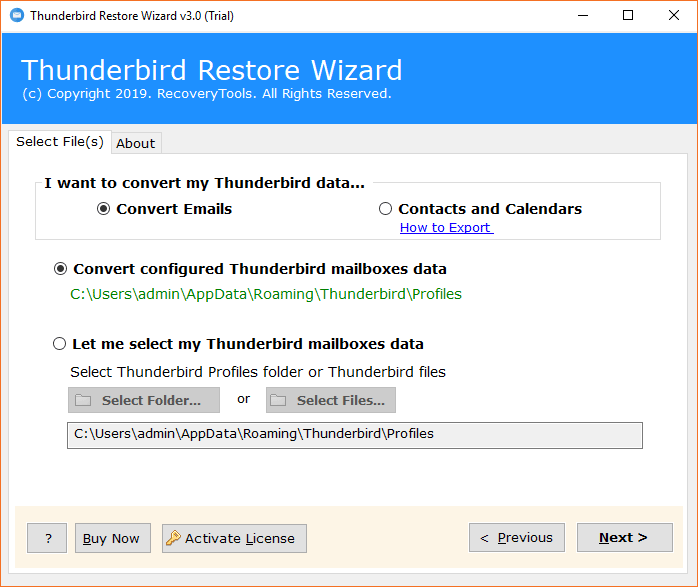
BitRecover Thunderbird Restore Tool is a software application that helps you convert multiple Thunderbird Address Book files (in CSV & ICS format) to one VCARD file for a one-shot import in Thunderbird without any issue. It helps you organize and manage large Thunderbird contact databases easily. Also helping you deal with minor corruption and mapping issues when trying to rebuild Thunderbird Address Book. Download the tool today. Free trial also available.
Disclaimer: Even after you use the tool, you will have to manually import the output vCard address book into Thunderbird.
FAQs: Restore Thunderbird Address Book
Q1: What to do if the Thunderbird Address Book disappeared?
To recover the Thunderbird Address Book if suddenly disappeared, you can try:
- Importing backed-up address book files into Thunderbird.
- Start Thunderbird in Safe Mode
- Check if you are using the correct Thunderbird profile
- Ensure you are using a stable internet connection
Q2: How do I transfer my Thunderbird address book to a new computer?
- Open Thunderbird on the source computer.
- Go to the Address Book. Right-click & choose Export.
- Repeat the process with all Address Books.
- Move them to a new computer via a USB drive or cloud extranet.
- Open Thunderbird on the new computer.
- Go to the Address Book. Press the Import icon at the bottom.
- Choose CSV as an import option and select the targeted address book from the old computer.
Q3: How to restore the deleted Address Book in Thunderbird?
In such a case, you can try to restore Thunderbird Address Book from a profile or system backup. Or use Thunderbird recovery solution to recover deleted contacts safely.
Q4: Why can’t I see the contact after restoration?
This often happens due to a file mapping issue or because the source is empty.
Get in touch with the BitRecover support team via the Live Chat option available 24/7 for assisted recovery of Thunderbird address book seamlessly.
About the Author

