Outlook olmapi32 dll Error Emergence and Its Resolution
Fact-checked and reviewed in accordance with our Editorial Policy
If you are somehow seeing this Outlook olmapi32 dll error where OLMAPI32.DLL is missing a message while opening MS Outlook program then this 5-minute read is going to give you a lot of insight into the matter. This is a common problem and in most cases, MS Outlook data remains secure. We will pour some light on the manual resolutions and also try to focus on an automated tool, all for your benefit!
Understand the Crux of the Matter!
OLMAPI32.DLL happens to be a small but highly essential system file utilized by MS Outlook program for connecting email accounts through MAPI (i.e. Message-Application-Programming-Interface). Understand this as a communication bridge, which MS Outlook utilises behind the scenes for loading mailboxes. When this file goes missing, or becomes damaged/corrupted, or when it isn’t compatible with some other version of MS Office Suite, the Outlook email program fails to start, and this results in such error emergence.
Commonly Seen OLMAPI32.DLL Error Messages
Users tend to see one of the following error messages when they try opening MS Outlook email program:
- “OLMAPI32.DLL is missing.”
- “Cannot start Microsoft Outlook. OLMAPI32.DLL is corrupt.”
- “The program can’t start because OLMAPI32.DLL is missing.”
- “Outlook failed to launch because OLMAPI32.DLL was not found.”
- “Cannot Start Microsoft Outlook OLMAPI32.DLL is missing or corrupted.”
- “Cannot Start Microsoft Outlook. OLMAPI32.DLL is missing or Corrupted.”
- “The program can’t because OLMAPI32.DLL is missing from your computer.”
- “Outlook cannot load MAPI. OLMAPI is either damaged or not found, or mapi32.dll is corrupt.”
- “This application failed to start because OLMAPI32.DLL was not found. Reinstalling the application may fix this problem.”
Note: In certain scenarios, MS Outlook might not show such detailed error messages. It just fails to open or it closes immediately after you click its icon.
Underlying Factors for Outlook OLMAPI32 DLL Error
Such an error mostly appears while installing/uninstalling a version of MS Office or while upgrading Outlook or while running some Windows Update, or while having more than 1 version of MS Office installed on the same machine. As a matter of fact, Microsoft has confirmed that such types of OLMAPI32.DLL conflicts used to be quite frequent causes of MS Outlook startup failures at the time of Office upgrades in older versions like 2007 & 2010. So, get to know the most probable reasons behind such an occurrence:
- Deleted or Corrupted OLMAPI32.DLL File: Because of some malware infection, improper shutdown, file corruption, power outage, forced shutdown, antivirus removal or disk error, OLMAPI32.DLL can damage/corrupt.
- Multiple Conflicting MS Office Versions: Having both old & new Outlook versions (say for an example – Office 2010 & 2019) sometimes causes Windows to load the wrong MAPI file. Many Microsoft users commonly report this underlying cause.
- Failed Outlook/Windows Updates: If some update remains incomplete by failing midway, then some Outlook files get updated while others do not. This can break OLMAPI322.DLL.
- Problems with MS Outlook Installation: Because of system corruption, bad registry entries or sudden installation failure can even damage these Outlook DLL files.
- Incomplete Outlook/Office Installation: If your setup got interrupted somehow in between, then some DLL files might not install properly.
- Mistaken Deletion of This DLL File: Using some system cleanup tool or doing some manual action can lead to the removal of this file.
- Windows Registry Errors: Invalid registry entries associated with MS Outlook could even trigger this error.
- System Crashes: This can also damage your Outlook DLL dependencies.
Indicators Confirming This Error
Following indicators tend to confirm such an error:
- Microsoft Windows installed updates before such an issue occurred.
- The user recently upgraded to a newer MS Outlook version.
- The user was having more than one Office version installed on the same system.
- The MS Outlook program was working fine before installing/uninstalling Office.
- MS Outlook crashes instantly at launch and does not load the profile, which confirms olmapi32.dll Outlook crash.
MS Outlook Versions That Are Most Commonly Impacted
The following Outlook versions are the most impacted ones:
- MS Outlook 2010 – MS Outlook 2016 upgrades.
- MS Outlook 2013, 2016, 2019 & Office 365.
- Windows 10 & 11 system while major update cycles.
Manual Processes to Solve OLMAPI32 DLL Missing Error in Outlook
The problem is certainly there, but the good news is that Outlook olmapi32 dll error could be resolved. The methods given below cover the most practical resolutions that work for all MS Outlook versions (2013/2016/2019/2021).
1st Manual Attempt: Try Repairing MS Office Installation
The steps are explained below:
- Firstly, go to the Control Panel.
- Then, you should select Programs and Features.
- Now, you have to find MS Office.
- Afterwatfs, you must select Change.
- After this, you need to choose Quick Repair (if it isn’t resolved).
- Finally, you can use Online Repair.
2nd Go-to Manual Technique: Try Replacing/Rebuilding OLMAPI32.DLL File Automatically
Follow the steps promptly:
- First & foremost, you have to close MS Outlook completely.
- Now, you need to navigate to: C:\Program Files\Common Files\System\MAPI
- Then, you must locate OLMAPI32.DLL.
- Next, you should rename it to OLMAPI32.OLD.
3rd Manual Process: Try Updating MS Outlook & Windows
Carry out the following steps in quick time:
- MS Outlook:
- You first have to click on the file.
- Then, go to Account Settings.
- Now, you need to press the Update Option.
- Afterwards, you have to click Update Now.
- Microsoft Windows:
- First, you need to click on Settings
- Then, you have to select Update and Security.
- After this, you must press Windows Update.
4th Normal Procedure: Try Removing Conflicting Office Version
You can try this fix by executing the stepwise process explained below:
- You first have to uninstall all older MS Office Versions from Programs and Features.
- Then, you need to relaunch your system.
- After this, you should run a Repair on the main MS Office installation.
- Finally, you can relaunch MS Outlook & then check for error(s).
5th Standard Execution: Try Disabling Suspicious Add-ins
Do the steps as instructed below:
- Firstly, you have to hold CTRL with launch MS Outlook for opening it in Safe Mode.
- Now, if MS Outlook works fine in Safe Mode without any such error emergence, then the cause behind such an error might be faulty Add-ins.
- Here, you need to click on file & press Options, and then select Add-ins.
- Proceeding further, you need to Disable All Add-ins, and then re-enable them one after the other for locating those faulty add-ins.
6th Regular Operation: Try Recreating Your MS Outlook Profile Again
The steps of this process are as under:
- Initiate by opening the Control Panel.
- Now, you have to press Mail (MS Outlook).
- Then, you need to click on Show Profiles.
- Here, you must create a New Profile.
- Afterwards, you should add your email account again.
- Finally, you can set the New Outlook profile as default.
7th Manual Exercise: Try Reinstalling Office 365
Try this out when none of the above solutions work. A clean reinstall will fully rebuild all system files.
Automated Pro Method to Resolve Outlook OLMAPI32 DLL Error
If such an error isn’t resolved manually then it is most likely to be happening because of corrupted/damaged Outlook PST files. So, the BitRecover PST Repair tool is suggested to you as it can make damaged/corrupted PST files healthy with accuracy. Follow the below five easy steps to repair corrupted PST files after Outlook olmapi32 dll error:
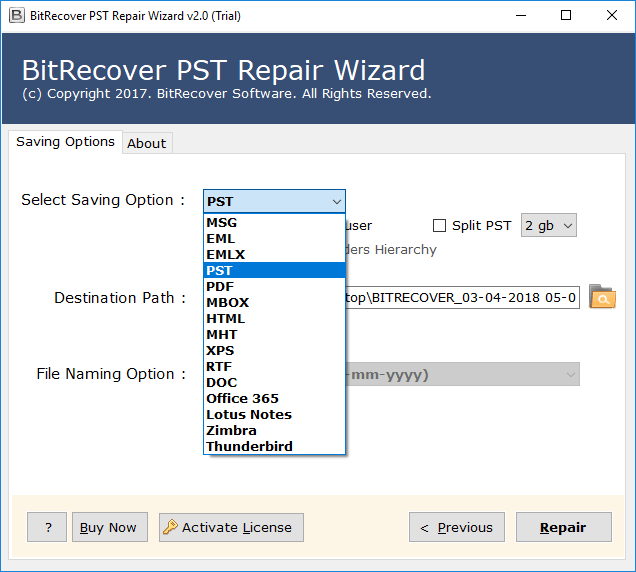
- Initiate by launching this suggested software on your computer system.
- Now, you can select files/folders for loading corrupted PST files.
- After this, you can click Next for previewing damaged PST files/folders.
- Then, you have to pick a file format from the list available of Saving options.
- Eventually, you can browse the storage path & then click Repair.
Execute the Best Resolution!
This guide precisely covered all major methods to resolve olmapi32.dll Outlook crash issue manually. If the problem still persists in your case, then it is quite likely that PST file corruption has happened. For this, the pro tool can help you repair corrupted PST. So, for damaged PST files, the automated solution rests as the best choice for you when you encounter Outlook olmapi32 dll error.
About the Author

