How to Find Outlook PST file Location Quickly? Best Guide
Fact-checked and reviewed in accordance with our Editorial Policy
Outlook PST files are stored in a default location on your local system. However, the Outlook PST file location can also vary based on the versions of Windows and Outlook you are using. If you are confused about where Outlook data files are stored in Windows 11, 10, and all earlier editions, don’t worry. This comprehensive guide will help you locate PST files location in a seamless and easy way in all the versions of Windows OS. So, let’s get started.
When a user sets up their account with Windows Outlook, it stores all email data for each tab in a personal storage table (PST file), but figuring out Outlook PST file location depends on the version of Outlook you’re using.
Also, the data will be saved in OST file format if you are connected to the Microsoft Exchange server. Both OST and PST files include all meta items, including Inbox, Drafts, Sent Items, Contacts, Calendars, Notes, and more.
The following blog will provide you five different methods to locate Outlook PST files. Additionally, users will learn how to see hidden app data from MS Outlook profiles. So, keep reading the blog till the end.
Find Outlook PST file Location in Windows 11, 10, & Earlier Versions
Outlook PST files are typically located in the user’s AppData folder on Windows. The PST file’s path in all Windows OS versions is C:\Users\[YourUsername]\AppData\Local\Microsoft\Outlook. Moreover, if the user has upgraded from an older version of Windows to the latest one, then the PST file can be found in C:\Users\[YourUsername]\Documents\Outlook ,this location. These are the default locations where Outlook PST files are stored. Hence users can change these storage paths via Outlook settings. To access the AppData folder, enable the hidden files in the File Explorer.
The following details will help you to understand how to locate Outlook PST file in Windows 11, 10, 8, 8.1, 7, XP, Vista in a better way:
1. Outlook 2000, 2003, 2007
- Windows XP:
C:\Documents and Settings\[UserName]\Local Settings\Application Data\Microsoft\Outlook
2. Outlook 2007
- Windows Vista, 7, 8, 8.1, 10, 11:
C:\Users\[UserName]\AppData\Local\Microsoft\Outlook
3. Outlook 2010
- Windows XP:
My Documents\Outlook Files - Windows Vista, 7, 8, 8.1, 10, 11:
Documents\Outlook Files
4. Outlook 2013, 2016, 2019, 2021
- Windows Vista, 7, 8, 8.1, 10, 11:
C:\Users\[UserName]\AppData\Local\Microsoft\Outlook
How to Locate Outlook PST file? Multiple Solutions
Multiple manual solutions are available to find where Outlook data files are stored in Windows 10 and 11. Here, users will learn some default solutions available in Outlook and Windows OS. Additionally, we have mentioned two professionally tested and trusted solutions that will help you locate PST files location in less time.
1. Find Outlook PST file Location Windows 10 and 11 using Open file Location
The Open file location is the most straightforward technique to locate PST file location in Outlook 2013. Users need to follow the steps mentioned below:
- Start Outlook.
- In the left pane, select the configured mail Id.
- Then right-click and select “Open File Location.”

- Now, your file explorer will start flashing, and click on it to see Outlook PST file location Windows 11, 10.

2. Locate Outlook PST file Path using Outlook Account Settings
- Launch Outlook and navigate to “File Menu.”
- Now, click on Account Settings and in the drop-down menu again select Account Settings option.

- Now, in the Account Settings Tab, click on Data Files and the Open File Location.


For older editions of Windows, users have to follow this sequence: drive: \Documents and Settings\Local Settings\Application Data\Microsoft\Outlook.
If you are unable to get the Outlook PST file location using the above steps, then you can continue with the Control Panel method explained in the below section.
3. Find Outlook PST file Path using Control Panel
The Control Panel of Windows allows users to view and change system settings and helps to know where Outlook PST files are stored Windows 10, 11. It supports features to change accessibility and other networking settings. So, let’s check out the steps to find the Outlook PST file location Windows 11 and 10 using the control panel.
- Click on Search Tab and open Control Panel from there.
- Now click on the “User Accounts” >> “Mail 32-bit.”

- In the next pop-up, you will see “Mail Setup” settings. Click on the Data Files option.

- Now, Click on the Data Files tab and “Open file location” to locate PST file Windows 10 and 11.


That’s how you can find Outlook data file in Windows 10 and 11 using the Control Panel. However, this solution has some limitations. It doesn’t allow you to see Outlook AppData because it’s hidden. So, let’s explore how to view hidden app data in MS Outlook 2013, and 2016.
MS Outlook also stores OST files in an exact location, depending on which Outlook edition you use. The manual solution to locate where Outlook data files are stored is a quite lengthy and time-consuming procedure. Thus, we have expert solutions to locate Outlook PST file on Windows 10 and 11, that we have mentioned in detail in the upcoming sections.
4. Quickly Locate your Outlook PST files Location with a Free Tool
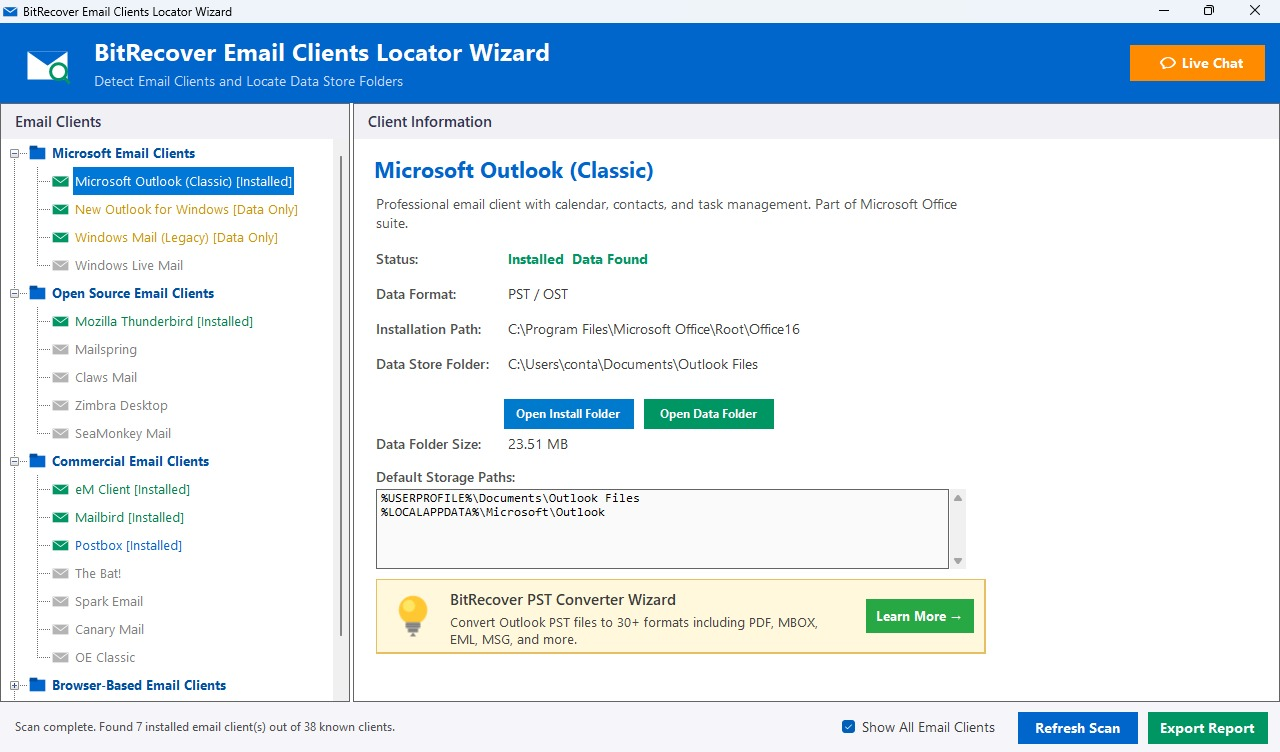
To save your time and effort, use BitRecover Email Clients Locator Wizard. It is a free and easy-to-use tool with a simple and single interface that helps all types of users to easily find their PST data files and installation files locations. This advanced tool automatically detects and scans installed email clients on your system.
With this utility, you are not required to manually browse the hidden folders or perform complex steps. The tool clearly shows the exact PST file location and takes you there directly in just one simple click.
Additionally, this tool provides a detailed detection report, through which you can keep track of how many email clients are already installed, how many are scanned and more. Download the tool now!
5. Automated Way to Convert Outlook PST Data files Safely
If you don’t want to waste your time on a manual solutions and want a fast process, we have an automated solution for you, i.e., BitRecover PST Converter Wizard. It is an advanced approach that automatically detects the Outlook PST file location Windows 11, 10, and all other versions from the source. Moreover, users will get the location of all configured accounts in MS Outlook without performing any step. Additionally, if any user want to convert their PST data files for safety. then they can use this tool as it supports multiple saving formats, offering users an open path for sharing, backing up or archiving files.
Not only this, the software is helpful when your Outlook is not responding or crashes due to some other reasons. In such scenarios, the automated solution will be the perfect solution as it allows you to export Outlook PST data files to across multiple platforms without any failure.

Conclusion
In summary, The procedure to find Outlook PST file location Windows 11, 10, and earlier versions is a straightforward process. If you let BitRecover Solutions help you. With the help of an automated solution, users can easily view where Outlook PST files are stored Windows 10 and 11. Also, If you opt for the automated solution to locate Outlook PST file, users will get the power to store their PST files to across multiple platforms for good.
Similar Read:
About the Author

