How to Import Yahoo Contacts to iPhone Effortlessly?
Fact-checked and reviewed in accordance with our Editorial Policy
You may need to import Yahoo Contacts to iPhone due to multiple reasons. No matter if you are switching devices, streamlining communication, or just want to keeping your address book updated, this process becomes important. Today, having all your contacts synced across multiple platforms helps you stay connected without missing any of the important information.
You may rely on both Yahoo Mail and Apple’s ecosystem to import Yahoo Contacts to iPhone can save time, reduce manual effort, and ensure a smooth communication experience. In this blog, we’ll talk about the best ways to import Yahoo Contacts to iPhone without facing any trouble.
To import contact information from a CSV file to your iPhone, you must initially import the information from the CSV document to a contact management program that supports the iPhone. There is no direct option available using which you can sync Yahoo contacts to iPhone. The procedure to how to copy Yahoo contacts to iPhone comprises of three sections. that are first export Yahoo contacts to CSV.
Why Would Users Need to Import Yahoo Contacts to iPhone?
Below are multiple reasons that a user needs to sync or transfer Yahoo contacts to an iPhone:
- Switching to iPhone: Users may need to move contacts from Android or another device to their iPhone.
- Contact Management: You may need to keep all your contacts in a single, easily accessible place for further uses.
- Backup & Recovery: This transfer ensures all the contacts are safely accessible even if Yahoo has issues.
- Better Integration: In iPhone, saved contacts can smoothly be synced with apps such as Messages, FaceTime, and iCloud.
How to Export Yahoo Contacts to CSV Files ?
There are no other way to add Yahoo contacts to iPhone. If you have taken import yahoo contacts to iPhone, you can also easily export to your computer from Yahoo account. Primarily you need to login into your Yahoo account and get them locally to your desktop. Here are the detailed steps shown below to offer you reference:
- First of all, login to your Yahoo mail account and go to the Contacts.

- Thereafter, select the Yahoo CSV format and tap Export Now.

- Now, your Yahoo mail contacts are saved on your computer.


Automated Solution to Import Yahoo Contacts to iPhone
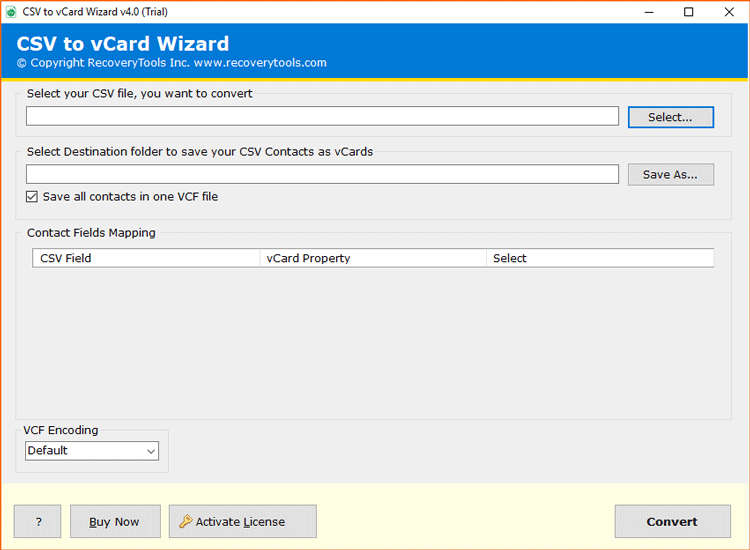
With the help of CSV to vCard converter, you can easily make your CSV contact files compatible. It will make your work easier to import into the iPhone. It offers you multiple advanced features and quick steps to convert CSV to vcard files. You just need to download the solution on your system and proceed with the given steps.
- Firstly, download, install and run the solution on your system.
- Secondly, click on the Select button to load the CSV file.

- Thirdly, select the Yahoo CSV File option with the Select option.

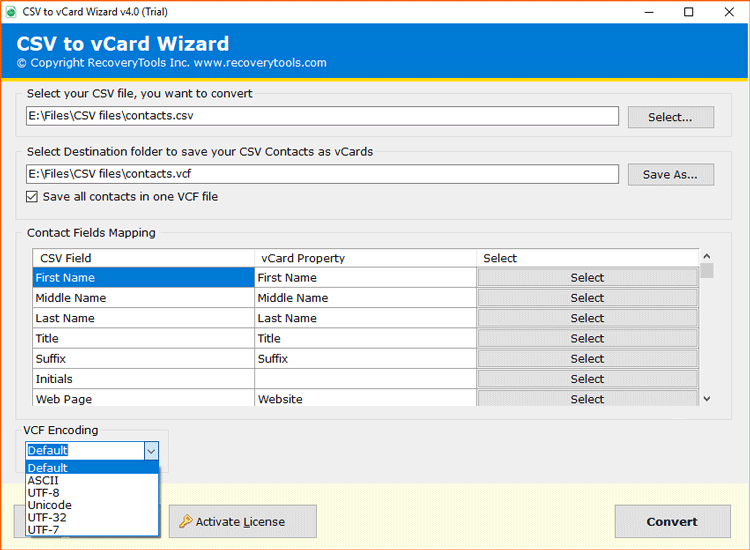
- Set Advance Settings option according to requirement to import Yahoo Contacts to iPhone.

- Select a Destination path for saving the resultant .vcf files.

- Lastly, Click on the Convert tab to save Yahoo contacts to iCloud+ vCard format.




Read More: Transfer Gmail Contacts to iPhone
What Benefits Does this Tool Offers?
- The tool can be used to import Yahoo Mail to any iPhone device.
- Allows you to bulk convert your data to save a lot of your time & effort.
- Does not let you feel the need of installing any supporting tool.
- Maintains the originality & integrity of your entirely uploaded data.
- Offers the compatibility to proceed with all the new and old version data.
Import Contacts from Yahoo Mail to iPhone
After exporting Yahoo contacts to computer using the CSV to vCard Converter, now it’s time to sync Yahoo contacts to iPhone via iCloud+.
Import Contacts from PC to iCloud.com
- Firstly, visit iCloud.com and enter iPhone account (Apple ID and password)>> sign in to your iCloud+ account.

- Secondly, Hit the “Contacts” in the main interface.

- Thereafter, Select the Settings option and choose “Import vCard”.

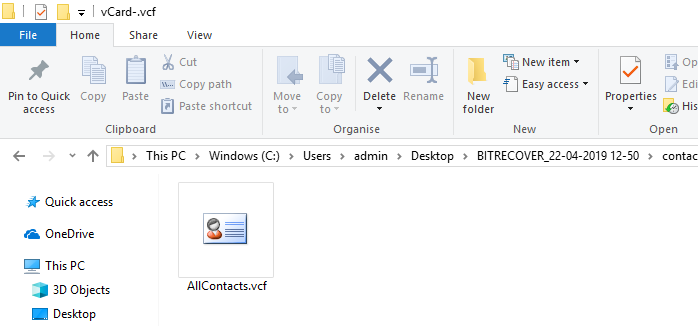
- Now, choose the location where you have the resultant vCard files on your computer. Tap on the “Open” button to export Yahoo contacts to iCloud+.

- Lastly, All of your Yahoo mail contacts will be listed in the address book of your iCloud+ account.



Sync iCloud Contacts to iPhone
- On your iPhone, go to the Settings>> Name/ Apple ID>> iCloud.
- Please enable the “Contacts” tab and all your Yahoo contacts on iCloud+ will soon be synced to your iPhone directly.


Tip! Ensure that your iPhone is well connected with good Wi-Fi connection to end the syncing process smoothly.
Get Yahoo Contacts on iPhone via iTunes
After exporting contacts on computer as discussed in Stage 2, now you have alternative option to restore Yahoo contacts to iPhone via iTunes.
Import Yahoo contacts from PC to Windows Computer
- First of all, on your keyboard, press “Windows + R” for opening the “Run” windows and enter “wab. Tap on “Ok” tab to proceed further.

- Then, under the “Import to Windows contacts” dialogue box, select the vCard (VCF File) which you have exported using the automated solution. Hit on the “Import” button to start the importing procedure.


After sometime, the Yahoo contacts will be accessible in your windows contacts*.
Sync Windows contacts to iPhone via iTunes
- Firstly, on your PC, run iTunes. Connect iPhone with your computer and go to “Preferences devices”. You are required to choose “Prevent iPods, iPhones, iPads from syncing automatically” to check.
- Now, click on the iPhone icon and tap on the tab of “Settings>> Summary>> Info”. Then, enable this option “Sync Contacts with” option and choose “Windows Contacts” in the drop-down menu.
- Lastly, hit on the “Done” button to initiate to sync Yahoo contacts to iPhone via iTunes.

Over to You
If you are a Yahoo! Mail user and thinking to import Yahoo Contacts to iPhone (or you’ve already made a switch from Yahoo to iPhone). Then, luckily the good news is that you can do this transfer process with the above described methods. The automated solution to export the Yahoo .csv files into vCard format is simple and easy to understand. Hopefully, now you can do a smooth transfer of multiple Yahoo contacts to iPhone without any hassle. If you still have any doubts your can contact to our customer support team anytime as they are 24*7 available to help & guide you.
Read More: Import Contacts from Yahoo Mail to Android Phone
About the Author

