How to Convert HTML to MHT Files in Bulk With Easy Steps?

Summary: You can convert HTML to MHT with the help of methods that are mentioned in this blog, we briefly explained both manual and professional methods to convert HTML file securely. Where manual method is risky for data loss while HTML to MHT Converter by BitRecover can perform the conversion task securely.
Are you looking for the best way to convert HTML to MHT? If yes, then you have come to the right place because in this blog, we will explain both manual and professional methods, but first, we will understand HTML and MHT.
HTML is a unique type of language, which stands for Hyper Text Markup Language. It is used to create web pages. HTML contains the text, images, links and structure which make up a webpage. When a user opens the website in browser, the browser reads the HTML code and displays the webpage.
MHT is a file format that contains multiple web pages in a single page. It combines the HTML content with associated resources like images, CSS files and other webpage elements into a single file.
Why Convert HTML to MHT?
Before converting HTML to MHT you should know the reasons behind the conversion. Below are the reasons to convert HTML to MHT:
- Management of File: HTML webpage uses different files for images, CSS and other resources while MHT file combines all these elements and stores them into a single file, making it easier to manage later.
- Offline Access: You can open MHT files while being offline because all the webpage content is stored within the file itself.
- Preserve Formatting: The MHT file maintains the original layout, images, colors, fonts and hyperlinks, ensuring that the webpage looks the same when opened later.
- Portable Copies: MHT files can be transferred, can be saved on external drives, or uploaded to document management systems without losing webpage content.
Manual Methods to Convert HTML to MHT
If you want to convert the HTML files and you have a few files to convert, then you can use the manual method. We have explained some manual methods below:
1: Using Microsoft Edge.
Here are the clear steps to convert into MHT file:
- Go to the place where HTML files are located on your computer.
- Right-click on the HTML file.
- Now, choose Open with and then select Microsoft Edge.
- Once the HTML webpage opens.
- Press Ctrl + S to save the webpage content.
- Select the File name as per the requirement.
- Now, choose Single File (.mht, .mhtml) as a file format.
- Choose a location where you want to save the MHT file.
- Click the save button.
2: Using Microsoft Word.
By using Microsoft Word, you can also convert the HTML file to MHT.
- At first, open Microsoft Word.
- Create a new page.
- Now, click the File and select Open.
- Browse and select the HTML file.
- After your HTML file has opened, click File and then click Save As.
- Then, select the destination to store the file.
- Choose Single File Web Page (.mht or .mhtml) from the save as type list.
- At the end, click the save button.
3: Directly Open the HTML file.
By opening the HTML file directly, you can also save the HTML to MHT file.
- First, go to the place where the HTML file is stored.
- Open the HTML file.
- Press Ctrl + S.
- Select the file name to rename it.
- Choose Single File (.mht or .mhtml) as a file type.
- Then, select the location.
- At last, click the Save button.
Limitations of Manual HTML to MHT Conversion Methods
Although the manual methods are free for a few files, they come with limitations, which can make the conversion process difficult, especially when users are converting lots of HTML files.
- No Batch Support: You can’t convert hundreds of HTML files together in one go. The manual methods require users to convert files one by one.
- Formatting Change: The complex HTML files contain advanced CSS and JavaScript; therefore, content may not be converted accurately while using manual methods. The resulting MHT file may look different from the original webpage.
- No Large-Scale Conversions: With the help of the manual method, you can only convert a small number of HTML files. To convert the HTML files, it requires users time and effort.
- Time-Consuming Process: Again and again doing the same thing can be boring, and it also takes a lot of time to convert a large number of files.
Expert-Recommended Solution to Convert HTML to MHT
If you are converting HTML to MHT file, you can use the manual method. However, it has so many drawbacks, which we discussed above, that is why professional users recommend BitRecover HTML Converter for a secure file conversion process.
This converter tool can convert the file in bulk as it provides batch conversion support, making it easy to use for users who are not from a technical background because of its user-friendly interface.
Easy Step-by-Step Guide to Convert HTML to MHT with Expert Solution
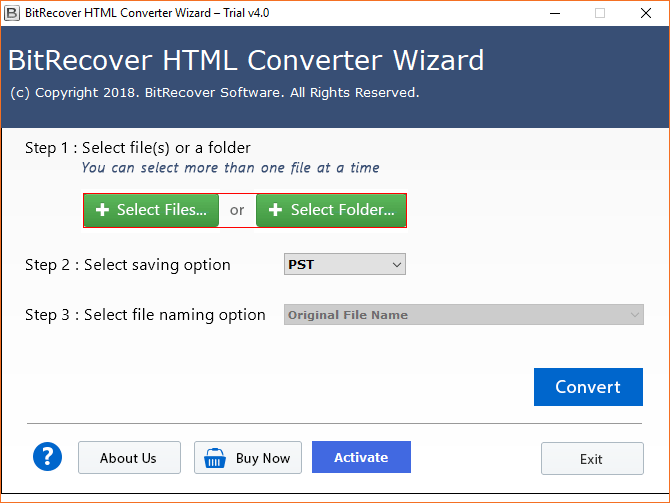
This HTML to MHT Converter proves to be very beneficial among users to perform the migration of HTML email files to the MHT folder. The working of this toolkit is very easy and simplified. Also, anyone can easily understand it just by following these simple steps:
- Install the HTML to MHT Converter on your system.
- Select Files or Folders as per your work requirements.

- Choose the MHT format from the saving options.
- This tool provides File Naming Option, so you can select any file name from the multiple options.
- Select the desired destination to store the converted MHT file.
- At the end, click the convert button to start the process.
Advantages of BitRecover HTML to MHT Converter
Here are the advantages of the above-mentioned converter tool:
- Convert Into Multiple Formats: Users can convert HTML to PDF, PST, EML, MSG, EMLX, MBOX and DOC, etc.
- Batch Conversion: This tool provides batch conversion support, user can convert multiple HTML files at the same time.
- Multiple Upload Options: Users can either convert a single file or a whole folder, making the file selection much easier.
- Preserves Original Formatting: HTML to MHT Converter keeps the layout, structure and data undamaged during the file conversion process.
- Standalone Utility: To convert HTML to MHT file, it doesn’t need any other third-party application installation, it can work independently.
- Trial Version: This tool allows you to convert 25 HTML files to any available file format to understand the software’s performance before purchasing the HTML to MHT Converter.
FAQs
Q1. How to convert HTML to MHT?
To convert the HTML to MHT you have to go to the place where HTML file is located, now right-click on the HTML page and select open with, then choose Microsoft Edge. After the HTML webpage is opened in Microsoft Edge, press Ctrl + S and choose the destination to store the file, then select the Single Webpage (.mht or .mhtml) as a format and then click the save button.
Q2. What is the difference between MHT and HTML?
MHT stores multiple webpages in a single file, but HTML is the standard code, which is used to structure a web page and its content.
Q3. Can you open MHT files in Chrome?
Yes, you can open the MHT files in Chrome. You have to go to the place where HTML file is located, right-click on the HTML file, select open with from the options and then select Chrome to open the MHT files in Chrome.
Conclusion
In conclusion, this blog explains how a user can convert the HTML files to MHT format. HTML to MHT Converter by BitRecover is capable of batch converting multiple HTML files. Download this converter tool for free, it allows you to convert 25 HTML files to any other format which is available in the software. You can buy the license from our official website and activate the product for unlimited conversion. If you still have any confusion about the HTML to MHT conversion process or want to know more about the tool, then you can contact our support team. They are available 24/7 to solve your queries or guide you through the software installation process.
