How to Find Outlook Data File Password with Free Ways
Fact-checked and reviewed in accordance with our Editorial Policy
This guide will help you how to find outlook data file password. We’ll show you two methods for resolving the password problem using native Outlook solutions and a professional solution. You’ll also learn why password protection is important for every user. Yesterday, one of our clients connected us to gain knowledge about why Outlook PST file is asking for password. The case was, he had forgotten the password of his Microsoft Outlook PST file and was looking for a reliable solution to bypass it. Now, let’s quickly dive into the comprehensive article.
What is Outlook Data File and Its Significance?
Outlook stores data in two file types, i.e., OST and PST. The PST files store emails locally on your computer; on the other hand, OST files are used to cache server mails. PST files are commonly used for Outlook data files that include POP and IMAP accounts.
PST files store emails and other data for POP3 and IMAP accounts. On the other hand, OST file syncs with the server and allows you to work without the internet
Now, let’s understand significance of PST files.
Importance of Outlook Data Files:
- PST files store emails and other data locally on the system, making it flexible for users to work offline.
- These files are portable and can easily be transferred across platforms.
- Used to archive emails for long term purposes whether old or newly received.
- Outlook files are also used to backup emails and restore them back, if accidentally deleted or lost.
- Secures your data as these files are password protected, ensuring no unauthorized access.
What Is Outlook Data File Password?
Microsoft Outlook gives the facility to protect Outlook data files (PST) using passwords. Hence, users can add strong passwords to protect their PST files from unwanted and unauthorized users. Once you have set PST file password then if someone tries to import or open your file, it will ask for the password.
Let’s understand how to set passwords manually, in the next sections.
How to Protect Your Outlook PST File with a Password?
- Start MS Outlook and click the File tab.
- Choose Account Settings.
- Select the Data File tab, then the Outlook PST file.
- Click Settings, then Change Password.
- Lastly, set Outlook PST password, and verify your password, then click OK.
Before moving ahead, first understand why you need to use tool to recover password.
Why Users Should not Recover a Forgotten PST Password Using Outlook?
Most users assume that Microsoft Outlook can recover forgotten PST file passwords. However, Outlook actually only allows users to change their current password, not to recover a lost one. Some limitations are explained below.
- Outlook has no built-in option available, which is why Outlook doesn’t save passwords.
- PST files do not have a Forgot Password option.
- Outlook allows users to change password only when they know the last password.
- If a user forgets the password for the PST file, they will lose full access to their PST file.
- Microsoft didn’t provide an official tool to restore PST file password.
Now, let’s explore an professional way to recover forgotten PST password.
Quick Solution to Find Outlook PST File Password
If you need an immediate solution to recover your PST file password, we would like to recommend a trusted and research-based solution, i.e., PST Password Recovery Tool. Whether you forgot your old password or your entered password shows incorrect, this software works well in both situations. Hence, if you are thinking “how do I bypass Outlook data file password” then follow the given instructions.
- Launch the pro software on your computer. Click on Browse icon for selecting Outlook data file from your device.

- Choose a PST file from your pc and press Open.

- Lastly, hit on the Get Password button to find Outlook PST file password.


Note: After that, users can use this recovered password in Outlook, whether they forgot or entered the wrong password.
Why Professional Tool is the Best Choice?
- Easy to use and advanced software to find Outlook data file password within 3 simple steps.
- It supports PST (Personal Storage Table) files of MS Outlook 2021, 2019, 2016, 2013, 2010, 2007, 2003, etc.
- Users can resolve several errors i.e., Outlook data file password incorrect and file asking for password.
- This pro PST Password recovery can find multilingual Outlook PST file passwords without file size limitations.
To change the password forever, read the below section properly.
How to Change Outlook PST Password?
- Launch Microsoft Outlook and tap on File>>Choose Account Settings option.
- After that, click on Data Files option and select PST file whose password you want to change.
- Then, go to Settings and select Change Password option. Enter old password in the dialog box.
- Lastly, enter new password, verify its password protection, and press OK for confirmation.
After performing all these steps if you still face issues and want to remove password on permanent basis or temporary. Download the below mentioned tool.
How to Remove Data File Password in Outlook – Alternative
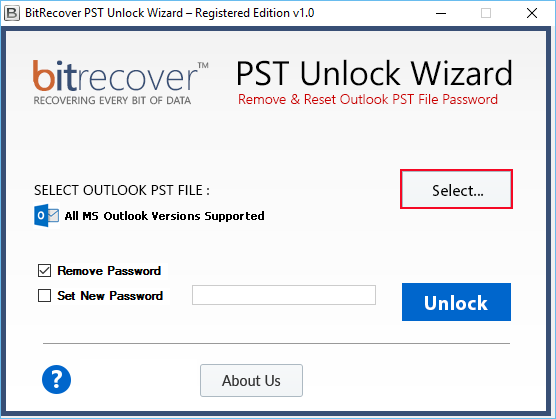
Outlook PST Unlocker Tool by BitRecover is capable to permanently remove data file password in Outlook PST. Therefore, if you are thinking “how do I bypass Outlook data file password” then you can go with this solution. Just follow these steps if your Outlook data file password incorrect and you want to remove it permanently.
- Run the recommended utility, click on Select button and upload PST file in software GUI.

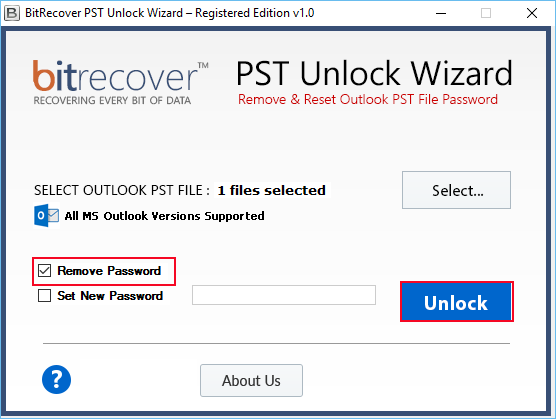
- The software provides twin options i.e., Remove Password or Set New Password. Choose any option and press Unlock button
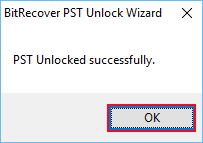
- Password protection has been removed from Outlook data file, see the message of completion.

Software Benefits
- This application can bypass Outlook data file password from both Unicode and ANSI PST files.
- Users can set new password as well as remove previously data file password in Outlook.
- This is a standalone software to resolve Outlook data file password incorrect issues without Outlook installation.
- It is compatible with PST files of Microsoft Outlook 2021, 2019, 2016, 2013, 2010, 2007, 2003, 2002, 2000, etc.
Important Notice: If you are looking for a manual way to find Outlook data file password. Then, according to Microsoft’s official announcement, there is no manual way to find Outlook PST file password. But Users can change the old password that we have discussed in the above sections.
Commonly Asked Queries
Q1. What are the steps to remove the password from a PST file?
Ans. Steps to remove password from PST file are:
- First, recover lost password using an automated tool.
- Open PST file in Outlook.
- Go to File >> Account Settings >> Data Files.
- Select PST file, click Settings and remove password under the security settings.
Q2. How can I backup a PST file with a forgotten password?
Ans. Follow the below steps to backup PST file if you forgot password.
- Locate the respective PST file on your local file explorer.
- Copy the file from its location.
- Then, paste copied PST file in backup location.
Q3. Are there any alternatives to protect PST files?
Ans. Yes, you can use below mentioned ways to protect your PST files-
- Secure your account by choosing strong password.
- Protect entire drive where PST file is saved.
- Use safe cloud storage services for backups.
- Limit access by adjusting file/folder permissions.
End for You
Here, we have discussed the possible ways to find Outlook data file password. Hence, if you are facing same issue then you can go with any mentioned method according to your problem. You need to consider two main things: First, if you forgot the password of your PST file then there is no manual option available to find Outlook PST file password. Microsoft does not allow users to recover passwords from PST files. Users can change their password using the above-mentioned toolkit; this tool allow user to simply recover and reset their lost passwords in a few clicks.
About the Author

