How to Export Microsoft Planner to PDF File Format Effortlessly?
Fact-checked and reviewed in accordance with our Editorial Policy
Summary: The process of managing project information is troublesome as it involves many complexities. For instance, Platform updates, price changes, or sudden amendment of terms can prevent one from accessing important data. Thus, using manual copying or complex scripts requires more time and efforts on your part. In order to secure your deadlines, tasks, and comments in a hassle-free manner, it is best to export Microsoft Planner to PDF file format. In this respect, professional tool like BitRecover becomes helpful in creating the backup easily and quickly that we shall discuss in this blog.
Main Reasons to Export Microsoft Planner to PDF
- Protects task lists, tasks, and progress monitoring from system failures, sudden changes in policy, or account cancellation.
- Releases protected from the constraints of closed ecosystems, enabling smooth data migration, archival, and switching between task management tools.
- Avoids data loss from the automatic deletion of obsolete tasks or sudden organizational changes.
- Defends against the loss of project information caused by downgrading user level, increase in prices, or platform features that limit accessibility to archived data.
How to Export Microsoft Planner to PDF Format?
- Login to your Microsoft.com account using your credentials.
- Click the 3-dot grid icon on the top-left to open the Apps menu.

- Select Explore all your apps option to expand the menu so as to select the Planner app.
- Choose the Planner app. from the list of apps.
- Open a plan from the My Plans option. Click on 3-dot icon. Select Export as Excel option.
- The plan will be converted into Excel format and saved on PC in the selected destination location.


Convert Excel to PDF Using Best Professional Tool: BitRecover
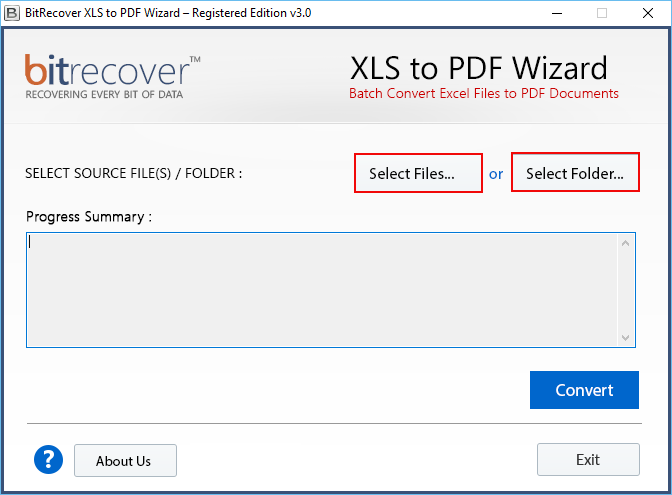
BitRecover Excel to PDF Converter is a smart solution for users searching for a way to convert their MS Planner task list or schedule into a portable document format. Thanks to its advanced functionalities, the program keeps task descriptions, assignments, due dates, and progress structures in its original form. Using the program, one can process project information efficiently, even without being online or using the MS Planner. The application guarantees worldwide data accessibility, while preserving the layout. Therefore, it can be used to satisfy needs related to project documentation archiving, reporting, and migration activities. In summary, the application simplifies a whole complex process due to its user-friendly interface and standalone architecture, safety features, and batch processing capability.
Quick Steps to Convert:
- Download, install and launch the utility on your PC.
- Add Excel file(s) that are to be converted into PDF format.

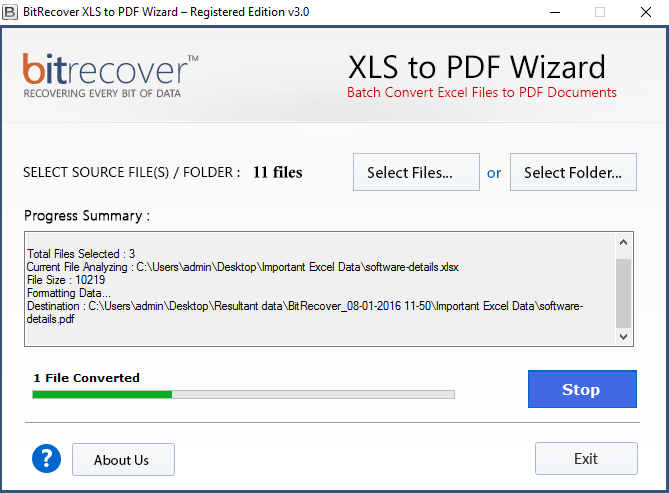
- Click Convert and you will see the completion progress bar.

- After conversion, the PDF files will be saved on PC at destination location.
Unique Features of the Tool
- Holds the arrangement of task lists, project boards, and similar elements intact.
- The processing is efficient, solving issues associated with conversion and compatibility.
- Functions without requiring any connection to Microsoft Planner and other applications.
- Allows to export numerous projects’ files or folders simultaneously in the Batch Mode.
- Guarantees the compatibility of information due to the preservation of layout.
- Is compatible with all the versions of Windows OS.
Conclusion
When handling certain processes and duties of your project, data security becomes an important issue which means that you must take necessary actions and apply conversion methods that will make sure that the information goes as it should. While some individuals may resort to the manual approach for copying/exporting data, this is not the optimal strategy for complex project boards. Instead of jeopardizing deadlines and tasks of your team, you are recommended to utilize special software solutions such as BitRecover which will let you convert and process your data easily into PDF format in a safe way.
Questions & Answers
Q: What Makes Automation More Preferable than Traditional Methods When Moving the Data From Microsoft Planner?
The significance of using such software is that it can facilitate the process, keep your project information intact and eliminate human failures when working on documents.
Q: Is the Information and Formatting of My Project Tasks Retained When Exporting Data From Microsoft Planner to PDF?
Yes, applications like BitRecover allow having the appropriate conversion of your project data with its original formatting.
Q: Do I Need to Have a Vast Technical Background When Working With These Tools While Converting and Exporting My Project Data?
No, the application is very simple to operate and does not require the specific technical education or background.
About the Author

