How to Transfer Notes from Evernote to UpNote Safely?
Fact-checked and reviewed in accordance with our Editorial Policy
Evernote is now focusing on paid plans and providing limited features, so many users are finding it difficult to use and are looking for free and flexible alternatives to migrate their notes. Users want an application that is affordable, easy to use, and accessible offline without affecting their existing data. UpNote is one such application that has gained attention in recent times for its flexibility and affordability. That is why more people want to move their notes from Evernote to UpNote safely.
This guide explains to you a reliable and proven method to transfer notes from Evernote to UpNote using the ENEX export and import process. By using this method, users can easily switch from Evernote to UpNote while keeping all their important notes in an organized and secure way.
Why Transfer Notes from Evernote to UpNote?
- Users now need to pay a subscription fee to use the Evernote application, whereas UpNote offers a free plan that allows users to import ENEX files (up to 20MB at a time), while its paid plan allows users to import up to 1GB and also provides extra features.
- UpNote is a highly efficient application when it comes to syncing notes on all your devices, while Evernote is slow and less efficient, as compared to UpNote.
- Users always face issues with Evernote’s interface, as it is complex and overwhelming. Whereas UpNote offers a clean and simple user-interface with minimal distractions and a focused environment.
- Evernote does not guarantee the confidentiality and security of data, whereas UpNote offers end-to-end encryption of notes and maintains 100% privacy of notes saved in the application.
- UpNote offers more affordable premium features as compared to Evernote, including increased storage space and additional options for customization and editing.
- Evernote saves notes in ENEX file formatting, which only works in Evernote. But UpNote can open these ENEX files and also save notes in formats that can be easily used in many other applications.
Manual Way to Transfer Notes From Evernote to UpNote
Step 1: Export Notes from Evernote
- First, open Evernote on your computer.
- Select the notebooks or specific notes you want to export.
- Then, right-click on selected note(s) and select Export.
- Now, choose the ENEX format. (Evernote Export File, .enex).
- Lastly, save the file in computer (like the Desktop).
Step 2: Import Notes into UpNote
- First, open UpNote on your computer (Windows).
- Then, go to Settings>>General>>Import from Evernote.
- After that, click on Import, then select an Evernote (.enex) file.
- Browse and select the .enex file.
- Turn on the use file name as notebook to create notebook just like how it was in Evernote.
- Now, UpNote will start importing your notes.
- After finishing, check your notebooks and notes in UpNote to confirm.
Note: After transferring the notes, review each notebook that the formatting, images, and attachments are the same. Always take a backup of your UpNote data to prevent any loss during the transfer.
Limitations of Manual Methods
- Time-consuming: Exporting the files from Evernote and importing them into UpNote takes a long time, especially when you are working with multiple large notebooks.
- Risk of Data Loss: There is always a risk of data loss while importing the data, such as attachments, images, and formatting.
- File Size Restrictions: It does not allow users to import large .enex files at one time. In that case, they need to first split the files manually.
- File length limits: While importing the data into UpNote, it does not allow importing files which one is bigger than 20MB or notes longer than 300,000 characters.
Advanced Tool to Import Evernote to UpNote
A user may face many challenges while migrating from Evernote to UpNote, and there is no guarantee that the task will succeed or not. Therefore, our technical team has designed dedicated software to solve all the issues. The BitRecover Evernote Converter Wizard is a professional tool to transfer notes from Evernote to UpNote with complete data.
The Evernote to UpNote migration tool allows exporting multiple ENEX files to UpNote compatible format in just a few simple steps. This tool is especially useful for users who need to migrate large volumes of files.
The Evernote to UpNote migrator guarantees 100% safety and security of information and does not upload any data to another server, and processes it locally.
Quick Steps to Migrate Evernote to UpNote
There are two stages to migrate Evernote to UpNote:
Step 1: Export Evernote Notes (ENEX Files) for UpNote
- Firstly, install and run the software on your computer.

- Next, upload the files using the Select Files or Select Folders button.
- Then, choose the Evernote files you need to transfer to UpNote and click Next.
- Now, select the MD (Markdown Format) from the saving options list.

- Finally, select the location and click the Convert button to export Evernote to Markdown.


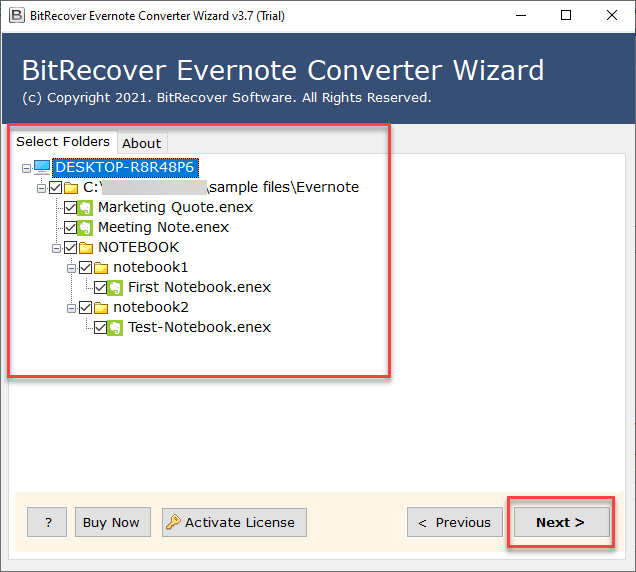


Step 2: Import Converted Files to UpNote
- Firstly, open UpNote on your computer.
- Next, navigate to the File menu and select Import.
- Then, choose the Markdown option from the list.
- Now, a box will appear; select the exported files.
- Finally, the Evernote Files will appear in the UpNote application.
Significant Features of Evernote to UpNote Migrator
- The software is capable of migrating complete Evernote data, along with the attachments, images, tasks, and more, without leaving any data behind.
- The Evernote to UpNote migration tool offers a batch export option, so users can export ENEX files to UpNote supported format in bulk in a single process.
- The tool offers flexible options for users to either select files or folders as per their requirements to migrate from Evernote to UpNote.
- The automated tool provides the Extract Attachments option if users need only attachments and not the complete data to transfer from Evernote to UpNote. This feature avoids unnecessary migration of data.
- The trusted software preserves the folder hierarchy and integrity of notes as original during and after the transfer process.
- The software is efficient for both technical and non-technical users as it comes with a friendly interface and clear navigation.
Conclusion
While migrating the notes from Evernote to UpNote is a common challenge for users. UpNote can open ENEX files easily, but manual migration is time-consuming and challenging, especially when you are dealing with large volumes of data, attachments, or multiple files. We understand how crucial it is for users to preserve their notes and transfer them to another note-taking application. To solve these challenges, using an advanced solution ensures a smooth, safe, and efficient migration process. It also allows users to transfer complete Evernote data to an UpNote-compatible format.
About the Author

