How to Convert QuickBooks to PDF File Format Easily? Best Ways
Fact-checked and reviewed in accordance with our Editorial Policy
Summary: Managing financial documents is by no means simple due to the dangers of unexpected price increases or service variations by the provider of the platform used by the business. This means that the need for backups is essential. The use of manual copying and long scripts from the actuary will inevitably lead to mistakes and poor format. In view of this, the use of professional solutions such as BitRecover to convert QuickBooks to PDF format is considered to be the easiest and safest means of safeguarding important transactions, records of customers, and accounting reports.
Why Convert QuickBooks to PDF?
- To protect important accounting journals, spreadsheets, and customer records, follow solutions in case of unforeseen problems with the platform.
- Reduce the chances of vendor binding, thanks to offline backups and easier possibilities to change the accounting system.
- Protection from loss of critical information because of factors outside the company’s control, such as account blocking, implementation of procedures, and deletion of data files.
- Avoidance of potential information loss due to the influence of the unreasonable operation of the platform or changes of the policy regarding the pricing strategy.
How to Convert QuickBooks to PDF Manually?
- Log into your QuickBooks account, whether Online or Desktop.
- Open the report, list or financial statement that you want to convert.
- Find the option that states Print, Email or Export at the top of your report.
- Select Print or select Save as PDF or Microsoft Print to PDF in your printer options.
- If you are saving via export options directly, you may need to export the document to Excel.
- Open Excel and click on File and select Save as (or Export) in order to save it in PDF format.
Convert QuickBooks to PDF Using Best Professional Tool: BitRecover
BitRecover Excel to PDF Converter is a useful tool that can convert Microsoft Excel files into PDF format. The software incorporates leading-edge technology that allows preserving the structure of files, including cells, rows, columns, and multi-sheet files. This makes it possible for the program to work efficiently regardless of the file’s format (either the old one, the one with the .xls extension, or the one with the latest .xlsx extension).
Moreover, full data compatibility is guaranteed due to the support of various types of text including UTF-8. Thus, this software can be used to fulfill all the requirements for spreadsheet archiving, document sharing, or safe data migration. The software is equipped with everything that is required to perform a complicated task with the help of the application with a simple interface, durable design, and many handy options.
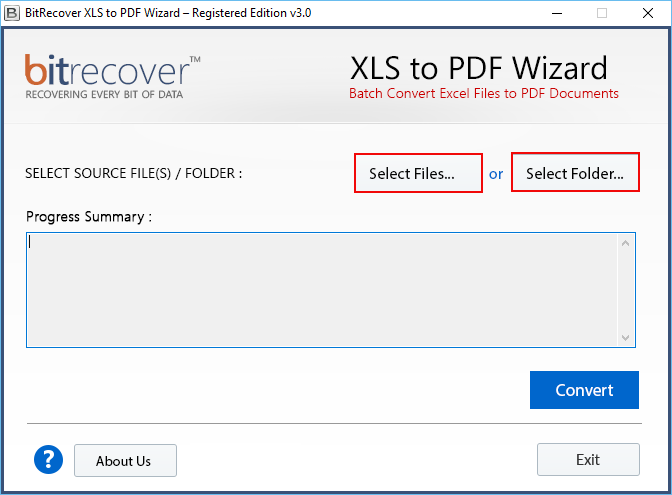
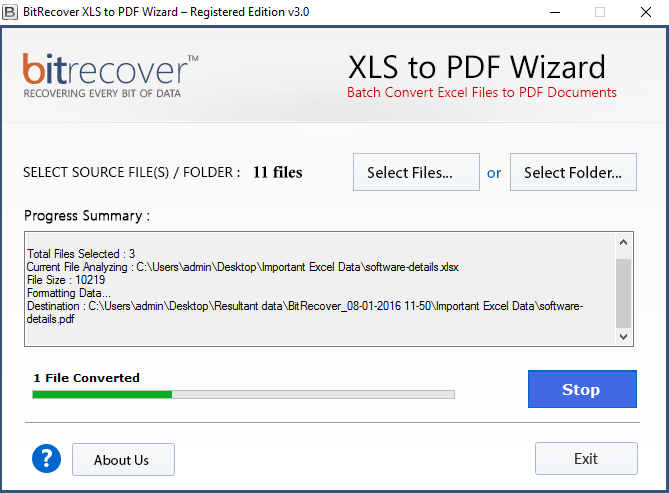
Quick Steps to Convert:
- Download, install and launch the utility on your PC.
- Add Excel file(s) that are to be converted into PDF format.

- Click Convert and you will see the completion progress bar.

- After conversion, the PDF files will be saved on PC at destination location.
Features of the Tool
- Functions without requiring any connection to QuickBooks and other applications.
- Holds the arrangement of task lists, project boards, and similar elements intact.
- Allows to export numerous projects’ files or folders simultaneously in the Batch Mode.
- Guarantees the compatibility of information due to the preservation of layout.
- Is compatible with all the versions of Windows OS.
- The processing is efficient, solving issues associated with conversion and compatibility.
Conclusion
In managing financial documentation as well as invoices and accounting records, data safety and effectiveness are essential. Thus, reliable information conversion methods must be chosen to solve the problem with maintaining the security and professionalism of your data. Even though you may think that copying information by hand or using the basic export function will be just enough for minor tasks, these methods never work well for full book-keeping and sharing financial reports.
Instead, it is better to use special applications designed particularly for this purpose, like BitRecover. Thanks to this tool, you can convert your QuickBooks data into standard PDF format and do other various things with the data concerning finances safely and effectively.
Questions & Answers
Q: Is technical expertise required to use the software for converting QuickBooks files to PDF format?
Not necessarily, the program can be easily used for this purpose as it has a simple interface and no technical knowledge is required for its execution.
Q: Does the software allow multiple QuickBooks reports or ledgers to be converted in PDF file format in a single session?
Yes, the software allows the conversion of financial files and folders in bulk using its batch processing feature.
Q: Should I have the necessary software installed on my computer in order to perform the conversion?
No, the application works independently without the need for any other software.
Q: Will the contents of my multi-sheet QuickBooks files be fully preserved in the PDF after the conversion?
Yes, the software is able to keep the same structure, columns, rows, and layout of your multi-sheet reporting.
Suggested Read: How to Export QuickBooks data to CSV Format?
About the Author

