How to Convert Email to EML File While Preserving Metadata?
Fact-checked and reviewed in accordance with our Editorial Policy
Summary: Convert email to EML file to save single email in widely supported format which preserves original message body, attachments, headers, timestamps & other metadata. Whether your emails are saved in Gmail, Office 365, Yahoo, IMAP & other webmail service, EML files make it easier to backup important messages, migrate to another email client, access emails offline & maintain long-term archives. This blog explains why most users download emails as EML file, available simple methods, their limitations & how to choose most suitable approach.
Can You Convert Email to EML File?
Yes, you can easily convert an email to EML file using supported email clients or professional email conversion software. EML preserves original email content, headers, timestamps, attachments & metadata making it suitable for backup, migration, offline access & long-term archiving.
What is an EML File?
EML file is a standard email message format which can store single email along with its headers, attachments, formatting, sender, recipient, subject & timestamps.
EML is based on internet message format, which is defined in RFC 5322 & supports MIME (Multipurpose Internet Mail Extensions), allowing attachments & HTML email content to remain intact. Because of this standard, EML files can be opened by many email applications without changing original message.
Why Users Convert Email to EML File?
Users often convert an emails to EML files when they need to save individual email messages in format which is easy to store, open, share or move to another email application. An EML file keeps original email content, attachments, sender & recipient details, date & other important information.
Some common reasons to include:
- Create Offline Backup: Users can save their crucial emails on their system so they can access them anytime even without an internet connection.
- Save Single Emails: You can store only emails you required rather than downloading an entire mailbox.
- Move Emails to Another Email Client: User can import EML file into many desktop email applications which support this format.
- Store Original Email Information: If you convert email to EML format then you can preserve email body, attachments, headers, timestamps & metadata without changes.
- Manage Emails Locally: You save emails related to specific project, client or department into separate folders for easier management.
How to Download Emails as EML Files with Manual Methods? (Windows)
There are several manual method to download an email as EML files:
Method 1: Save Email as EML Using Mozilla Thunderbird
Mozilla Thunderbird provides built-in feature to save single email message as EML file.
- At first, open Mozilla Thunderbird.
- Secondly, select email you want to export.
- Third, click file > Save As > File.
- Now, choose destination folder.
- Then, click save.
Note: If you are using this method you have to install Thunderbird. Your email account must be configured in Thunderbird & it is suitable only for exporting small number of emails.
Method 2: Save Email from Windows Mail (Classic)
Classic Windows Mail application supports saving emails as EML files.
- First, open Windows Mail.
- Then, select required email which you want to convert email to EML file.
- Now, click File > Save As.
- Afterwards, choose destination folder.
- Finally, save email as an EML file.
Note: It is available only in supported versions of Windows Mail. It is not practical when exporting large numbers of email messages.
Method 3: Configure Webmail Account in Thunderbird & Export EML
Webmail services like Yahoo Mail, Gmail & Office 365 doesn’t provide direct Save as EML option. You have to first configure your account in Thunderbird & then you can export emails.
- First of all, you have to install Thunderbird on your system.
- Secondly, add your Outlook.com, Yahoo Mail, Gmail or IMAP account.
- Now, wait till all your emails are synced.
- Then, select emails you want to save.
- Afterwards, click File > Save As > File.
- Lastly, save email as an EML file.
Note: Initial account setup & synchronization can take longer time of users, Manual process for each email it will be boring at some time & it is not suitable when you are converting thousands of emails.
How to Manually Convert Email to EML File on MAC?
Here are some manual methods to convert an email to EML file on macOS:
Method 1: Drag & Drop (Quick Method)
- Launch Mail application on your macOS.
- Then, click once on email you required to convert as EML file.
- Now, hold Cmd key & click on each email you want to select.
- Afterwards, press Cmd + A to select all messages in active mailbox.
- Then, drag selected email from Apple Mail to Desktop or any folder in Finder.
- Finally, Apple Mail creates an .eml file which you can store, share or open later in compatible email applications.
Note: This method can only exports one email at time, large mailboxes need repeating process for every email & email must be already available in Apple Mail.
Method 2: Configure Webmail Account in Apple Mail & Save as EML
- Open Apple Mail.
- Go to Mail > Add Account.
- Sign in with your email account.
- Wait until your mailbox syncs completely.
- Now, select required email.
- Drag email to your Desktop or Finder folders to save it as an EML file.
Note: It is not suitable for exporting hundreds of emails & it requires repeating process for each email.
Advanced Solution to Convert Email to EML File
Manual method are suitable when you are saving few email & work well for occasional exports. However, exporting large number of mailboxes or multiple email account can become time-consuming & repetitive. For faster & more efficient approach, BitRecover Email Converter Wizard help you to convert emails to EML files in just few steps.
In this tool you have to simply connect your email account, select required mailbox or folders, choose EML as output format & start conversion while preserving your email data.
How to Download Emails as EML Files in Simple Steps?
Easy step-by-step guide to download an email as EML file with professional software:
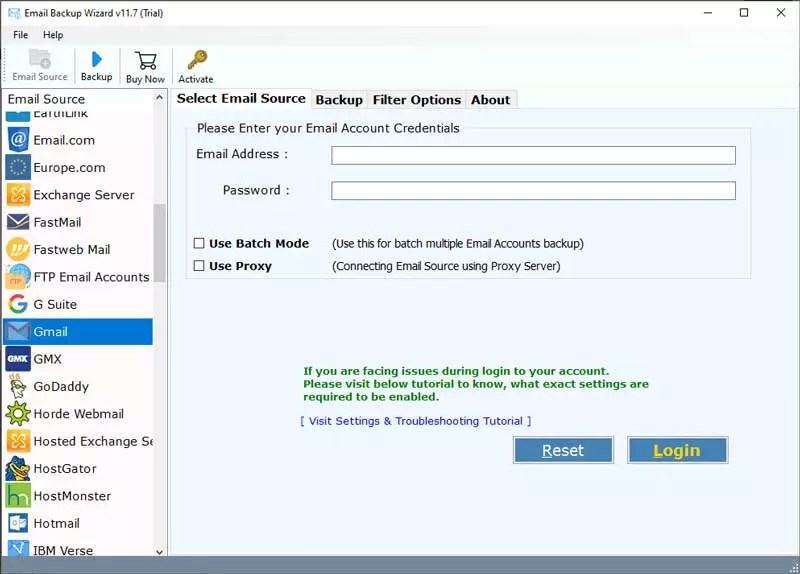
- Download & install above-mentioned software & select email source list.

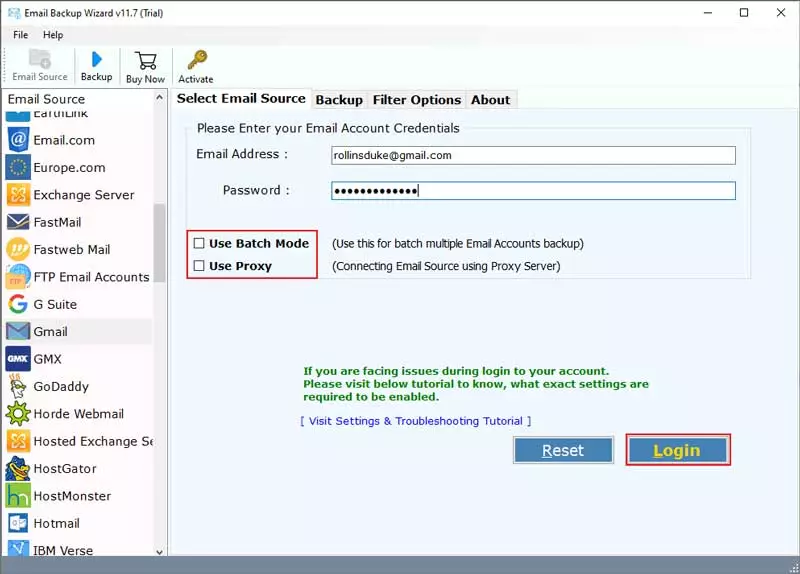
- Fill account credentials & press login button.
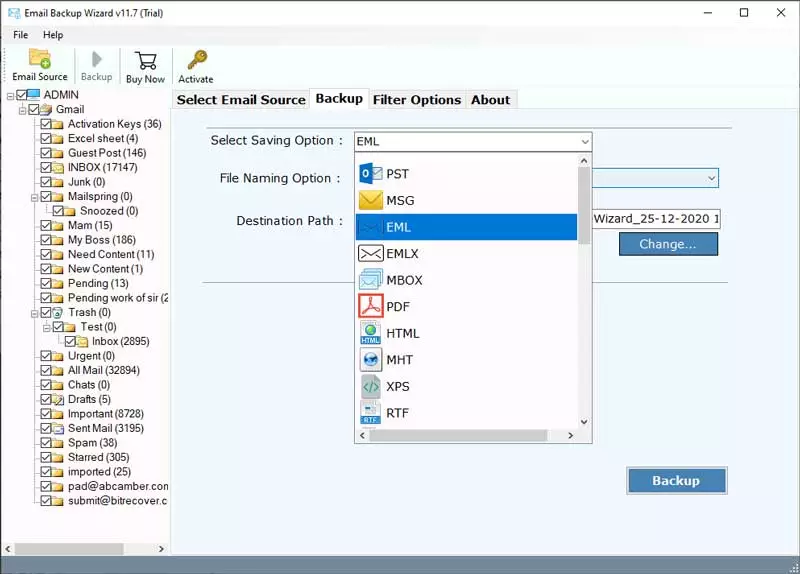
- Now, choose folder & subfolders as per your requirement.
- Select EML format from saving option.
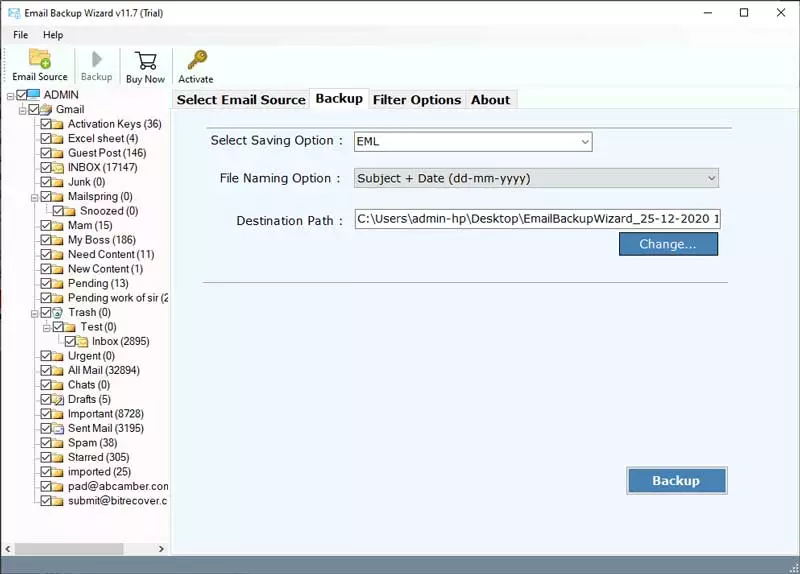
- Then, choose preferred location to store EML files & press convert button.
Powerful Features of Professional Conversion Software
Below are some powerful features of professional tool:
- Maintain Folder Hierarchy: Original folder & subfolder structure remains same after conversion, making exported emails easier to manage & locate.
- Email Properties Preserved: You can keep attachments, email headers, formatting, timestamps, sender & recipient details & other metadata same as before after conversion.
- Selective Multiple Folder: Select multiple folders at once instead of exporting each folder separately, reducing manual effort.
- Advanced File Naming Feature: You can rename exported email files automatically using information like date, sender, recipient or subject. With this you can organize files easily.
- Simple User Interface: This tool has step-by-step interface which allows users to convert emails without requiring advanced technical knowledge.
Conclusion
In this blog, we have learned about how to convert email to EML file when you need to save one single email message in widely supported format which preserves original message body. We explain manual (Windows & Mac) methods and also professional method to download emails as EML files securely without losing attachments and original email message body.
You can use manual method, but it has limits as already discussed above that is why we introduced you to professional tool so user can convert email without worrying about their email security. We would like to say if you still don’t understand or have any doubts, you can contact the support team for further assistance.
About the Author

