Fix Apple Mail Keeps Asking for Password Error with Safety

Published: March 18th, 2026 • 6 Min Read
This Apple Mail login password problem often appears when you change your email password, update system, switch devices, or deal with a weak and unstable internet connection. Even small misconfigurations or security restrictions can trigger Apple Mail keeps asking for password issue.
In this blog, we are going to talk about why does Apple Mail keep asking for password continuously even when the password is correct and how to fix it.
Why Does Apple Mail Keep Asking for Passwords?
- Sometimes, the password is may be incorrect or outdated. Make sure to use an updated password to login.
- Apple Mail relies on Keychain to store the password, If it becomes corrupted or if the Mail app is outdated, authentication may fail.
- If your email account has 2 Factor-Authentication enabled, you may need any app-specific password and not the regular one.
- Poor and unstable internet connection can also interrupt the authentication and cause repeated login requests.
- Sometimes, incorrect IMAP, SMTP, port numbers or SSL settings can cause Apple Mail keeps asking for password errors.
- Make sure to update your system regularly as outdated versions of macOS may fail to authenticate your passwords.
How to Fix Apple Mail Keeps Asking for Password?
There are multiple reasons why Apple Mail keeps asking for a password repeatedly. However, there is no need to worry about it as we will discuss some effective troubleshooting methods that will resolve this issue quickly and easily. You can easily pick one right approach to complete this process with ease:
- Re-enter Password in Mail Settings
- Update Password in Keychain Access
- Remove and Re-add Email Account
- Check and correct Mail Server Settings
- Use App-Specific Password for 2 Factor Authentication
- Check Internet Connection
- Update macOS and Apple Mail
- Disable and Re-enable Mail Account
Let us talk about these methods in brief to resolve Apple Mail keeps asking for password.
Re-enter Password in Mail Settings
- Firstly, open Apple Mail
- After that, go to Mail >> Settings (Preferences)
- Now, Select your email account
- Re-enter your password carefully.
- Now, save changes and restart Mail app.
Update Password in Keychain Access
- Start with opening Keychain Access.
- Now, search for your email account.
- Find entries such as IMAP, SMTP on your email provider.
- Now, delete the outdated entries.
- Lastly, restart the Apple Mail and re-enter password when prompted.
Remove and Re-add Email Account
- Go to the System Settings >> Mail >> Accounts
- Now, select your account and click on Remove (- icon).
- After that restart your system.
- Now, add the account again with the correct password.
Check and correct Mail Server Settings
You can verify details from your email provider’s official site as even a small mistake can trigger the password loops.
- Incoming Mail Server (IMAP)
- Outgoing Mail Server (SMTP)
- Port numbers
- SSL/TLS settings
Use App-Specific Password for 2 Factor Authentication
If you use services like Gmail or iCloud (this method requires Two Factor Authentication):
- Go to your account security settings.
- Generate an app-specific password.
- Use that password in your Apple Mail app while logging in.
Check Internet Connection
- Switch between Wi-Fi and mobile hotspot.
- If nothing works, restart your router.
- Try logging in through webmail
Update macOS and Apple Mail
- Go to System Settings >> Software Update
- Install any pending updates.
Disable and Re-enable Mail Account
- Go to System Settings >> Internet Accounts
- Now, turn off Mail for the account.
- Wait for a few seconds
- Now, turn it back on
If you are still facing the Apple Mail password problem, you need to get rid of it immediately as it won’t let you access your Apple Mail data smoothly. You can backup your entire Mac Mail data to a compatible file format or just migrate your data to a safe and secure email client or platform to access them easily. BitRecover Apple Mail Converter is one of the best solutions that will help you to migrate your entire mailbox.
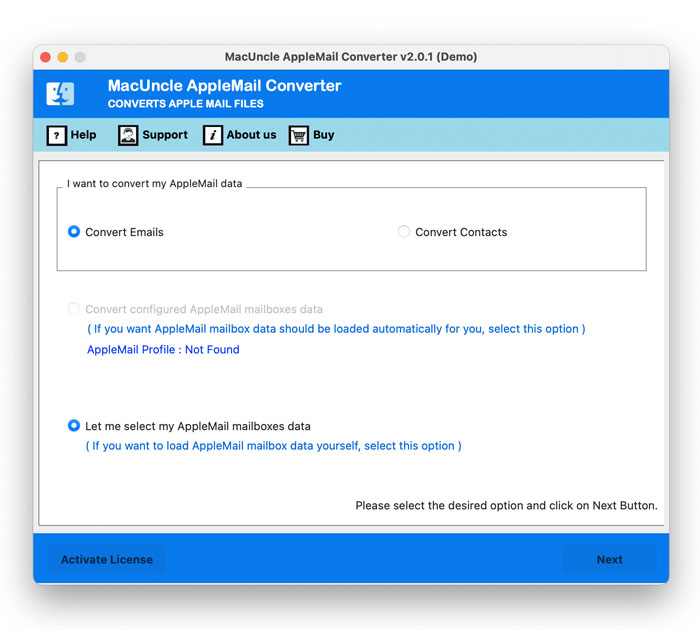
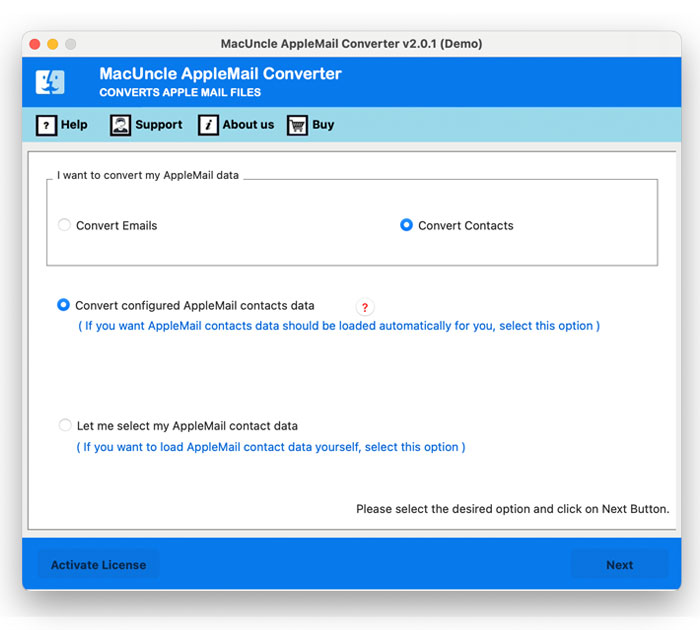
How to Use this Solution on Mac Machine
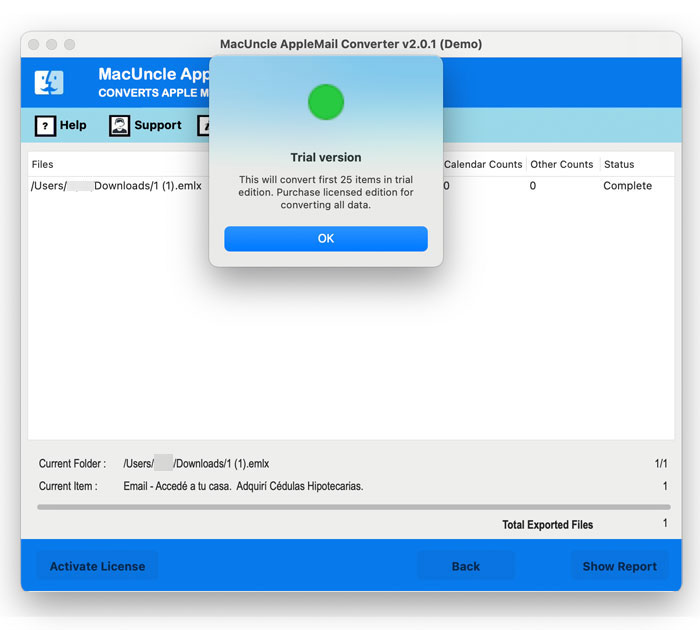
- Firstly, Download this solution on your Mac Machine.

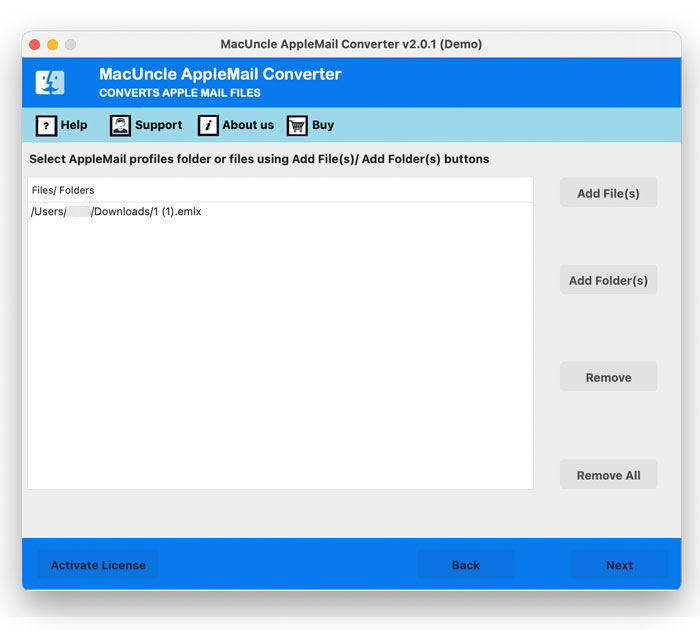
- After that, choose the option to load the Apple Mail data into the panel.
- Now, preview and check all the uploaded data before proceeding.
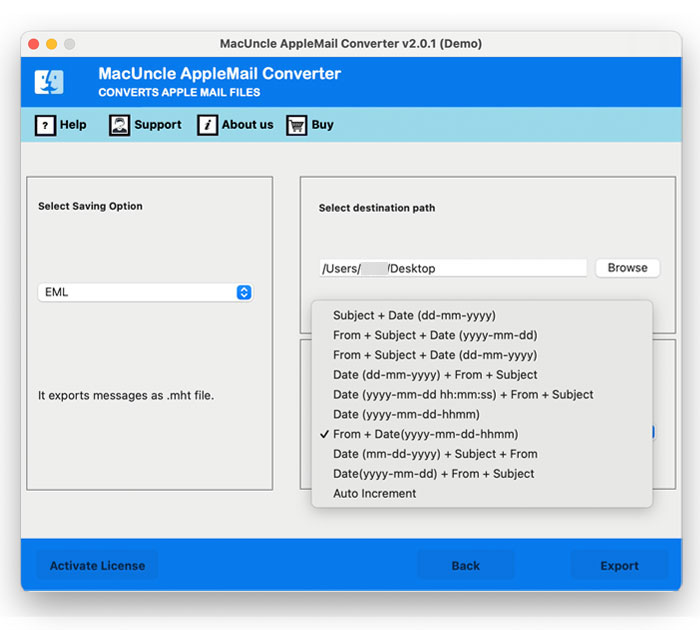
- Select an option from Select Saving Option, a path from Select Destination Path and a name from File Naming Options.
- Lastly, click on the Export button to get rid of Apple Mail keeps asking for password.
Quick Steps to Use this Solution on Windows
- Start with Downloading and Installing the solution on your Windows system and click on Next to proceed.

- Now, choose from Select Files and Select Folder options to load your data into the software panel.
- Thirdly, preview and check all the uploaded data to backup Apple Mail data with safety.
- After that, Choose an option of file format or email platform from the Select Saving Options list.
- Now, browse a Destination Path to save the output data to a location of your choice.
- Choose an option from File Naming option list to rename the final data.
- Apply Filter Options if needed for selective transfer of data.
- Lastly, click on the Convert button to safely complete the process.


What Makes this Professional Solution First Choice of Professional?
- Offers to transfer Apple Mail Data to Gmail, Outlook, Office 365 etc. in bulk with safety.
- Provides multiple filter options to access Mac Mail data selectively as per user’s needs.
- Keeps all data and formatting intact throughout the entire process.
- Standalone solution that completes the entire process all by itself without any help.
- Does not consume much time and does not impose any size or quantity restrictions.
Some Prevention Tips That You Need to Remember
- Make sure to always update your password in Mail once you change it.
- Use a strong and stable internet connection to access data smoothly.
- Remember to update your macOS regularly.
- Avoid switching between multiple networks regularly.
- Make sure to check mail server settings regularly.
Need More Help?
Hope you have Apple Mail keeps asking for password issues fixed. Users can use either manual methods or professional method as per their requirements. However, If you need any assistance regarding this or any other error query you can get in touch with our Technical Support Team anytime. They are available to assist and guide you 24/7.