Fix Apple Mail Attachments Not Downloading with Safety

Published: March 5th, 2026 • 7 Min Read
If your Apple Mail attachments not downloading, this digital write-up will explain the best ways to fix it so that you can access all the attachments from your Apple Mail with ease and safety.
Apple Mail is one of the most commonly used email applications for macOS users. It offers a smooth interface, seamless integration, and a wide range of email management features. However, multiple users sometimes face some technical issues while managing the data. Mac Mail attachments not downloading is one of the most common issues a user can face.
Attachments may contain some important and confidential data, and hence this issue must be resolved to access these important attachments with safety. In this blog, we will discuss the issue of Apple Mail attachments not downloading, how it affects the entire email management system and how to fix it.
So let us get started.
Reasons Why Apple Mail Attachments Not Downloading
Before jumping to the fixes, it is important to know the root cause of this error so that you can prevent it in the future.
- Unstable Internet Connection: Apple Mail requires a stable internet connection to download attachments from the email server. If the network is slow and unstable you will definitely face issues while downloading it.
- Incorrect Mail Account: Improper IMAP or POP configuration settings can also prevent attachments downloading properly.
- Mail Server Synchronization Issues: Sometimes the email server and Apple Mail fail to sync properly and this causes issues while downloading the attachments.
- Size Restrictions: Large attachments may not download automatically if your account settings allow only smaller attachments to download.
- Outdated macOS or Mail App: Check if you are using an outdated version of Apple Mail. This can also interrupt the downloading process.
- Email not Fully Download: If the email message itself is not fully loaded, it is difficult to download attachments from it.
These are some common reasons why your Mac Mail attachments are not downloading Mac Mail attachments not downloading. You can manage your data according to these considerable points to prevent this issue in future. Now that we know that due to these reasons Apple Mail attachment stuck on downloading let us see how we can fix it.
How to Fix Apple Mail Attachments Not Downloading?
Below are some manual fixes that can be used if your Mac Mail attachments not downloading:
#1. Check Internet Connection
You can open the web browser and try loading any website or page. If it loads slowly, restart your router, reconnect your Wi-Fi network. Try it until you get a stable network. Once the network is stable, reopen your Apple Mail App and try downloading the attachments again.
#2. Force Download Attachment
Sometimes, Apple Mail does not download attachments automatically and you need to force download them and below are the steps to do it:
- Open your Apple Mail that contains the attachments.
- Now, locate the attachments icon.
- Click the Download button next to the file.
This method forces Mac Mail to fetch the attachment directly from the server.
#3. Restart Apple Mail App
Sometimes you may face temporary glitches that may prevent attachments from downloading
- First close the Apple Mail Application
- Wait for a few seconds.
- Reopen the Mail App again and check if the attachments are now downloading or not.
#4. Check Attachment Download Settings
Apple Mail may be configured to download only recent attachments, below are the steps to check it.
- First Open Apple Mail
- Go to Mail >> Settings (Preferences)
- Click on the Account button.
- Select your email account.
- Check the Download Attachments setting.
- Now, set it to All instead of Recent or None.
This way you can make sure that all your attachments will be successfully downloaded without any errors.
#5. Rebuild the Mailbox
Rebuilding the mail box helps you to fix the synchronization between Apple Mail and the new email server
- Open Apple Mail App.
- Select the mailbox where your email is located.
- Click on the Mailbox from the menu bar.
- Now choose Rebuild.
- Apple Mail will re-sync the mailbox and download all the message data once again.
#6. Update macOS
Using an outdated version of macOS can cause the issue with Apple Mail features.
- Click on the Apple Mail menu.
- Select System Settings.
- Now, open Software Update.
- Install the latest version of the application that is available.
#7. Remove and Re-add Your Email Account
If still unable to download attachments from Apple Mail, reconfiguring your email account may help a lot.
- Open Mail Settings.
- Go to Accounts.
- Remove the affected email account.
- Restart your Mac Machine.
- Add the account again.
This way you can refresh your account configuration and restore the synchronization.
Still Unable to Download Attachments from Apple Mail?
If your Apple Mail attachments not downloading, BitRecover Apple Mail Converter can help you to easily download all the attachments from your Apple Mail account. You can even download them selectively, only those attachments that are important for your.
This is one of the best solutions to download all the attachments with safety without making any changes into them. You just need to download this solution on your Windows system or Mac machine and load your Apple Mail account data and download the attachments you desire.
Below are the direct links to download the tool:
How to Use this Solution on a Mac Machine?
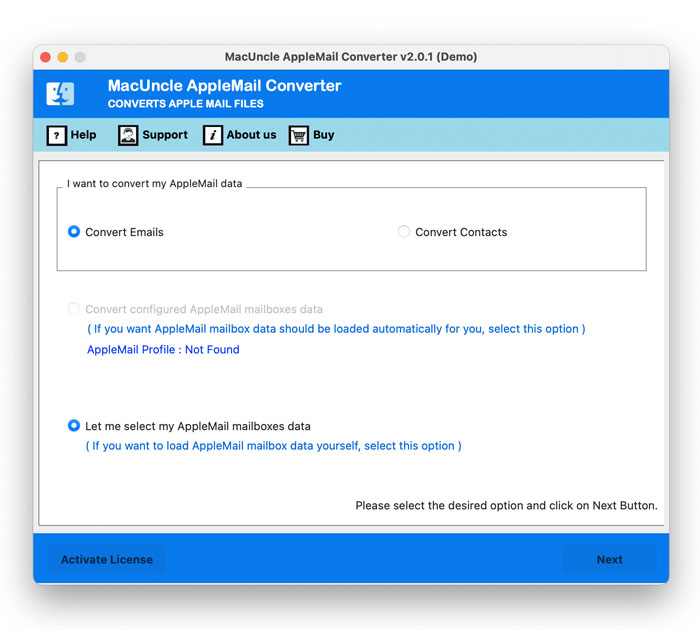
- Initiate with downloading and installing the solution. Choose from the given option to load your data.

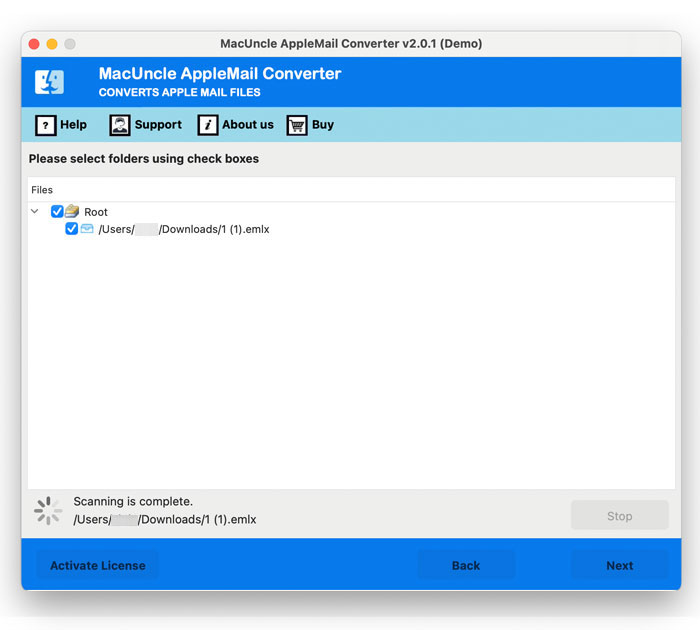
- Once the Apple Mail data is loaded, preview and check all the data carefully before proceeding.
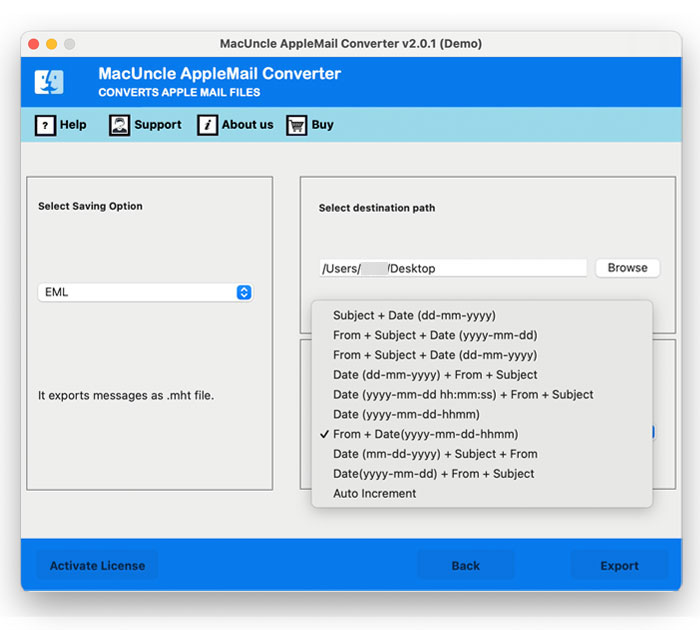
- Choose a File Format, Destination Location or New Name for your final data.
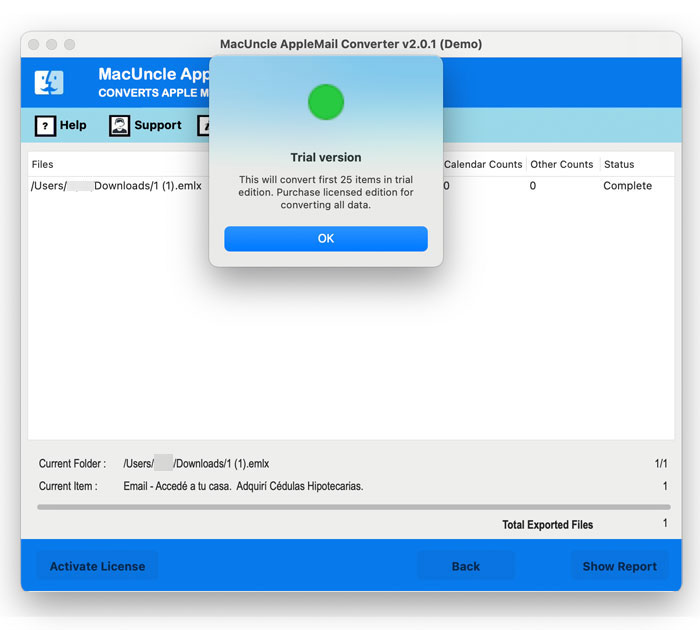
- Once done, click on the Export button to complete the download process.
How to Use this Solution If You Have Apple Mail Data on Your Windows System?
- First of all, download and install the solution on your Windows system.

- After that, choose Select Files and Select Folders to load your Apple Mail data.
- Now, preview and check all the uploaded data before proceeding to download the attachments.
- Now choose any format to save all your attachments from Mac Mail.
- Finally, choose the Destination Path and a new name from File Naming Option.
- Apply Advanced Filters from Filter options if required.
- Lastly, click on the Convert button to proceed.


Why Download Attachments with this Solution Over Fixing Account Settings Manually?
- Manual ways are very time-consuming when fixing Apple Mail attachments not downloading issues.
- It allows you to download all the attachments in bulk as well as selectively as per your requirements.
- Helps you to even export Apple Mail to EML, PST, PDF, DOC etc and migrate Apple Mail to Gmail, Thunderbird etc.
- It offers quick and direct steps to download attachments on Mac Machine as well as Windows system.
- Keeps the entire formatting of attachment data and maintains the original document data every time.
- Offers save all the downloaded attachments from emails in multiple file formats easily.
The Final Words
There should be a professional solution to save all the attachments safely when your Apple Mail attachments not downloading. We have discussed multiple manual technicalities but they lean toward only specific causes. Other than this, the professional solution we have talked about is capable enough to help you save all your attachments into some compatible file format for easy accessibility.
Just in case, you need any assistance or help regarding this process or about the solution you can get in touch with our Technical Support Team anytime.