I recommend this utility to all Mac geeks, who are looking to recover data from a Parallels Desktop virtual machine.
Most Trustworthy Recovery Tool for Parallels PVM / HDD / HDS files.![]()
Recover & restore critical data from the virtual disk files namely .pvm / .hdd / .hds, created using Parallels hypervisor. 4 powerful data recovery modes namely, Raw, Deleted, Formatted & Partition Data recovery ensure a smooth retrieval of lost data in the case of system crashes, corruption, or inadvertent data deletion.
Features Highlights
BitRecover Parallels HDD Recovery Tool enables users recover their data from PVM/HDD/HDS virtual drive files created using Parallels hypervisor efficiently & smoothly. With a superior user-friendly interface, even non-technical users can use it hassle-free. Its key characteristics include:
Parallels HDD Data Recovery Modes
This tool stands out as one of the most reliable and efficient in the business. It is technically equipped to handle data recovery from the Parallels virtual disk files, and guides the user through the recovery process in a seamless manner. Modes for data recovery that are available through this tool include:
Parallels Virtual Disk Data Recovery
As a virtual machine crashes and displays a Black Screen or BSOD (Blue Screen of Death) error, you're faced with a very real problem: Being unable to access the data that is stored on that virtual machine. Most of the time, such issues originate within the virtual machine environment itself, through corruption or system failures, and can be devastating, causing real frustration, and possibly, permanent loss of critical files.
However, there is a ray of hope! The advanced BitRecover Parallels HDD Recovery tool is now available that allows you to easily recover files, from a crashed virtual machine, which was unable to start due to those kinds of errors.
Parallels HDD File Systems Compatibility
Multiple Parallels HDD File System Support: BitRecover Parallels HDD Recovery software provides great flexibility in the form of supporting multifarious file systems of the Parallels Virtual Disk files, including FAT, NTFS, HFS+, EXT4, and more. If your virtual disk environment uses older file systems like FAT16 or modern ones like NTFS, the software ensures compatibility for a smooth data recovery. By the virtue of this feature, the lost or damaged data gets recovered from a virtual disk file regardless of its file system structure.
Advanced Virtual Drive Search Capability: The recovery tool also includes a smart search function along with full file system support. Users can save time by quickly locating and recovering specific files from large Virtual Drive files using this tool. You can find what you need without sorting through large amounts of data thereby speeding-up and improving the recovery process. No matter the size or complexity of the virtual drive, the combination of solid file system support and smart search features ensures the best possible data recovery.
Notable Features

Granular Parallels HDD Recovery
Parallels HDD Recovery Wizard is one-of-its-kind recovery solution to recover data from broken or crashed virtual machines created in Parallels and saved as .hds or .hdd files. Tool successfully supports granular Parallels HDD recovery from .hdd virtual disk images created with Parallels Desktop and VirtualBox.

Recover Deleted Parallels Virtual Machine
Parallels HDD data recovery tool is equipped with perfect data recovery mode which allows users to recover their deleted files and folders from Parallels virtual machine drives. To perform deleted file recovery from a Parallels virtual machine hard disk, choose "Deleted Data Recovery" option from the software screen. Parallels virtual machine extension .hdd file is supported by the software for recovering files from it.

Restore Data from Formatted Parallels Files
While working with a Parallels virtual machine if you have accidentally formatted a wrong drive and now you are looking to get back your lost data, then this recovery utility will help you. Use the "Formatted Data Recovery" option and scan your formatted drive to restore complete data from it.
Note: Use "Data Recovery Wizard" if you have accidentally deleted the whole Parallels HDD, HDS, PVM file from your PC.

Retrieve Lost Data Parallels HDD Partitions
It happens at times that Parallels virtual machine partitions may get corrupted and users will not be able to see their data in guest Windows operating system virtual machines. To recover data from such corrupted partitions of Parallels virtual hard drive, use the "Partition Data Recovery" mode provided by the software.

RAW Recovery Mode to Restore Parallels HDD
This Parallels HDD Recovery Tool comes with four different recover modes i.e. Deleted / Formatted / Partition / RAW Data Recovery. If above mentioned recovery options fails to find your lost files then you need to choose RAW data recovery mode. Using this option, our clients can easily recover their critical data from the Parallels virtual machine which are heavily corrupted.

Restore Data from MBR & GPT Partition Styles
During creating virtual disk partitions, it is mandatory to choose a partition style from MBR (Master Boot Record) & GPT (GUID Partition Table). This Parallels desktop restore software permits to restore data from corrupted and damaged Parallels virtual drive files such as HDD / HDS / PVM having MBR and GPT partition styles.

Extract Data from Fixed & Dynamic VM Files
BitRecover Parallels HDD Recovery Wizard is designed in such a way that it is capable to recover data from the Parallels Desktop fixed and dynamic files. This amazing software supports *.hdd, *.hds, *.pvm virtual drive files of Parallels as well as VirtualBox virtualization program.

Compatible with All Major File Systems
Parallels HDS Recovery Software is a versatile tool that is well-suited to recover files from the Parallels virtual machine disks having NTFS & FAT file systems. It is compatible with all variants of major file systems i.e. FAT, FAT16, FAT32, FAT64, NTFS, HFS+, and EXTX.

Retrieve Data If VM Failed to Start
If your Parallels desktop virtual machine got crashed unable to restart then you can proudly use this software to preview and restore data from Parallels virtual machine black screen errors and which fails to start and boot process. In this situation, it works successfully.

Advance Search to Recover Parallels PVM
This Parallels PVM Recovery Software has an inbuilt advance search option which most helpful if someone wants to find out some important data from whole Parallels HDD, HDS, and PVM files. Using this feature, users can restore only specific data according to their choice.

Open Parallels HDD File Data
If you are in trouble because of parallels scanning and repairing drive stuck. Then you can easily check your Parallels desktop virtual machine data in the software panel. After completing the advance scanning it will open Parallels HDD / HDS / PVM files in the software interface before restoring data.

Compatible with All Windows OS
BitRecover Parallels HDD Recovery Tool is compatible with all latest as well as old Windows OS such as Win 10, Win 8.1, Win 8, Win 7, Win Vista, Win XP, Win Server 2019, Win Server 2016, Win Server 2012, Win Server 2008, Win Server 2003, etc.
Key Characteristics
Standout Features of Parallels HDD Recovery Wizard Tool
Advanced PVM/HDS File Recovery
Multiple File Systems Support
Many File Extensions Supported
Sophisticated Data Search Capability
Core Benefits
Sophisticated Data Recovery Capabilities
BitRecover Parallels HDD Recovery Tool has technically-advanced features to execute smooth & efficient recovery of the lost and deleted virtual file data. It easily recovers data from the Parallels PVM/HDD/HDS virtual drives that are no longer accessible and promises to ensure minimal data loss.
Multi-Format Virtual Drive Support
The Parallels HDD Recovery Software is great at supporting a multitude of widely-used virtual drive formats. And thus, regardless of the platform and disk type, a smooth data recovery process is ensured under many types of virtual machine environments.
Major File Systems Supported
The BitRecover Parallels HDD Recovery Tool is technically competent to recover critical lost data from the corrupted or inaccessible Parallels HDD disks having widely-used file systems such as, FAT, FAT16, FAT32, FAT64, NTFS, HFS+ and EXTX. Its superior Algorithmic logic has the ability to effectively scan & detect the file systems of corrupted virtual drives and execute superior mechanisms in order to extract and recover data from it.
Step-by-Step Guide
Download, Run Parallels HDD Recovery Software
First, click on the download button on the page to download the setup of this software on your desktop. Thereafter, provide the admin permission and follow on-screen instructions to install and run the program on your PC.
Select Parallels HDD File for Data Recovery
Now here, we may add the path to the Parallels virtual disk file from which the data needs to be recovered, by clicking on the "Select Folders" option. A window dialog box will open from which we may manually select the path to the virtual hard drive file's location.
Choose Data Recovery Type
In the next window or dialog box, we need to select from the types of data recovery modes namely, Deleted Data Recovery, Formatted Data Recovery, Partition Data Recovery, and Raw Data Recovery as per our requirements or needs.
Start Data Recovery Process
Finally, in the next window, we shall start the data recovery process by selecting the virtual hard drive partition from the directory tree structure and then choosing the appropriate files via the checkbox for which we intend to initiate the recovery process.
System Specifications
Software Download
File Size: 1.21 MB
Version: 3.2
Trial Limitations
Trial Edition doesn't allow you to save recovered data from Parallels virtual disk image files. You have to purchase a software license to save your recovered data. Saving of recovered files & folders is disabled in Trial Edition.
System Specifications
Hard Disk Space
100MB of free hard disk space
RAM
Minimum 4 GB RAM
Processor
Intel® Pentium 1 GHz processor (2.4 GHz is recommended)
Supported Editions
Electronic Delivery
BitRecover Parallels HDD Recovery Wizard Software is delivered automatically. After your payment is confirmed, you will receive an email with a link to download the product and the activation key.
Feature Comparison
FAQs
No, the tool has developed using advanced technology where it automatically recovers data from your corrupt HDD file. Because of its user-friendly interface technical or non-technical users can easily work with this tool.
Parallels .hdd files are virtual machine files created with "Parallels Desktop for Mac" virtualization software. These files serve as a hard disk to the virtual machine which contains files, data, and settings used to start and run virtual machines.

Parallels Desktop virtual machines use the .pvm file extension to manage virtual machines. To start virtual machines, users have to double-click on the .pvm files of respective VMs.
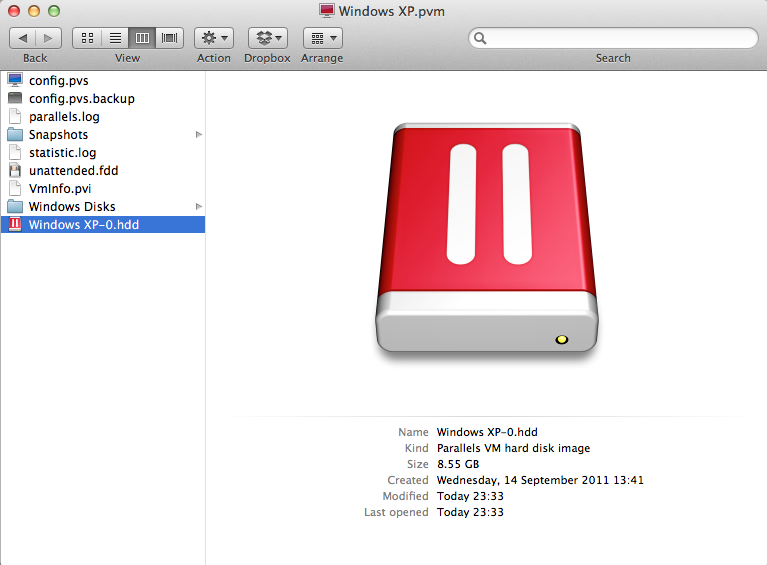
Parallels .hdd file types are located within the heart of .pvm (Parallels Virtual Machine) files. To get a closer look of these files you need to extract these files. To extract, browse the path where your .pvm file is located and once found right-click on it and choose "Show Package Contents". The extracted folder contains your .hdd file.

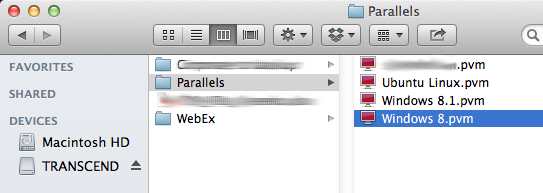
By default Parallels virtual machine files are saved either in the Documents/Parallels folder inside your user folder, or to /Users/Shared/Parallels.

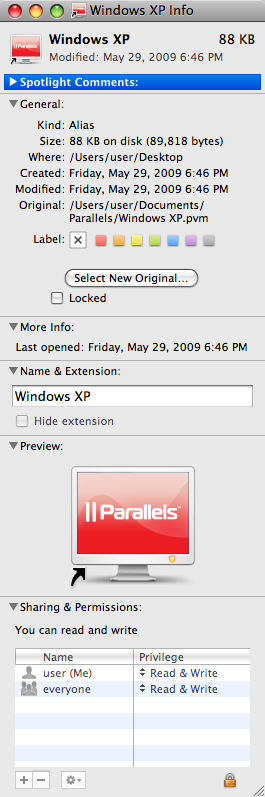
You can also determine file location using PVM file Alias. If you need to see the location of a PVM file to which an alias points, right-click on the PVM alias and choose to Get Info. You will see the location for the PVM file it points to after Original.
One can open these files easily by using “Parallels Mounter” software. Using Parallels Mounter software one can easily see the entire contents inside the .hdd file. Parallels Mounter does not support other virtual machine file types such as .vhd or .vmdk created with VMware or Microsoft Hyper-V.
or
You can use this "BitRecover Parallels HDD Recovery Wizard" to open and explore your .pvm, .hdd file contents. The software acts as a Parallels .pvm, .hdd viewer, which allows you to read Parallels .hdd file of any file size. You can read and open the corrupt Parallels .hdd file as well as healthy .hdd file to extract few of your crucial files from it.
Note: Oracle VM VirtualBox can also be used for viewing older versions of .hdd files.
Parallels HDD disk may get corrupted because of the following reasons:
No one can afford data loss, but unfortunately, there is no way to run away from such issues. There are possibilities when you run your “Parallels Desktop” virtualization machine pops up with an error that your “virtual .hdd is corrupt, check it for errors”.
Users are always suggested to make a backup of their virtual drives and make a habit of updating it regularly, so in case if any error occurs you can restore your data easily. There are some manual ways but they will not work in above-mentioned cases related to HDD failure. So getting the Parallels HDD Recovery software is a wise idea.
Points to be kept in mind before choosing a Parallels HDD Recovery Software :
Yes, Software can recover data from Parallels Virtual machine that shows a black screen and fails to boot. Download Parallels data recovery software trial version and run it to scan your .hdd virtual disk file. Order the Licensed edition of the recovery tool to save your entire data from Parallels HDD file.
This error message shows that your virtual machine has got corrupted and now you need to restore data from it. Download Parallels .hdd Recovery Wizard and scan your .hdd file. After complete scan software will list your recovered files and folders. Save your required files and folders with the help of a licensed edition of the tool.
As Parallels host operating system is Mac, you need to take the help of a Mac data recovery software in this case. The VM once deleted gets deleted from host hard disk file system. If after recovering from MAC hard drive, you are still not able to open up your .hdd file then in that case Parallels HDD Recovery Wizard will help.
Client Testimonials