What is XenServer Used For? A Complete User Guide

Summary
In the modern era of cloud computing and data center management, understanding the tools that power our digital infrastructure is more important than ever. This comprehensive guide delves into the world of Citrix XenServer (now known as Citrix Hypervisor), exploring its architecture, its historical roots, and the practicalities of day-to-day management. We will look closely at what is XenServer used for, ranging from enterprise-grade server consolidation to high-performance desktop virtualization. Beyond the basics, we provide deep technical insights into how to create virtual machine in Citrix XenServer and the complexities of XenServer restore from backup operations. Whether you are a system administrator or a curious technical enthusiast, this guide will equip you with the knowledge to manage, optimize, and recover virtual environments with confidence.
The Origins of a Virtualization Giant: A Brief History
The story of XenServer begins not in a corporate boardroom, but in the halls of the University of Cambridge. In the early 2000s, the Xen Project was born as a research initiative focused on “paravirtualization”—a method that allowed multiple operating systems to share a single physical server with incredible efficiency. This open-source project quickly gained traction, catching the attention of tech pioneers. In 2007, Citrix Systems acquired XenSource, the commercial entity behind the project, and transformed it into Citrix XenServer.
Over the last two decades, the platform has evolved from a niche open-source tool into a robust, enterprise-ready hypervisor. While Citrix recently rebranded the product to Citrix Hypervisor, the name “XenServer” remains deeply ingrained in the technical community. It has stood the test of time by consistently providing a lean, high-performance alternative to other virtualization heavyweights, focusing on tight integration with Windows environments and the Citrix stack.
Why Modern IT Needs XenServer
IT professionals today face a relentless set of challenges. Hardware costs are rising, data centers are running out of space, and the demand for 24/7 uptime is no longer a luxury—it is a requirement. The primary pain point for most administrators is “Server Underutilization.” In a traditional setup, a physical server might only use 10% of its processing power, leaving the rest to go to waste while still consuming electricity and cooling. This inefficiency is a silent budget killer.
Furthermore, the risk of hardware failure is a constant source of anxiety. If an application is tied to a specific physical box, a single failed motherboard can result in hours or even days of downtime. This is where the core value of virtualization comes in. By decoupling the operating system from the physical hardware, businesses can maximize their resources, simplify their management, and create a resilient infrastructure that can survive hardware failures without skipping a beat.
Topic Meaning & Technical Deep-Dive
What is Citrix XenServer?
Citrix XenServer is an open-source Type-1 hypervisor. Unlike Type-2 hypervisors that run as an application on top of Windows or Linux, XenServer is the operating system. It installs directly on the “bare metal” of the server, allowing it to manage hardware resources (CPU, Memory, Storage, Networking) with maximum efficiency and minimal overhead.
What is XenServer Used For?
Understanding what is XenServer used for is key to recognizing its place in the market. Its primary applications include:
- Server Consolidation: Reducing the physical footprint of a data center by running dozens of virtual servers on a single physical host.
- Desktop Virtualization (VDI): Powering Citrix Virtual Apps and Desktops, allowing users to access their work computers from any device anywhere in the world.
- Cloud Infrastructure: Serving as the underlying engine for public and private cloud environments.
- High-Performance Graphics: XenServer is renowned for its “GPU Passthrough” capabilities, making it ideal for CAD designers and video editors working in virtual environments.
How it Works: The Architecture
At the heart of the system is the Xen Hypervisor, which acts as the traffic cop for hardware requests. It uses a special administrative domain called “Domain 0” (or Dom0). Dom0 is a privileged Linux VM that starts automatically when the host boots. It handles the management tasks, such as starting and stopping other VMs (known as DomU) and managing the storage drivers.
Setting Up the Environment
The configuration typically involves a physical server (the host) and a management console called XenCenter. XenCenter is a Windows-based application that allows you to manage multiple XenServer hosts from a single, intuitive dashboard. Once the host is installed, you configure “Storage Repositories” (SRs)—the locations where your virtual disks will live, which can be local drives, iSCSI LUNs, or Fiber Channel storage.
How to Create Virtual Machine in Citrix XenServer
Setting up your first guest OS is an exciting milestone. If you are looking for instructions on how to create virtual machine in Citrix XenServer, follow these logical steps:
- Connect via XenCenter: Open XenCenter on your management PC and connect to your XenServer host using its IP address and credentials.
- Launch the New VM Wizard: Right-click on your host and select “New VM.”
- Choose a Template: XenServer provides optimized templates for various versions of Windows and Linux. Selecting the right template ensures that the virtual hardware is tuned for that specific OS.
- Name and Locate: Give your VM a descriptive name (e.g., “Web-Server-01”).
- Installation Media: Choose an ISO file from your library or a physical DVD drive to boot the installer.
- Allocate Resources: Assign CPU cores and RAM. Be careful not to “over-provision”—giving a VM more RAM than it needs can slow down the entire host.
- Storage and Networking: Create a new virtual disk (usually in .vhd format) and assign the VM to a virtual network interface (VIF).
- Start and Install: Click “Create Now.” Once the VM appears in the list, click “Start” and proceed with the OS installation just as you would on a physical computer.
XenServer Restore from Backup
In a virtual environment, your data is only as good as your last backup. There are two primary ways to handle a XenServer restore from backup:
1. The Metadata Restore
If your XenServer host fails but your storage is intact, you can reinstall the hypervisor and restore the pool metadata. This “re-attaches” the existing virtual disks to a fresh host installation.
2. Full VM Restore (XVA Files)
When a VM is exported, it is saved as an .xva file. To perform a restoration:
- In XenCenter, go to File > Import.
- Browse to your backup .xva file.
- Select the host and storage repository where you want the VM to reside.
- XenServer will re-create the VM shell and import the disk data.
When Virtual Disks Become Inaccessible
Despite our best efforts, things go wrong. Because XenServer relies on complex storage structures like LVM (Logical Volume Manager) or VHD files inside a proprietary Storage Repository (SR), a minor corruption can make your data vanish. Users often face critical issues when trying to access data from a “broken” SR or a VM that simply won’t boot.
Symptoms of Failure
- The “SR_BACKEND_FAILURE”: A terrifying error that means XenServer can see the physical storage but cannot read the virtual disk structure.
- VDI_MISSING: The hypervisor thinks the virtual disk image is gone, even though the space is still occupied on the SAN.
- I/O Errors: The VM starts but hangs frequently or shows “Read-Only File System” errors inside the guest OS.
Causes and Implications
These issues usually stem from sudden power losses, failed metadata synchronization in a clustered pool, or physical disk degradation. The implications are severe: loss of databases, proprietary software, or critical user files. Without a clear path to recovery, businesses face massive downtime and financial loss.
Quick Checklist: DIY Methods for Data Retrieval
If your VM is inaccessible through the standard XenCenter interface, try these steps before seeking professional help:
- Check the physical connectivity of your iSCSI or Fiber Channel cables.
- Use the command line (CLI) to check the status of the Storage Repository:
xe sr-listandxe vdi-list. - Attempt to “Force Attach” the VDI to a different, healthy VM to see if the file system can be read.
- Run a
xe-toolstack-restartto clear any stuck management processes. - Check the local logs at
/var/log/SMlogfor specific storage error codes.
Detailed Manual Recovery: Step-by-Step for Technical Users
When the GUI fails, you must descend into the Linux-based Command Line Interface of Dom0. This is the “surgery” level of XenServer management.
Step 1: Identify the UUID
Every object in XenServer has a Unique Identifier (UUID). Find the UUID of your broken SR using: xe sr-list name-label=[YourSRName].
Step 2: Probe the Storage
If the SR is detached, you can try to “probe” it to find the underlying LVM structure. Use the command: xe sr-probe type=[storage_type] device-config:device=[device_path].
Step 3: Mount the VHD Manually
If you can see the LVM volume, you can try to mount the hidden .vhd file directly in Dom0. This requires using vhd-util to check the integrity of the VHD footer. If the footer is damaged, the disk will appear as “Raw,” and XenServer will refuse to open it.
Precaution: Never attempt to repair a VHD file while the VM is running or while the SR is being scanned by another host. This will lead to permanent data corruption.
Limitations and Disadvantages of Manual Recovery
While the CLI is powerful, it has major drawbacks for the average user:
- High Complexity: One wrong command in the `xe` toolstack can delete your entire storage repository.
- Time Consuming: Manually rebuilding LVM metadata can take hours or days of research.
- No File-Level Recovery: Even if you mount the disk, you might see a “Raw” partition if the guest OS file system (NTFS/EXT4) is also damaged.
- Success Rate: Manual methods rarely work if the VHD header is overwritten or if there are physical bad sectors.
The Do’s and Don’ts of XenServer Management
| Do’s | Don’ts |
|---|---|
| Keep XenTools (Citrix VM Tools) updated in every guest. | Don’t over-provision your physical RAM; leave 2GB for Dom0. |
| Regularly test your XenServer restore from backup procedures. | Don’t ignore “Smart” alerts on your physical storage disks. |
| Use thin provisioning for lab environments but thick for databases. | Don’t pull a physical drive without putting the host in Maintenance Mode. |
When to Use Professional Software: BitRecover
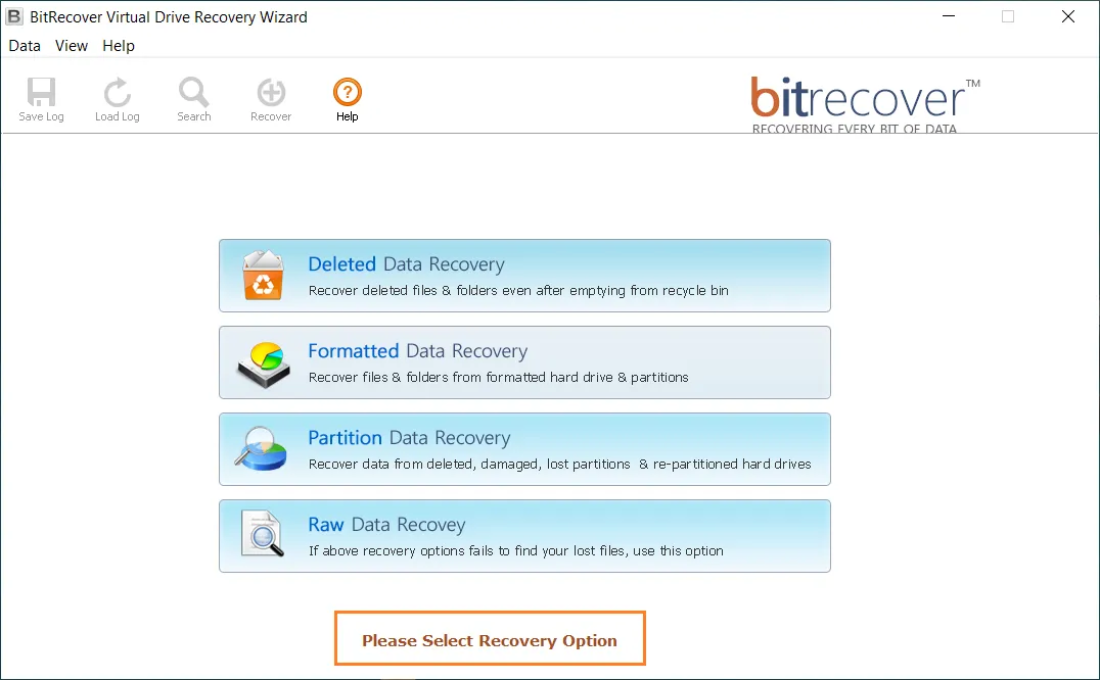
There comes a point where manual commands and DIY scripts reach their limit. If your virtual disk is showing as unallocated, or if you have accidentally deleted a critical VM, you need a solution that understands the binary structure of virtual disks. This is where the BitRecover Virtual Drive Recovery Wizard becomes an essential part of your toolkit.
Designed to handle the most complex recovery scenarios, this tool provides a safety net for XenServer administrators. It doesn’t rely on the hypervisor’s “broken” management layer. Instead, it scans the raw .vhd or .vhdx files (or the physical drive containing the SR) to reconstruct the lost data.
Key Benefits of BitRecover for XenServer Users:
- Hypervisor Independence: You can recover data even if XenServer itself won’t boot or the SR is completely “Gone.”
- Support for All File Systems: Whether your VM was running Windows (NTFS or FAT) the tool can extract the files.
- Deleted File Recovery: If a user deleted a folder inside the VM, this tool can find it where standard backup restores might fail.
- Intuitive Interface: No complex Linux commands. Just select the virtual disk and click “Scan.”
Real-World Use-Case: The “Orphaned VHD” Mystery
Imagine a mid-sized law firm. They run their document management system on a Citrix XenServer host. During a weekend maintenance window, a technician accidentally deleted the “Metadata” of a storage repository. Suddenly, the XenCenter dashboard showed zero virtual machines. The .vhd files were still on the SAN, but the hypervisor had no idea they existed. Standard XenServer restore from backup attempts failed because the backup server’s latest catalog was also corrupted.
The firm couldn’t wait for a manual LVM rebuild. They used BitRecover to point directly at the SAN volume. The software identified the orphaned VHD files, scanned them, and allowed the firm to export every single legal document to an external drive within hours. The business was back online by Monday morning, avoiding a catastrophic data loss event.
Comparative Analysis: XenServer vs. The Field
How does XenServer compare to VMware vSphere or Microsoft Hyper-V? While VMware is often seen as the “Premium” choice with a matching price tag, XenServer carves out its niche as the best-in-class for Citrix-specific workloads. Hyper-V is popular for Windows-only shops, but XenServer’s Linux roots make it a more versatile choice for mixed environments. From a cost-to-performance ratio, XenServer often wins, especially for businesses heavily invested in VDI.
The AI Perspective: Virtualization in the Age of Intelligence
Virtualization is the unsung hero of the AI revolution. Training Large Language Models (LLMs) requires massive, scalable compute power. XenServer’s ability to “slice” physical GPUs into virtual ones (vGPU) allows multiple AI developers to share a single powerful NVIDIA card. This makes AI development more accessible and cost-effective. In the future, we expect to see hypervisors using AI to self-heal storage errors and predict hardware failures before they occur.
Frequently Asked Questions (FAQ)
Q: Is Citrix XenServer free?
There is an open-source version (XCP-ng) and a free tier of Citrix Hypervisor, but enterprise features like live patching and high availability require a paid license.
Q: What file extension does XenServer use for virtual disks?
Internally, XenServer primarily uses the VHD (Virtual Hard Disk) format, though the files are often managed via LVM volumes on physical storage.
Q: Can I run XenServer on a laptop?
Technically yes, if the laptop supports Intel VT or AMD-V virtualization. However, it is designed for server-grade hardware with specific NICs and RAID controllers.
Conclusion
From its academic beginnings to its status as a cornerstone of enterprise VDI, Citrix XenServer remains a powerful and relevant choice for modern virtualization. By understanding what is XenServer used for and mastering the essentials like how to create virtual machine in Citrix XenServer, you can build a highly efficient IT infrastructure. However, as with all digital systems, the risk of data loss is real. Whether you are performing a standard XenServer restore from backup or dealing with a complex disk failure, having the right knowledge—and the right professional tools like BitRecover—ensures that your virtual world remains stable and secure.
