Understanding Virtual Hard Disks: A Deep Dive into VHD/VHDX
Fact-checked and reviewed in accordance with our Editorial Policy
Summary: This comprehensive guide explores the foundational question: what is virtual hard disk? We navigate through the technical architecture of VHD and VHDX files, providing a detailed roadmap on how to create a virtual hard disk for personal or enterprise use. We also examine the different types of virtual hard disk, their strategic use of virtual hard disk in modern computing, and the inevitable challenges of data corruption. From DIY manual recovery checklists to the implementation of professional solutions like BitRecover, this blog serves as your ultimate encyclopedia for virtual storage management.
The Digital Illusion: When Files Act Like Hardware
Imagine if you could take a physical 500GB hard drive, shrink it down into a single file, and carry it in your pocket—or better yet, email it to a colleague. In the early days of computing, hardware was “heavy.” If you needed a new server, you bought a new box. If you needed more storage, you plugged in a new disk. But as we moved into the era of virtualization, the boundaries between physical hardware and software began to blur.
Today, the world runs on “invisible” infrastructure. Whether you are browsing a website, using a mobile app, or storing files in the cloud, there is a high probability that your data is sitting on a virtual drive. This technology is the unsung hero of the IT revolution, allowing us to maximize hardware efficiency and create flexible environments that can be spun up or deleted in seconds. But as brilliant as this digital illusion is, it comes with its own set of rules, risks, and recovery needs.
The Silent Failure of Virtual Storage
If you have ever managed a virtual machine or used a system image backup, you know that heart-sinking feeling when a “disk” simply disappears. One moment, your secondary drive is mounted and full of critical project files; the next, you are greeted with the chilling error: “The disk image file is corrupted.”
This is the primary pain point for modern users. Unlike a physical hard drive that might click, whirr, or smoke before it dies, a virtual hard disk fails in total silence. It is just a file on your host system, and if the metadata header of that file is damaged by a sudden power loss or a software glitch, the entire “drive” becomes a black hole. For many, the concept of what is virtual hard disk is something they only search for when something goes wrong. This blog is designed to take you from a state of panic to a state of total technical command, ensuring you know how to build, manage, and rescue your virtual assets.
What is a Virtual Hard Disk?
To understand what is virtual hard disk, we need to look past the file extension. At its core, a Virtual Hard Disk (VHD) is a file format that represents a virtual hard disk drive. It is a container that encapsulates everything you would find on a physical drive: disk partitions, file systems (like NTFS or FAT), folders, and files.
When you “mount” or “attach” this file to an operating system, the computer treats it exactly like a physical SATA or NVMe drive plugged into the motherboard. You can format it, assign it a drive letter, and install software on it. However, from the perspective of the “host” computer (the physical machine), the VHD is just a single file sitting on the physical hard drive.
Why Is It Required?
The necessity of virtual disks stems from the need for isolation and efficiency. If every time you wanted to test a piece of software, you had to risk your entire operating system, innovation would move at a snail’s pace. Virtual disks provide a “Sandbox.” If something goes wrong inside the virtual drive, you simply delete the file, and your physical host remains untouched. It is also the backbone of “Cloud Computing”—when you rent a server on Azure or AWS, you aren’t renting a physical machine; you are renting a slice of hardware that boots from a virtual hard disk.
When Is It Required?
- Software Development: Testing apps across different versions of Windows without needing 10 different laptops.
- Legacy Support: Running an old XP-era accounting program inside a modern Windows 11 environment.
- Server Consolidation: Running multiple servers (Web, Mail, SQL) on one physical rack to save on power and space.
- Data Security: Keeping sensitive client data on an encrypted virtual disk that can be unmounted and hidden when not in use.
How to Create a Virtual Hard Disk?
Learning how to create a virtual hard disk is surprisingly simple in the modern Windows ecosystem. You don’t need to be a coding wizard or buy expensive enterprise software to get started. Here are the three most common ways to do it:
Method 1: The Windows Disk Management Tool
- Right-click the Start button and select Disk Management.
- Navigate to the Action menu at the top and click Create VHD.
- Choose a destination folder and give your file a name.
- Select the size (e.g., 100 GB).
- Choose between VHD (legacy) and VHDX (modern). Always choose VHDX for better performance and reliability.
- Select “Fixed” or “Dynamic” (we’ll explain the difference below).
- Once created, you must right-click the new “Disk” in the list, Initialize it (choose GPT), and then right-click the unallocated space to create a New Simple Volume.
Method 2: Using PowerShell (For the Pros)
If you want to automate the process or feel like a hacker, PowerShell is the way to go. Open PowerShell as an Administrator and type:
New-VHD -Path "C:\MyDisks\DataStore.vhdx" -SizeBytes 50GB -Dynamic
This command creates a 50GB dynamically expanding disk in seconds. It’s the preferred method for IT admins who need to deploy hundreds of disks across a network.
Method 3: Hyper-V Manager
For those running Virtual Machines, the Hyper-V Manager allows you to create disks specifically tailored for OS installation. This method includes options for “Differencing Disks,” which allow you to have a master “Gold Image” and store only the changes in a secondary file.
Types of Virtual Hard Disk
Not all virtual disks are created equal. When you are setting up your storage, you need to understand the types of virtual hard disk available to you, as each has a specific trade-off between performance and space efficiency.
| Disk Type | How It Works | Best Use Case |
|---|---|---|
| Fixed Size | Allocates the full amount of space on your physical drive immediately. A 100GB disk takes 100GB of space today. | High-performance databases and production servers where disk latency must be minimized. |
| Dynamic Expanding | The file starts small (only a few KBs) and grows as you add data to it, up to its maximum limit. | General use, testing environments, and home users who want to save physical disk space. |
| Differencing | Creates a parent-child relationship. All changes are written to the child disk, leaving the parent disk unchanged. | Creating “Checkpoints” or “Snapshots” so you can roll back a system to a previous state instantly. |
Strategic Use of Virtual Hard Disk
The use of virtual hard disk technology has permeated every level of modern life. It isn’t just for servers anymore. Creative professionals use VHDs to archive massive video projects into single portable files. Cybersecurity experts use them to run “honeypots” to trap hackers. Even Windows itself uses a hidden VHD for the “Windows Sandbox” feature that lets you safely open suspicious email attachments.
Issues, Challenges, and Errors
While virtualization is powerful, it introduces a new layer of complexity. If a physical drive fails, you might lose a few files. If a VHD file becomes corrupted, you lose *everything* inside it because the container itself won’t open. Common challenges include:
- Circular Dependency Errors: In differencing disks, if the “Parent” file is moved or renamed, the “Child” disk becomes useless.
- Metadata Corruption: If the computer crashes while the VHD is being updated, the internal “map” of where files are stored can be scrambled.
- Host File System Fragmentation: If the physical drive holding your VHD is heavily fragmented, the performance of the virtual drive will plummet.
- Incompatibility: Trying to open a VHDX file on an old Windows 7 machine (which only supports VHD).
Symptoms of a Failing Virtual Disk
If you notice any of these symptoms, act immediately:
- The drive takes an unusually long time to “Attach.”
- Windows displays the error: “The file or directory is corrupted and unreadable.”
- Files inside the drive appear with random, gibberish names.
- The host system freezes whenever you try to access the virtual drive.
Manual and DIY Data Recovery
If your virtual disk is inaccessible, your first instinct might be to panic. Don’t. There are several manual ways to attempt a recovery before seeking professional help.
Quick DIY Checklist
- Check Permissions: Right-click the VHD file -> Properties -> Security. Ensure your user account has “Full Control.”
- Disk Space: Ensure the physical drive has enough space. A dynamic VHD cannot expand if the host drive is at 99% capacity.
- ReadOnly Mount: Try mounting the drive in Read-Only mode to prevent further corruption.
Detailed Step-by-Step Manual Methods
Method 1: The CHKDSK Command
If the drive mounts but you can’t see files, use the Check Disk tool. Let’s say your VHD is mounted as drive E:
chkdsk E: /f /r
This command will scan the internal file system and attempt to repair bad sectors and directory structures.
Method 2: Using the Hyper-V “Inspect” Tool
If you use Hyper-V, you can use the “Inspect Disk” feature to find the chain of differencing disks and “Merge” them into a new, healthy physical file. This is often the only way to fix a “broken chain” error.
Precautions and Limitations
Warning: Manual recovery is risky. If you run a repair command on a severely corrupted file, you may accidentally overwrite the very data you are trying to save.
- Limitation 1: Manual tools cannot recover “Deleted” files from within the VHD.
- Limitation 2: They cannot fix a damaged VHD header (the “identity” of the file).
- Limitation 3: If the disk shows as “RAW,” manual methods often fail completely.
Professional Grade Recovery: BitRecover Utility
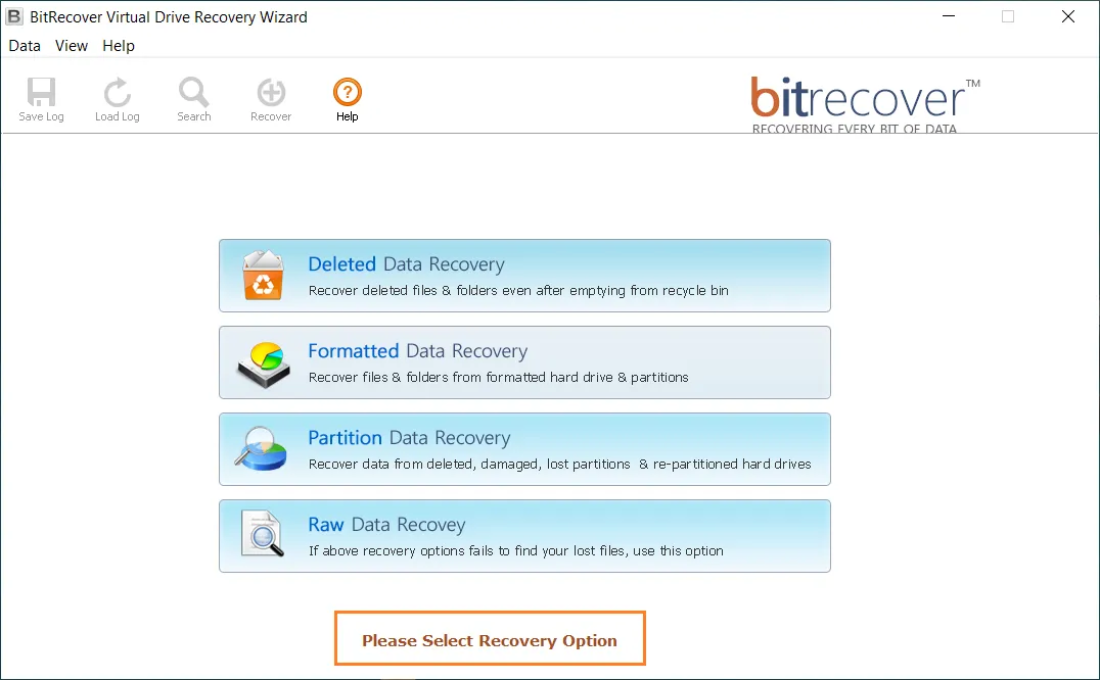
When manual steps fail, or the data is too important to risk, professionals turn to specialized forensic tools. The BitRecover Virtual Drive Recovery Wizard is designed specifically to bypass the Windows operating system and read the raw sectors of your VHD or VHDX file.
Whether your drive was accidentally formatted, the partitions vanished, or the file itself is showing “Not Initialized,” BitRecover can reconstruct the internal data structure and extract your files in their original format.
Supports VHD, VHDX, VMDK, VDI and more. Scan your corrupted disk for free today!
Real-World Case Study: The Freelancer’s Nightmare
The User: Mark, a professional architect using a virtual drive to store massive 3D CAD models.
The Problem: During a Windows Update, Mark’s laptop lost power. When he rebooted, his “Projects” drive (a 500GB VHDX) would not mount. Windows Disk Management showed the disk as “Unknown, Not Initialized.” Mark was 24 hours away from a major project deadline.
The Solution: Mark tried the manual diskpart commands, but the system returned “The parameter is incorrect.” Knowing he couldn’t risk the data, he used the BitRecover tool. The software’s “Deep Scan” mode identified the lost NTFS partition and allowed Mark to preview his .dwg files. Within two hours, all his work was recovered to an external physical drive.
Comparative Analysis: Virtual Hard Disk vs. Physical SSD
| Feature | Physical SSD | Virtual Hard Disk (VHDX) |
|---|---|---|
| Flexibility | Locked to the hardware. | Highly portable; can be moved/emailed. |
| Performance | Maximum speed (direct connection). | 95-98% of physical speed. |
| Recovery | Requires expensive clean-room labor. | Recoverable via software like BitRecover. |
The AI Evolution: Virtual Storage Today
As we move deeper into the age of Artificial Intelligence, virtual hard disks are becoming more than just storage containers. AI models (LLMs) are incredibly large and complex; they are often packaged as virtual disks because these disks can be mounted instantly across a cluster of thousands of GPUs. Furthermore, AI-driven management systems are now being integrated into cloud storage to predict “bit-rot” in VHD files, automatically moving data to healthy physical sectors before the user even knows there is a problem. The future of the virtual hard disk is self-healing.
Do’s & Don’ts for Virtual Disk Management
Do:
- Always use **VHDX** for better power-failure protection.
- Keep a **backup** of the VHD file on a separate physical drive.
- **Unmount** the drive properly before shutting down the host computer.
- Use **Fixed Size** disks for high-performance apps.
Don’t:
- Don’t **store** a VHD on a drive that is already 95% full.
- Don’t **rename** the parent file of a differencing disk chain.
- Don’t use **Windows Compression** on the folder containing your VHD.
- Don’t **Initialize** a disk that shows as “Unknown”—you will lose your data!
Frequently Asked Questions (FAQ)
Q: Can I use a virtual hard disk to run Linux on Windows?
A: Yes! This is exactly how tools like WSL2 and VirtualBox work. The Linux OS is installed entirely inside a virtual disk file.
Q: Does a VHD slow down my computer?
A: On modern hardware (SSDs), the overhead is less than 3%. You will likely never notice a difference in day-to-day use.
Q: How do I delete a virtual hard disk?
A: First, “Detach” it in Disk Management. Then, simply find the .vhd or .vhdx file in your folder and delete it like any other file.
Final Thoughts
Understanding what is virtual hard disk technology is no longer just for server admins; it is a vital skill for anyone working in the digital space. Whether you are using it to test new software, organize your massive data archives, or run a global cloud network, the virtual disk is your most flexible ally. However, remember that flexibility comes with the responsibility of maintenance. Keep your host systems clean, back up your VHD files regularly, and if the worst happens, trust in professional solutions like BitRecover to bring your data back from the brink. The digital world is virtual, but your data’s importance is very real.
About the Author

