Thunderbird Inbox Messages Disappeared? Causes & Top Fixes

Published: February 11th, 2026 • 6 Min Read
Users often encounter Thunderbird inbox messages disappeared. If you also face this issue and your inbox messages have gone missing, you do not need to panic. You just need to find a way to get all the inbox messages back.
With the help of this blog we will learn about some possible causes and best solution to fix the Thunderbird email disappeared issue. Additionally, we will also discuss some points to prevent this situation for the future.
Thunderbird is one of the most popular, free, open-source email clients that allows you to manage multiple accounts in one place. Usually, your emails in Thunderbird are not deleted, they are sometimes just hidden because of misconfiguration, syncing issues, or data corruption etc.
Why Did Thunderbird Inbox Messages Disappeared?
before getting to the fixes you must know the reason behind the Thunderbird inbox emails may disappear due to:
- Incorrect View or Filter settings
- Corrupted Thunderbird Profiles
- Emails moved to other folder (Archive, Junk, Trash)
- Message pane or folder corruption
- Synchronization issue with IMAP servers
- Antivirus or firewall interface
- Account misconfiguration after Thunderbird updates
- Accidental compaction or folder rebuilt issue
How to Fix Thunderbird Inbox Email Disappeared Issue?
There are multiple solutions to fix it and they totally depend upon the reason the Thunderbird email disappeared. Below are several manual methods listed. You can go through them carefully and try them. Make sure that you follow all the steps accurately to get results according to your requirements.
Method 1: Check Thunderbird View and Filter Settings
sometimes emails are hidden due to active filters below are the steps:
- First open Thunderbird on your system.
- Go to View >> Threads and uncheck all the options.
- Now, click on View >> Message Filters and now disable any enabled filters.
- After this, press Ctrl + Shift + K to clear the Quick Filter bar.
Method 2: Look for Emails in Other Folders
Thunderbird sometimes automatically moves emails to other folders. You must check all your email client folders such as All Mail Folder, Archive Folder, Junk Folder, Trash Folder, Spam Folder. You can also use Global Search (Ctrl + K) to search by sender or subject.
Method 3: Repair Thunderbird Inbox Folder
Sometimes the Inbox folder gets corrupted and it is a common reason for disappearing emails.
- Right-click on the Inbox folder.
- Now select the Properties.
- Now choose Repair Folder.
- After completing this, restart Thunderbird.
Method 4: Disable Antivirus Email Scanning
Some antivirus programs that interface with Thunderbird mails fail.
- First temporarily disable the email scanning in your antivirus.
- Add Thunderbird’s profile folder to the antivirus exclusion list.
- After that, restart Thunderbird and check the Inbox.
Method 5: Check Account Synchronization Settings (IMAP Users)
If you use an IMAP account, emails may disappear due to sync issues.
- First, go to the Account Settings >> Synchronization & Storage.
- Enable Keep messages for this account on this computer.
- Click Advanced and ensure Inbox is selected.
- After that, restart your Thunderbird email client.
Method 6: Compact Folders Properly
Improper compaction can cause display issues.
- First right-click on the email account.
- Now, select Compact.
- After that, wait until the process is successfully completed.
Method 7: Check Thunderbird Update Issue
After updates, some settings reset automatically. Below are the steps to fix it:
- Go to Help >> Troubleshoot Mode.
- Restart Thunderbird and check if emails reappear.
- If yes, disable all the recently added add-ons.
Method 8: Restore Thunderbird Emails from Profile Folder
If emails still don’t appear, they may exist in the profile folder.
- Go to Help >> More Troubleshooting Information.
- Now, click on Open Folder under Profile Folder.
- Now, navigate to Mail or ImapMail.
- Now, look for files named Inbox (without extension).
Drawbacks of Manual Method
- Although the above mentioned methods are usually effective, they have some setbacks that must be considered.
- These methods are technical enough that a non-technical user would find difficulty while performing them.
- Users may face heavy data loss while performing the process, it does not guarantee to keep data safe.
- While repairing MSF and MBOX files manually, it will not make any changes to corrupted files.
- If the files are actually deleted, not just hiding these methods won’t help them restore it again in Thunderbird.
Best Way to Fix Thunderbird Inbox Emails from Disappearing Problem
Thunderbird Restore Tool is one of the best solutions that will help you actually restore your Thunderbird data even if you have deleted them accidentally. It offers multiple features that will help you to keep your data safe throughout the entire process. If users have taken the backup of their MBOX files, then this solution will efficiently bring back all your email files back to Thunderbird and you can access them as per your requirements.
How to Quickly Use this Solution to Get Thunderbird Data back?
- First of all, download and install this tool to restore your Thunderbird data back.

- Secondly, select the Thunderbird data manually or direct from your Thunderbird profile and click on Next button.

- Once done, check all the Thunderbird profile data and preview it carefully.
- After that, choose a Destination Path to save your data.
- Lastly, click on the Next button to complete the process.


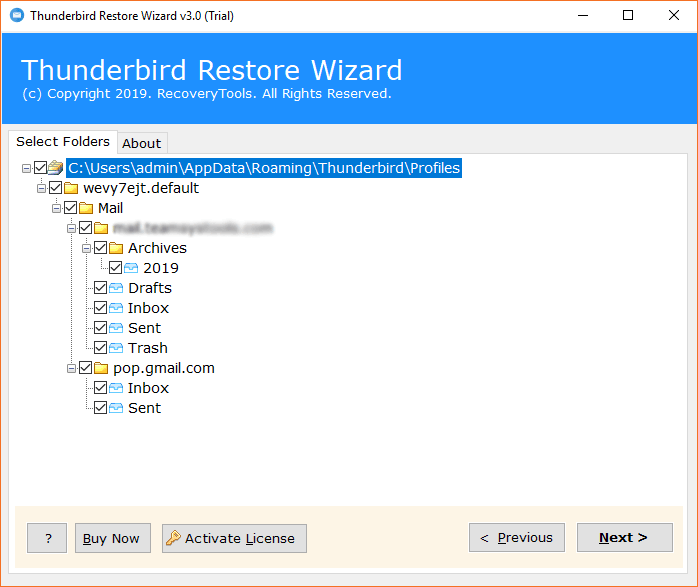
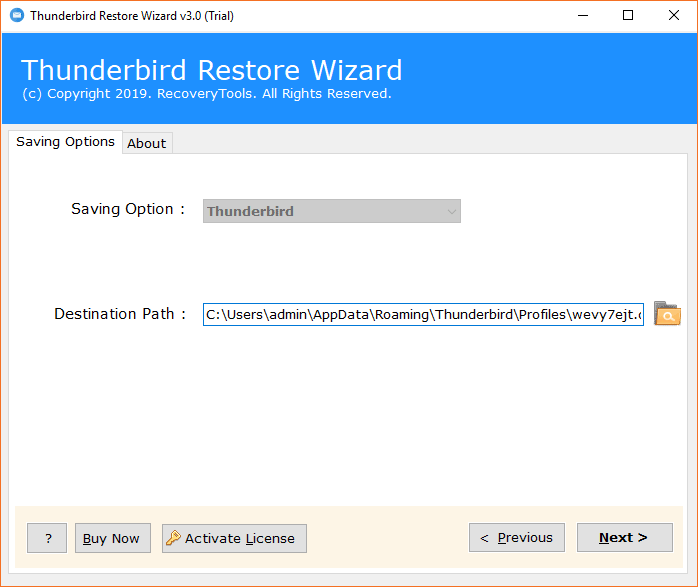
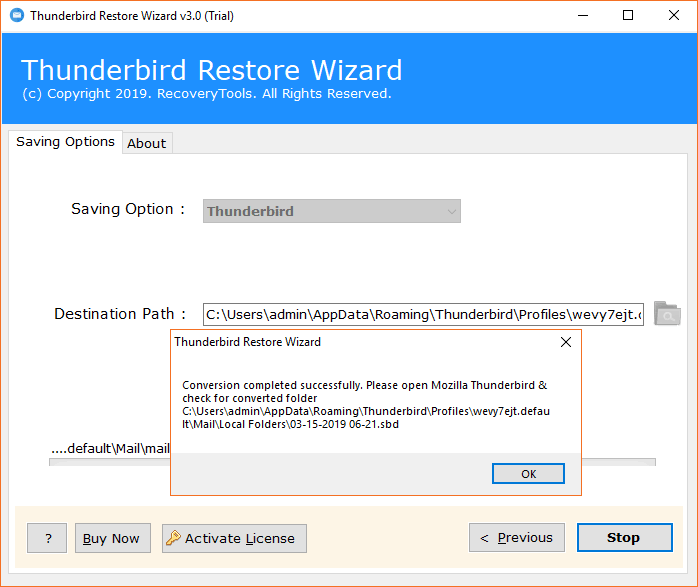
This multi-feature tool is built to fix if your emails are actually still in Thunderbird’s data but are not showing up in the application, or if you have a backup that you really want to import again.
Key Benefits of this Solution
There are multiple benefits of using this solution to if your Thunderbird inbox messages disappeared and you want them back with safety.
- It helps you to recover emails from a Thunderbird profile.
- Restores emails from your backup along with all attributes.
- Works well with profiles from all new and old versions of Thunderbird.
- Allows users to choose a specific folder to restore as per need.
- Keeps all the data intact and safe throughout the entire process.
How to Prevent Thunderbird Inbox Emails from Disappearing in the Future?
- Avoid using Inbox for long-term storage or create subfolders.
- Keep Thunderbird and add-ons updated.
- Compact folder on regular basis.
- Regularly disable aggressive email scanning.
- Backup your Thunderbird profile and data frequently.
The Final Verdict
In conclusion to this digital write-up we have discussed multiple methods to fix Thunderbird inbox messages disappeared. We have discussed multiple manual ways and also a professional solution to restore all your Thunderbird data safely along with a wide range of offered advantages. You can thoroughly understand the methods and users can choose either manual methods or Professional solution whichever is suitable for them.
If you need any further assistance or guidance you can contact to our Technical Support Team anytime.