Facing Thunderbird Blank Screen? See Causes and Top 8 Fixes

Published: January 23rd, 2026 • 6 Min Read
Summary: Facing the Thunderbird blank screen issue? This page is going to be the best guide to help you fix it. In this blog, we will discuss some manual and professional techniques that will help you to get rid of this problem and access your Thunderbird data safely again.
Opening Thunderbird and being greeted by a complete blank screen can be frustrating. The application launches but nothing loads on your screen especially when you need to access your important data or you are waiting for an important mail to receive.
Sometimes Thunderbird blank screen issue shows up continuously even after fixing it. It is important to understand the main causes of this issue before fixing it so that you never face it again. Let us move forward and know the causes and fixes for this issue.
Major Causes of Seeing Thunderbird Black Screen
There are multiple reasons that Thunderbird greets its user with a totally blank screen sometimes, it is important to understand the main cause to fix it permanently.f
- A corrupted Thunderbird profile.
- Outdated or faulty add-ons.
- Acceleration and hardware conflict.
- Damaged pref.js or existing cache files.
- Incorrect startup configurations.
- Incompatible graphics drives.
- Interrupted thunderbird update.
- Certain Thunderbird extensions and themes.
As we know some root causes, let us discuss some methods that can help you get rid of this issue.
Method 1: Repair Thunderbird Folders
You can fix Thunderbird blank screen issues through repairing Thunderbird folders. If the files get corrupted, do not show email content. Below are the steps to do it:
- Firstly, Open Thunderbird, and choose an email folder.
- Now, right-click on the mailbox folder and then click on Properties.
- Use the Generation Information Tab and click on the Repair folder.
- Click on the OK button and wait for Thunderbird to recreate the Index file.
- At Last, reopen Thunderbird email and check if your email content now appears or not.
Method 2: Rebuild Global Database
Thunderbird uses a global database to index emails for quick search and view. Sometimes the database becomes corrupted and may lead to displaying errors.
- Close Thunderbird and locate the Thunderbird profile folder in local storage.
- Windows: C:\Users\Admin\AppData\Roaming\Thunderbird\Profiles
- Mac Machine: ~/Library/Thunderbird/Profiles/[ProfileName]
- Linux: ~/.thunderbird/[ProfileName]
- Now,locate and delete “global-messages-db.sqlite”.
- Restart Thunderbird to check the changes.
Method 3: Start Thunderbird Troubleshoot Mode
Sometimes, due to conflict extensions and themes Thunderbird greets you with the blank screen, and you can run the Safe-Mode without add-ons or any changes to identify if the problem is caused by external modification.
- Windows: While pressing shift do double click on “Thunderbird shortcut”.
- Mac Machine: Open Terminal and run “Thunderbird -safe mode”.
- Linux: Use “Terminal command Thunderbird -safe-mode”.
- In the safe mode dialogue box click on “Continue in Safe Mode”.
- Once done, check if your email content is visible or not.
Method 4: Correct Server Settings
At intervals, outdated and incorrect server configurations can prevent you from seeing message content. Especially with IMAP accounts, this can cause “Thunderbird IMAP folder not showing” even when they are available on the server.
- First of all, open Thunderbird and click on Tools.

- Now, go to Account Settings and then click on Server settings.

- Now, verify “Server Setting” as IMAP or POP.

- Lastly, for IMAP users, make sure to enable “Keep messages for this account on this computer” under “Synchronization and Storage“.


Method 5: Create New Thunderbird Profile
To fix Thunderbird blank screen error, you can create a new profile. Sometimes, an existing profile gets corrupted and creating a new one can help to get rid of this error.
- Firstly, close your Thunderbird.
- Now, open Thunderbird Profile Manager.
- By clicking on Win+R and type “Thunderbird.exe -p” and click on Enter button.
- Mac Machine and Linux: Type Thunderbird -ProfileManager in Terminal.
- Now, click on “Create Profile” to proceed.
- Once the new profile is created, select a “New Profile” option and relaunch the Thunderbird application.
Method 6: Check Graphics Driver Compatibility
Sometimes, incompatible and outdated display drivers may prevent Thunderbird from opening properly.
- Update your GPU driver from the official manufacturer website.
- Once done, restart the Thunderbird and check if it is still showing the same blank screen.
Method 7: Update or Roll Back Thunderbird
A failed or buggy update may also cause the blank screen issue.
- First of all, check for updates.
- Go to Help and click on About Thunderbird.
- Reinstall the previous stable version, if the issue started after updating it.
- Lastly, make sure to always backup data before reinstalling.
Method 8: Professional Way to fix Thunderbird Blank Screen
BitRecover Thunderbird Converter is one the most professional and considered best solution to access Thunderbird data in every situation. When users have to encounter a blank screen regularly, they need to give up temporary settings and focus on how to fix this issue permanently.
You just have to download this solution onto your system and start converting your Thunderbird data. Once you download your Thunderbird data to your preferred storage folder, you can access it without facing any errors.
How to use this Professional Solution?
Below are some quick steps to perform this process through this expert recommended solution to fix Thunderbird blank screen error.
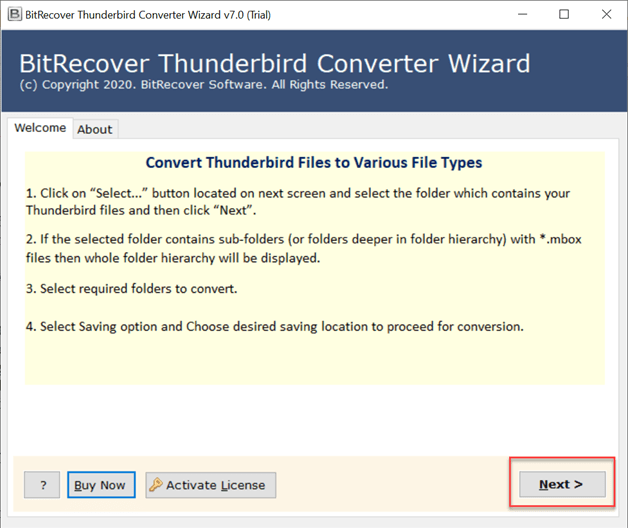
- Firstly, Download and open this tool and click on Next button.

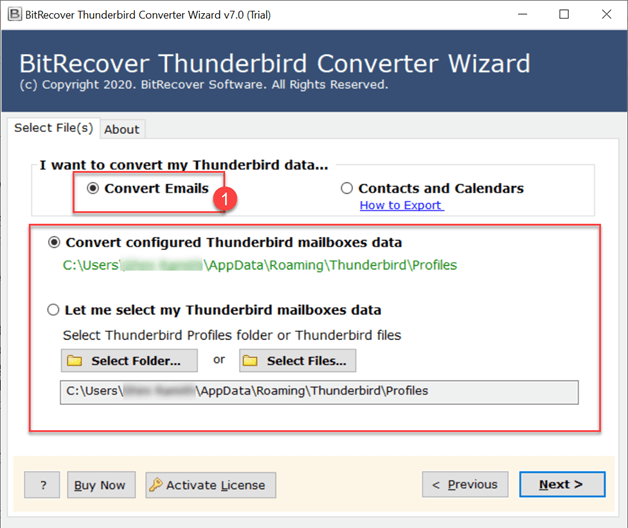
- Secondly, choose the option to upload Thunderbird data entirely into the software panel to convert.
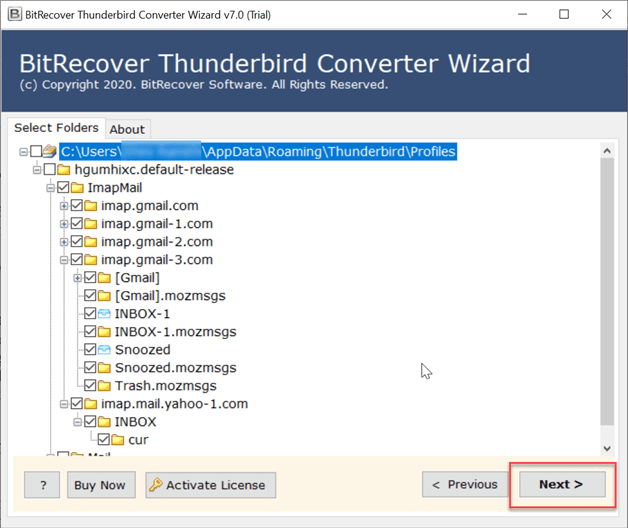
- Thirdly, once data is loaded, You get to preview all the loaded files and folders. check whether the data is correct or not and click Next after that.
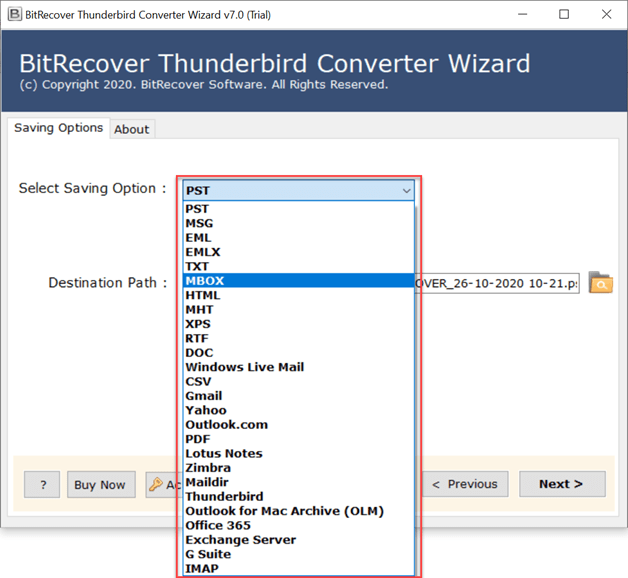
- Now, choose a format from Select Saving Option list, to save your Thunderbird data carefully as per requirements.

- Lastly, once done, choose a destination path and click on the Convert button to save all your data to the preferred location.
Why Choose this Solution Over Manual Ones?
- Offers easy, quick and safe steps to transform all Thunderbird data into an accessible format.
- Offers an option to choose a destination path to save all Thunderbird data while maintaining safety.
- Standalone tool to independently convert data without any supporting application or server.
- Allows you to convert Thunderbird to PST, PDF, EML, MSG, MBOX and many other formats.
- Provides an option to migrate Thunderbird data into Gmail, Outlook, Office 365 and many more platforms.
- Maintains the integrity and originality of the entire Thunderbird data throughout the whole procedure.
- 100% safe solution to fix Thunderbird blank screen errors while keeping all files intact and does not harm them.
The Final Words
In conclusion to this blog, we discussed causes and fixes to get rid of Thunderbird blank screens showing up constantly. It included several manual methods that can be performed within the local profile or Thunderbird itself. On the other hand, we discussed a professional solution offered by BitRecover to fix this issue smoothly within very less time. Users can use Either manual methods or the mentioned professional method.
If you still need guidance or assistance to perform this process manually or even with the professional tool, you just need to contact our Technical Support Team anytime.