Sync Apple Calendar to Outlook Using Top 2 Simple Methods

Published: March 27th, 2026 • 5 Min Read
Looking for a solution to sync Apple Calendar to Outlook, but you haven’t found the exact solution to synchronize Apple Calendar with Outlook till now, then stop searching now. In this post, you will connect Apple Calendar to Outlook with the use of Apple Calendar and a professional solution. To use Apple Calendar for sync with Outlook, you should have a working and in-depth knowledge of Apple Calendar. Secondly, the use of the Apple Calendar application to sync Apple Calendar with Microsoft Outlook is time-consuming, lengthy, and filled with human errors.
Professional Apple device users prefer a risk-free and secure solution to sync Apple Calendar to Outlook Calendar and get the job done smartly. Whether you want to get your few calendar events on your Outlook or need specific events in your Outlook calendar. Whatever the situation is, the automated solution is often used by experts.
Connect Apple Calendar to Outlook Calendar with the use of the Apple Calendar application sometimes fails, because it has multiple steps that do not guarantee complete data integrity, and fails, and is not useful for bulk Calendar data. But if you still want to try the manual solution, then get ready to face the challenges while going through the manual workarounds. Follow the steps listed below to complete the sync of your Apple Calendar with Outlook.
Sync Apple Calendar to Outlook with 2 Ways
In the upcoming sections, we are going to share 2 best possible ways to synchronize Apple Calendar with Outlook. The first solution is a manual solution that has multiple steps, which consume your time to sync Apple Calendar to Outlook, and the other one is a faster, more efficient way to connect Apple Calendar to Outlook quickly. So, move to the first solution of this post to find the free solution.
Synchronize Apple Calendar with Outlook Using Apple Calendar
To sync Apple Calendar with Outlook with the use of Apple Calendar application, you need to follow the steps listed below carefully:
1st Step: Export Calendar to Email Account
- Open Apple Calendar application on your MacBook PC.
- Click on “Calendar” menu, select “Preferences,” and click on “Accounts.”
- Then, click on “Plus” sign to open “Add Accounts” option.
- Now, select “Google” and hit “Continue.”
- After that, enter your “Gmail” address and “Password” to connect your Account.
- Finally, wait for a few minutes to completely configure your account with Apple Calendar.
2nd Step: Configure Gmail with Outlook
- Open Outlook application on your Mac PC.
- Click on “Outlook” option, choose “Preferences,” and select “Account.”
- Then, click on below “Plus” button below, and choose “New Account.”
- After that, enter your same “Gmail” ID and “Password” and click “Connect” to configure it.
- Done!
3rd Step: Export PST File from Gmail
- After account configuration, click on “File” and choose “Export.”
- Then, select only “Calendar” by check mark and hit the “Continue” button.
- Now, set the “File” destination for your Calendar and click “Save.”
- Done! Now, your Apple Calendar is exported in the form of a PST file from your Gmail account.
4th Step: Import PST into Outlook Account
- Open Outlook application on your laptop.
- Go to “File,” and choose the option “Outlook for Windows archive file (.pst).”
- Then, browse the exported PST file of calendar on your Mac device and click “Open.”
- Done, wait for a few minutes to sync Apple Calendar to Outlook.
Limitations of Using Manual Solution to Sync Apple Calendar with Microsoft Outlook
- The listed steps of the manual solution are lengthy and time-consuming.
- Using a manual solution to connect Apple Calendar to Outlook will create corruption issues.
- Any mistakes in attempting a manual solution lead to account corruption.
- The configuration process is time-consuming and requires a constant internet connection.
- Manual solution has multiple steps, which are not useful for non-technical users.
- The wrong account configuration does not completely synchronize Apple Calendar with Outlook.
Connect Apple Calendar to Outlook Professionally
Using a manual solution for sync Apple Calendar to Outlook might seem exhausting to non-technical users. Whether you are a technical or non-technical person, you can easily do this by using BitRecover ICS to PST Converter. This is the only tool which convert ICS to PST safely, with complete data integrity without losing any event of calendar. Apart from this, you can also synchronize Apple Calendar with Outlook in bulk while maintaining data privacy during the conversion process.
Steps of Professional Solution to Sync Apple Calendar to Outlook Calendar
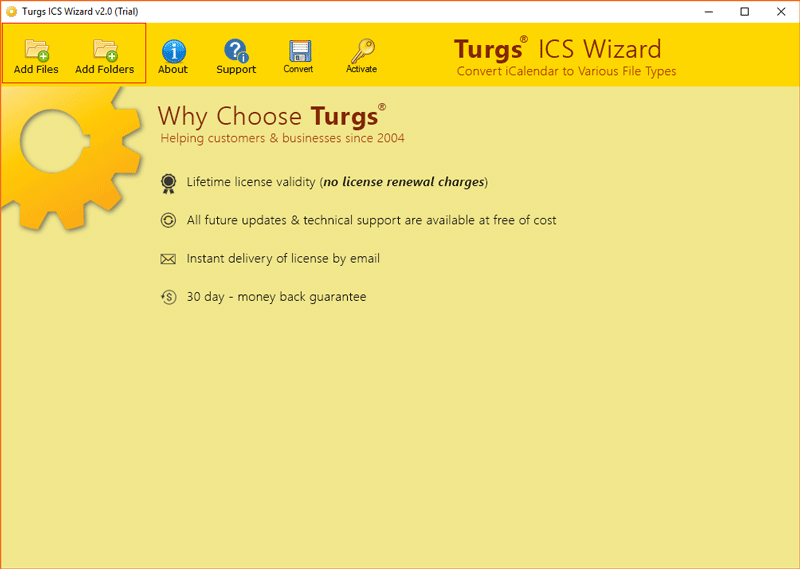
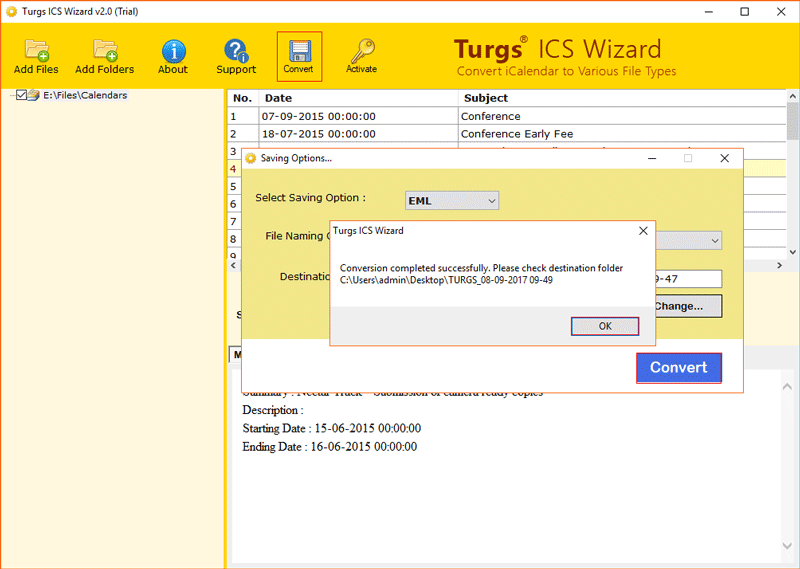
- Open the ICS file converter and click on “Add Files” or “Add Folders” button.

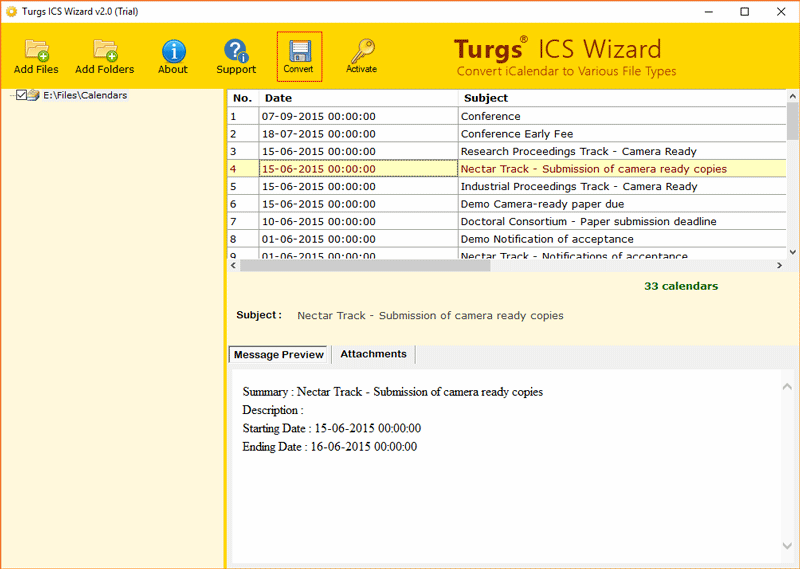
- Then, open the “ICS” file inside the application and select the data you want to keep in Outlook.
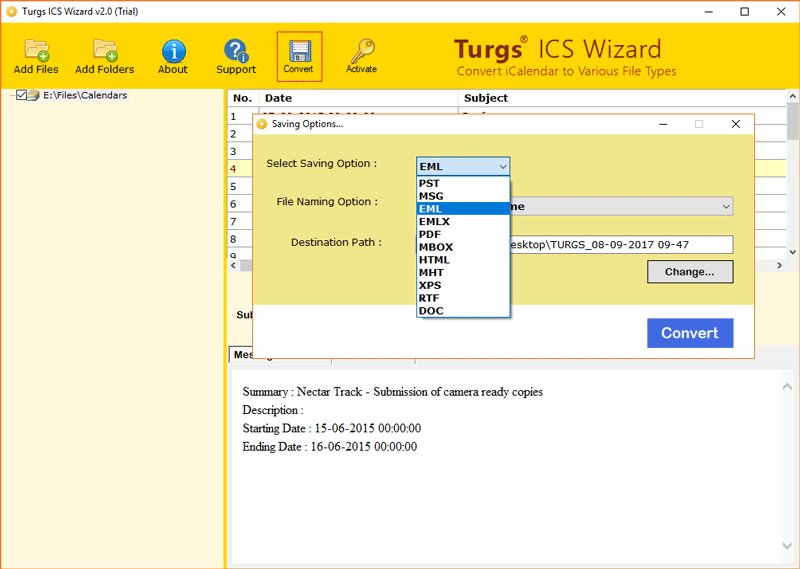
- After that, choose saving option “PST” along with the destination path on the computer.
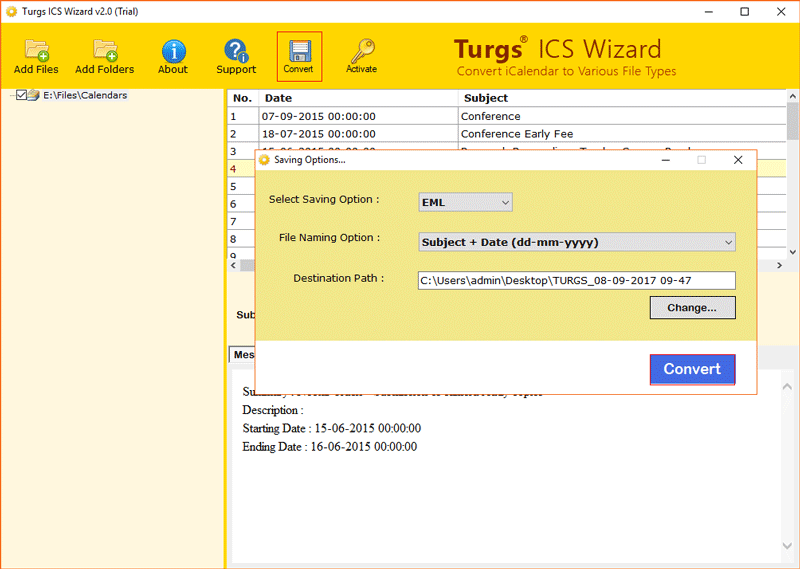
- Finally, click on the “Convert” button to start the ICS to PST conversion.
- Done, now wait for a few minutes to complete the conversion process.
- After the completion of conversion, import that PST file using step 4 of the manual solution.
- Done! After this, your sync Apple Calendar to Outlook is completed.
Benefits of Professional Solutions
- The user interface of the tool allows users to add single and entire folders for bulk conversion.
- It can convert large-sized ICS files without any account corruption within a few clicks.
- The tool allows user to save their converted PST in multiple names, such as Subject + Date, From + Subject + Date, & Auto-increment naming.
- Data integrity is maintained during the complete conversion process so that all the event is safe, such as event details, description, start & end date, & attachments.
Final Verdict
At the end of this blog post of topic sync Apple Calendar to Outlook, the users can do this with 2 ways. Using a manual solution to synchronize Apple Calendar with Outlook is useful, but time-consuming, has multiple steps, & is not easy for non-technical users. On the other hand, the experts used a solution done this job securely, instantly, and easily while maintaining the complete data integrity, during the entire process to connect Apple Calendar to Outlook.