How to Recover Emails from Outlook After Shift Delete

Published: January 29th, 2026 • 6 Min Read
Email communication is the most important for both business and individual users, and Microsoft Outlook play the important role in the communication of users. Whether you are a regular or professional user of the email client Outlook, you might have accidentally deleted emails from your Outlook account. Because of which you might have lost all the content of the email along with the attachments in Outlook. This situation becomes frustrating, especially when your emails are important to you.
If you deleted your most important email from Outlook, then you must read this. In this blog post, we are going to describe how to recover emails from Outlook after shift deleted, with the use of both manual and professional solutions. We are going to answer a question. Additionally, we also suggest the smartest way to recover Outlook emails after shift delete.
Sometimes, deletion of emails in Outlook does not happen only with human mistakes, but it also happens due to system crashes, software errors, and Outlook data file (PST) corruption is also responsible for deletion. In our opinion, if the users are aware of available recovery methods, then they can recover their important emails with attachments.
As we know, the common reasons behind the permanent deletion of emails are: now, let’s move to the next section to find the answer to the question.
Can You Recover Outlook Emails After Permanently Deleted
If your email is permanently deleted and even, they are not present in the trash of your mailbox, then the recovery has become quite tricky, but possible only when they match with below condition.
If your deleted emails are present in the Recover items recently removed from this folder option.
When your account is present on Office 365, then recovery is possible through the admin’s account Recover Deleted Items option only within 14 to 30 days.
If you created a PST file of your entire mailbox, then the recovery is possible.
Note: If the emails are permanently deleted and all the above option is not available, then official recovery is not possible.
Moving on to the next section to find the steps to recover permanently deleted emails using a manual solution.
How to Recover Emails from Outlook After Shift Delete Manually
To recover emails manually, you need to follow listed below step-by-step instructions carefully to recover Outlook emails after shift delete.
Step 1: Check Deleted Items Folder
- Open your Outlook application on your Windows Operating System.
- Then, go to the left side, navigate the “Deleted Items” folder, and click on it.
- After that, you will see all your recently deleted emails that will be present in your mailbox’s trash folder.
- Now, in between the list of all your deleted items, you will see a ribbon.
- The ribbon name is “Recover Deleted Items from Server,” which is present just after the search bar of the deleted item of mailbox.
- After that, read step 2 to find the next process.
Step 2: Recover Deleted Items
- After following the step 1 instructions carefully.
- Now, pay more attention here.
- Click on the named ribbon that is mentioned in step 1.
- After that, in the new window of outlook name as Recover Deleted Items.
- Choose the shift deleted emails individually and select the “Restore selected Items” option.
- Then, click “OK” to recover.
- After that, wait for a few minutes you will get back your permanently deleted emails.
- Done!
Although this method is useful, there are some important limitations you should be aware of.
Limitations of Using Manual Method
- This manual solution only works in the case of recently deleted emails under 14 to 30 days.
- If you are using an admin computer, you cannot recover if your administrator won’t allow you to do this.
- This method only recovers emails; you cannot get attachments of emails while using this.
- If the email is permanently purged from the mail server, then this method doesn’t work on it.
These were the major limitations of using a manual solution to recover emails from Outlook after shift delete. To overcome these limitations, you can try another tested method that is described in the next section.
Recover Shift Deleted Mails from Outlook Professionally
If you are unable to recover Outlook emails after shift delete using the manual solution, then you can try this professional-suggested BitRecover PST Repair Tool to get rid of this problem. This tool repairs your PST file and restores all the recent and shift deleted mails with their attachments. It also maintains data integrity during the recovery process and keeps your email structure as it was before.
Steps of Professional Solution
- Run the tool on your computer OS.

- Then, choose between the file/folder option and click “next”.
- After that, select folders of your mailbox and click “Next.”
- Then, choose the saving option “PST.”
- Finally, set the new path to save and click on the “Repair” button.
- Done, your “PST” files start repairing.


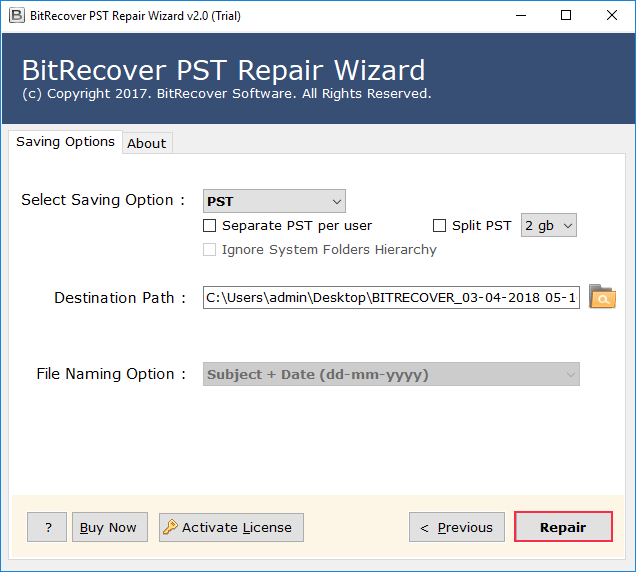
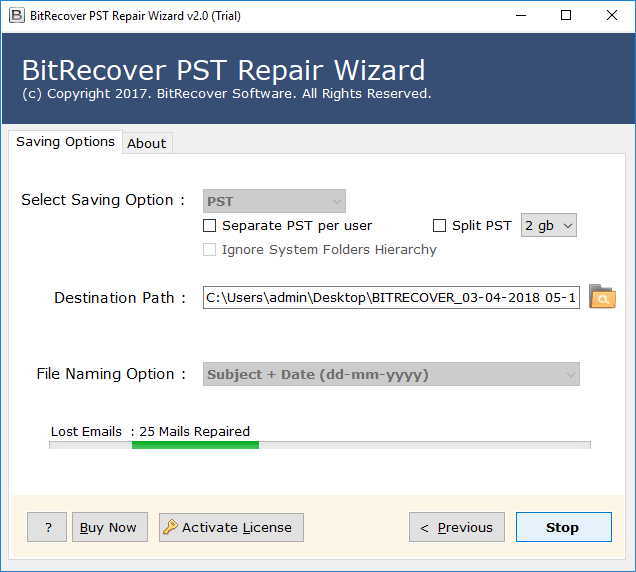
By following these steps, you can easily recover shift deleted mails from Outlook.
Advantages of Using Professional Solution
- This tool allows you to recover any number of Outlook files at one shot.
- You can also use dual mode to select files or select a folder to easily select emails.
- Data integrity is maintained during the recovery process.
- This software can also recover any corrupted PST files in just a few clicks.
- You can repair the Outlook PST file using the same tool with all attachments.
Final Thoughts on Recover Outlook Emails After Shift Delete
In this blog post, we discussed how to recover emails from Outlook after shift delete. We shared a few major reasons that tell us that human errors are not involved in this problem. To resolve this problem, we applied both manual and professional methods to restore Outlook emails after shift delete. We observed that by using a manual method, it is possible to restore the permanently deleted emails if the emails are available in the Recover Deleted Items from Server option or if the user has access to use this option. However, the aforementioned tool made the process easy and faster.