Proven Methods to Export Pipedrive to Google Sheets

Published: January 14th, 2026 • 5 Min Read
Summary – Exporting Pipedrive to Google Sheets is a common query for many sales teams, business owners, and CRM users. The user generally exports Pipedrive contacts to get better control over their contact data. This guide will provide you with the simplest, safest, and most professional ways to move your Pipedrive contacts into Google Sheets without losing any data.
This blog will help you understand the need for exporting Pipedrive to Google Sheets. We have provided you with the best two methods in this guide. First is the manual method, and second is the automated method. The manual method is suitable only for one-time export, while the automated method is suitable for all types of exports, whether it is a large data or bulk export, and it supports data analysis and reporting.
After reading this complete blog, you’ll be able to export data to Google Sheets easily using the method of your choice. You can transfer your Pipedrive data to Google Sheets manually by exporting a CSV file from Pipedrive and then importing it to Google Sheets, or you can go for the automated one, which has several advanced features that which manual method lacks. Let’s begin with the blog.
What is the Need to Export Pipedrive Contacts to Google Sheets?
Many users may need to export Pipedrive contacts for various reasons. Some of the common reasons is mentioned below:
- To share the contacts with team members to access them on Google Sheets.
- Google Sheets provides better organizing and filtering options.
- For creating reports, dashboards, and summaries for professional use.
- Converting the exported Pipedrive into other file formats, such as CSV to vCard.
- To save the backup of the contacts safely at another location.
Read More: Export Teams Contacts
Manual Method to Export Pipedrive to Google Sheets
The manual method to export contacts to Google Sheets includes two steps. Following are the steps:
Step1: Export a CSV file from Pipedrive
- Firstly, login to your Pipedrive account.
- Afterwards, go to the contacts or people section.
- Then, click on More and select Export Data.
- Later on, choose the CSV format and download the file.
Step2: Import the CSV file to Google Sheets
- Initially, open Google Sheets on the browser.
- Next, click on File option from the menu.
- Then, Import and Upload the CSV you exported.
- Finally, choose to insert a new sheet and press Import.
NOTE – This way you can export Pipedrive to google sheets manually, but it has some limitations and restrictions while exporting the contacts from Pipedrive.
Drawbacks of Using the Manual Method
Although the manual method is free but it has many limitations, some are below mentioned:
- This method does not upload large files to export.
- Sometimes, CSV formatting may break while processing.
- It is time-consuming when you have multiple CSV files.
- There is a risk of losing contacts data when exporting.
- Does not allow you to convert CSV to vCard for future use.
Automated Method to Keep your Pipedrive Contacts Safe
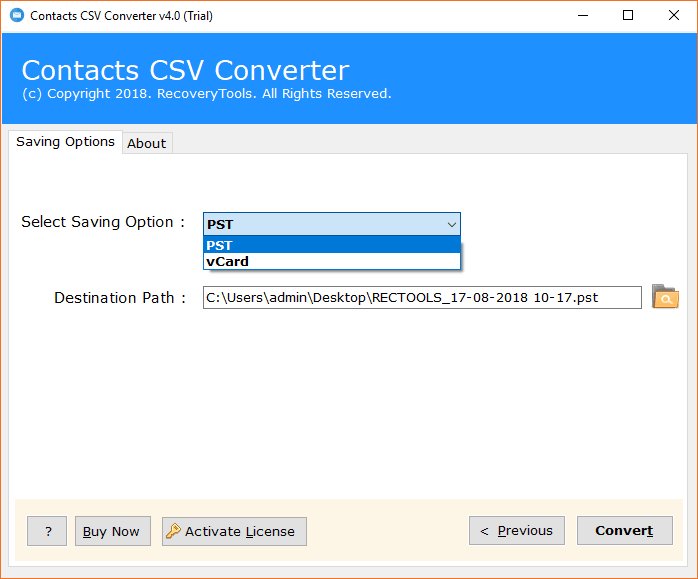
You can use BitRecover CSV Converter if you want to save your contact data safely without getting it harmed. this tool offers you to convert your CSV contact data into vCard format (an ideal choice to save contacts). This way you can keep all your Pipedrive contacts safe into your storage even if you don’t want them to transfer into Google sheets.
Key Features of the Automated Method
- vCard Support: This tool supports all vCard versions such as 2.1, 3.0, and 4.0.
- Maintains Data: It maintains all the contact details like name, phone, email, etc.
- Accuracy: Ensures 100% accurate results to export Pipedrive to Google Sheets.
- Compatibility: Compatible on every Windows Devices and systems.
- User-friendly: Does not require any type of technical skill or expertise.
- Accessibility: Easy to import contacts into iCloud, iPhone, Android, Outlook, etc.
Conclusion
In conclusion to this blog, we have shared about how to export Pipedrive to Google Sheets with the best methods. Above, we have mentioned two steps to export contacts that are manual and automated, both give results but in a different manner and with different expertise. The manual method is for free but it comes with some disadvantages such as it does not export large contact files or cannot support all vCard versions. To overcome this scenario, we have introduced you to the best automated method which has many ultra features. Converting CSV to vCard using this solution gives you reliable and safer results. If you have any query regarding this tool, our technical support team is 24/7 available to assist you.
Frequently Asked Questions
Q1. Can I directly export Pipedrive to Google Sheets?
Ans. No, there is no shortcut to export contacts to Google Sheets. However, you can import Pipedrive contacts as CSV and then import them into Google Sheets.
Q2. Which tool is better to export Pipedrive contacts to Google Sheets?
Ans. The above-mentioned automated tool is the best to export Pipedrive to Google Sheets.
Q3. Can I convert multiple contacts using the manual method?
Ans. No, manual methods do not allow you to convert data in bulk.