Fix Outlook Import Export Greyed Out on Mac and Windows
Fact-checked and reviewed in accordance with our Editorial Policy
If you are facing the issue of Outlook import export grayed out, then you are not the only one. Many users face the Outlook import export grayed out Mac, especially after switching from old Outlook to the new Outlook. This issue affects many users of both old Outlook and the new Outlook on Mac and Windows.
Before directly answering this query of the user, first understand the reason behind the Outlook import export grayed out Mac.
Microsoft Outlook will disabled this feature temporarily in Mac Operating Systems because the new Outlook is using a cloud-based sync system, due to which local import/export features are not supported in the new version of Outlook for Mac.
In this guide, we will show you how to fix the import export grayed out issue in old Outlook and the new Outlook using both quick fixes and professional methods on Mac and Windows OS.
What Causes of Outlook Import Export Grayed Out in New & Classic
The import export grayed out in Outlook commonly depends on the version of Outlook and the operating systems you are using. Below are the most common causes.

Cause of Grayed Out in New Outlook
- Account Restrictions: If you are using a business or organizational account and access to features is restricted, you will not be able to import and export Outlook data.
- Profile issue: When your profile is deleted, you will no longer be able to import or export data.
- Licensed version: If you are using the free trial version of the new Outlook, in that case, your Outlook is grayed out, and you cannot import and export Outlook files.
- Wrong Installation: Installation of a corrupted version of the new Outlook can also prevent you from importing and exporting.
- File formats: If you are using an unsupported file type for import, the option will be grayed out.
Causes of Grayed Out in Old Outlook
- Old Outlook Update: Outlook is not updated with the latest version, or older versions have limited features.
- Facing Issue: Old Outlook may be outdated, facing security issues, or experiencing bugs.
- Unsupported Add-ons: Plugins or add-ons might not support or disable the import/export feature in Outlook
Internet Connection: A poor Internet connection also unable to import/export. - Use Without Activation: If you are using old Outlook without entering a product key, the import/export function is grayed out.
Quick Solutions to Prevent Outlook from Being Grayed Out
Here we are going to tell you quick ways to fix Outlook import export grayed out in both versions for both Mac and Windows OS.
Quick Fixes in New Outlook
- Switch Back: If you have updated to the new version, please switch back to your older version, the old Outlook.
- Outlook Web: Try importing and exporting your data using Outlook Web without facing problems like grayed out.
- Connect Account: Do not uninstall or delete the old Outlook application from your operating system. Your account must remain linked to the account you use in the new Outlook.
Quick Fixes in Old Outlook
- Update Outlook: Always make sure your old Outlook is up to date. Sometimes upgrading an application will fix the bugs and add new features.
- Start Normally: Try to open your Outlook application normally to avoid using Safe Mode, which will also grayed out your import export feature.
- Restart Outlook: Remove cache files and restart your Outlook application to use the import export feature.
These were the methods of quick fixes for the new Outlook and the old Outlook.
How to Fix Outlook Import Export Grayed Out When Quick Fixes Fail
Sometimes the quick fixes don’t work properly and do not give you the desired results that you want. In such a case, the use of a professional solution is the right choice to overcome the problem caused by the Outlook import export grayed out issue. The solution described below will help you to export your Outlook data regardless of the version.
Professional Solution to Fix Outlook Import Export Grayed Out in New Outlook
Whether you’re using Windows or macOS, if you are looking for an instant solution, without any issues, you can use a trustworthy solution, i.e., BitRecover IMAP Backup Software. You can export Outlook files from specific folders in your mailbox. It allows you to export PST files. You can also easily create backups and export IMAP to PST files while maintaining the file hierarchy.
Working Steps to Use the Professional Solution
- Install and run the IMAP Backup Tool on your computer screen

- Enter your Outlook-configured account credentials, and click on the login button to start.

- Select folders and files by clicking individually that you want to convert in PST file.
- After that, select PST format in the “select saving option” menu and set file storage location.
- Click on “Backup” button to start making PST file of your Outlook account.
- You will get a completion message for your exported files.


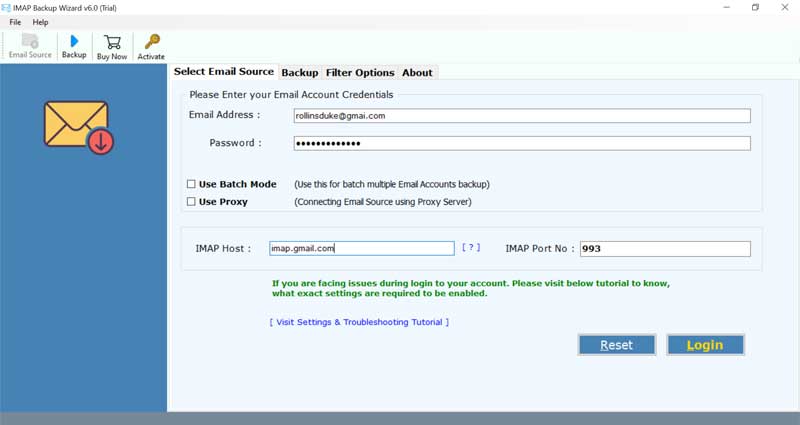

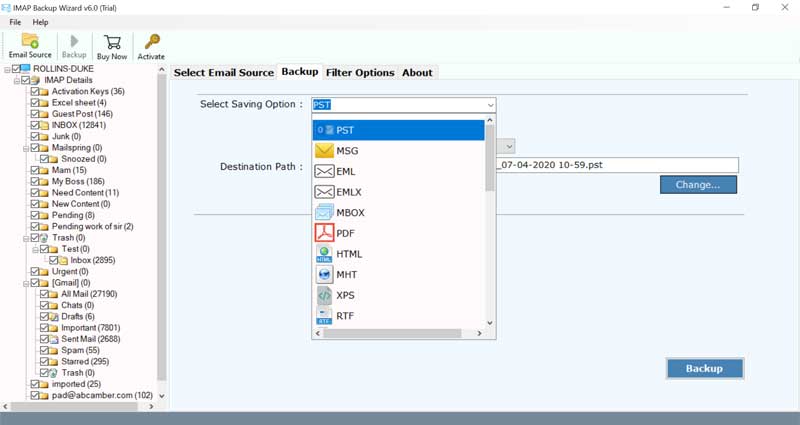

Finally, your Outlook email data is exported successfully from New Outlook.
Expert-Tested Solution for Resolving Outlook Import Export Grayed Out in Old Outlook
If you’re looking for a solution for your old Outlook, you can try PST converter program to easily resolve Outlook import export grayed out issue in both Windows and Mac Operating System. This converter allows you to export Outlook email data simply, without depending on the built-in Import/Export feature. It works on all older versions of Outlook.
Working Steps to Use Expert Approach
- First Install and run the suggested utility on your PC.

- Click on the start button and select “convert configured Outlook mailbox data.”

- Enable the folders and files that you want to export and click on the “Next” button.

- Now, select the PST as the Select Saving Option and set the destination path.

- Finally, click next to start the export process.


Final Thoughts
In this blog post, we explained how to fix the Outlook import export grayed out problem. We discussed tested information to resolve Outlook import export grayed out on Mac using both quick fixes and professional methods for Windows and macOS.
And found that Outlook grayed out due to the most common reasons, such as admin permissions, lack of upgrade, use of a non-licensed version, and others.
In such a case, the use of the above-mentioned tools is a fast and time-saving option for a quick solution without loss of any email attachments and with data integrity.
About the Author

