Facing an Outlook Error 0x800ccc0f? Resolve Simply

Published: February 9th, 2026 • 6 Min Read
Are you facing the Outlook error 0x800ccc0f while sending or receiving email? Don’t worry, you reached the correct information page. Microsoft Outlook is one of the best and most globally used email application by businesses and normal users. It provides multiple features to both business and non-business users. Sometimes, users face error 0x800ccc0f, and they don’t know how to fix Outlook email error 0x800ccc0f.
Outlook error 0x800ccc0f is showing when the connectivity between your Outlook and the mail server is a problem. Sometimes, when Outlook fails to send or receive emails due to network issues or incorrect server settings, this error occurs.
In this blog post, we are going to use both manual and professional methods to solve this problem and find the root cause behind this error 0x800cc0f. Read this blog till the end to get the solution.
But before we proceed directly to the solution, let’s take a look at the error 0x800ccc0f.
Take A Look at The Quick View for Outlook Error 0x800ccc0f
Outlook error message 0x800ccc0f basically appears when you send/receive email, an unstable internet connection, or firewall/antivirus software is blocking your workflow.
This error occurs in mostly all version of Microsoft Outlook. However, it’s important to know the main cause of this error.
Common Causes of Outlook Reported Error 0x800ccc0f
- An unstable or slow internet connection cannot connect to the Outlook mail servers, due to which users face this issue.
- Outlook does not work properly if the setting were wrong, such as SMTP, IMAP, or POP3.
- When the Outlook connection is blocked by the antivirus or firewalls then this issue arises
- If the problem is with the server or the email server is down, then you face this issue
- When the Outlook profile or data file gets corrupted, this problem occurs.
- The Outlook send/receive issue is also encountered when the mailbox is full.
- Using an outdated version causes compatibility issues, due to which the Outlook error 0x800ccc0f is encountered.
These are some common reasons due to which the Outlook reported error 0x800ccc0f occurs.
Outlook Email Error 0x800ccc0f Fixing Manually
To resolve Outlook error message 0x800ccc0f, follow the steps below to solve this issue manually.
Method 1. Internet Connection
Firstly, check your Wi-Fi connection. If your internet connection is not working properly or giving slow speeds, then change your internet. (Use your mobile hotspot)
Method 2. Account Settings
Cross-check the account settings in server SMTP, IMAP, and POP3, and make sure the server’s name and port number are authenticated.
Method 3. Temporarily Disable Antivirus/Firewall
Temporarily disable Antivirus and firewall settings for Outlook.
- Go to the “Start” and type “Control Panel“.
- Then, find “Windows Defender firewall” settings.
- After that, click on the “Turn off Windows firewall” option.
- Finally, mark the “check box” to “turn off Windows Defender.”
- Then, click on the “OK” to apply.
Done!
Method 4. Mailbox Size
Delete useless emails from the inbox of your email account and empty your trash folder.
Method 5. Update Outlook
Update your Outlook application with the latest version.
- Open the Outlook application on your computer PC.
- Then, go to the “File” menu and select “Office Account.”
- After that, click on the “update option” and click on the “Update Now” button.
Done!
Bonus Method: Configure Outlook Profile
Sometimes improper server and account settings also interrupt. So, it is necessary to fix it asap.
- Open Outlook on the Windows Operating System.
- Then, go to “File”, click on “Account settings,” and choose the “manage profiles” menu.
- After that, click on the “show profile” button and click “add”.
- Again, click on the “add” button and add an account with Outlook.
Done!
Limitations of Manual Methods
- Turning off the firewall, reconfiguring the profile, and cleaning the mailbox may take a long time.
- To use any steps requires tech knowledge; any wrong settings will create a new problem.
- Deleting the emails from the complete mailbox and trash may lead to accidentally deleting important data.
- Temporarily disabling antivirus software may increase the risk of malware and virus attacks.
- If the mail server is down or facing some issue on the server side, then all the above solutions would not work completely.
These were the major limitations of using a manual solution to fix Outlook error 0x800ccc0f. To overcome these limitations, using a professional solution is the right option.
Microsoft Outlook Error 0x800ccc0f Fix Professionally
As we are already well aware of the manual solution and its limitations. Now we fix the Outlook error message 0x800ccc0f with BitRecover PST Repair Tool. This repair utility simply fixes all the corrupted or damaged Outlook PST files, with complete data integrity, and gives you error-free PST files. Download its free trial version to check it’s working:
Methods To Resolve Outlook Reported Error 0x800ccc0f
- Open the application on your desktop PC.
- Then, select the file/folder option and click “next”.

- After that, choose folders of your PST file and click “Next.”
- Then, select the saving option “PST.”
- Finally, set the destination path and click “Repair.”
- Done, your “PST” files start repairing.
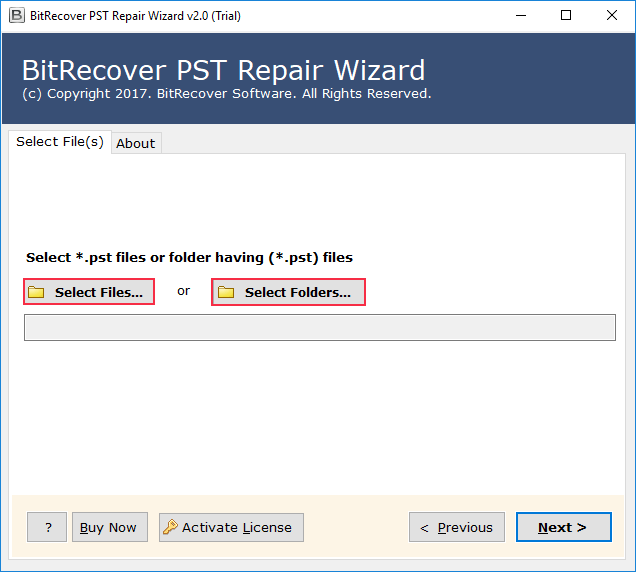
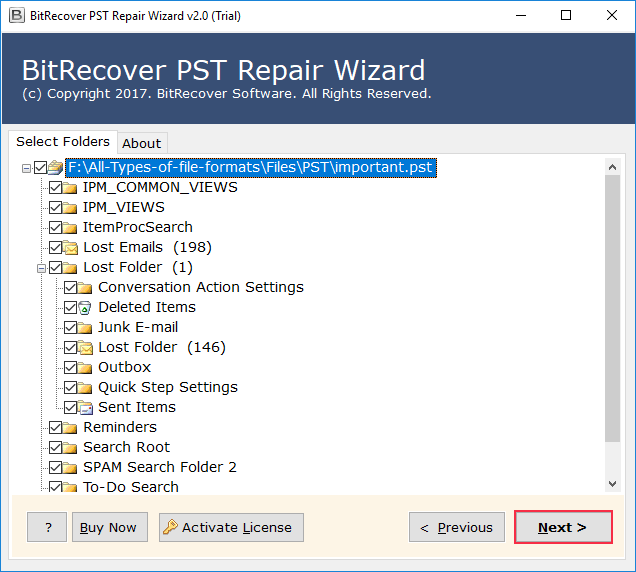
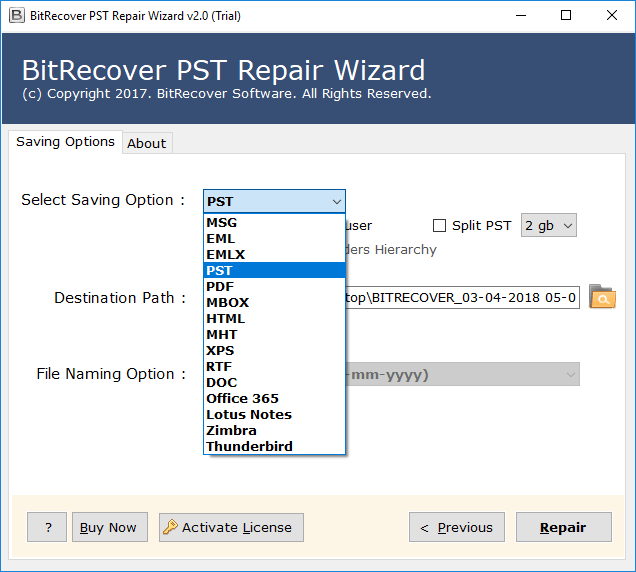
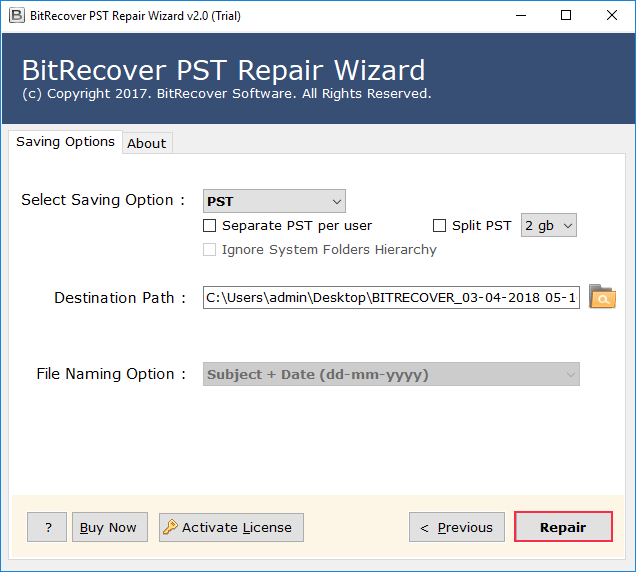
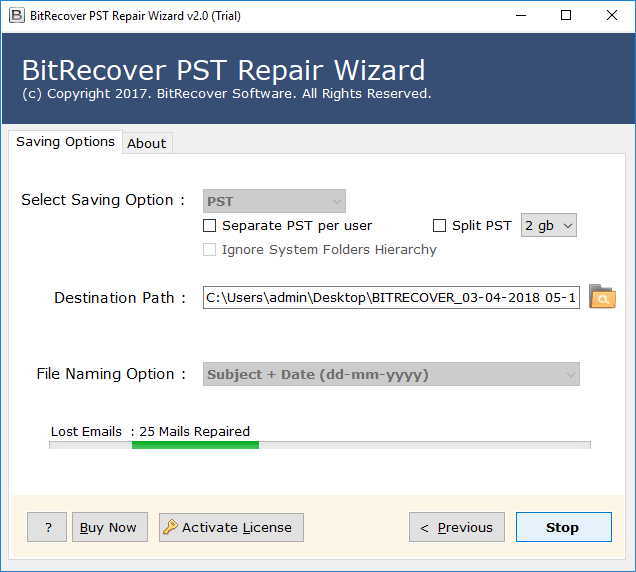
By following the above Methods, you can easily repair your PST file, and your Outlook error message 0x800ccc0f will be fixed.
Features of Professional solution
- You can repair the Outlook PST file using the same tool with all attachments.
- The tool allows users to select data from a particular folder and file.
- Data integrity is maintained during the conversion process.
- You can easily recover any corrupted PST files in just a few clicks.
- It allows users to recover PST files from multiple formats like MBOX, PDF, and HTML.
Conclusion
In this blog, we explained the Outlook error 0x800ccc0f. We explained the reason behind it and shared five manual solutions and a professional solution to solve this issue. However, the manual steps don’t work if the issue is on the server side. On the other hand, the use of the professional solution is the right option. Now, it’s up to you how you resolve this issue.
You can also try the trial version of the recommended software for free. If you are satisfied, you can go with the licensed version. After that, you still face an issue, so you can contact our support team, who are available 24×7 for your assistance.