How to Fix Outlook error 0x800ccc0d Easily & Quickly

Published: January 24th, 2026 • 5 Min Read
This particular blog describes the Outlook error 0x800ccc0d, a basic problem that is faced by many users when they are unable to send or receive emails. In this blog, we are using both manual and professional solutions to resolve this problem. The solution helps users to decide which solution is best for the Outlook send error 0x800ccc0d.
Microsoft Outlook is the most globally used email application that is used by professionals and non-professional users. It offers multiple features to both users. Outlook error 0x800ccc0d occurs when the incoming and outgoing server name is wrong or your internet connectivity is not working properly, then this error occurs.
So, read this blog till the end to find the solution to the error 0x800ccc0d Outlook.
But before knowing the direct solution, have a look common cause of Outlook sending report error 0x800ccc0d.
Reasons Behind Outlook Error 0x800ccc0d
- The Outlook connection is blocked by the antivirus or firewalls.
- Having issue from the Internet service providers (ISP) side.
- The email service provider’s server is temporarily down.
- The wrong configuration was done in the POP and IMAP settings.
- Your Wi-Fi connection is slow or disconnected from your computer PC.
- When your Incoming and Outgoing server name accidentally written incorrectly.
- An Outlook account gets corrupted due to crossing the storage limit or accidentally shutting down.
These are key reasons due to which the Outlook error code 0x800ccc0d appears.
Manual Solution to Fix Outlook Error Code 0x800ccc0d
To resolve Outlook email error 0x800ccc0f, follow the detailed steps.
Step 1. Internet Connection
- Firstly, check your Wi-Fi router is connected or not.
- Then, open a browser and test any website in your web browser.
Step 2. Account Repair
- Open the Outlook application on your desktop PC.
- Then, go to the “File,” click on the “Account Settings,” and select “Account Settings.”
- After that, click on the “Repair” button, wait for a few seconds, and click the “OK” button.
Step 3. Disable Antivirus and Firewall
- Click on the “Start” and search “Control Panel” hit enter.
- After that, find “Windows Defender firewall” settings.
- Then, click on the “Turn off Windows firewall” option.
- Finally, mark the “check box” to “turn off Windows Defender.”
- Then, click on the “OK” to apply.
Done!
Step 4. Account Remove and re-add
Delete the current connected account from Outlook and reconfigure the same account with Outlook.
Done! Your Outlook error 0x800ccc0d is fixed!
Limitations of Manual Solutions
- Testing the browser may not guarantee that Outlook can connect to the mail server. Firewalls may block Outlook.
- The Repair feature only works when the issue is minor; in major condition they fail.
- Disabling antivirus software increases the risk of virus attacks.
- The reconfiguration of the account to Outlook consumes too much time and also increases the chance of account corruption.
These were some limitations of using a manual method to fix Outlook error 0x800ccc0d. In such a case, using an expert-suggested solution is the right choice.
Professional Solution for Outlook Send Error 0x800ccc0d
Now we are aware of the manual methods and their limitations. So, we fix Outlook sending reported error 0x800ccc0d by using expert-suggested software, i.e., BitRecover PST Repair Tool. This wizard easily fixes all the corrupted Outlook PST files, preserving folder structure and data integrity.
Quick Steps to Resolve Outlook Send Error 0x800ccc0d
- Open the application on your Windows Operating System.

- After that, choose the option between file/folder, and click on the “next” button.
- Then, select folders manually where your PST file is stored, and click “Next.”
- Afterwards, choose the saving option “PST” format.
- Lastly, set the destination path and click on the “Repair” button.
- Done, your “PST” files will start repairing.
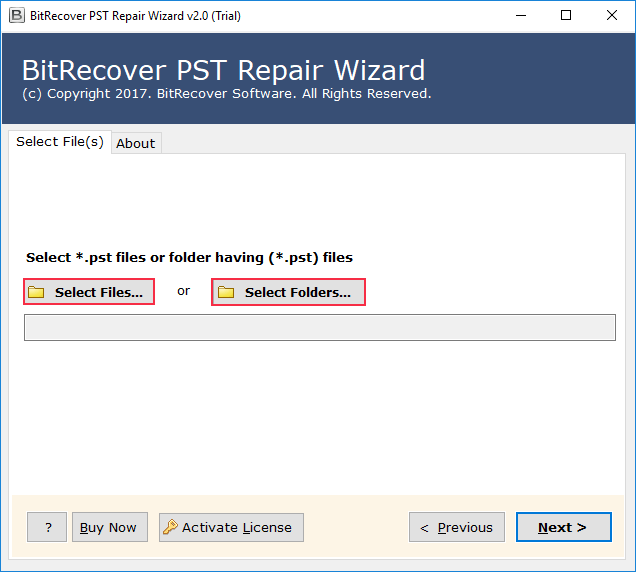
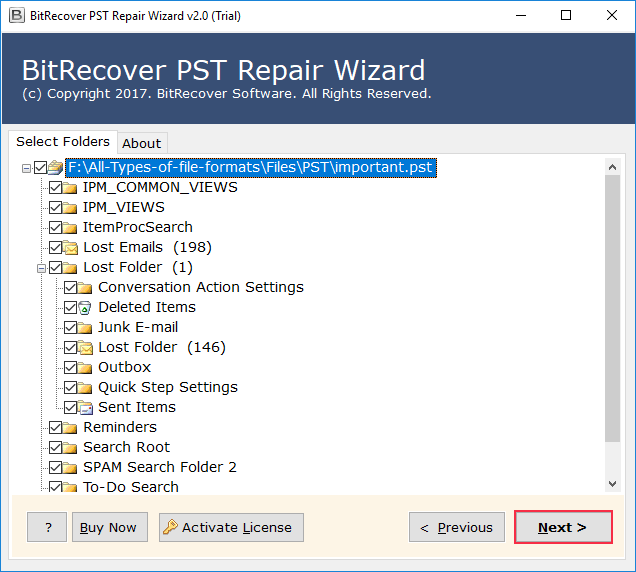
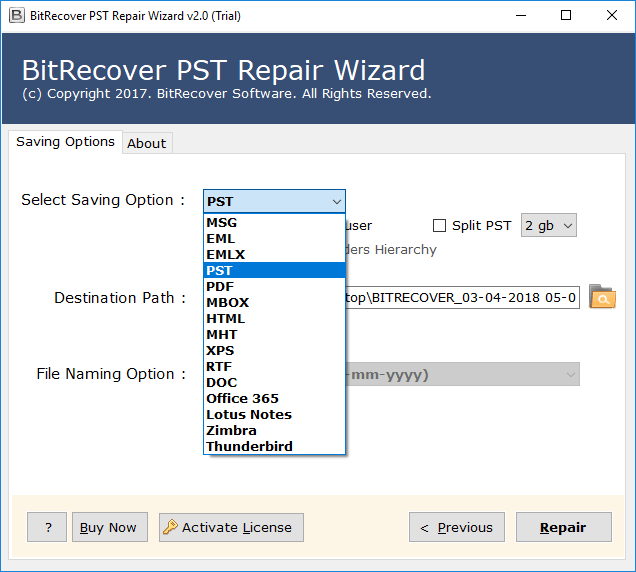
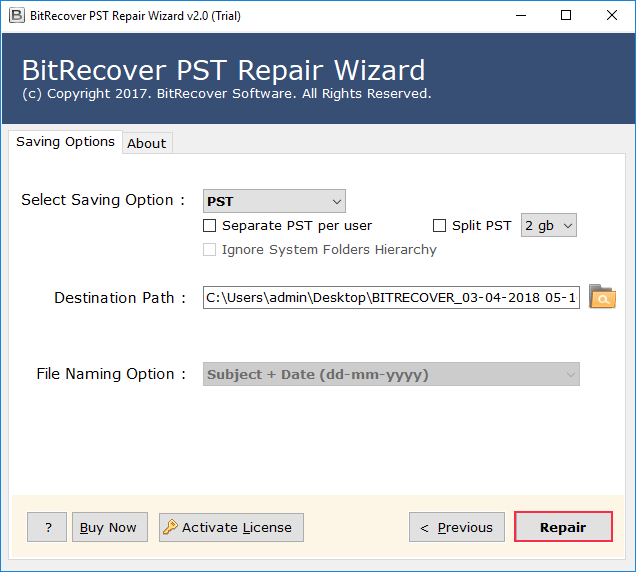
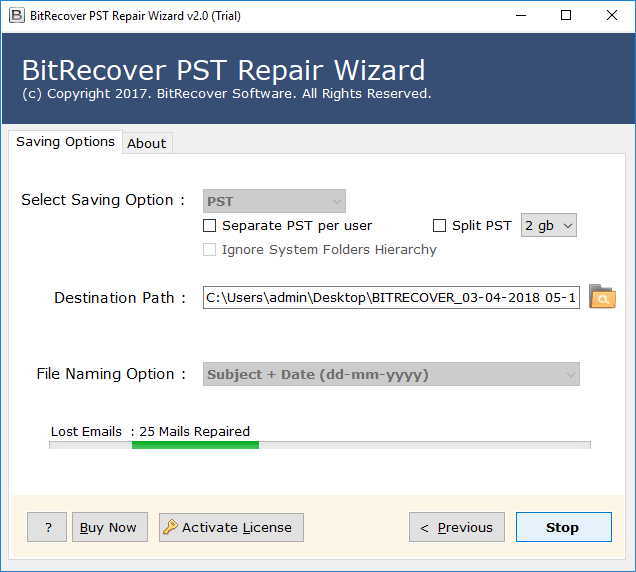
By following these steps, you can simply repair your PST file in a few clicks, and your Outlook error 0x800ccc0d is fixed.
Benefits of Professional Method
- The Data integrity is maintained during the entire repair process.
- This can repair MSG, EML, EMLX, and PDF files using the same tool.
- It gives a customized naming option to your repaired files.
- The wizard easily recovers any corrupted PST files in just a few seconds.
- It allows you to do repairs selectively from a particular folder and file.
These were the benefits of using the expert-tested solution to fix the Outlook send error 0x800ccc0d.
Final Thoughts
In this blog, we described the Outlook error 0x800ccc0d and shared the common cause that explains why this happens. To solve the Outlook error code 0x800ccc0d issue, we used both manual and professional solutions. Found that the use of a manual solution to fix error 0x800ccc0d Outlook we need to disable antivirus software and reconfigure Outlook account, that increase a risk of virus attacks and account corruption. Hence, the manual solution is not safe to fix Outlook sending report error 0x800ccc0d. On the other hand, using a professional method is the safest and easiest option to fix this issue.
You can try the trial version of the suggested software for free. If you are satisfied, you can go with the licensed version.