How to Manage Outlook Error 0x80070021 Without Data Loss?

Published: February 11th, 2026 • 5 Min Read
Microsoft Outlook is globally used for email communication, event management, and other purposes. Sometimes, the user faces the Outlook error 0x80070021, which is a disturbing part of Microsoft Outlook when you are attempting to create a backup or make copies of PST files to a different location on your computer system.
The error 0x80070021 Outlook will appear when the PST file is locked by another process, such as an application running in the background, or an antivirus application is blocking Outlook. This pop-up shows that the file is not able to access after making a copy of the original file. When this error happens, the PST file is temporarily inaccessible, which can interfere with the normal operations of Outlook. Which is because you faced delays in sending and receiving emails.
In this blog post, we are discussing the methods to resolve Outlook error 0x80070021 using manual and professional solutions. Along with major causes for which you face the 0x80070021 error in Outlook. So, do continue reading this blog post till the end to find the solution for the 0x80070021 error code.
Let’s understand the major causes of this Outlook error 0x80070021.
Major Causes Behind the 0x80070021 Error
Multiple applications like Skype, Microsoft Office communicator and Google Calendar Sync might access Outlook in the background, due to which this error appears.
When you do an improper shutdown due to which your Outlook is running, and you aren’t aware of it because the Outlook is running invisibly, then you will get this error.
Sometimes, the bad hard drive sectors, network interruptions, and sudden power cuts also impact the Outlook application, and results you face this error.
When your Outlook is struggling with Windows search, and the Email Indexer can lock your PST files, and you see the error.
These were the major causes that are blocking PST file access, and you are getting Outlook error 0x80070021.
Manual Solutions to Resolve Error 0x80070021
To fix the error 0x80070021 manually, you need to follow the steps described below carefully:
Use of Task Manager:
- In your keyboard, press the command below, select the task manager, and open it.
Ctrl + Alt + Delete - Go to the Processes tab, and look for Outlook.exe.
- Then, select the running applications and click on the End Task button to close.
- After that, retry the copy of the PST file.
Windows Search Email Indexer
- Open the Outlook application on your Windows PC.
- Go to the “File” menu, select “Options”, and choose the “Add-ins” option.
- Look down at the bottom, click on the manage button and it opens a dropdown.
- Then click on “COM Add-ins” and then click the Go button.
- Now locate the Windows Search Email Indexer, uncheck it, and click Remove.
- After that, properly restart your Outlook and check.
- Done! Your 0x80070021 Outlook issue is solved.
Limitations of Manual Solution
- By ending the running background Outlook process, only unlock the temporarily locked files, after the use of this, the problem might recur.
- Forcefully closing the Microsoft Outlook application during work time may cause you to lose your unsaved data, and your PST files might be corrupted.
- Removing the Windows Search Email Indexer might slow down email search in the entire Outlook application.
- The manual method only works if the error is happened by the Windows Search Email Indexer. In the case of other background apps, they might lock the PST file.
These are the limitations of using manual solutions. However, you can try the safest method in the next section below to overcome this situation.
Resolve error 0x80070021 Outlook Professionally
As we know, the manual solution to fix the Outlook error 0x80070021 with their limitations. According to the limitations of manual solutions, they only provide a short-term relief from the error, and the issue may recur. Now, let’s fix this with BitRecover PST Repair Tool. This program simply scans your Outlook account and repairs PST files with data integrity.
Quick Steps of Professional Solution
- Download and open the application on your Windows OS.

- Choose an option between folders and files.
- After that, click on the next button to move next page.
- Now, individually select the folder of PST files and click Next.
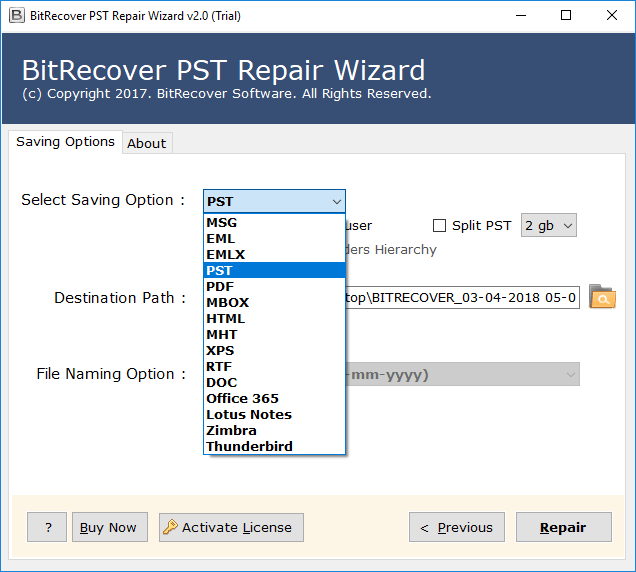
- Choose the saving option “PST,” and set the destination path.
- Finally, click on the Repair button to start repairing PST files.



Advantages of Professional Solutions
- The software repairs bulk PST files at one single use.
- You can restore data such as emails, attachments, contacts, and tasks.
- The tool can repair damaged, password-protected and corrupted Outlook PST files.
- Software allows exporting data in multiple file formats such as EML, PDF, and others.
- It maintained data integrity during the complete repair process.
- The tool can work independently without the need of Outlook application.
These were the major benefits of using the suggested professional solution to fix the Outlook error 0x80070021.
Final Thoughts
We discussed in this blog why users face the Outlook error 0x80070021. We shared the major reasons why users face the Outlook error 0x80070021. Along with both manual and professional solutions, the manual solution has certain limitations, such as closing Outlook during work, risks of unsaved data loss, and only fix issue temporarily. However, the suggested professional solution is repairing the PST file with complete data integrity and solve the Outlook error 0x80070021 easily without any limitations.