How to Fix Outlook 0x8004210a Error Without Data Loss?

Published: February 11th, 2026 • 8 Min Read
You are chilling and working in Microsoft Outlook when you suddenly see a pop-up with the Outlook 0x8004210a error. After seeing this error, you simply clicked on the cancel all button to stop the Outlook send/receive progress. Now you are trying to send an email again, but you are still encountering the 0x8004210a Outlook error. Don’t worry, you have reached the right blog page to find the solution for error 0x8004210a.
Microsoft Outlook 0x8004210a appears when Outlook is unable to send or receive emails due to an inconsistent internet connection. Error 0x8004210a is one of those common errors in all the versions of Outlook, namely 2003, 2007, 2010, 2013, 2016, 2019, and 2021.
In the guide, we are going to explain to you how you can resolve the 0x8004210a error in Outlook with the use of tested manual and professional solutions. Along with this, we are sharing the main root causes behind this error. Read this guide till the end to find the solution for the error 0x8004210a.
Let’s see the common reasons behind this error.
Why Does Outlook Error 0x8004210a Occur?
0x8004210a Outlook error mostly occurs when your Outlook application is unable to receive a response from the mail server. It also happens with some other main reasons that are listed below.
Unstable Network: If your computer is experiencing slow internet, this is why Outlook cannot properly maintain its connection with the mail server, and you will see this pop-up.
Security Software: Antivirus software blocks outgoing and incoming emails, due to which this error occurs.
Wrong Settings: When you accidentally set the wrong outgoing or incoming server address, SSL/TLS authentication, and port numbers on your mail account, due to which outlook cannot connect properly to the mail server. This error 0x8004210a appears.
Full Mailbox: Syncing bulk emails with large attachments at once will overload the mailbox and its server, results Outlook 0x8004210a error appearing on your screen.
File Corruption: If you are using corrupted or damaged PST files in your Outlook account, then it will freeze your data file and interrupts in syncing email process. You will see the error 0x8004210a.
These are the main reasons that inform us why Outlook shows error x8004210a. Now that we understand all the root causes, let’s move to the manual solutions.
Manual Solutions to Solve Error 0x8004210a
To fix 0x8004210a Outlook error manually we first use quick fixes then we use detailed solution to fix this error. Check below to do quick fixes in your Outlook application:
1st Step: Internet Connectivity Checking
- Open google chrome or the web browser you are using daily on your computer.
- Then, search for a website (google.com).
- If your browser loads website slow then, restart your router or change your Wi-Fi.
- And done!
2nd Step: Mailbox Cleaning
- Open the Outlook application on your computer PC.
- Then, go to the “Outbox folder” and check for unsent and large emails.
- After that, delete or move large attachments from the “Outbox”.
- Additionally, remove suspicious and spam emails from the spam folder.
- After that, go to the “deleted Item” folder and select all the deleted emails.
- Then, delete all the selected emails from the “Deleted Items” folder.
- Done!
3rd Step: Check Computer Date/Time
- Right-click on the system clock from the taskbar.
- Then, select adjust date and time option.
- After that, turn on the switch of “Set time automatically”.
- Additionally, check that your time zone is selected correctly.
- Finally, restart Outlook and check.
Now fix this error 0x8004210a with detailed solution.
1st Solution: Use of the ScanPST.exe tool
- Open the ScanPST.exe tool on your computer, enter the following location to find:
(C:\Program Files\Microsoft Office\root\Office) - After that, double-click on the “ScanPST.exe” tool icon.
- Then, “Browse” the corrupted PST file and select it.
- Now, click on the “Start” or “Repair” button.
- After that, the tool starts scanning fix all the minor corruption.
2nd Solution: Repair Office application
- Open the Control Panel on the computer.
- Go to the “Programs” and select “Programs and Features”.
- Then, select Microsoft Office and click on the “change” button.
- After that, choose between the “Quick Repair” and “Online Repair” options.
- Afterwards, restart your Outlook application, and the problem is solved.
3rd Solution: Account Reconfiguration
- Open your Outlook application on your Windows PC.
- Go to the “File” option, click on the account settings, and choose account settings.
- After that, select the disturbing account and click on the remove button.
- Then, choose option “Yes.”
- After that, close the Outlook application, and restart your computer.
- Then, click on the “Add” button to add your same profile to Outlook.
- Enter your name and other details to reconfigure your account with Outlook.
- Done! After entering all the account details, your account is reconfigured with Outlook, and your error will be solved.
Using all three solution you can fix the Outlook 0x8004210a error. These methods have certain drawbacks that you must know before using them.
Drawbacks of Using Manual Solutions
- These solutions might work on corrupted PST files.
- The tool ScanPST.exe only repairs minor corruptions in PST and OST files.
- Use of the repair or change button in the control panel for Microsoft Office will not fix the problem.
- Re-configuration of the Outlook account cannot resolve the problem with the mail server.
- Any mistakes in following any solution mentioned above will lead to profile corruption.
- The steps are time-consuming, and all the solutions require technical knowledge.
- High risk of accidental data deletion while cleaning the mailbox.
- Reconfiguration of the account might temporarily lose email access.
- Adjustments in antivirus software increase the risk of virus attacks in your computer system.
These are important drawbacks of using manual solutions that you must know before using any of the described solutions above.
To overcome these drawbacks, you can try the automatic method that is described in the upcoming section.
Solve Outlook Error 0x8004210a Automatically
Now we know, the drawbacks of the above solutions indicate that the solutions are time-consuming, require technical knowledge, and have a risk of data loss. In such cases, you can try BitRecover PST Repair Tool to avoid all the drawbacks of the above-listed solutions. The repair tool keeps the original Outlook folder and maintains file hierarchy and metadata during the repair process. This tool does not require internet connectivity to resolve the Outlook 0x8004210a error. It also safely works on Outlook error 0x8004060c.
Steps to Resolve 0x8004210a
- Open the application on your Windows Operating System.

- Select the ” Folders and files” option to easily open the PST file.
- Then press the next button to land on the next page.
- Here, select folders individually where the PST files are located, and click Next.
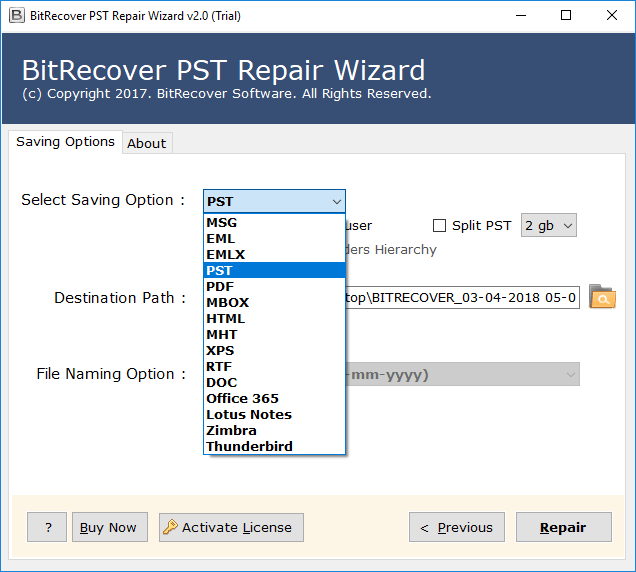
- Next, choose the saving option as “PST,” and then specify the path.
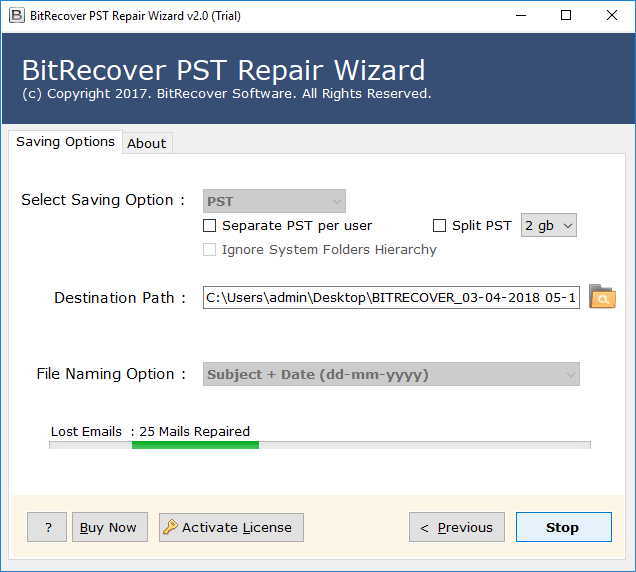
- Lastly, hit on the “Repair” button to start repairing files.
- Your repair process will started.



Done! After using this solution, you can safely resolve Outlook 0x8004210a error.
Strength of Automatic Solution
- The automatic tool recovers and fixes corrupted Outlook PST files in few clicks.
- Software can restore deleted emails, contacts, calendars and other mailbox items of your account.
- The tool gives preview of mailbox items before repair, that help you to select only what you need.
- It can repair batch PST files at once without error with attachment and save your hours of efforts.
There is the strength of automatic solution that will help you to fix 0x8004210a error without facing any drawbacks of manual solution.
Final Thoughts
In this guide, we explained how to safely fix the Outlook 0x8004210a error. We have tested all the suggested manual and professional methods to resolve the issue of the 0x8004210a error in Outlook. Although the manual solutions have some drawbacks that lead to data loss, profile corruption, and loss of email access. The tested professional solution resolves this error without any risk of data loss, with full data integrity, email attachments, and safety. The tool ensures the integrity of the folder structure during the entire repair process. Lastly, we don’t recommend manual solutions in the case of serious situations; using manual methods during serious issues might corrupt your email account. Now, it’s up to you which method you choose.
You can download the free trial version of the mentioned automatic tool to fix this issue safely. If you are still facing the error, you can contact us to fix any issues related to Outlook or email migration. Our tech support team is available 24/7 to help you with any issues.