How to Open EML File on Mac? 4 Easy & Tested Methods
Fact-checked and reviewed in accordance with our Editorial Policy
In this guide, you’ll learn 4 practical ways to open EML file on Mac, starting with manual methods and moving to a free professional solution for opening bulk EML files at once. We will also explain step-by-step how to access EML files using Apple Mail, Thunderbird, TextEdit and an automated tool with their respective pros and cons. This will help you choose the right method whether you have a single email message or a large collection of data. So, let’s get started.
What is EML File and What Does It Contain?
.EML FILE
How to Open EML File on Mac? Manual Methods
Here we have listed all the tested manual methods to open EML files on Mac. You can try the one depending on whether you want to read individual emails, manage multiple emails or just want to inspect the raw content of an EML file.
Method 1- Open EML File on Mac using Apple Mail
Apple Mail is the simplest method to try when you want to open an individual EML file on your Mac system.
Steps to Follow:
- Open Finder on your Mac.
- Go to the location of your EML files and right-click on them.
- After that, select the Open With option and choose Mail from the list displayed.
- The EML message will open in Apple Mail and you can now read its contents.
If you have already set Apple Mail as default, then instead of performing these steps, you can simply double-click on the EML files. They will automatically open in the Apple Mail application.
Method 2- Access EML via Thunderbird on Mac
Thunderbird is available for macOS as well and can be used to manage email messages and local data without worries. Simply follow the steps explained below:
- Download and install the Thunderbird on your system.
- Sign in with your email account. And choose one folder where you wish to view EML files.
- Thereafter, navigate to your EML files.
- Select, drag and drop them in the respective Thunderbird folder.
- That’s it, you are done. Repeat the same process if you have multiple EML files.
Method 3- View EML File Using TextEdit Application
If you want to inspect EML file raw content rather than viewing it normally, then this method is for you. You can use the built-in TextEdit app available on all macOS devices.
- To begin, open Launchpad and enter TextEdit in the search bar.
- Locate and double-click on it to open.
- Now, you’ll see folders in the left panel, simply go to the location of your EML file.
- Select or double-click on single file and open directly in TextEdit to read or view its data.
Drawbacks of Manual Methods
Although the above manual methods are to open EML file on Mac, they are not always a suitable option in every situation. Some of the common limitations include:
- Opening each EML file requires a lot of time especially when you deal with a large amount of files.
- These manual approaches are not recommended for bulk opening EML files.
- In the Thunderbird method, a non-technical user can face difficulty while performing configuration steps.
- Plus, managing and organizing a large amount of data with these methods is difficult and complex.
Bulk Open EML Files on Mac with a Secure Professional Solution
If you have dozens or thousands of EML files to open, then rely on this Free EML Viewer for Mac as manually opening each file can be a tedious and time-consuming process. The expert-trusted solution provides a more simple and convenient way to open EML file on Mac in bulk without configuring any email client. It is a free offline and standalone utility that lets users add individual EML files or entire folders in a single go and allow them to preview emails with all the attributes directly from the interface.
The viewer displays the original email properties including sender, recipient, subject, date , message body, header and attachments to help users review the complete EML file without missing any detail. So, download it now and enjoy a seamless process.
Steps to Open & View Multiple EML Files on Mac
- Download and install the above suggested software on your Mac system.

- Click on Add File / Add Folder to load the EML files you wish to access.
- After that, simply check or uncheck the folder/subfolder from the left panel to preview.
- Once done, click on any file to view its content.
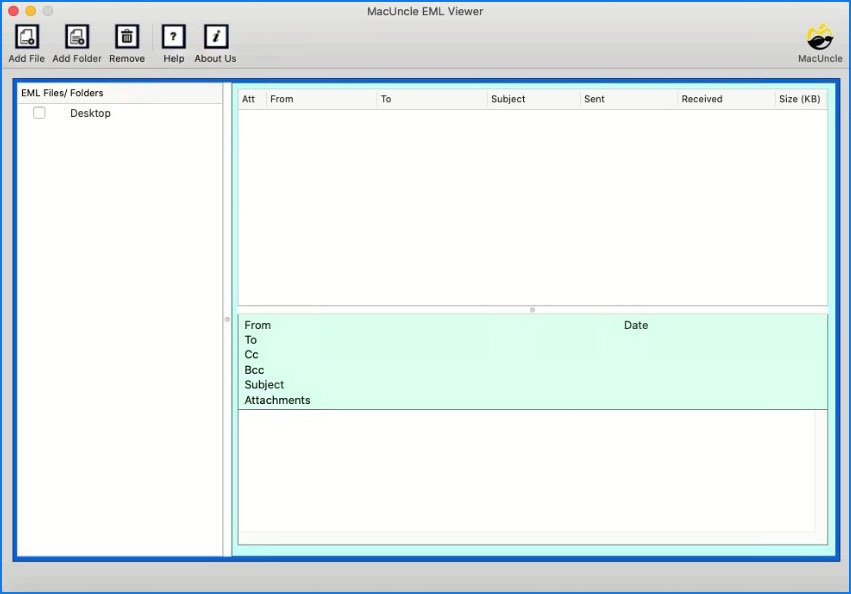
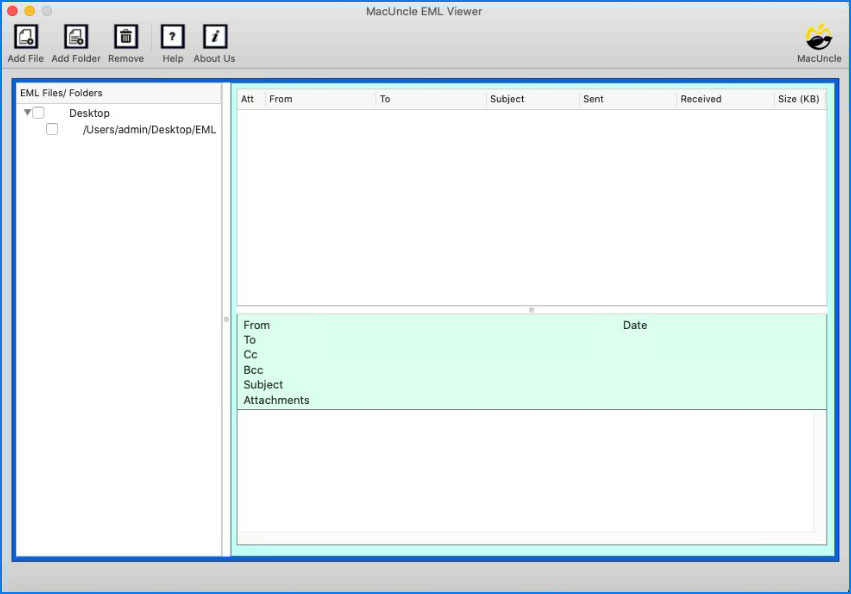
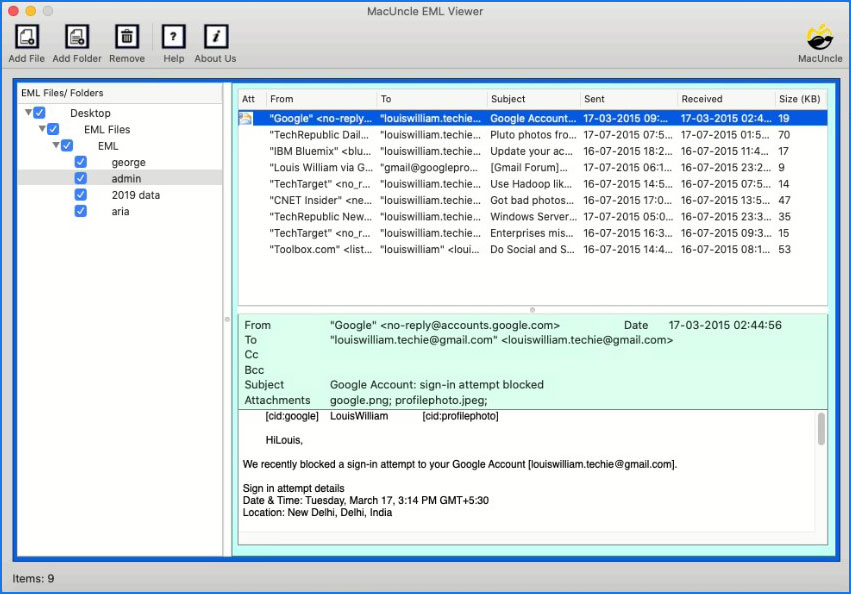
This is how you can access your EML files data with all the properties maintained.
Advanced & Unique Features of the Software
- It is a 100% offline and safe utility with a clean interface.
- Users can view and access corrupted or orphaned EML files easily on Mac.
- It allows users to preview thousands of EML files quickly without opening them individually by repeating the same steps.
- Does not require installation of any email client regardless of the source from which EML files are created.
- Works smoothly on all latest and old versions of macOS.
- In addition, users can load complete folders in the original structure and navigate through EML files in the same manner.
- The tool has the ability to inspect complete messages even the attachments (of any size).
- It operates locally on the user system itself so that users can work anytime even with no internet connection.
- Both personal and professional users can trust and use this software hassle-free.
- Maintains original format of an EML file and ensure complete data integrity throughout.
Which Method Is Best for You?
| Method | Best For | Bulk EML Files | Offline | Email Attributes | Ease of Use |
| Apple Mail | Opening individual EML files | ❌ | ❌ | ✅ | Easy |
| Thunderbird | Managing multiple emails | Limited | ❌ | ✅ | Moderate |
| TextEdit | Inspecting raw EML content | ❌ | ✅ | Limited | Moderate |
| Free EML Viewer | Viewing data of large EML collections | ✅ | ✅ | ✅ | Easy |
Final Words
At last, I would conclude that choosing the right approach depends on the number of messages you need to access. While Apple Mail can work well to open EML file on Mac, it supports opening individual messages and users dealing with large archive EML files need a more efficient method. For this, we have explained a dedicated EML Viewer in the article that simplifies the task and allows users to open collective data from a single interface.
Moreover, the biggest advantage is, it is a free and offline software with all the facilities that a user looks for. It has local processing ability and robust security that ensures all the important or sensitive information will remain safe and accessible.
About the Author

