How to Backup MWEB Emails to Computer (2026 Updated Guide)
Fact-checked and reviewed in accordance with our Editorial Policy
To back up your MWEB email account onto a computer without losing anything from your account, this guide details how to do so using manual techniques and/or using a professional program. We’ll cover everything you’ll need to know, including how to back up your MWEB email account, information on how to protect files stored in MWEB’s Briefcase section, and step-by-step instructions to follow when exporting your email account to a computer.
How to Backup Emails in MWEB
Before you back up your emails, you must manually back up any saved documents or images in your MWEB Briefcase. MWEB does not automatically copy files that are stored in the Briefcase to new mail platforms during upgrades.
To backup Briefcase files:
- Go to Briefcase in your MWEB webmail.
- Select the files you want to back up.
- Download your files to your device as a ZIP file.
- Store your backup safely; for example, you could place the ZIP file on your hard drive or cloud storage.
Method 1: Backup MWEB Email Manually (via MS Outlook)
To backup MWEB email on your computer, here’s how:
- Install & start up MS Outlook onto your PC.
- Then go to File >> Info >> Add Account and set up your MWEB email account.
- You will need to know your MWEB IMAP server settings (IMAP server name – imap.mweb.co.za; IMAP port number – 993)
- After setting up and syncing with MS Outlook, you can proceed to backup MWEB email using MS Outlook’s Export function.
- To export your MWEB email, go to File >> Open & Export >> Import/Export.
- Select Export to a file and press the Next button.
- After choosing Outlook Data File (.pst), click the Next button.
- Select which email folders you want to export from your MWEB email account and press the Next button again.
- Browse to the location you would like to save the exported MWEB email to on your hard drive, then press the Finish button.
Manual Solutions Have Limitations
Even though they are free, there are some limitations with manual solutions:
- Time-consuming: Downloading a large number of emails will take a long time.
- Complexity: Users who are not very technical may find it hard to set up IMAP server settings.
- Partial Backup: You will usually be restricted to only backing up certain folders when you create a backup of your emails from MWEB.
- Technical Issues: There may be times when you cannot use the import/export function in Outlook and so cannot save your data to your computer.
Method 2: The Professional Way to Download MWEB Emails to Computer Instantly
If you are looking for the most reliable way to easily create backup of MWEB emails to computer then use BitRecover Email Backup Wizard.
Benefits of Using this Reliable tool:
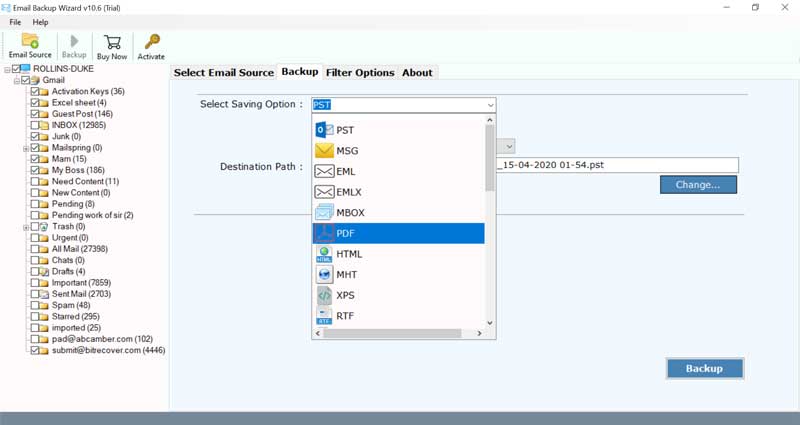
- You can save MWEB emails to your computer by exporting them directly into standard desktop email file formats, including Outlook (PST/MSG), MBOX, EML, PDF, HTML, DOC, ZIP, etc.
- It can also migrate your MWEB emails directly into Gmail, Office 365, Yahoo Mail, Exchange Server or IMAP.
- The tool preserves data integrity and keeps the metaheaders, formatting, and attachments of all emails intact.
- It maintains a complete folder hierarchy for all folders at the completion of a backup.
- You can select the required folders and also use filter to get desired result.
- Select the destination path to backup MWEB emails to computer at desired location.
Finally, you can try the free demo version of BitRecover’s software to check out its capabilities. The demo version only saves the first 25 emails from any folder, but if you wish to make complete and unlimited backups, you will have to upgrade from a demo version to a licensed version of the software.
How to Download MWEB Emails to Computer?
Read me first:- Use the green button below to download the MWEB mail backup tool for free. After that, follow the steps below to understand how this utility works.
-
- Install and start the MWEB backup tool on Mac or Windows.
- Now, select the MWEB Webmail option and enter your account credentials.

- In this step, the tool will connect to your account and upload all the folders. Here, select the desired email folder.

- After that, select the desired save format to download the MWEB email to computer.

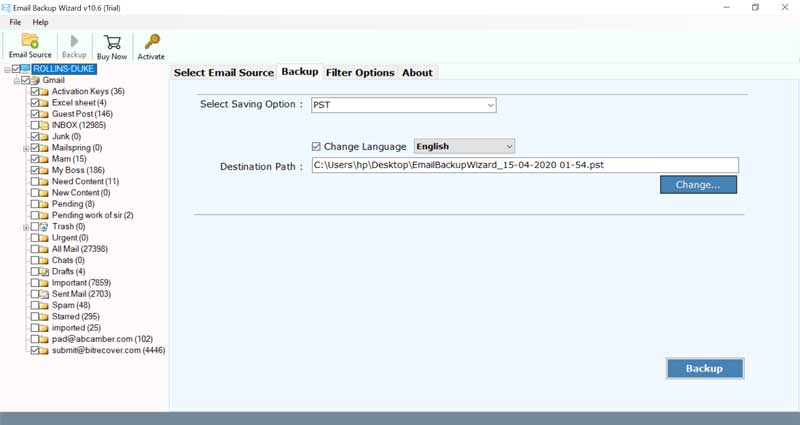
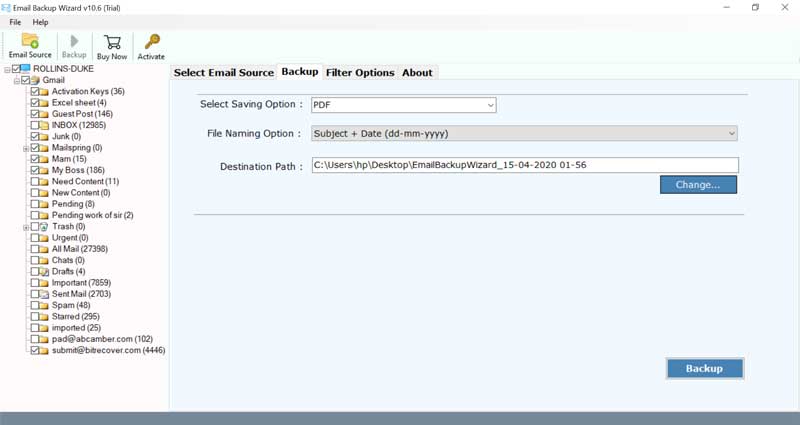
- Now, fill a specific location in the destination path tab to save the results.
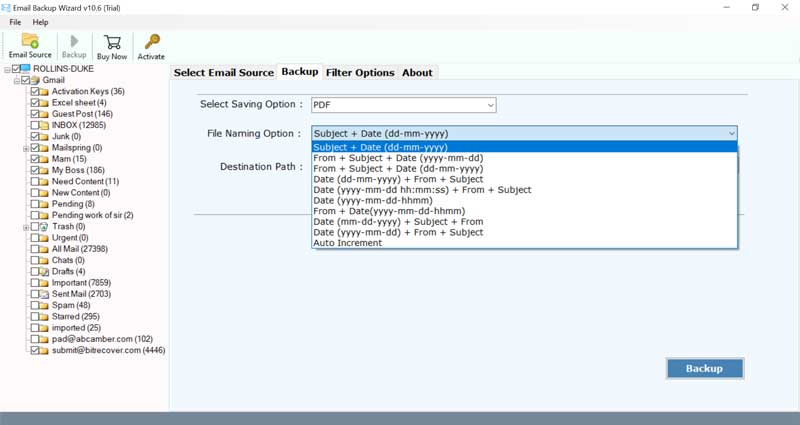
(Please Note – After the MWEB backup process gets completed, you will get the final results at this location only.) - The software provides several file naming options and advanced filter setting options. Please check and select if any required.
- After all, click on the Backup button to start the MWEB mail backup process.
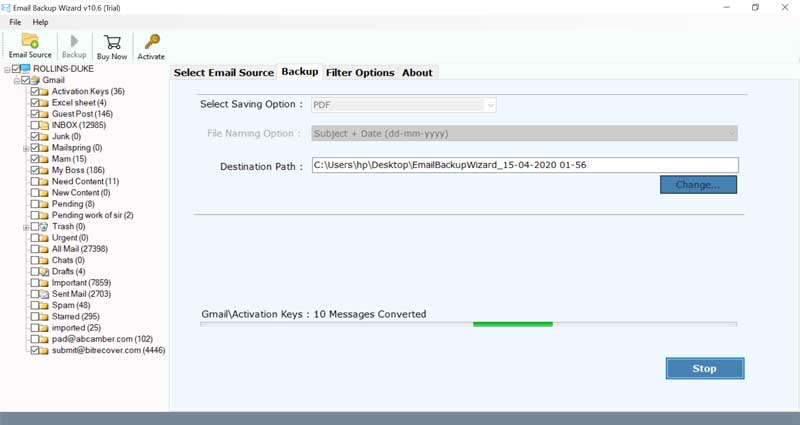
That’s all. We hope you find this method to download MWEB emails to Computer quick and simple.
Frequently Asked Questions (FAQs)
Q 1: What are MWEB’s IMAP server settings?
A: For manual configuration of your MWEB account, the IMAP Port Name is imap.mweb.co.za and the IMAP Port Number is 993.
Q 2: Do my Briefcase files backup with my email?
A: No, Briefcase files, like pictures/documents, do not automatically transfer/backup with your email, you will need to log into your account, choose your Briefcase files, then download those files manually onto your device as a ZIP file.
Q 3: Can the BitRecover tool run on a Mac?
A: The BitRecover Email Backup Wizard is currently only supported on Microsoft Windows operating systems.
Q 4: Can I selectively backup emails?
A: Yes, the BitRecover tool includes advanced filters for selective data migration, so you can choose to transfer whatever folder items are needed, as well as filtering by date or subject.
The Closing Thoughts
In the above guide we explain how to backup MWEB emails to computer step-by-step in two manual ways. It is critical for preventing unauthorized access to your data or even worse, losing it. While there are manual options available for backing up your data through Outlook, it is a highly complicated and time-consuming task. The BitRecover email-to-PC migration software makes the process of exporting MWEB email to PC much easier and provides a completely automated way to export MWEB email to your PC in multiple formats with no data loss.
About the Author

