How to Bulk Migrate Evernote to OneNote Without Data Loss?

Published: January 22nd, 2026 • 5 Min Read
Summary: If you are looking forward to migrate Evernote to OneNote Notes taking app, this digital page will be very helpful for you. Through this page you will get all the detailed information and methods for easy Evernote to OneNote migration.
Note-taking apps today are widely used by multiple ushered from multiple fields. It is considered simple to use for different requirements. It can be a personal knowledge hub where you can store ideas, manage projects, and keep all the track of your important information.
A large number of users have relied on Evernote for years, but as a user’s needs grow, OneNote has emerged as a more flexible, rich in features, and a cost-effective alternative of all the time. If you migrate Evernote to OneNote , it offers deep integration into Microsoft’s ecosystem, real-time collaboration, and unlimited device syncing, OneNote offers a smoother and more powerful experience for your both personal and professional use.
So, if you are still looking for a powerful solution to migrate Evernote to OneNote , this blog will guide you at its best. You just need to stick by this end of this blog to know the best and efficient solution.
Migrate Evernote to OneNote with Advantages
There are multiple advantages once you convert Evernote to OneNote:
- Offers unlimited synchronization of notes and notebooks without extra cost.
- Allows you to integrate easily with Outlook & Microsoft 365 platforms.
- Does not import monthly upload limits, you can upload a large amount of data.
- Offers you better formatting and note organization as per requirements.
- Supports handwriting, drawing, and pen input in notes.
- OneDrive auto-backup all the data along with notes to keep it safe.
- Offers you the real-time collaboration with multiple users
Now that we know the advantages of the migration, it’s time to see how this migration works.
Copy-Paste Individual Notes to Migrate Evernote to OneNote
- This Method is suitable For small data:
- First of all, open Evernote and OneNote side-by-side.
- Now, copy content from Evernote and paste into OneNote pages.
- Repeat them one by one once all the notes are saved.
Note: This process is very slow if you have large notebooks. all the formatting and layout may break and also it does not transfer metadata.
Export Evernote Notes & Add Them to OneNote Manually
First you need to export all your notes and them import them into OneNote, below are the all steps:
Phase 1: Export Evernote Notes as HTML
- First of all, open Evernote desktop.
- Now, select notes, click on File
- Now, click on the Export button.
- Lastly, choose Export as HTML (.html).
- Locate the folder or path Save the folder.
Phase 2: Drag-and-Drop HTML Files into OneNote
- First of all, open OneNote on Windows & Mac.
- Now, create a new section or notebook.
- Now, drag your HTML files directly into OneNote.
- OneNote will now create a new page for each exported note.
Note: This method is very time consuming and hectic, as you need to drag and drop each note or notebook one by one. This method is not suitable if you have a large number of notes.
Read More: Import Evernote to Samsung Notes
Direct & Safe Solution to Migrate Evernote to OneNote
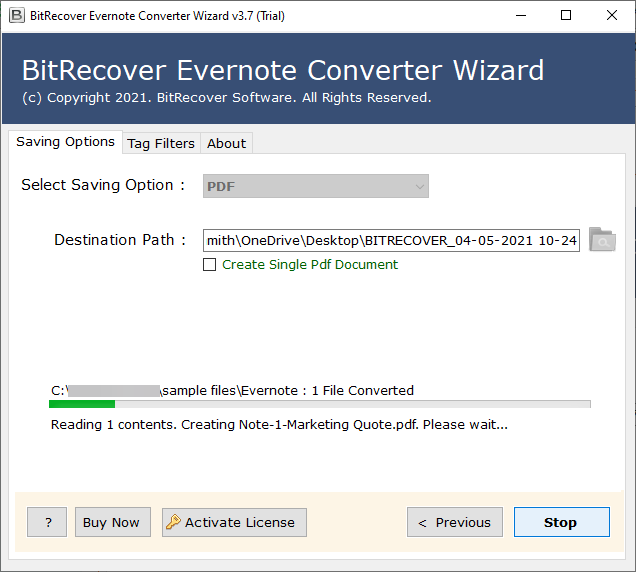
You may need to perform Evernote to OneNote migration due to multiple reasons. Evernote Converter offered and developed by experts of BitRecover. This solution is a one stop solution if you want to convert Evernote to OneNote note taking applications. It offers you a large number of advanced options and features.
All the steps offered by this solution are very quick and easy to understand and perform. You just need to understand the entire process and steps and you can generate best results as per your requirements. Below are the steps and features of this solution. Read carefully to understand the entire process.
Quick & Easy Steps of the Solution
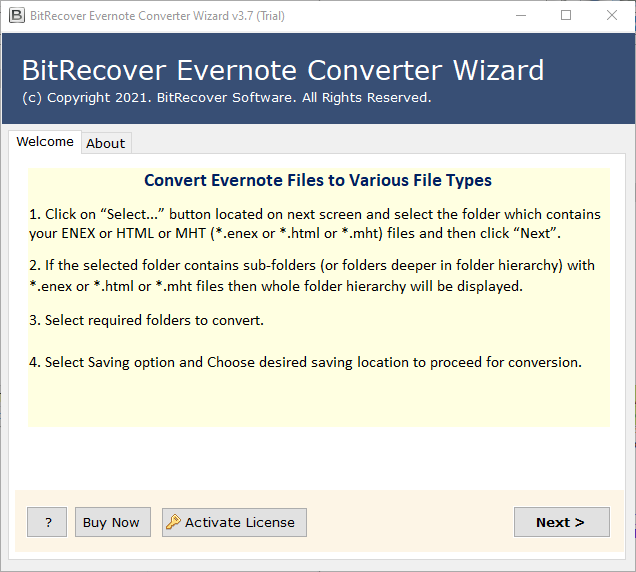
- Firstly, install the solution on your Windows & Mac.

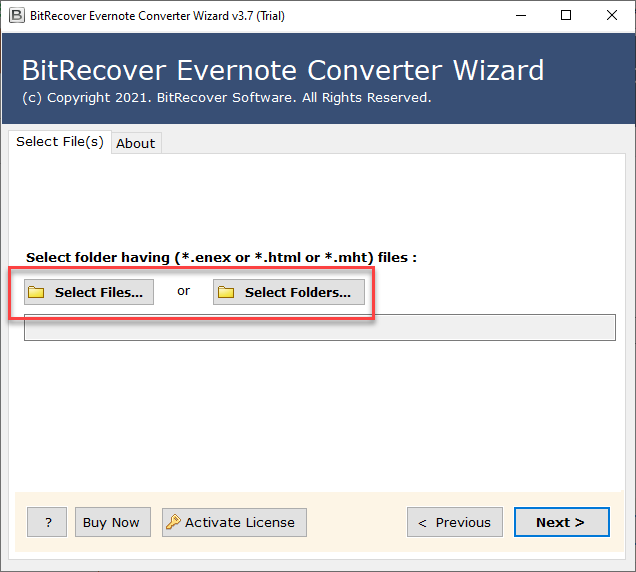
- Secondly, choose from Select Files & Select Folders to upload your data.
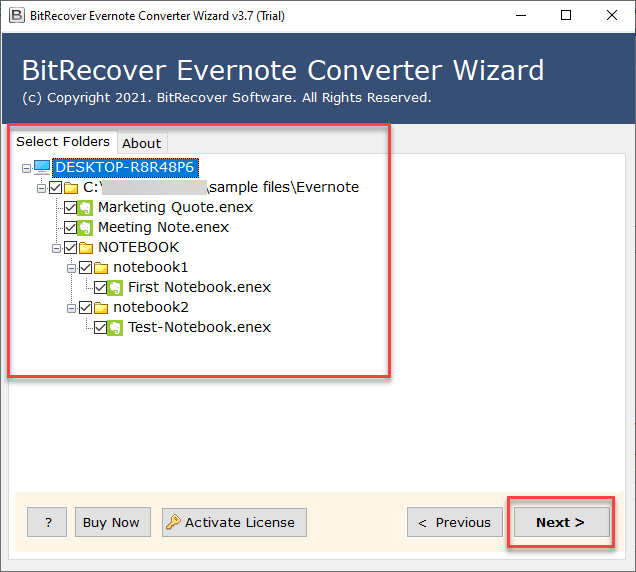
- Preview all the uploaded notes data carefully and click on Next.
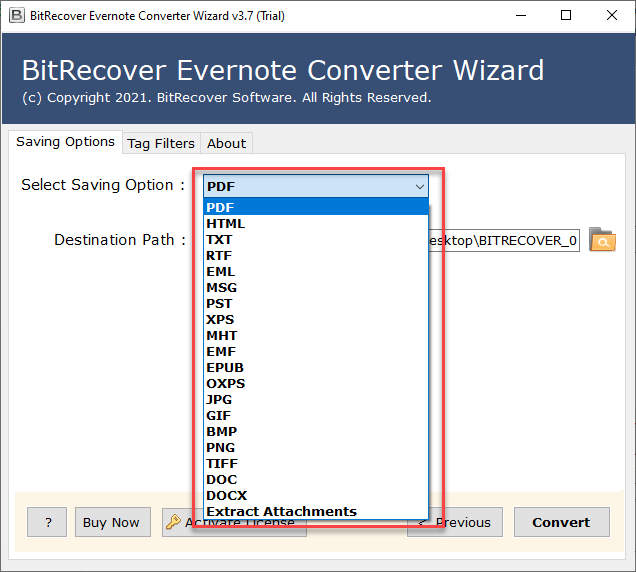
- Now, from the Select Saving Option choose .onepkg or .one file format.
- Now, choose a Destination Folder to save the final data
- Lastly, click on the Convert button to migrate Evernote to OneNote.
Why Does this Solution Stands Out?
- 100% Safe & Secure: This solution offers you a 100% safe and secure solution throughout the entire process.
- Standalone Tool: It is a standalone tool that performs Evernote to OneNote migration all by itself.
- Bulk Migration: you can easily migrate all your notes data in bulk without facing challenges.
- Dual Options: Offers two options to upload Notes files and Notes Folders as per your requirements.
- Advanced Features: Offers multiple advanced features to seamlessly migrate Evernote to OneNote.
Tips before you start the Migration
- Organize all your Evernote data and notebooks before exporting for a cleaner import.
- Always keep a backup of your Evernote/ENEX file in case something goes wrong or missing.
- Once the migration is done, manually add tags, as OneNote doesn’t support Evernote-style tagging.
- Don’t forget to re-check images, attachments, and tables to ensure they transferred properly
Conclusion
In conclusion to this blog, we have discussed the best ways to migrate Evernote to OneNote note taking platform. We have discussed manual methods as well as expert choice solutions. You need to go through all the solutions carefully and understand the entire process to get a result as per your requirements. I hope this blog was very helpful to you, if not or if there are any other queries you can get in touch with our Technical Support Team and clear all your doubts.