Fix VirtualBox Boot Errors & Recover Data from Corrupted VDI/VMDK Files

Published: January 15th, 2026 • 7 Min Read
VirtualBox is a highly renowned software tool that global users, be it Home or Professional, use for running multiple operating systems concurrently on their PCs. This software proves specifically helpful for those users who perform multiple tasks everyday using multiple operating systems for their specific personal or business goals & objectives.
As the efficiency of this tool does wonders for its users, just 1 error message can bring its entire workflow to a sudden and complete halt! This error message is commonly known as: “Fatal: No bootable medium found! System halted” or “Missing Operating System.” when the users see a Black screen instead of the login screen.
In this guide, we shall discuss the primary reasons behind this boot failure error and provide you with step-by-step instructions to fix it, using both manual and professionally-automated methods.
Why Does VirtualBox Display: “Missing Operating System” error?
Understanding and interpreting the core reasons behind the occurrence of this error is vital so that we can properly implement solutions (whether they are manual, automated, or both).
Further, it is important to note that VirtualBox, under most of the scenarios displays this error when the “virtual hardware” cannot find the “startup files” on the virtual disk. Others common reasons may include:
- Empty Storage Controller: The virtual disk (VDI/VHD) is not properly attached or mounted to the VM.
- Incorrect Boot Sequence: The VM is trying to boot from an empty CD/DVD drive instead of the hard disk.
- Disabled EFI Mode: Modern OS versions (like Windows 11) require EFI settings that might be turned off.
- Virtual Disk Corruption: The VDI or VMDK file has become corrupted due to improper shutdown or disk errors that may also include a Corrupt MBR or GPT.
Manual Ways to Fix VirtualBox “Missing Operating System” Error
1. Check the Virtual Storage Settings
The most common reason behind this error is that the VM is unable to detect its hard drive.
- Open VirtualBox and right-click on your VM (icon).
- Select Settings and go to the Storage menu.
- Check the Storage Devices tree. If it shows “Empty” under the Controller, click the Add Hard Disk icon.
- Choose your existing VDI or VMDK file and click OK.
2. Set the Correct Boot Order
If your VM is trying to boot from a floppy disk or an empty optical drive first, it will fail.
- Go to Settings > System > Motherboard.
- In the Boot Order section, uncheck “Floppy.”
- Select Hard Disk and move it to the top using the arrow keys.
- Click OK and restart the PC.
3. Enable EFI feature for Modern Guest OS
For newer versions of Windows or a 64-bit Linux distro, the VM may require EFI. In that case,
- Navigate to Settings > System.
- Check the box for “Enable EFI (special OSes only)”.
- Try to restart the VM and see if it boots correctly.
What to Do If the Virtual Machine Still Won’t Boot?
If you have tried implementing all the manual steps described as above and the error message “Missing Operating System” is still prevalent, then that indicates a deeper issue: Virtual Disk Corruption. When the header or the file system of your VDI, VHD, or VMDK file gets damaged or corrupted due to any reason(s), VirtualBox cannot read the OS.
In such cases, your priority must be to safeguard your data. We highly recommend using BitRecover Virtual Drive Recovery Software.
This utility is specifically designed to scan the “unbootable” virtual disks in an advanced or intelligent way and extract files that are otherwise inaccessible.
Why Choose BitRecover for VirtualBox Recovery?
- Recovers from Any Error: Easily handles “System Halted,” “Missing OS,” and “Kernel Panic” types of VM errors.
- No VM Required: You don’t need to fix the VirtualBox settings; the tool scans the disk file directly in an automated fashion.
- Supports All Formats: Seamless compatibility with .vdi (VirtualBox), .vmdk (VMware), and .vhd/.vhdx (Hyper-V) VM file formats.
- Deep Scan Technology: Retrieves data successfully even from formatted or deleted partitions within the virtual drive.
- Maintain Folder Structure: Recovers your files and data in their original state & hierarchy ensuring that the critical data is not lost.
Quick Steps to Extract Data:
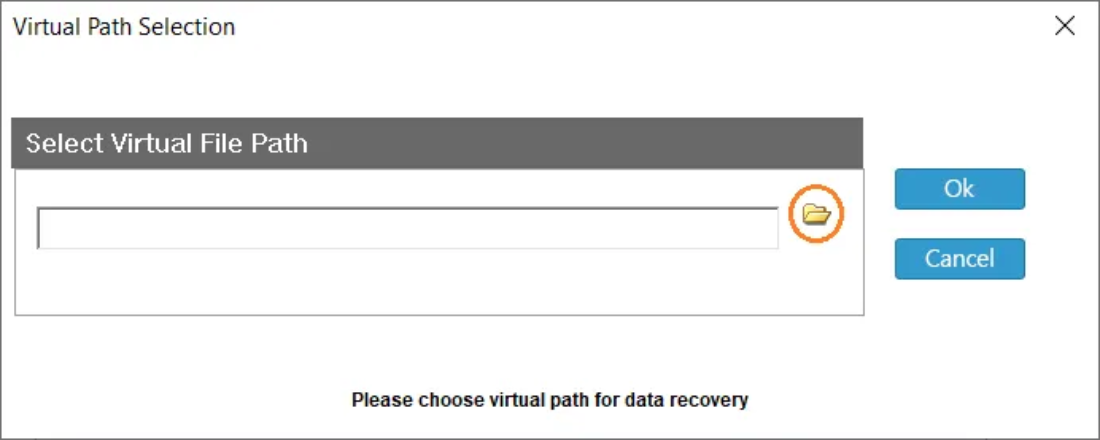
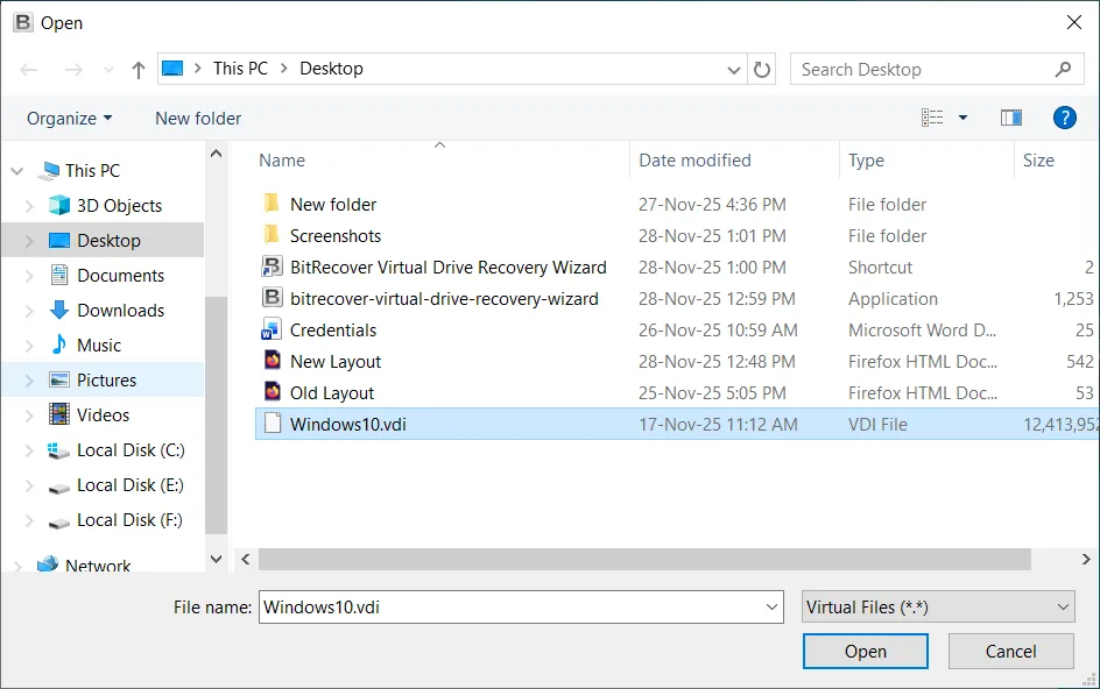
- Launch the software and select the path to corrupted or inaccessible virtual drive file.

- Browse and Upload the unbootable VDI or VMDK file.

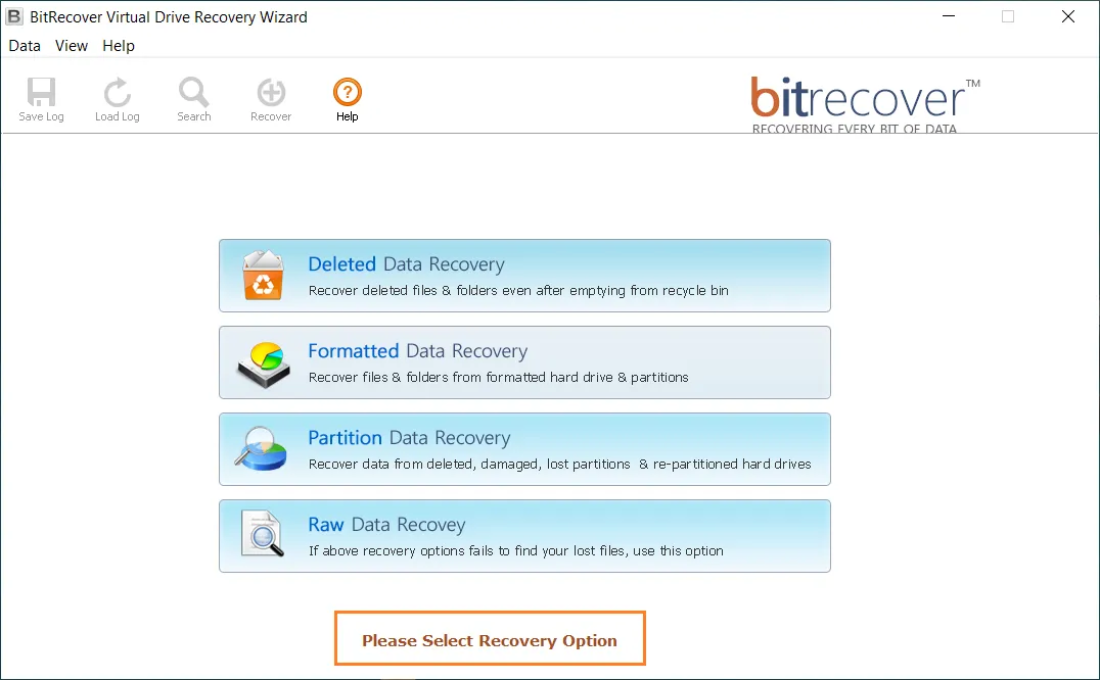
- Select the Scan Mode to find lost partitions.

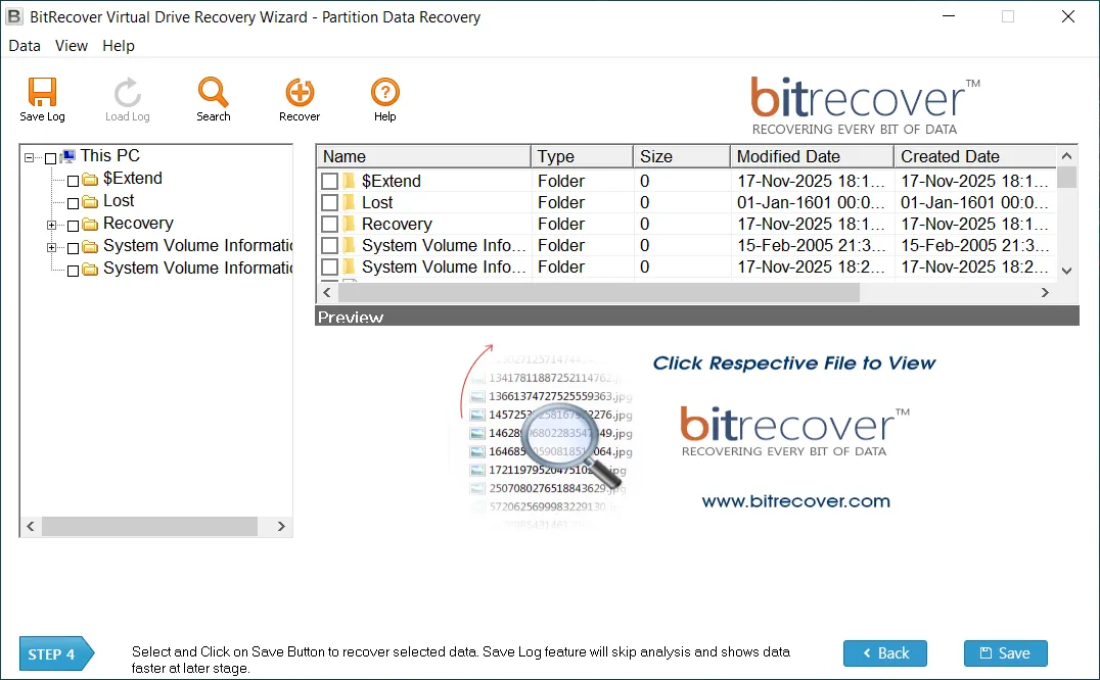
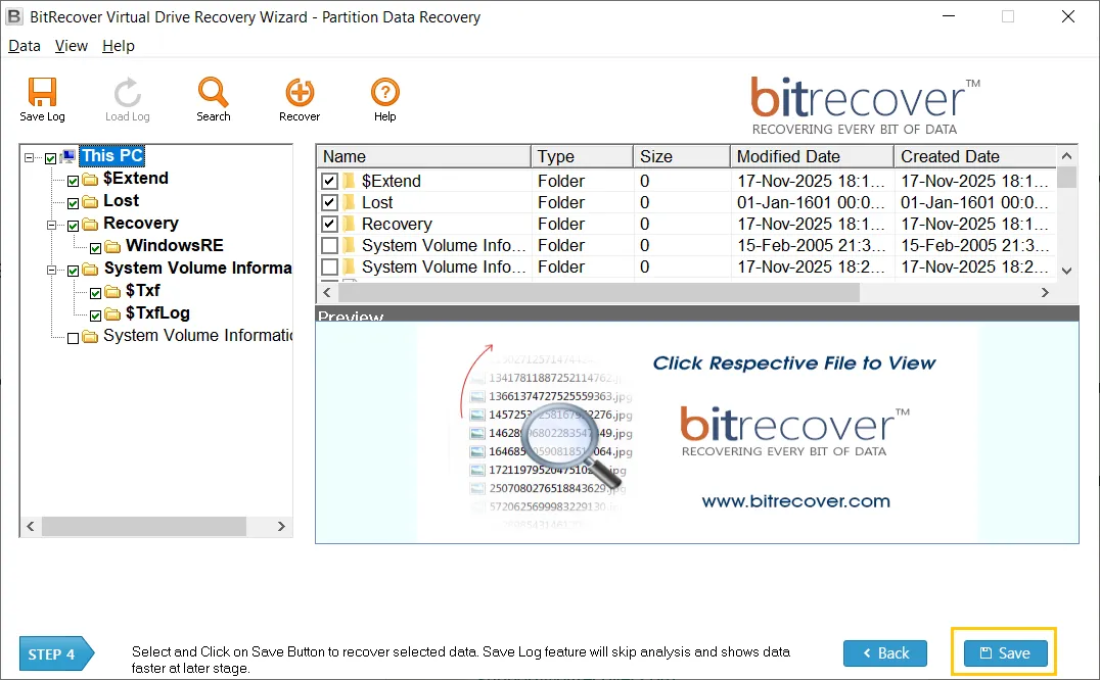
- Preview your folders and files in the software window.

- Click Save to restore your data to your physical computer.

Critical Risks and Limitations of Manual Troubleshooting
The fact of following a certain no. of quick manual steps for resolving the VM error may sound all-too-easy but a practical flip side of it is that if those (manual) steps fail to address the issue, they might complicate the already-existent, unsolved problem further.
It is therefore needless to mention that when it comes to handling/recovering critical data, one must prioritize professional tools over the (potentially) risky or dangerous manual methods. It is so because if any (amateur) user implements the manual methods improperly, without any professional guidance, that can make matters worse!
Some of the likely dangers of executing manual methods inaccurately are as below:
- Risk of Permanent Data Loss: Manual disk utility commands like chkdsk or bootrec can sometimes overwrite critical data sectors, making recovery impossible.
- Time-Consuming Trial and Error: Troubleshooting boot orders and EFI configurations can take hours, leading to significant downtime for your business or projects.
- No Solution for File Corruption: Manual steps only attempt to rectify the configuration issues. They cannot repair a corrupted VDI or VMDK header or a damaged file system.
- Complexity for Non-Techies: Executing powerful & sensitive data-oriented commands properly in the Terminal or Command Prompt require sufficient or deep technical knowledge about them. If done casually, they carry big risks such as accidental disk formatting, irrecoverable data loss or even other bigger issues.
- Lack of Guaranteed Results: Even after hours of manual effort, there is still no guarantee that a user’s Virtual Machine will boot successfully in case its internal structure is damaged or corrupted in partial or whole.
Hence, by bypassing these risky manual attempts and choosing this software tool, you eliminate the guesswork. Our tool provides a safe, reliable environment to extract your data, ensuring that your files remain non-tampered and fully recoverable regardless of how severe the boot failure is.
Conclusion
Thus, a “Missing Operating System” error in VirtualBox doesn’t always mean that our work is gone forever. Often, a simple tweak in the Storage or Boot Order settings will fix the problem. However, if the virtual disk itself is failing, a professional recovery tool is the safest way to ensure that your data remains intact.
Need help with your virtual disk? Download the free trial of this software and see your lost files instantly!