How to Fix “VirtualBox Failed to Load Boot0002” Error Permanently

Published: January 15th, 2026 • 9 Min Read
Imagine this: You’ve spent countless hours creating a perfect virtual environment using VirtualBox and after doing so, you have all your settings set, your files organized, and your workflow set. You hit “Start” and instead of booting into your guest OS, you get the following cryptic message:
“VirtualBox failed to load boot0002.”
For developers or students who need to finish a lab, this error can stop everything that you have done up to this point. It is incredibly frustrating because you feel like you have the keys to your car, but now the ignition will not recognize them.
Do not panic; this is not a “death sentence” for your virtual machine (VM). Most of the time, this happens because of either corrupt configuration files or a problem with EFI boot entries; Your data is likely still safe on the virtual disk. In this blog, we will provide you with a complete explanation about the possible causes behind this error and how to fix them so you can get your VM up ‘n’ running quickly. Plus, we shall also provide you with details on how to protect your data by using professional recovery tools, if necessary.
What Does “VirtualBox Failed to Load Boot0002” Mean?
To fix the problem we must first understand what we need to fix by taking a little deeper look into the computer’s “Language”. All modern computers and therefore all modern Virtual Machines use an EFI based model to control the way the operating system loads and runs on the machine.
In the EFI language, Non-Volatile RAM (NVRAM) stores “Boot0002,” which is basically a pointer from one place to another place on the motherboard of the virtual machine. The VirtualBox software uses Boot0002 to direct it where to find the boot loader of the guest operating system (Windows, Linux…etc.)
However, when the software attempts to use Boot0002 to find the proper instructions, it returns a message indicating “failed to load boot0002” which means that it was looking for that specific direction (Boot0002) but instead received a blank page or corrupt file.
So the actual “map” that is supposed to take you to your operating system is missing even though the actual “destination” (your data) is still present on disk.
Common Causes Behind the Boot0002 Error
Why did it happen all of a sudden? It is usually a combination of factors, not just one:
Most Frequently:
- Incomplete VirtualBox Updates: Sometimes when VirtualBox updates are released, the virtual machine settings change to match the new engine. This change may cause a mismatch between the old engine version and the new VirtualBox software.
- Moving VM Files: You moved your virtual machine files (i.e., .vbox/.vdi) to a different drive or folder. This action may result in broken internal paths for your virtual machine.
- Unexpected Power Shutdowns: An unexpected power shutdown occurred. If the host machine suddenly crashed due to that, there is a high possibility that the NVRAM settings of the guest machine will become corrupted as a result.
- Snapshot Conflicts: In case a snapshot was taken or restored incorrectly and interrupted during this process, the boot variables may have become “tangled” together due to the way they were saved.
- Host File System Errors: Your host’s filesystem includes Bad Sectors where the virtual machine is stored. When a physical drive contains bad sectors, it becomes impossible for VirtualBox to properly access the boot files and boot the virtual machine.
The Quick Checklist: Try These First!
The first step will be to attempt a few forms of simple first aid (that can help correct errors in about 30% of the cases):
- Perform a Complete Restart of the Host Machine: While this may seem trite, many of the processes running on the VirtualBox driver can become stuck and require a complete system restart to clear them.
- Run VirtualBox as an Administrator: To run VirtualBox as an administrator, right-click the VirtualBox icon and select Run as Administrator. Sometimes the issue is related to elevated permissions.
- Verify the Path to Your VDI: In the VirtualBox Manager, click on the Settings icon and navigate to the Storage section. After that, verify that the path to the created Virtual Disk Image (VDI) is valid and the Virtual Disk Image is attached to your virtual machine. If you see a red exclamation mark, your Virtual Disk Image is either not attached to your virtual machine or there is a path error.
- Disable EFI if unnecessary for your OS: If your Operating System does not require EFI, consider unchecking the Enable EFI option located in the Motherboard section of the Settings section of VirtualBox. (Note: Only do this if you know your OS was installed in Legacy/BIOS mode).
Step-by-Step Manual Fixes for Boot0002 Error
If the quick checks didn’t work, it’s time to get a bit more hands-on. Follow these methods carefully.
Method 1: Manually Selecting the Boot File via EFI Shell
If VirtualBox drops you into an “Interactive Shell” (a yellow and black text screen) when the error occurs, you can manually point it to the boot file.
- In the shell, type
fs0:and hit Enter. (This selects the first file system). - Type
edit startup.nsh. - In the editor, type the path to your EFI file. For Windows, it’s usually:
\EFI\Microsoft\Boot\bootmgfw.efi - Save the file (usually F2) and exit (F3).
- Restart the VM.
Method 2: Re-registering the Virtual Machine
Sometimes the internal database of VirtualBox gets confused. Refreshing it can help.
- Right-click your VM in the list and select Remove.
- Choose “Remove only” (DO NOT delete files!).
- Go to the folder on your computer where the VM is stored.
- Double-click the
.vboxfile to re-add it to the list.
Method 3: Modifying the .VBOX XML File (Advanced)
Warning: Back up your .vbox file before trying this!
- Close VirtualBox completely.
- Open your
.vboxfile in a text editor like Notepad++. - Look for the
<ExtraData>section. - Check if there are strange entries related to “GuestProperty” or “Boot” that shouldn’t be there. If you have a working VM, compare the two files and see if any EFI variables look truncated.
The Hidden Risks: Limitations of Manual Fixes
DIY or Manual fixes may appear to be a great way for an average user to save money. However, it must be recognized that for average users, the time spent on troubleshooting a damaged VM can well exceed its cost.
Likely risks include:
- Potential for Permanent Data Loss: A single erroneous command in the EFI shell or mistakenly clicking on “Delete all files” will erase everything stored on your virtual disk.
- Complexity for a Technical Novice: Editing an XML code and/or navigating through a shell command-line may seem daunting or overly complicated to a person with little or no experience in technology and therefore a high likelihood of error-occurrence exists.
- Incomplete Recovery: Restoring a VM to a bootable state may too result in a RAW or corrupted file system.
When to Choose a Professional Solution: BitRecover Tool
If you have tried the steps above and the “VirtualBox failed to load boot0002” error persists, or if the data inside that VM is critical (business documents, unique code, or family photos), it is time to stop experimenting and start recovering.
BitRecover VDI Recovery Software is designed specifically for these “worst-case scenarios.” Unlike VirtualBox, which needs a perfect configuration to boot, BitRecover doesn’t care if the bootloader is broken. It dives directly into the .vdi, .vhd, or .vmdk file and pulls your data out safely.
Why BitRecover is the Top Choice:
- No VM Needed: You don’t even need to open VirtualBox to get your files back.
- Deep Scan Technology: It can find files even if the virtual disk has been formatted or the partition table is missing.
- User-Friendly: Designed for novices. If you can click “Next,” you can recover your data.
- Preview Feature: You can see your files before you commit to the recovery process.
Don’t let a “Boot0002” error stand between you and your hard work. While manual fixes are a great first step, BitRecover is the ultimate safety net for your virtual life.
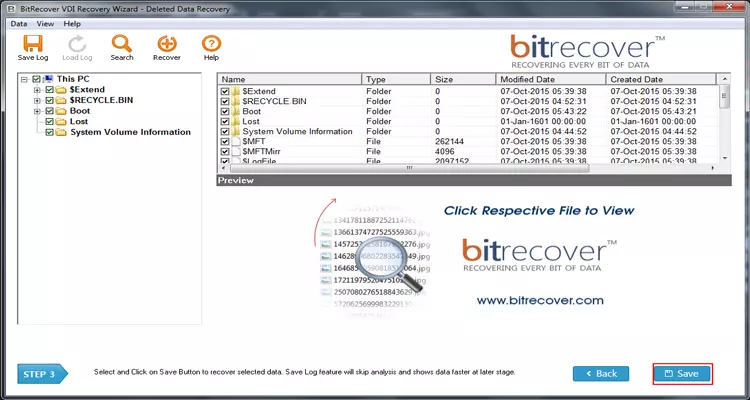
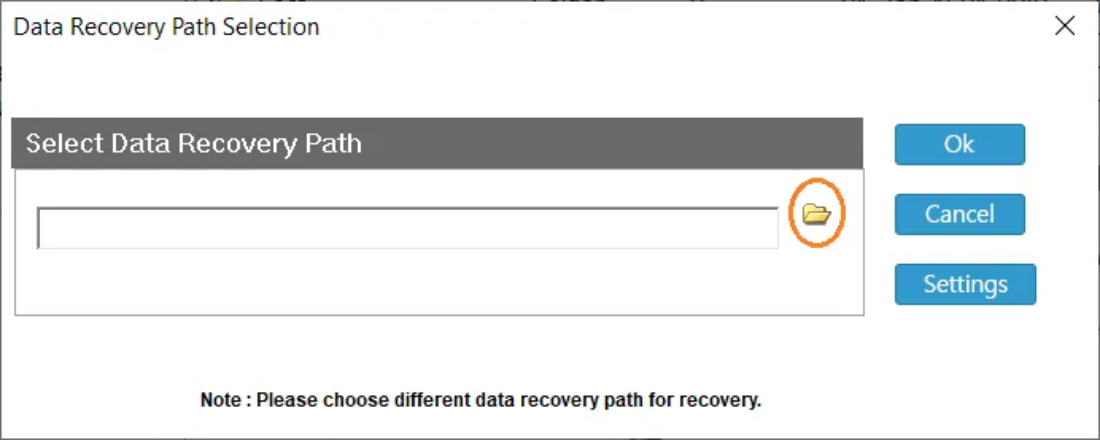
Simple Recovery Steps Using BitRecover Software
- Open the tool on your host machine.

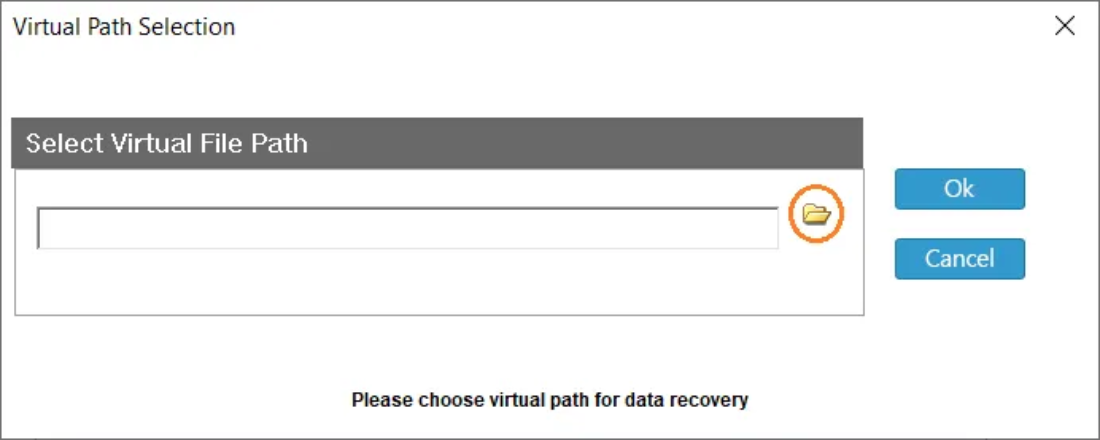
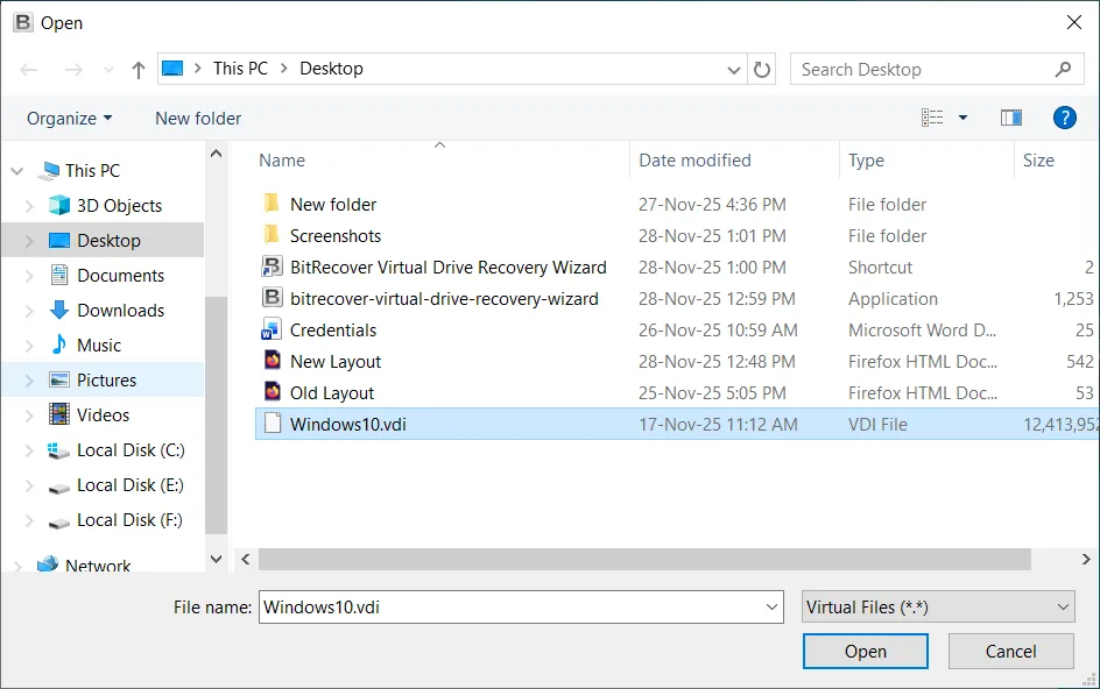
- Select the virtual disk file (VDI, VMDK, VHD) that VirtualBox can’t boot from.

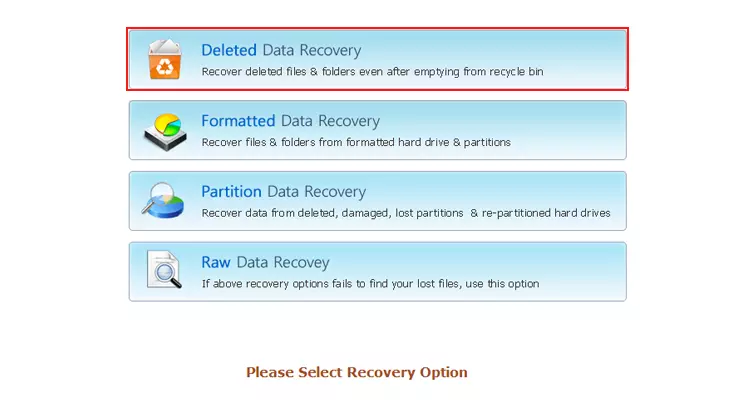
- Choose the Appropriate Recovery option for recovering data from the virtual disk file.

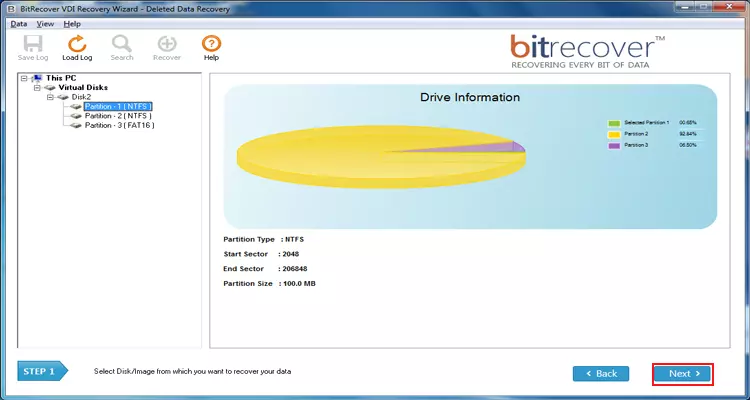
- Select & Scan the Drive Partition and wait while the software finds recoverable files.

- Preview results and choose the files or folders you want to save.

- Save recovered data to a new folder on your host.

Frequently Asked Questions (FAQ)
1. Am I going to lose my data if I see Boot0002 Error?
No, the Boot0002 error is usually related to the boot instructions of the OS and not the data, so all of your files should still exist within the VDI file safely.
2. Is this error only encountered on Mac or Linux Hosts?
No, because this error is primarily related with the VirtualBox EFI layer (the Virtualization layer) and occurs regardless of the OS configured on the host computer, be it Windows, Mac OS X or Linux.
3. Do you have any tips on how to avoid getting this error again in the future?
The best way to prevent encountering this error is to ensure that when you shut down your Virtual Machine (VM), you do it through the Guest Operating System by clicking on the Start button then shutting it down. It is not advisable to just click on Power Off in the VirtualBox window.
Conclusion
The “VirtualBox failed to load boot0002” error is a frustrating hurdle, but it’s one you can clear. By understanding that it’s simply a “missing map” in your EFI settings, you can use the EFI shell or configuration refreshes to get things moving again.
However, always remember that virtual environments are fragile. Always keep backups, and if you find yourself stuck in a loop of errors, don’t risk your data. Prefer and prioritize to use a trusted tool like BitRecover in order to secure your data first.
Need help getting your data back right now? Download the BitRecover software and see how easy it is to restore your virtual world.