How to Fix VirtualBox “Failed to Load BOOT0001” Error

Published: January 15th, 2026 • 5 Min Read
What This Error Means In Simple Words
Imagine your virtual machine is a toy car and the boot device is its battery. When VirtualBox says Failed to load BOOT0001, it’s like the car saying, “I can’t find my battery.” The VM tried to start but didn’t find anything to boot from, or the “battery” (the virtual disk) is broken.
Causes Behind “Failed to Load BOOT0001” Error
- Wrong boot order — the VM is trying to start from an empty drive instead of the hard disk or installer ISO.
- Missing or detached disk — the virtual hard disk file (VDI, VMDK, etc.) is not attached to the VM.
- Corrupted virtual disk — the file that stores your virtual machine’s data is damaged.
- Controller mismatch — the disk is attached to the wrong controller type (IDE vs SATA).
- Moved files or wrong paths — VirtualBox can’t find the disk because it was moved or renamed.
Easy Step-By-Step Manual Fixes to Resolve This Error
1. Check the boot order
- Open the VM Settings → System → Motherboard.
- Make sure Hard Disk or Optical (if using an ISO) is first in the boot order.
- Save and start the VM.
2. Re-attach the virtual disk or ISO
- Go to Settings → Storage.
- If you use an ISO installer, ensure the ISO is attached to the optical drive.
- If you use a virtual hard disk, confirm the VDI/VMDK is listed and not marked missing.
3. Verify the virtual disk file on the host
- On your host computer, find the VM folder and check the virtual disk file exists and has a normal file size.
- If the file is missing or zero bytes, don’t delete anything; make a copy first.
4. Try a different controller
- Remove the disk from the current controller and add it back as SATA if it was IDE, or vice versa.
- Some VMs boot only when the disk is on the expected controller.
5. Create a fresh VM and attach the existing disk
- Make a new VM with the same OS type and attach the existing virtual disk.
- This gives the VM a clean configuration while keeping your data.
When The Disk Gets Corrupted Use Our Professional Solution
If the virtual disk file is damaged, the VM may never boot until the disk is repaired or its data is recovered. That’s where BitRecover Virtual Drive Recovery Wizard comes in. It is designed to read virtual drive files and recover files and folders even when the VM won’t start.
How BitRecover Helps in “Failed to Load BOOT0001” Error
- Supports common virtual formats such as VDI, VMDK, VHD, and others.
- Scans corrupted virtual disks to find recoverable files and folders.
- Shows a preview of recoverable items so you can pick what you need.
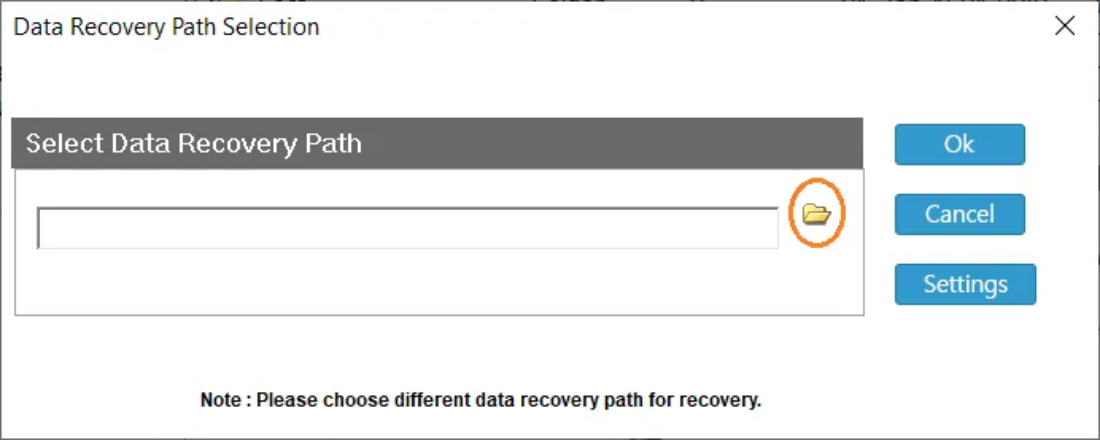
- Saves recovered data to a safe location on your host machine so you can rebuild or attach a healthy disk.
Simple Recovery Steps Using BitRecover Software
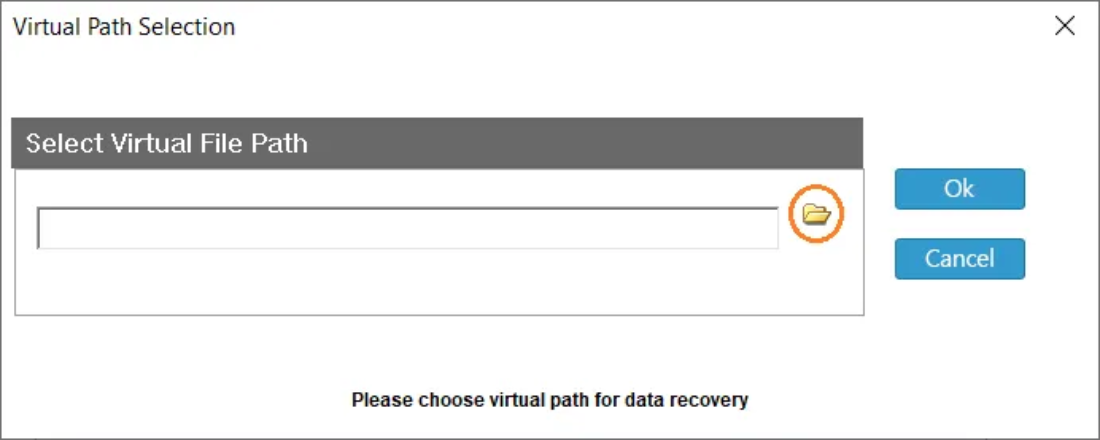
- Open the tool on your host machine.

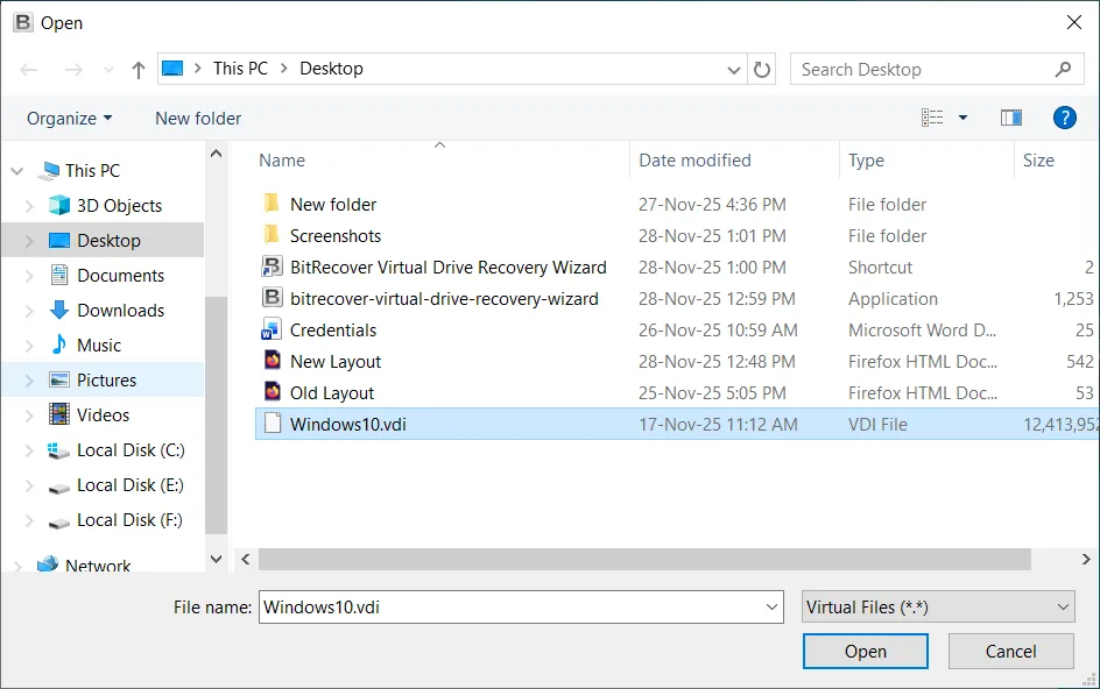
- Select the virtual disk file (VDI, VMDK, VHD) that VirtualBox can’t boot from.

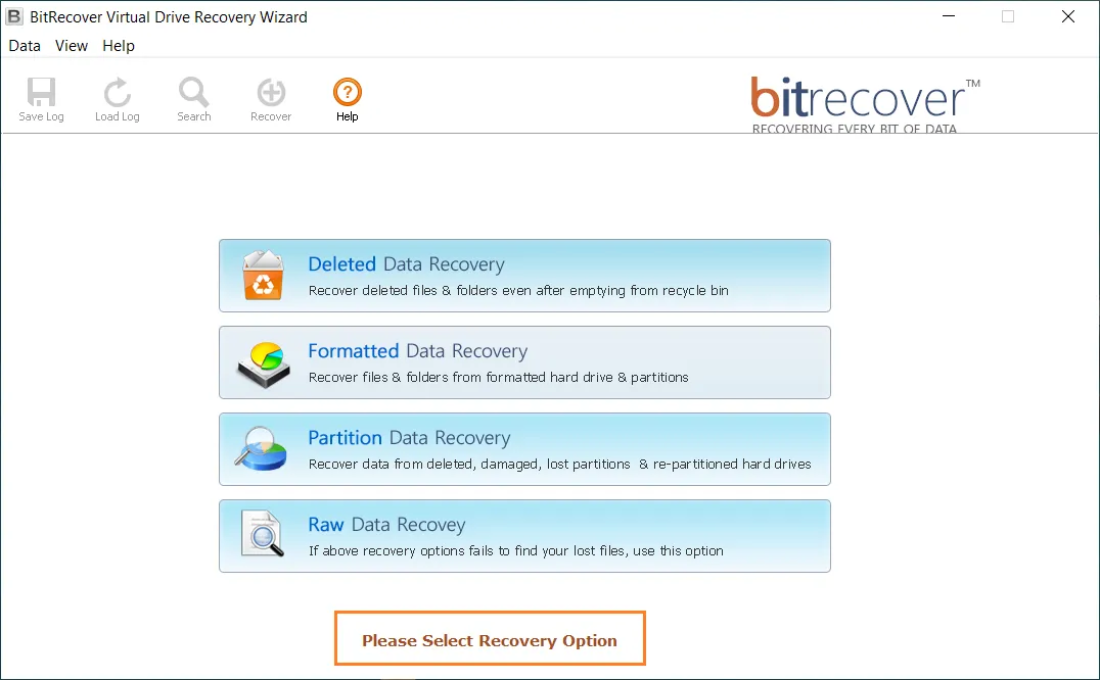
- Choose the Appropriate Recovery option for recovering data from the virtual disk file.

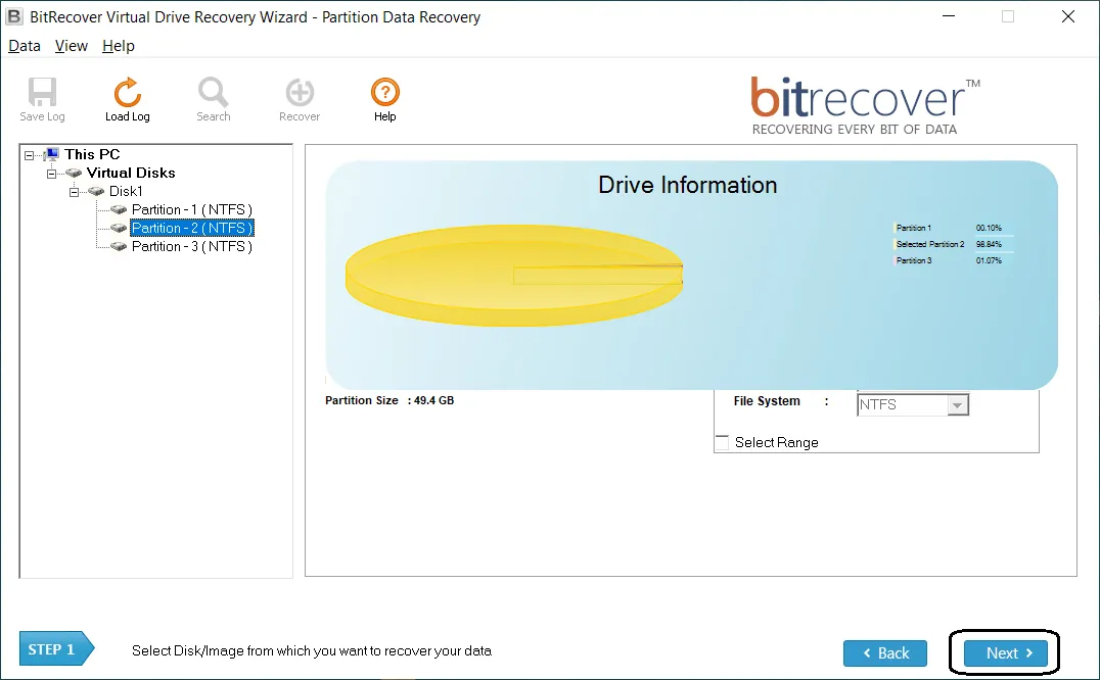
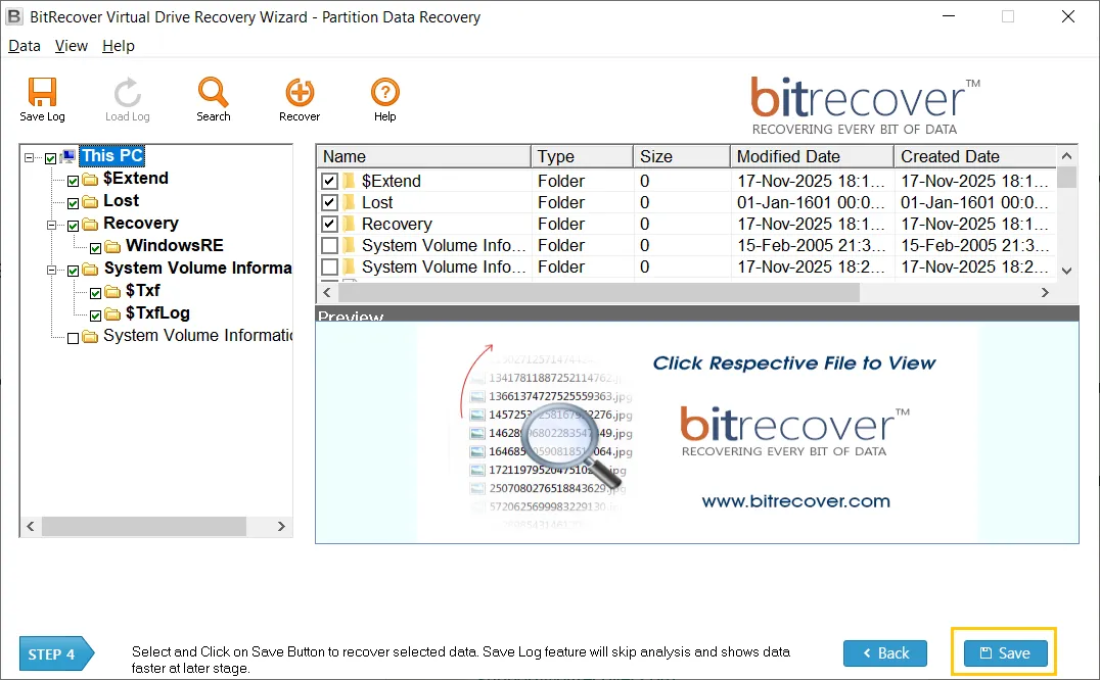
- Select & Scan the Drive Partition and wait while the software finds recoverable files.

- Preview results and choose the files or folders you want to save.
- Save recovered data to a new folder on your host.

Your Quick Troubleshooting Checklist
- Is the ISO valid? Mount it on the host to check.
- Is the virtual disk present and non-empty? Check file size.
- Did you move VM files? Update paths in VirtualBox settings.
- Is the VM controller correct? Try switching IDE ↔ SATA.
- Is the disk corrupted? If yes, use BitRecover to recover files before attempting repairs.
Preventive Tips to Avoid BOOT0001 Later
- Keep backups of your VM folder and virtual disk files.
- Take snapshots before big changes so you can roll back.
- Store ISOs and disks in stable folders and avoid renaming or moving them.
- Shut down VMs properly instead of forcing power off.
- Test recovered files on a new VM before deleting the old disk.
Final Words:
Failed to load BOOT0001 is commonly a very easy error to resolve when it’s a boot order or attachment related issue. But in case, the virtual disk is corrupted, recovering your files and data becomes the top priority. Our professional software helps you rescue data from the damaged VDI, VMDK, or VHD files so you can rebuild a working VM without losing important documents or settings. Start with the easy checks initially (boot order and storage settings), and if the disk looks damaged, recover files first and then recreate or repair the virtual disk.