How to Fix “Virtual Disk Service Error”

Published: January 23rd, 2026 • 8 Min Read
Picture This: You’re right in the middle of a critical server migration or perhaps just trying to extend a partition on your virtual machine. You open Disk Management or fire up Diskpart, and then it happens: a pop-up window or a command-line message bluntly states:
“Virtual Disk Service Error.”
Extremely Frustrating Sight! Does this mean your data is gone? Is the virtual drive corrupted? For IT administrators and technical users globally, this error is a notorious “workflow killer.” It stops you from formatting drives, changing drive letters, or initializing new disks.
In this guide, we shall explore exactly why this error occurs and, more importantly, provide you with the exact steps to fix it. Whether you are a system administrator or a tech-savvy novice, this guide will help you get your Virtual Machine (VM) back on track quickly.
What Exactly is the Virtual Disk Service (VDS) Error?
Before we delve into the details of “how-to,” let us understand about the “what.” The Virtual Disk Service (VDS) is a Microsoft Windows service that is majorly for handling storage management tasks. It acts as the intermediary between the Operating System and your storage hardware (or virtual hardware like VHD, VHDX, or VMDK files).
When you see a “Virtual Disk Service Error,” we may understand it this way that it’s essentially the OS saying: “I tried to talk to the storage controller, but the line is busy, disconnected, or the instructions I received make no sense.”
It is important to note that this error is not exclusive to one scenario. It may appear in various forms, such as:
- “The service failed to initialize.”
- “The volume size is too big.”
- “The disk is not empty.”
- “The operation timed out.”
Why Is This Happening? Common Causes Explained
Identifying the underlying issue is a significant part of solving the problem. Drawing from our deep knowledge of the virtual platforms like Hyper-V, VMware, and VirtualBox, below are the major factors that you must consider and address, if present:
- Inactive Services: The VDS service in your system is either configured to ‘Manual’ or it has been turned off.
- Corrupted Filesystem: The internal organization of your virtual disk (NTFS/ReFS) may be compromised due to an improper shutdown.
- Connectivity Issues: A malfunction or disruption in the communication between VM and the physical storage of the host.
- Drive Letter Conflicts: The operating system tries to designate a drive letter that is already “ghosted” or set aside for another device.
- Security Software Settings: Extremely strict rules or settings in Antivirus or Firewall policies may prevent changes at the disk level.
The Quick Checklist
Before diving into complex technical solutions, consider trying these low-risk approaches first. Often, they provide the most sought-after solution.
- Reboot the Host and Guest: It may appear trivial, but a new restart can eliminate hung processes and reset the VDS handshake.
- Disable Antivirus: Temporarily disable your Antivirus software and see if the error continues.
- Virtual Disk Accessibility: Confirm that another application running in the background is not utilizing the .vhd or .vmdk file or that an active backup process is not restricting its usage.
- Administrative Permissions: Verify that you are running Command Prompt or PowerShell with the right administrative privileges.
Manual Fixes: How to Resolve “Virtual Disk Service” Error
Method 1: Restart and Re-configure the VDS Service
If the service isn’t running properly, nothing else will work. Follow these steps to reset it:
- Press Windows + R, type
services.msc, and hit Enter. - Scroll down to find Virtual Disk.
- Right-click on it and select Properties.
- Change the Startup type to Automatic.
- If the service is already running, click Stop and then Start to refresh it.
Method 2: Using Diskpart to Clean the Disk
Sometimes, leftover metadata on a disk prevents it from being modified. Using the clean command can “reset” the disk’s state.
Warning: This command will erase all partition information on the selected disk. Proceed with caution!
- Open Command Prompt as Administrator.
- Type
diskpartand press Enter. - Type
list diskto identify your target drive. - Type
select disk X(Replace X with your disk number). - Type
clean. - Once finished, try to initialize the disk again through Disk Management.
Method 3: Enable Automount
In virtual environments, the system might fail to automatically mount new volumes, triggering the error. You can fix this via Diskpart:
- In the Diskpart prompt, type
automount. - If it says “disabled,” type
automount enable. - Type
exitand restart your VM.
The Reality Check: Limitations of Manual Fixes
The manual repairing process is appropriate for a simple configuration error, but understanding the risks and potential damages associated with manual troubleshooting steps is important.
- Permanent Data Loss: The commands to clean and format, for example, can result in irreversible and total loss of all your data in case you mistakenly select the wrong disk index.
- Costly Time Delay: Although it may take over an hour or several hours to conduct manual tests, there is no guarantee that these tests will lead to any results which ultimately cost businesses.
- Crash/Abrupt Shutdown: You must handle the Command Line Interface (CLI) with great caution and care. In case you do not have sufficient experience working with the CLI program, please be very cautious because just one error can cause a system crash.
- Physical Disk Damage: You cannot either repair or recover lost data from a drive that is physically damaged by executing clean command on it. However, what may happen is that this act of “cleaning” the drive can make it either totally unreadable or unusable.
The Pro Way: Recovering Data from a Failing Virtual Disk
If the manual fixes do not work and you find out that the Virtual Disk Service error is a sign of corrupted virtual drives, you do not want to lose all the databases, documents and configurations that are stored on them.
This is why BitRecover software is here to help. The BitRecover Virtual Drive Recovery Software is created specifically to deal with these conditions when your data is at risk and you can’t use Windows Services; The BitRecover tool communicates directly with the virtual disk file structure instead of using the corrupted Virtual Disk Services.
Why choose BitRecover for VDS Errors?
- There is No dependency on VDS. The software is capable of reading the .VHD, .VHDX, and .VMDK file formats independent of VDS’s ability to work properly.
- Deep Scan Technology allows the recovery of data from deleted, formatted or severely corrupted partitions that Windows will not allow access to.
- Preview Your Data: Before proceeding with recovery, you can view your files in the software before proceeding to recover them.
- User-Friendly Design: With an easy to use wizard-based interface, you do not need to have a programming background or learn how to enter complicated commands into the software.
Simple Recovery Steps Using BitRecover Software
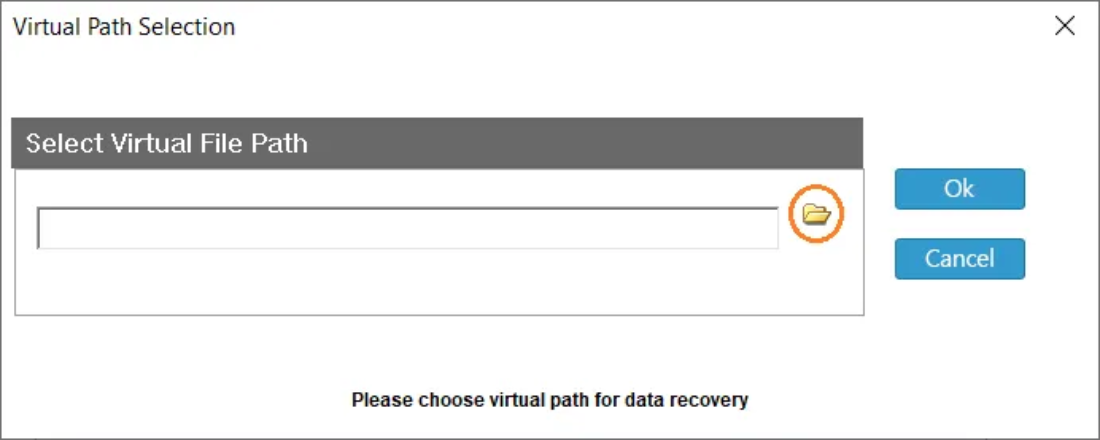
- Open the tool on your host machine.

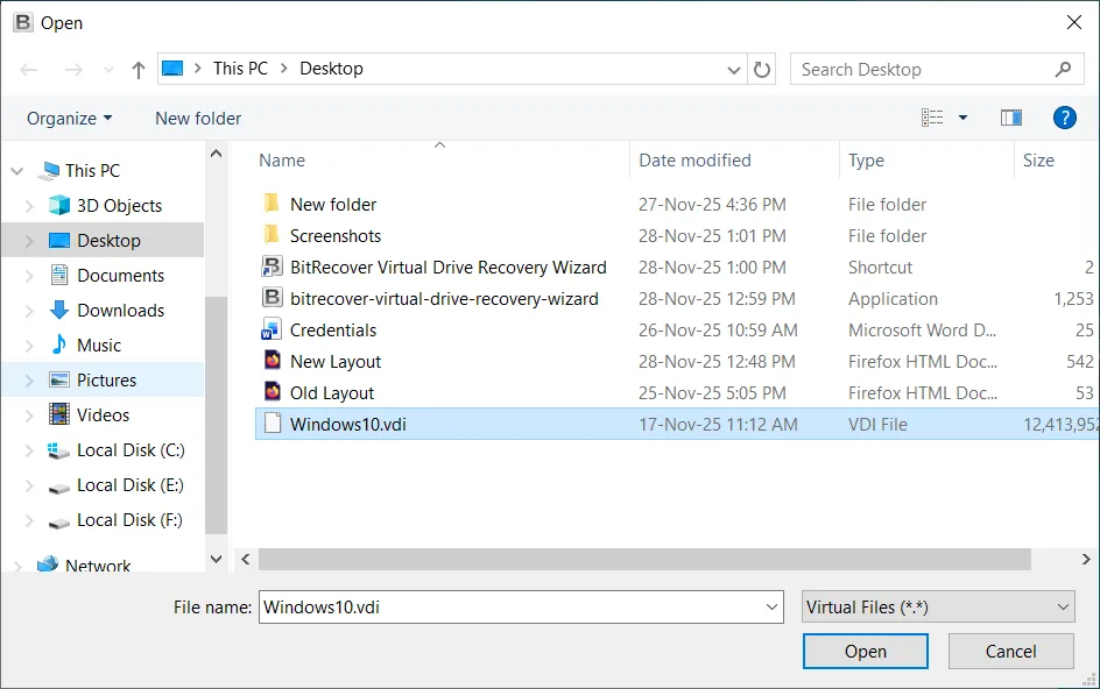
- Select the virtual disk file (VDI, VMDK, VHD) that VirtualBox can’t boot from.

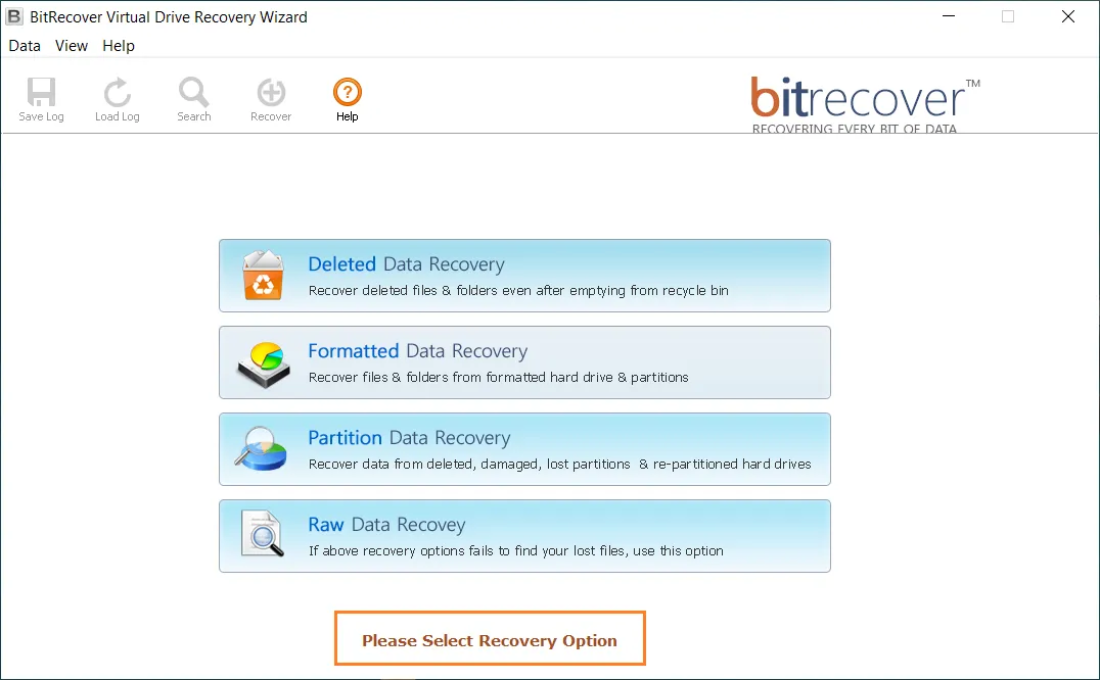
- Choose the Appropriate Recovery option for recovering data from the virtual disk file.

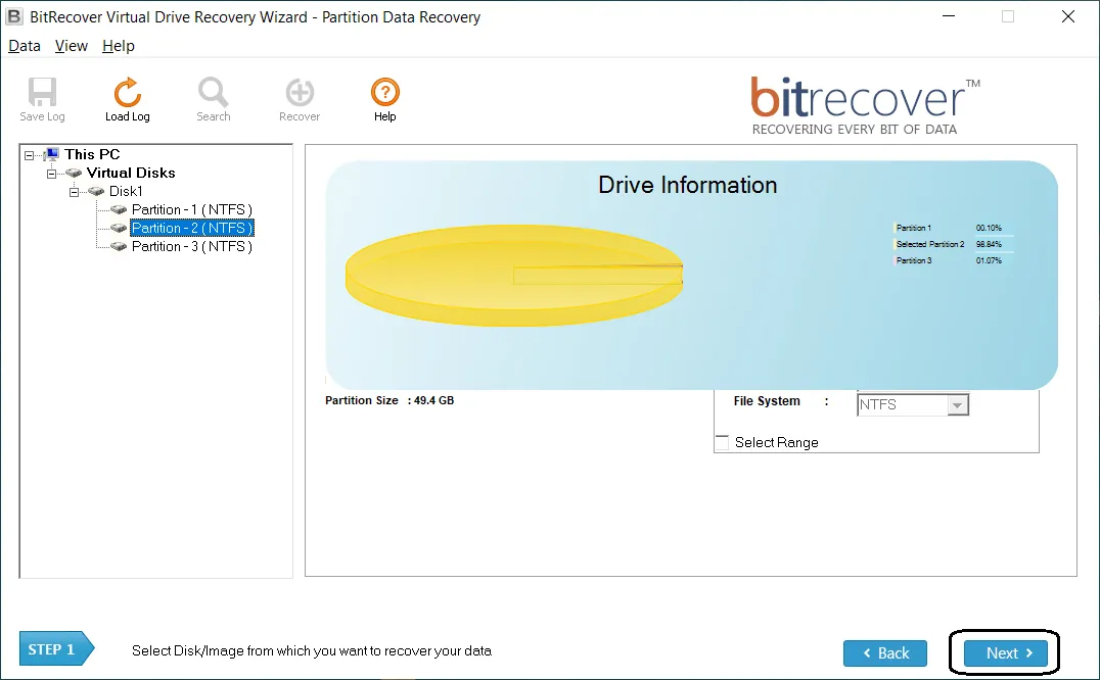
- Select & Scan the Drive Partition and wait while the software finds recoverable files.

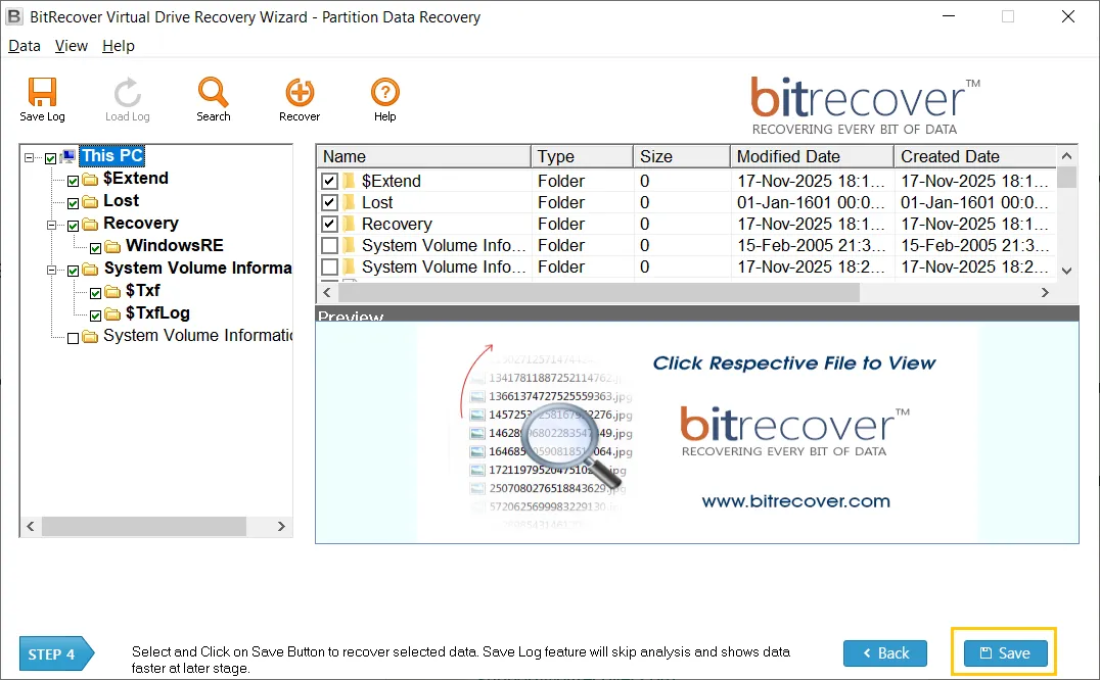
- Preview results and choose the files or folders you want to save.
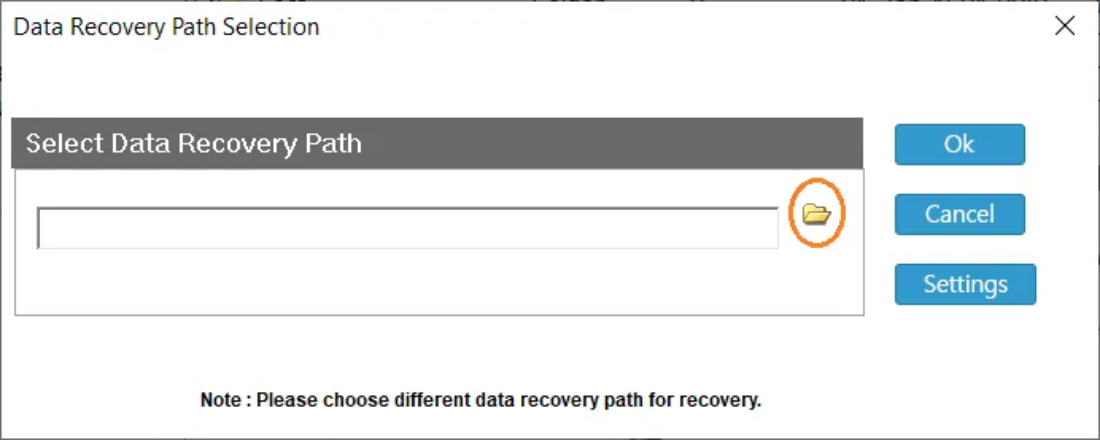
- Save recovered data to a new folder on your host.

Frequently Asked Questions (FAQ)
1. Can Windows Update trigger Virtual Disk Service error(s)?
Updates can sometimes reset permissions on services and/or cause bugs in the storage driver’s stack that will produce this type of Virtual Disk Service error(s). Rolling back the updates or stopping and restarting the service should fix it.
2. Does Virtual Disk Service Error indicate a physical hard drive is failing?
Not necessarily. While physical bad sectors on the host could cause the issue, more often than not, Virtual Disk Service error is either caused by a software or configuration issue in the Windows operating system.
3. Is it possible to resolve this Virtual Disk Service error without losing any of my data?
If an OS service was stopped, then yes. However, if the Virtual Disk Service error occurred due to resizing a partition or initializing a disk, there is a significantly greater chance of losing data. If your data is important to you, always use a professional recovery tool (e.g., BitRecover) to recover your data prior to attempting to repair the failure.
Conclusion:
The Virtual Disk Service error can be frustrating, but it doesn’t have to be a complete disaster. Start with the basics of checking services and executing Diskpart, which will help you to resolve most of the configuration-related issues.
However, if this error indicates more serious problems with your virtual disk service, do not put your data at risk by trying to fix it through trial and error. Professionals use BitRecover to assist them in recovering from a damaged disk service to a successful recovery. Keep calm, follow the advice, and your virtual environment will be up and running smoothly and quickly.
Need help with a specific VM error? Reach out to our technical support team today!