How to Fix VirtualBox Error in supr3hardenedwinrespawn

Published: February 10th, 2026 • 9 Min Read
Imagine this: You’ve spent hours setting up the perfect development environment or a sandbox for testing a critical new piece of software. You click “Start” on your VirtualBox machine, expecting to see that familiar boot screen. Instead, you’re greeted by a cold, cryptic pop-up: “Virtual Machine Error in supr3hardenedwinrespawn.”
If you are staring at your screen in frustration, you aren’t alone. This specific error is one of the most notorious “wall-of-text” hurdles for VirtualBox users. Whether you’re a home hobbyist or a professional sysadmin, this error can bring your productivity to a grinding halt. But don’t worry—this isn’t a “death sentence” for your data or your project. In this guide, we will break down exactly what this error means and, more importantly, how to get your virtual machine back up and running.
Understanding the supr3hardenedwinrespawn Error
The issue is rooted in how Oracle VM VirtualBox goes through a technical Phase called “Hardening.” To be able to run Virtual Machines (VMs), VirtualBox requires access to the deepest levels of the Operating Systems (OS) kernel. Because of this, VirtualBox instates a security measure called Hardening, which ensures that VirtualBox can only use and operate with components that are “Trusted” and “Digitally-Signed.”
The supr3hardenedwinrespawn error means that VirtualBox has detected something it does not recognize as a trusted component. This may be due to a third-party driver or software, a Windows update, or an Antiviral Software hooking into the VirtualBox process. To protect your host OS, VirtualBox will not allow the VM to start, which will give you an Exit Code 1.
Why Does This Error Happen? (Root Causes)
- Unsigned or Modified Drivers: Windows operates with only digitally signed drivers. If any driver in the virtualization chain has been modified by someone other than the manufacturer, VirtualBox will flag the error as an integrity issue.
- Antivirus and Security Suites: Many Antivirus programs today check the memory of the operating system. If VirtualBox sees this as a “threat” to the system’s integrity or an attempt to manipulate the system, it will generate a hardening error.
- Windows Update Conflicts: Any recent Windows update may have modified system files including
uxtheme.dllanduser32.dll, resulting in a discrepancy between the security signature expected by VirtualBox and the file’s actual security signature. - Hyper-V Conflicts: On occasions, Hyper-V’s built-in virtualization feature in Windows will attempt to interfere with VirtualBox and create issues with drivers.
- Permissions Issues: VirtualBox may not be able to access the permissions or registry entries for the VirtualBox driver
(VBoxDrv.inf)if the VirtualBox driver loses installation permissions during a Windows system update or due to a corrupted VirtualBox Installation.
Symptoms: How to Identify VirtualBox “supr3hardenedwinrespawn” Error
When VirtualBox encounters a hardening conflict, it doesn’t just stop; it usually provides specific visual cues and technical breadcrumbs. Recognizing these symptoms early can save you hours of troubleshooting. Here is what you should look for:
Exit Code 1: The most prevalent indication that VirtualBox has encountered a hardening conflict is the appearance of a small pop–up dialog when you push the “start“ button. This dialog box will have an entry at the bottom that lists “supr3hardenedwinrespawn“ and will generally display either rc=-104 or Exit Code 1. This is an unmistakable sign that this is a legitimate hardening failure.
Instant VM Window Closure: In certain situations, you won’t even have a chance to see the console window that you would typically see before launching a virtual machine. You’ll notice the “Starting” bar hits either 20% or 40% and soon after that the application simply disappears from your view. When you return to the VirtualBox Manager, instead of showing a powered-off state for your VM, it will now show the state as “Aborting.”
The “Verification Failed” Log Entry: Go into the VM log folder and find VBoxHardening.log. You will see entries stating 'supR3HardenedWinVerifyProcess' and a following line stating 'verification failed' or 'LdrLoadDll: entry not found'. This shows you the fact that the hypervisor is rejecting something on the host Windows Operating System (OS).
The “Stuck” Progress Bar: Sometimes, the VM window opens but remains completely black. If you look at the bottom right corner of the window, you’ll notice the disk activity and CPU icons are not blinking. The hardware has been initialized, but the hardening process has “respawned” a failure that prevents the OS from actually loading.
Host System Driver Warnings: Occasionally, Windows itself might throw a notification in the Action Center stating that a driver was blocked from loading. This is a clear sign that the VirtualBox kernel driver (VBoxDrv) is being hindered by Windows’ Core Isolation or a third-party security tool.
Quick Checklist: First Actions to Take
There are simple solutions to try first before doing more complex repairs on VirtualBox These “low hanging fruit” options may solve the problem for approximately 30% of users.
- Restart Host PC: This is usually an easy way to release driver sessions if they were stuck and it will also complete pending Windows updates.
- Run as Administrator: You may want to try running Virtual Box with administrative privileges by right clicking on the Virtual Box shortcut and choosing “Run as Administrator.”
- Update VirtualBox: Make sure that you are using the most recent version of Virtual Box because patches have been released frequently by Oracle to cover new updates in Windows security resulting in this error.
- “Ghost” Processes: Open the Task Manager and check for any
VBoxSVC.exeorVirtualBox.exeprocesses left open from any aborted sessions.
Manual or Step-by-Step Fixes
Method 1: Re-register the VBoxDrv.inf Driver
This is the “Gold Standard” fix. Most of the time, the driver simply needs a fresh registration with the Windows kernel.
- Navigate to the VirtualBox installation folder (usually
C:\Program Files\Oracle\VirtualBox\drivers\vboxdrv). - Locate the file VBoxDrv.inf.
- Right-click it and select Install.
- Confirm the UAC prompt.
- Open a Command Prompt (Admin) and run the command:
sc start vboxdrv.
Method 2: Disable Windows Hyper-V and Core Isolation
Modern Windows versions use Hyper-V for “Memory Integrity,” which can block VirtualBox from performing its own hardening checks.
- Go to Windows Security > Device Security > Core Isolation details.
- Toggle Memory Integrity to OFF.
- Additionally, go to “Turn Windows features on or off” and uncheck Hyper-V and Virtual Machine Platform.
- Restart your PC.
Method 3: Address Unsigned DLLs (The Log Method)
If Method 1 fails, a specific file on your computer is likely the culprit. Open your VBoxHardening.log file and search for “Error” or “Rejected.” If you find a DLL mentioned (e.g., C:\Windows\System32\uxtheme.dll), you may need to run a System File Checker (SFC) scan:
sfc /scannow in an Admin Command Prompt.
Limitations and Disadvantages of Manual Fixes
The guides or steps provided here may provide many excellent do-it-yourself solutions, but they can also present numerous risks:
- Technical Complexity: Modifying your drivers or changing Windows settings can be difficult for beginners and may cause problems with the functioning of your operating system.
- Security Trade-offs: Disabling “Memory Integrity” or Core Isolation will negatively affect your host Windows security posture.
- Potential for Data Corruption: If you attempt to force-start a Virtual Machine that is “failing” repeatedly, you may corrupt the header of your
.vdior.vmdkdisk file. - Time Consuming: Finding one rejected DLL in a log file that is 5,000 lines long is not something that most people would want to do on their weekend.
When to Use a Professional Recovery Tool
If you’ve tried the manual fixes and your Virtual Machine still won’t boot—or worse, if you’ve started seeing “Disk Image Corrupted” errors—it’s time to move from “fixing” to “recovering.”
The BitRecover Virtual Drive Recovery Wizard is designed for exactly this scenario. When the hypervisor (VirtualBox) fails you, BitRecover allows you to bypass the error entirely and extract your critical files directly from the virtual disk.
Why professionals trust BitRecover:
- Bypass Hypervisor Errors: You don’t need VirtualBox to be working to get your data back.
- Support for All Formats: Works with .vdi, .vmdk, .vhd, and .vhdx.
- Deep Forensic Recovery: Recovers data even from formatted or corrupted virtual partitions.
- Safe & Secure: No need to disable Windows security features to access your files.
Don’t let a hardening error stand between you and your data. Download the trial today and see your files in minutes.
Simple Recovery Steps Using BitRecover Software
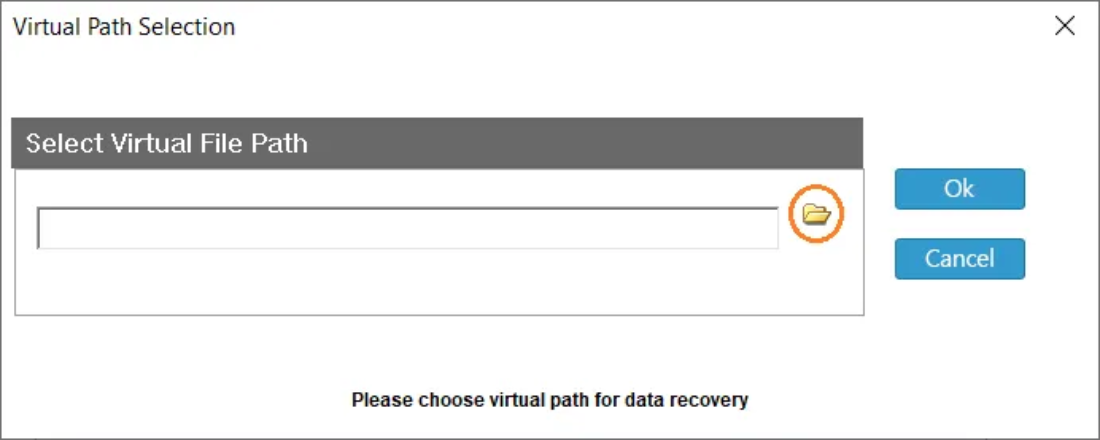
- Open the tool on your host machine.

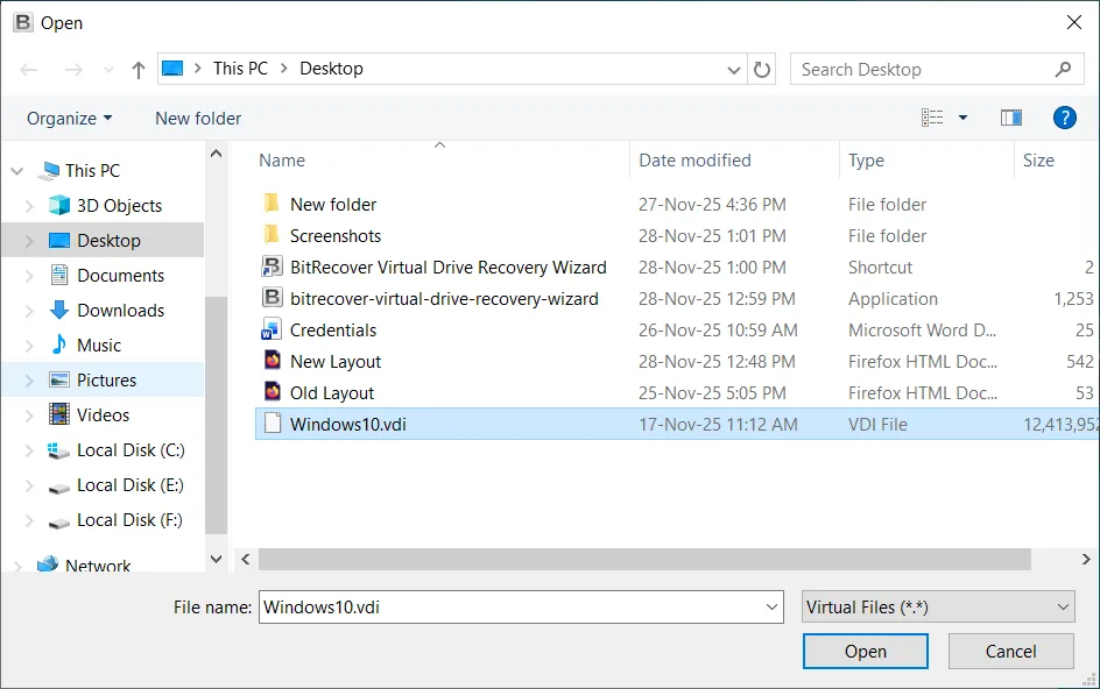
- Select the virtual disk file (VDI, VMDK, VHD) that VirtualBox can’t boot from.

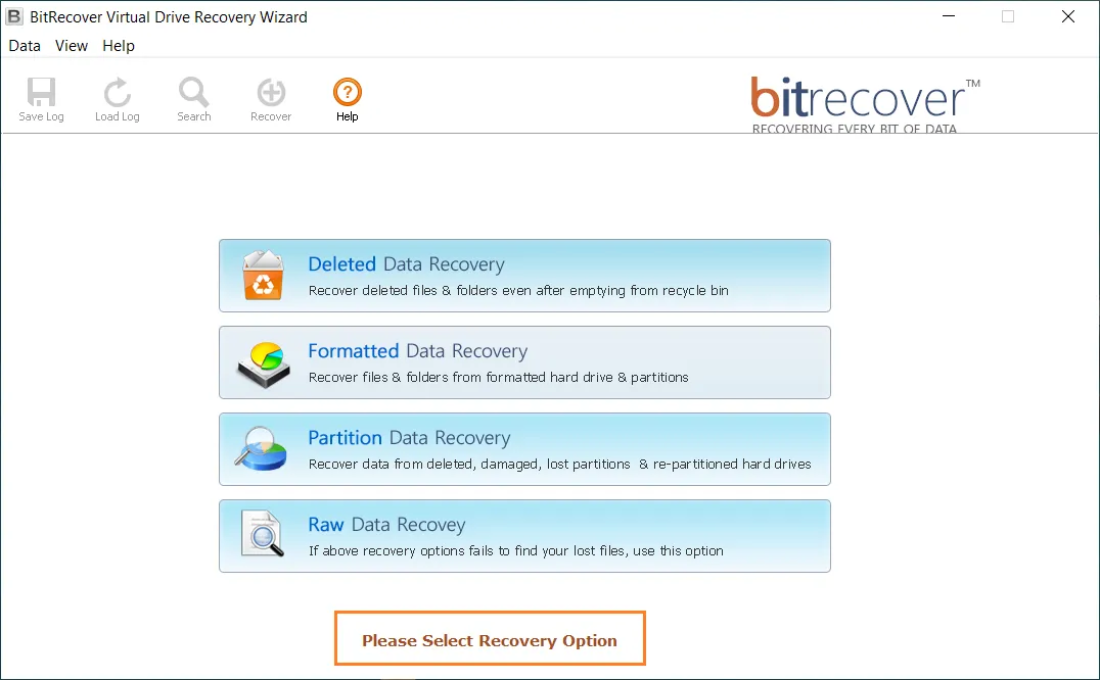
- Choose the Appropriate Recovery option for recovering data from the virtual disk file.

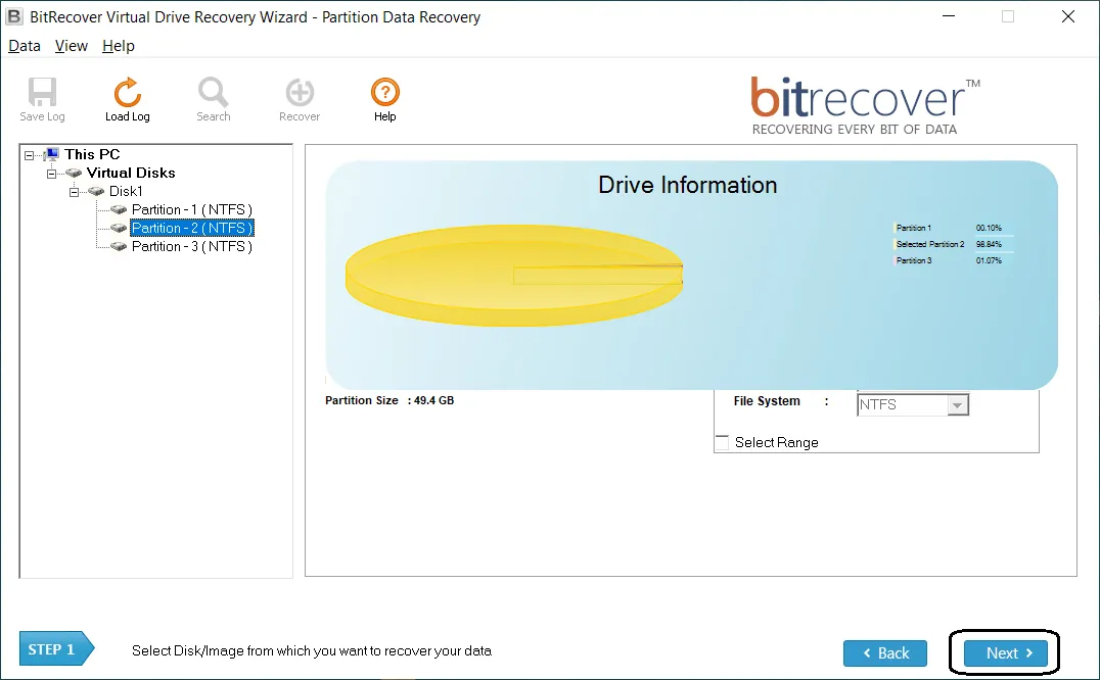
- Select & Scan the Drive Partition and wait while the software finds recoverable files.

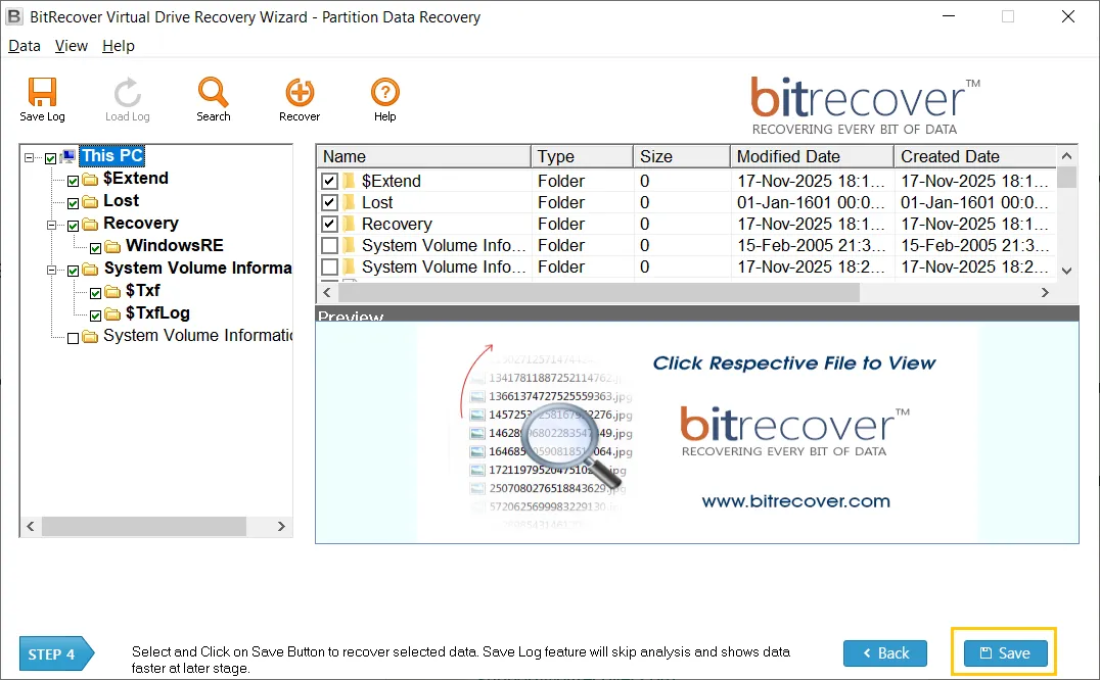
- Preview results and choose the files or folders you want to save.
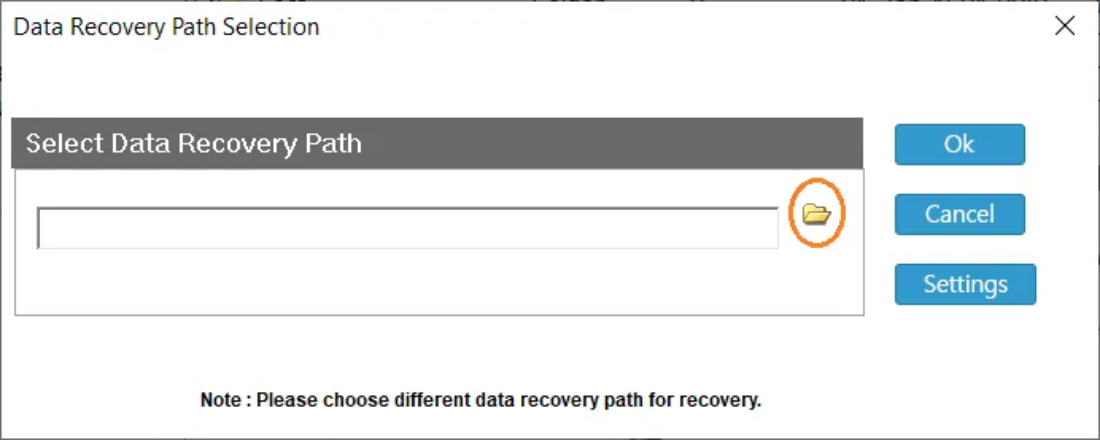
- Save recovered data to a new folder on your host.

Frequently Asked Questions (FAQ)
Q: If I get the supr3hardenedwinrespawn error, does that mean I lost my VM?
A: No way! The VM files (.vdi) will remain intact on your HDD. The error is a “gatekeeper“ error; the software cannot open the files because it has an issue with the way the files are being accessed.
Q: Can I just turn “Hardening“ off in VirtualBox?
A: Absolutely not. Hardening is built into the latest versions of VirtualBox for Windows and this feature Cannot simply be toggled to off.
Q: So why did this happen after a Windows Update?
A: Windows updates usually have their DLL file updates. Therefore, if VirtualBox has not updated its “Trusted List“ to include the NEW versions of the DLL files, then VirtualBox will see these DLL files as potentially harmful and will reject them until VirtualBox has released its last patch.
Conclusion:
Dealing with the “virtual machine error in supr3hardenedwinrespawn” may prove to be a nightmare for many virtualization enthusiasts. While it looks intimidating, it is usually just a communication breakdown between Windows drivers and VirtualBox security protocols. By re-installing the VBoxDrv.inf driver or adjusting your Core Isolation settings, you can usually get back to work quickly.
However, your data is the most valuable part of the equation. If the manual fixes are becoming a rabbit hole of frustration, or if you suspect your virtual disk has been compromised by these crashes, BitRecover provides the safety net you need to extract your files and move on with your day.